

How do I… Connecting other software
 Connect Planning Center
 to text the people on your Planning Center People lists. Each Planning Center list you choose fills a MojoTxt list made for it, matched by mobile number, and the sync keeps it up to date. Once you're connected, the boxes where you search for a person also find people in Planning Center. It's included on every plan, and you can use it during your free trial.
MojoTxt reads your lists from Planning Center. It only changes something in Planning Center when you ask it to, such as fixing a name or a phone number from a list's sync details.
Connect Planning Center
You need Account Settings access to connect.
- Open Integrations under Account & Billing. Planning Center is the first tab.
- Press Connect Planning Center. Planning Center opens. Sign in if it asks you to.
- Approve the connection.
- You come back to MojoTxt. The tab shows Connected, the name of your Planning Center organization, and who approved it. If you have no synced lists yet, the form to sync one opens by itself.
Your account connects to one Planning Center organization. If you later sign in to a different one, MojoTxt asks before it switches. Switching removes your synced lists, and the people on them stay on your MojoTxt lists. Cancel keeps everything as it was.
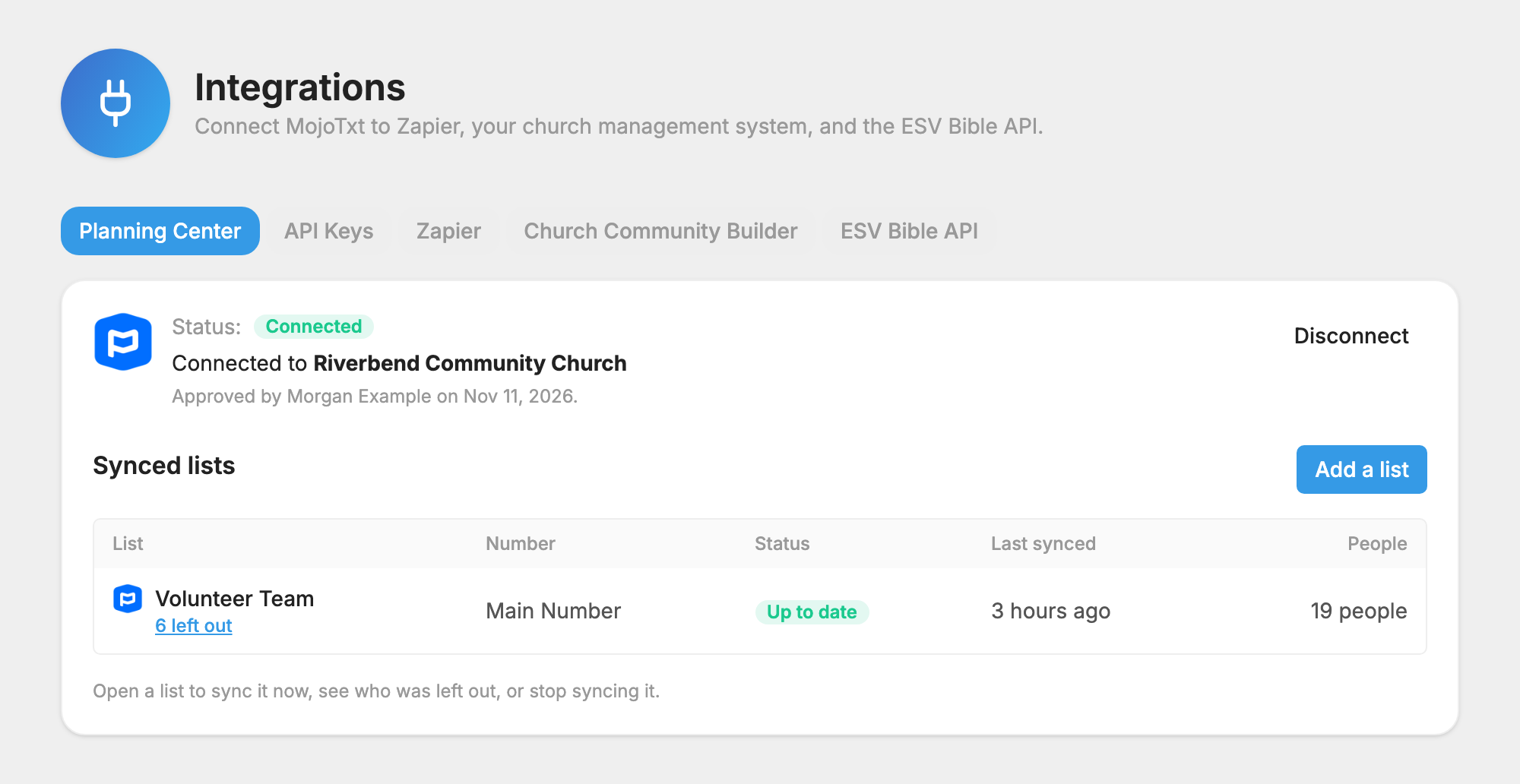
Below the connection, Synced lists shows each synced list with its Number, Status, Last synced time and  People. A list with people left out, or with a problem, has a short note under its name, such as "2 left out" or "See what went wrong". Click the list's name or its note to open the list. Everything about one list's sync is on the list itself.
Sync a list
A synced list is always a new MojoTxt list, made for one Planning Center list.
- Open
 Subscription Lists and press New List.
- Choose A list synced with Planning Center.
- Choose the Planning Center list. Each one shows how many people are on it, and how often it refreshes in Planning Center when it does so on its own. If you have many lists, type in Search your Planning Center lists to find one.
- Check the New list name. MojoTxt fills in the Planning Center list's name, and you can change it.
- Tick both boxes, the same two as a spreadsheet import. One says your organization has permission to text every person on this list. The other says you understand that unsolicited texts break United States law and will end your account without a refund.
- Press Create and sync.
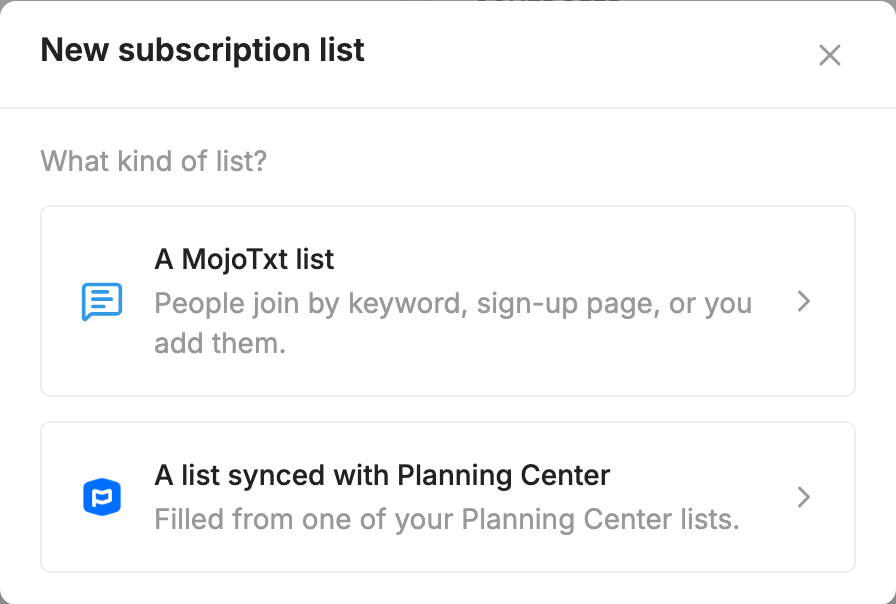
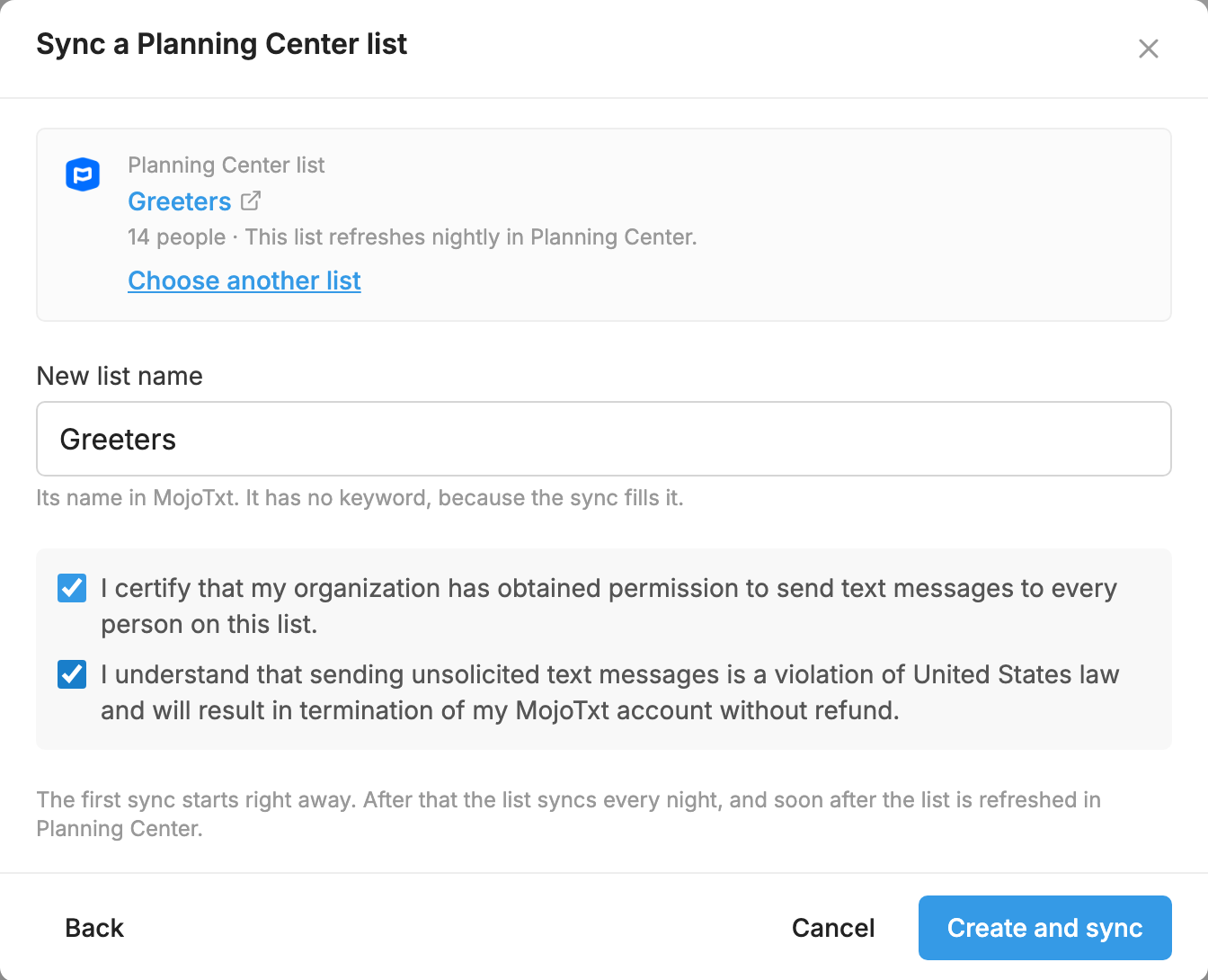
You can also press Add a list on the Planning Center tab of Integrations. It's the same form. If your account has more than one number, choose the Texting number there.
You land on the new list's Members tab and the first sync starts right away. The list's card shows it working, then how many people were added, with a Send them a message button.
Each Planning Center list can fill one MojoTxt list. MojoTxt syncs Planning Center lists, not Groups or Services teams. To text a group or a team, make a list of those people in Planning Center People and sync that list.
What makes a synced list different
Only the sync puts people on a synced list, so it always matches the Planning Center list. That means a synced list has:
- No keyword, welcome message, welcome questions or sign-up page. Its
 Settings tab has only its name.
- No Add member or Import on its Members tab. To add someone, add them to the Planning Center list.
- The Planning Center mark beside its name on the Subscription Lists page. Point at the mark to see which Planning Center list fills it. Click it to open the list's sync details.
You write to a synced list from  Messages like any other list, and it can have automations.
The list's sync card
The card at the top of a synced list's Members tab is where you look after its sync. It shows:
- Synced from Planning Center and the Planning Center list's name. Click the name to open that list in Planning Center.
- The status, such as Up to date, and when it last synced, such as "Last synced 2 minutes ago".
- Sync now, to sync it yourself.
- Sync details, with how many people were left out beside it.
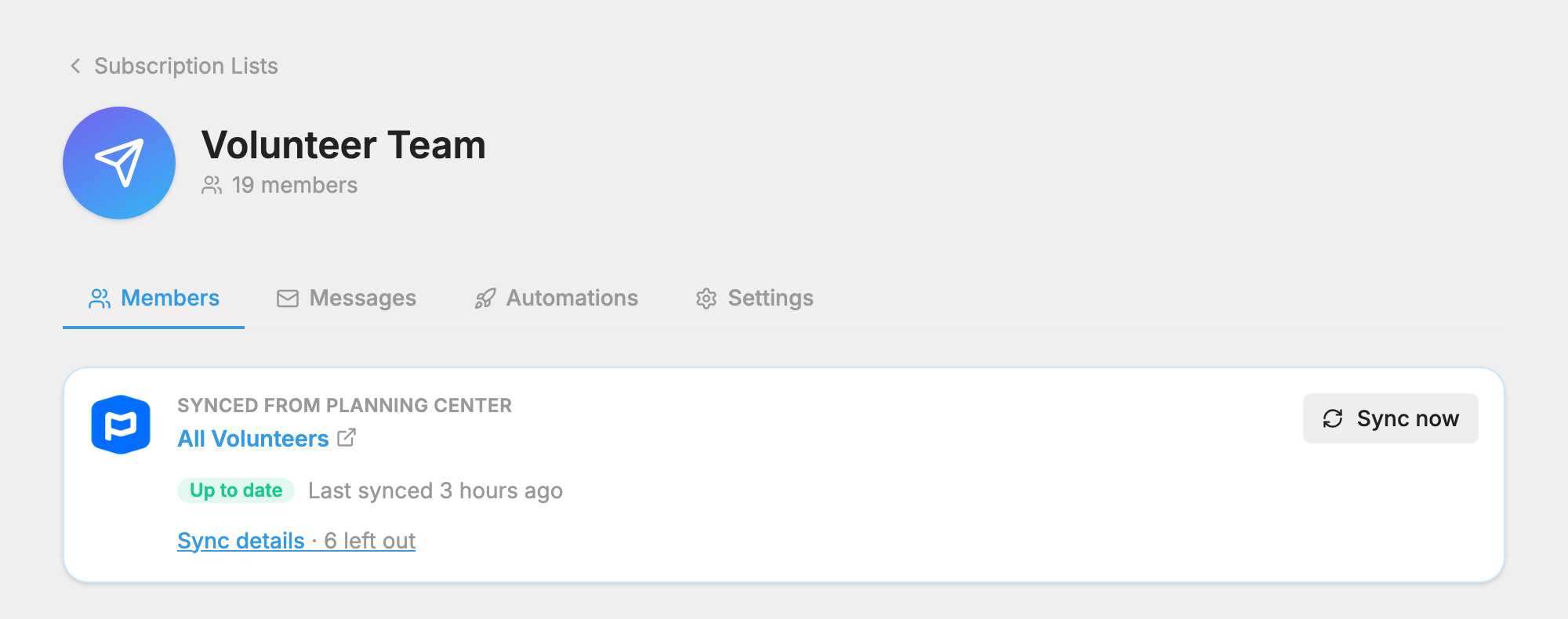
While a sync runs, the card shows what it is doing, such as "Adding people 12 of 38". When it finishes while you're watching, it says how many people were added, or why nobody was.
If something is wrong, the card says so in one line, such as "Syncing is paused until Planning Center is reconnected." The details are in Sync details.
Sync now
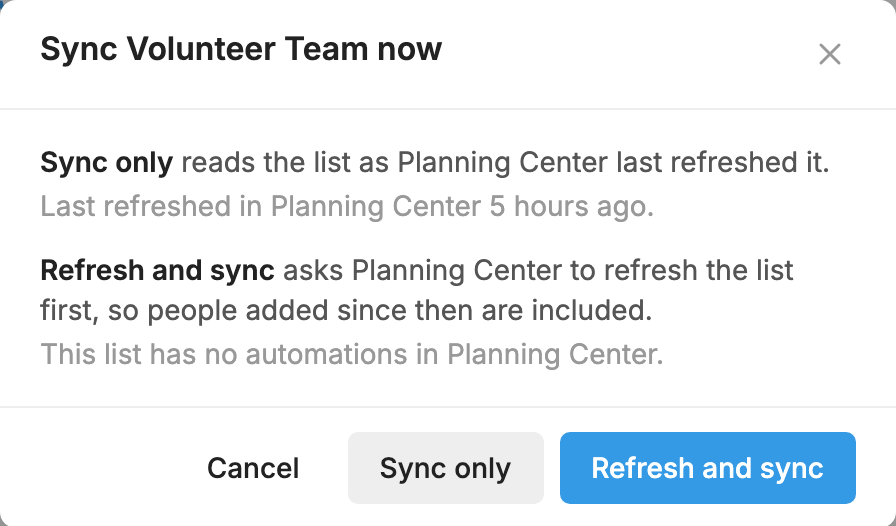
Press Sync now and choose how:
- Sync only reads the list as Planning Center last refreshed it. The box says when that was.
- Refresh and sync asks Planning Center to refresh the list first, so people added since then are included.
Sync details
Press Sync details on the card. A panel opens with the list's name at the top. From top to bottom:
- Any problem, and what to do about it.
- Three numbers: On the Planning Center list, On this list and Left out. They always add up. Under them, a line says what the last sync changed, such as "2 people added and 1 removed at the last sync."
- You can fix these: people you can put on the list from here.
- Check these names: people whose name in Planning Center isn't their name in MojoTxt.
- Nothing to do: people who are left out on purpose.
- A footer with when the list last synced and when Planning Center last updated it.
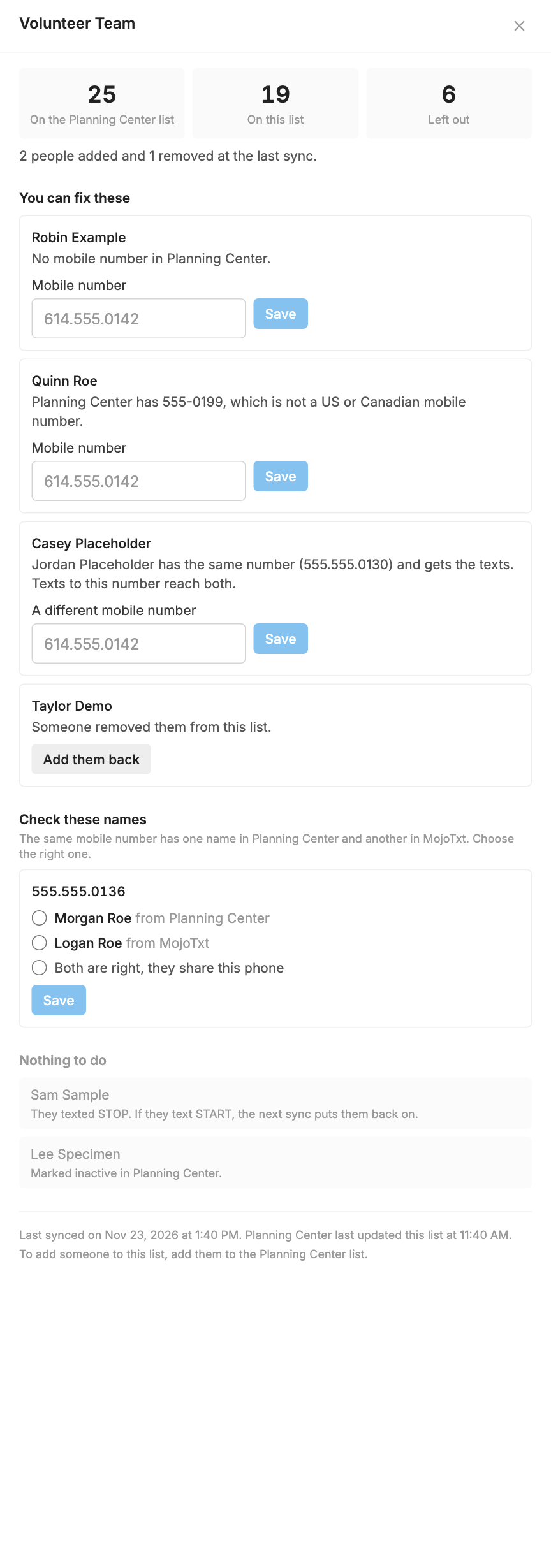
When nobody is left out, the panel says "Everyone on the Planning Center list is on this list."
You can fix these
Each person has a card with their name, the reason in one sentence, and what you can do.
- No mobile number in Planning Center. Type it in Mobile number and press Save.
- The number in Planning Center isn't a US or Canadian mobile. The card shows the number Planning Center has. Type the right one and press Save, and MojoTxt corrects it in Planning Center.
- Someone else on the Planning Center list has the same number. The card says who, because texts to that number reach both of them. Type A different mobile number and press Save.
- Someone removed them from this list. Press Add them back.
Saving a number changes it in Planning Center, either adding it as the person's Mobile number or correcting the wrong one, and puts them on this list right away. Before anything changes, MojoTxt checks the new number the way the sync would. If the number texted STOP, is blocked, or belongs to someone you deleted from People, nothing changes anywhere and the card says why.
If Planning Center won't let MojoTxt make the change, usually because the person who connected can't edit people there, the card says so and offers Fix in Planning Center, which opens the person in Planning Center.
Add them back puts the person back on the list at once, and later syncs treat them like anyone else. It won't add someone who has texted STOP, is blocked or was deleted from People, or who wasn't on the Planning Center list at the last sync.
Check these names
Sometimes one mobile number has one name in Planning Center and another in MojoTxt, often because family members share a phone. Each card shows the number and three choices:
- The name marked from Planning Center. MojoTxt renames its person to match.
- The name marked from MojoTxt. MojoTxt renames the person in Planning Center, after you confirm with Rename in Planning Center. This choice needs a first and a last name in MojoTxt.
- Both are right, they share this phone. Nothing changes.
Choose one and press Save. Your answer counts on every synced list, and the card comes back only if one of the names changes.
Nothing to do
These people are left out on purpose, so there is nothing to fix here. Each one says why: they texted STOP, their number is blocked, texts to them kept failing so MojoTxt unsubscribed them, someone deleted them from People, they left this list themselves, or they're marked inactive in Planning Center. The first 5 show, then a Show all link with the count.
When lists sync
- Every night, shortly after 4:00 AM in your account's time zone.
- Soon after Planning Center refreshes the list, whether it refreshes on its own schedule or someone refreshes it there.
- When you press Sync now on the list's card.
Syncs that run on their own read each list as Planning Center last refreshed it. They never ask Planning Center to refresh it, because that would run the list's automations in Planning Center. So someone you add in Planning Center reaches MojoTxt once the list is refreshed there. To include them sooner, press Sync now and choose Refresh and sync.
If a sync can't finish, the list's card and the Integrations table show Problem, and MojoTxt tries again on its own. If a list still hasn't synced a day later, the people with Account Settings access get an email that links to the list.
Who is added
- MojoTxt uses the number labelled Mobile in Planning Center. If there isn't one, it uses the person's primary number. Only US and Canadian numbers can be used.
- Someone already in People with that number is put on the list, without a second copy. Anyone new is added to People.
- When two people on the Planning Center list share a number, the first one on the list gets it.
- Children are added when they're on the list.
People the sync adds don't get a welcome message, because a synced list has none. Your next message may be the first they hear from this number, so put your organization's name in it and tell them how to stop, such as "Reply STOP to opt out."
Automations
A synced list's automations start for people a later sync adds, the same as someone who joins any other list. The people the first sync brings in never start them, so setting up a big list doesn't send a wave of automated texts. Someone who comes back to the list, after texting START or through Add them back, doesn't start them again.
Who is left out
The sync never adds these people, even when they're on the Planning Center list:
- People who texted STOP to your number. See STOP, START and taking someone off.
- Numbers you blocked.
- Numbers that were unsubscribed automatically after texts to them kept failing.
- People you deleted from People.
- Anyone who was taken off this list in MojoTxt.
- Anyone who left this list themselves from their own settings page.
- People who are inactive in Planning Center.
- People with no number MojoTxt can use, or who share a number with someone earlier on the list.
Each one is counted under Left out in the list's sync details, with the reason.
When someone leaves the Planning Center list, the next sync takes them off the MojoTxt list. They stay in People.
STOP, START and taking someone off
- Someone texts STOP. They stop getting your texts, including this list's, and the sync counts them as left out.
- They text START later. If they're still on the Planning Center list, the next sync puts them back on. See Opting Back In After STOP.
- Someone leaves this list themselves from their own settings page. See Let people manage their settings. The sync won't add them back, and texting START doesn't change that.
- You take someone off. Click the X on their row on the Members tab, select them and choose Unsubscribe, or press Unsubscribe beside the list under Subscriptions on their page in People. The sync won't add them back for as long as they're on the Planning Center list.
- You change your mind. Open Sync details and press Add them back beside their name.
Names and email
- For people the sync added to MojoTxt as new people, the name and email come from Planning Center, and later changes there are copied over at each sync.
- For people who were already in MojoTxt, the sync only fills in a first name, last name or email that is blank.
- A blank in Planning Center never erases anything in MojoTxt.
- When the names don't match, the list's sync details ask you which one is right. See Check these names.
Find people from Planning Center
Once you're connected, these search boxes also look in Planning Center:
- Add member on a list's Members tab.
- New conversation in
 Conversations.
- Add subscriber in a daily program.
- People under Send to when you write a message.
- Add Person in People.
Type at least 2 letters of a name, or an email. A phone number works when you type all of it or its last few digits. Your own people show first. Below them, a Planning Center group shows up to 8 people from Planning Center, each with the Planning Center mark and their mobile number.
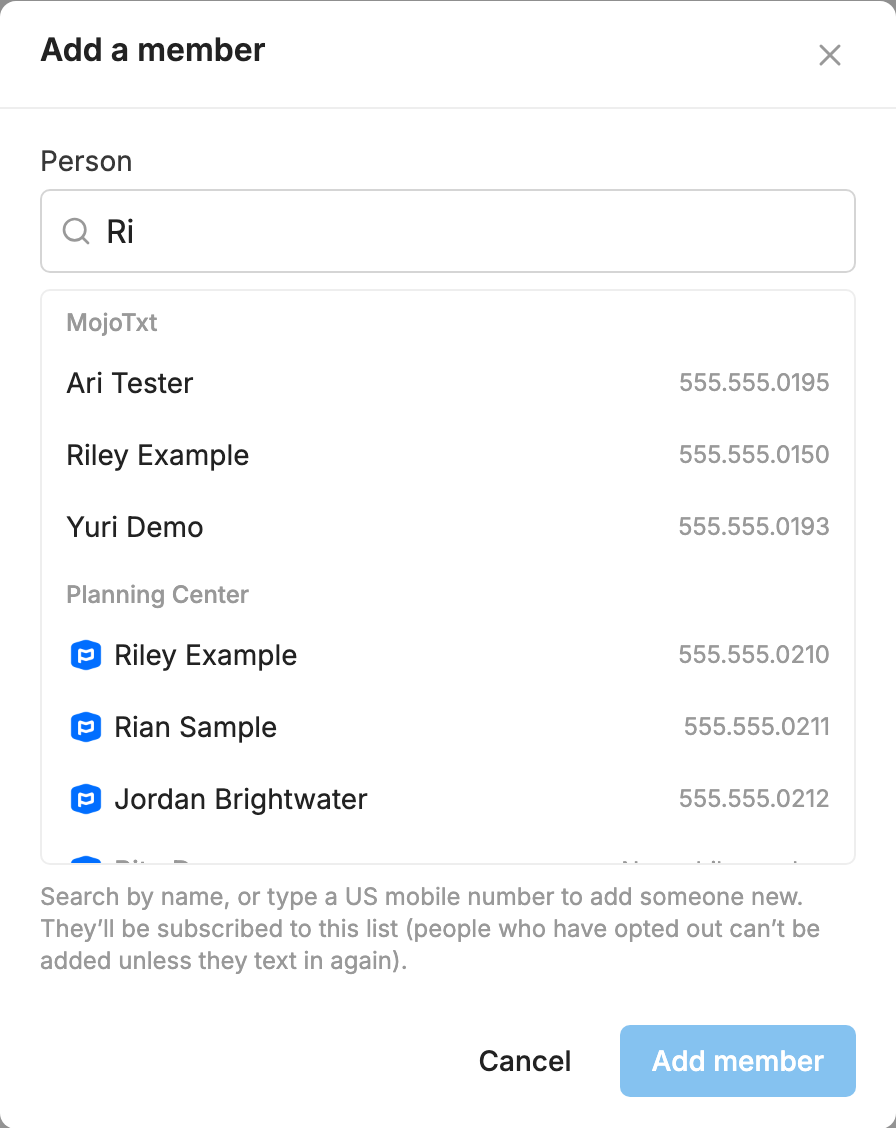
- Someone with no US or Canadian mobile number shows No mobile number and can't be picked.
- People already on your number appear only in the first group.
- Inactive people in Planning Center don't appear.
- If Planning Center is slow to answer, the group doesn't show. Search again or type the number.
Picking someone from the Planning Center group fills them in as if you had picked them from your own people. If their number is new to your account, they're added to People right away, with the name and email Planning Center has, and they stay in People even if you cancel. You still finish as usual, for example by pressing Add member or sending the message, and the usual rules for opted-out and blocked numbers apply.
In Add Person, picking someone adds nobody yet. It fills in their mobile number, First name, Last name and Email, which you can change. Then tick the consent box and press Add person as usual.
Searching never changes anything in Planning Center.
Text people from Planning Center in a free trial
You can connect Planning Center and sync lists during a free trial. When you first log in, choose Text people from Planning Center under "What do you want to do first?" Your dashboard then lists three steps:
- Connect Planning Center.
- Sync a list. It opens New List ready to choose a Planning Center list.
- Send a message to your synced list. It opens a new message with your synced list chosen.
During a free trial, texts go only to your own phone, and only the sync puts people on a synced list. So pick a Planning Center list that you're on yourself, with your mobile number, to see the message arrive. If you aren't on it, the message box says so. Add yourself to the list in Planning Center, then press Sync now on the list.
Stop syncing, delete or disconnect
- Stop syncing one list: open the list's Settings tab and press Stop syncing under Planning Center sync, then Stop syncing again to confirm. The list stays, with its people, as an ordinary MojoTxt list. It has no keyword until you give it one in its settings.
- Delete a synced list: press Delete list on its Settings tab. Syncing ends, and the list and its members are deleted. See Delete a list.
- Disconnect: press Disconnect on the Planning Center tab of Integrations, then Disconnect to confirm. Syncing pauses for every list, and everyone stays on their lists. Your setup is kept: the tab shows your paused lists, and when you reconnect the same organization with Reconnect Planning Center, they pick up where they left off.
None of these change anything in Planning Center.
Who can do what
- Account Settings access is needed to connect, reconnect, disconnect, switch organizations and create a synced list.
- Anyone who manages a synced list can see its sync details, press Sync now, use the cards under You can fix these and Check these names, and stop syncing it. Some of those cards change Planning Center.
- Anyone who can use a search box above sees the Planning Center group in it.
See Users and access.
If something doesn't look right
- A list is missing when you choose a Planning Center list. The person who connected can't see it in Planning Center, or it already fills another MojoTxt list. Share it with that person in Planning Center, or disconnect and connect again as someone who can see it.
- Someone is missing from your list. Open Sync details and look for them under Left out. If they were just added in Planning Center, press Sync now and choose Refresh and sync.
- The sync details say Planning Center could not refresh this list. The sync used the list as it was at its last refresh. If the person who connected isn't allowed to refresh it, refresh it in Planning Center yourself and press Sync now, or connect as someone who can.
- The Planning Center tab shows Needs reconnecting. Planning Center access was removed or expired, and your lists don't sync until you reconnect. Press Reconnect and sign in to the same Planning Center organization. The people with Account Settings access also get an email about it.
- Planning Center did not give MojoTxt access to People. Connect again as someone who can see People in Planning Center.
For the other integrations, see Integrations and API.
