

How do I… Donations
 Choose a Payment Service
To accept donations through MojoTxt, you need an account with a payment service. The payment service charges your donors, stores their payment information, and deposits the money in your bank account.
MojoTxt doesn't add a transaction fee to donations. Your payment service charges its own fees, so compare them before you choose. See our pricing page.
This is separate from your MojoTxt bill. The card you pay MojoTxt with is under  Payment Method.
Your choices
| Service | Getting an account | How people can give |
|---|---|---|
| Stripe (recommended) | Create one from the Payment Services page, or connect one you already have. | Card |
| Nelnet Payment Services (formerly PaymentSpring) | Apply with Nelnet from the Payment Services page, then enter your API keys. | Card or checking account |
| BluePay | Use an existing BluePay account. Enter your BluePay Account ID and Secret Key. | Card or checking account |
Connect a service
- Open Payment Services.
- On the card for your service, follow the steps. For Stripe, press Create An Account or Connect Account.
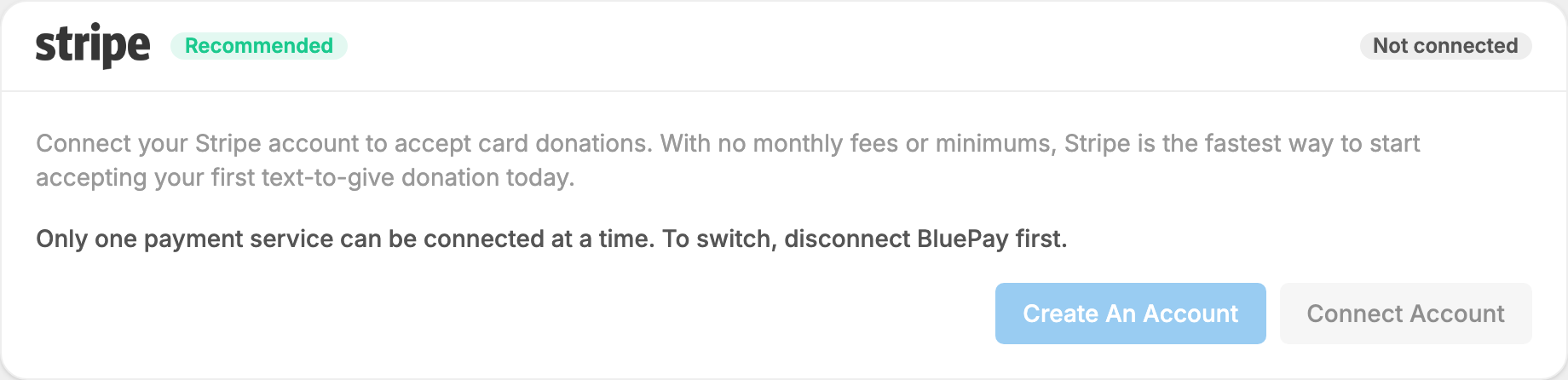
Step-by-step directions for each service are in Payment Services.
Turn off test mode
With no service connected, donations always run in test mode: nothing is charged and scheduled gifts are paused. Connecting your first service doesn't change that. When you're ready for live gifts, turn off the switch on the Test mode card. The card reads Live when donations are being charged.

Change to a different service
You can connect one payment service at a time. To change, press Disconnect on the connected card, then connect the new one.
