

Sending
 Automations
 send a message on their own to each person who joins a list. Use them for a welcome series, a reminder a few days later, or a follow-up the next week. To send one message to everyone at once, use  Messages instead.
Set up an automation
- Click
 Automations under Sending in the left-hand column.
- Click New automation.
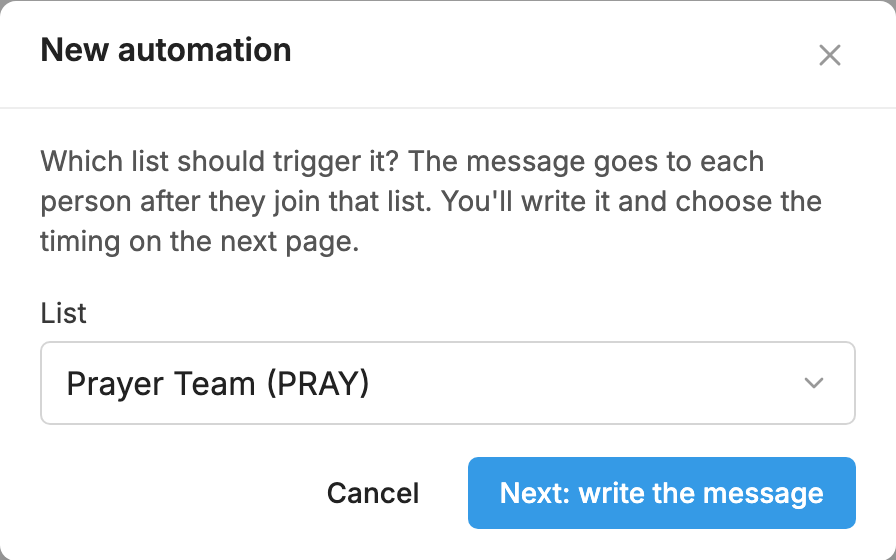
- Choose the List whose new subscribers should get it, and click Next: write the message. From a list's own Automations tab, the list is already chosen.
- Write the message.
- Under When to send, choose a timing.
- Click Create automation.
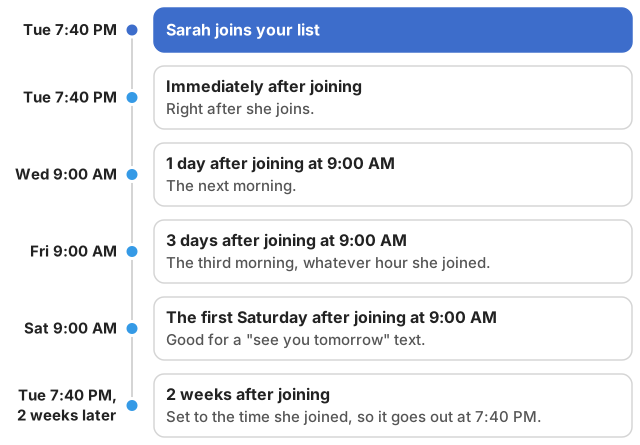
To build a series, add one automation for each step, each with its own timing.
Choose when it sends
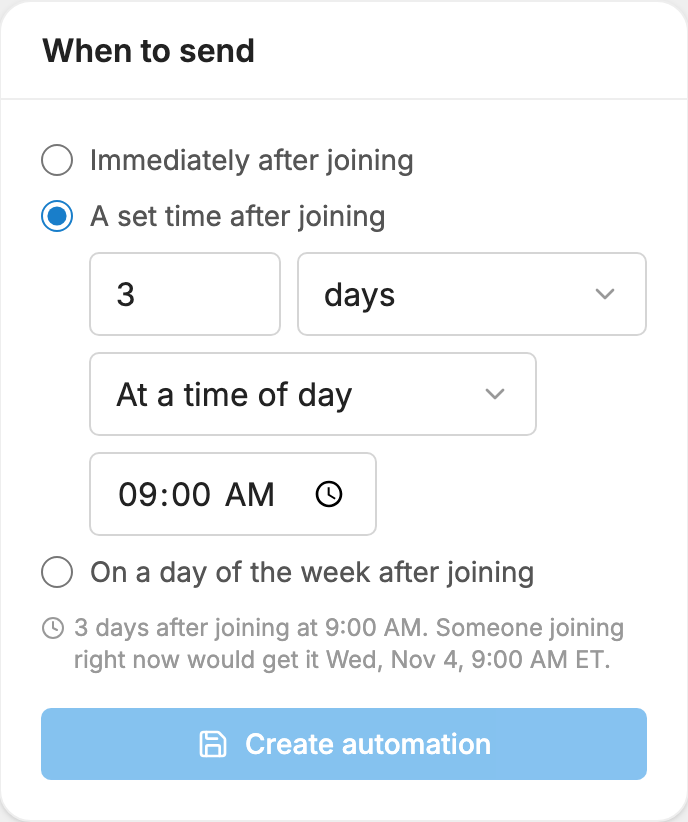
There are three choices under When to send. The line under them says the timing in plain words and shows when someone joining right now would get the message. Times are in your account's time zone.
Immediately after joining
The message goes out right after the person joins.
A set time after joining
Enter a number and choose minutes, hours, days, weeks, months or years.
For days, weeks, months and years, choose one of these:
- At a time of day: "3 days after joining at 9:00 AM" goes out on the third morning after they join, whatever hour they texted in. New automations start at 1 day after joining, at 9:00 AM.
- At the time they joined: the exact time they joined, that many days later. Someone who joined at 11:40 PM gets it at 11:40 PM.
Minutes and hours always count exactly from the moment they join.
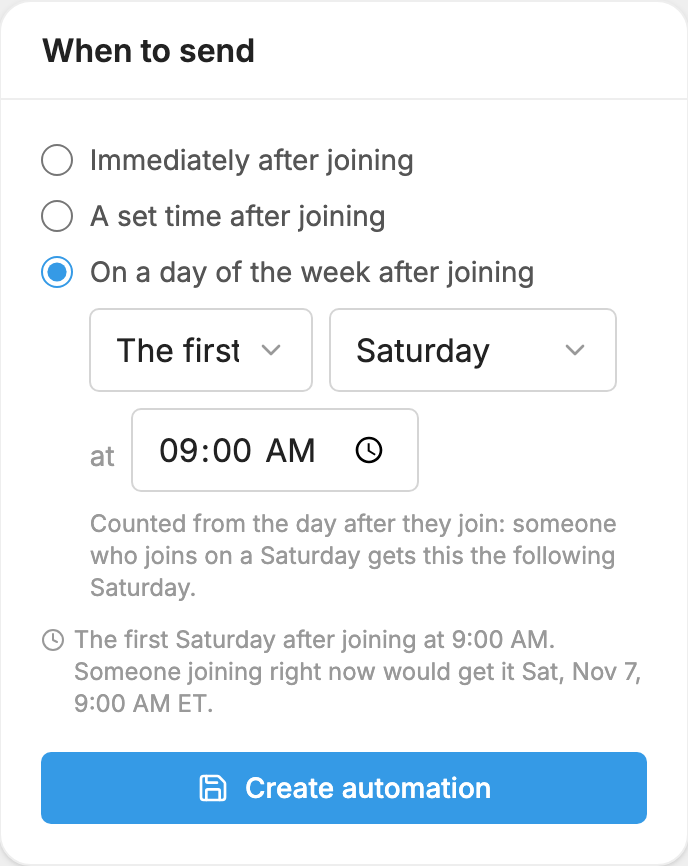
On a day of the week after joining
Choose The first, The second, The third or The fourth, then a day of the week and a time. For example, "the first Saturday after joining at 9:00 AM" works well for a "see you tomorrow" message before Sunday.
The count starts the day after they join. Someone who joins on a Saturday gets a "first Saturday" message the following Saturday.
Who gets it
- People who join the list count. That includes people who text the keyword and people you add yourself. If the list asks people to confirm, the time counts from when they confirm.
- People already on the list can get it too. A new automation reaches anyone whose send time has not passed yet. If you add a "3 days after joining" message today, someone who joined yesterday gets it in 2 days. People whose time has already passed do not get it.
- Each person gets each automation once. Someone who leaves the list and rejoins does not get it a second time.
- Some people are skipped. Anyone who has left the list, texted STOP, or been blocked by the time it is due does not get it.
Each copy uses credits when it goes out, like any message. See Credits and message length.
Write the message
The message box works like the one for regular messages, so name tags, attachments, links, saved messages and Help me write are all here too.
Two things are different:
- The name-tag counter assumes a 10-letter name, because nobody has joined yet. A longer name may add to the cost of that person's copy.
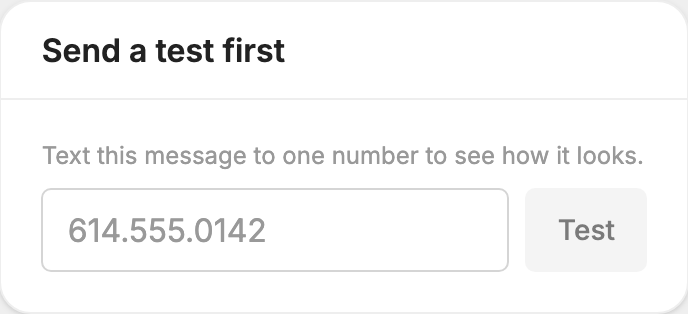
- The test box is a plain number box. Type a number under Send a test first and click Test.
The Automations page
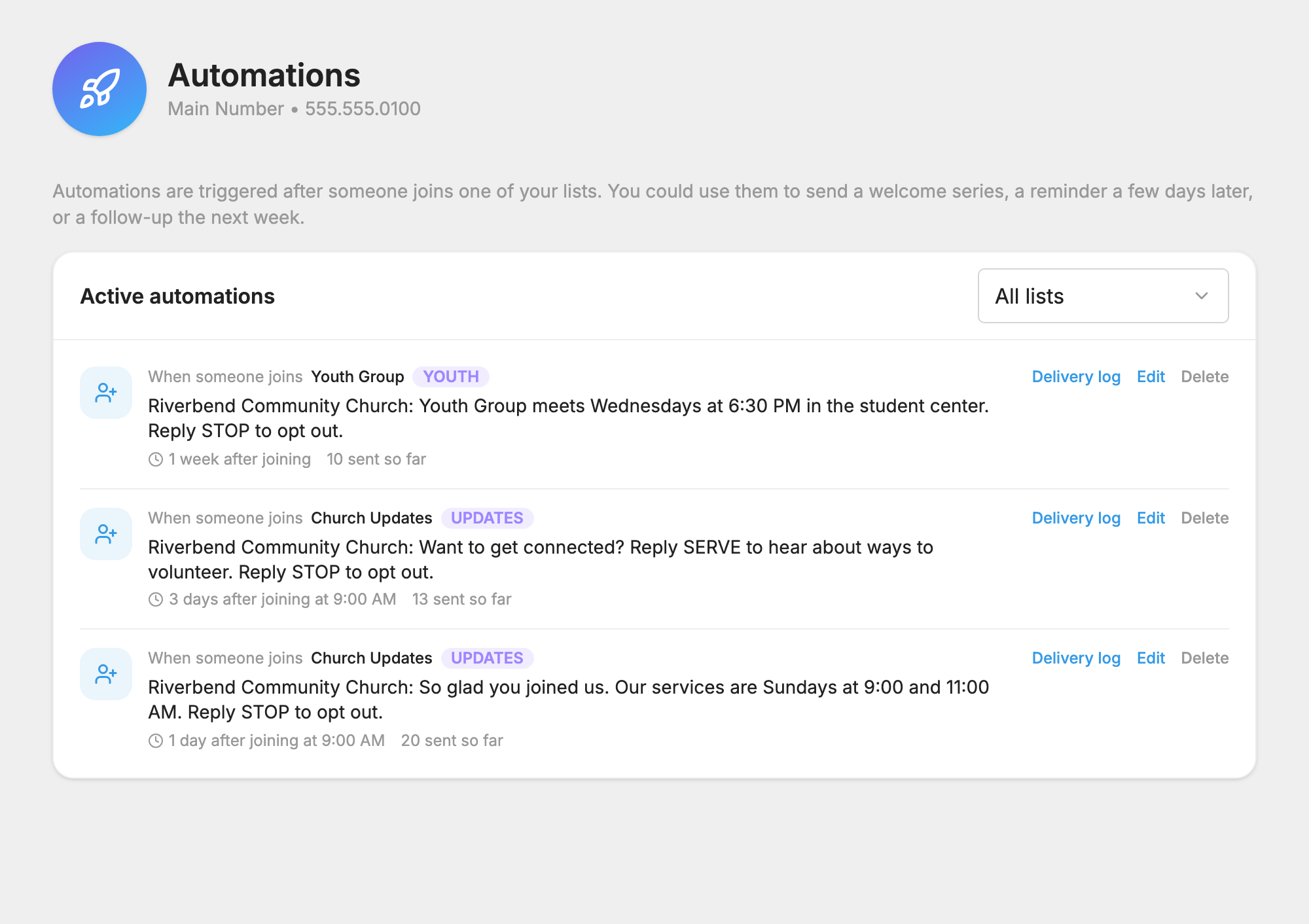
The Active automations box lists every automation on your number. Each row shows the list that starts it, the keyword, when it sends, the message, and how many have gone out.
Pick a list in the box at the top to see only that list's automations. A list's own Automations tab opens this page filtered to that list.
- Delivery log shows who received it. It works the same way as a message's report.
- Edit opens the automation, where you can change the wording and timing. Click Save changes when you are done.
- Delete asks you to confirm with Delete automation. New subscribers will no longer receive it. Messages already sent aren't affected.
Automations made before times of day were added keep sending at the time each person joined. Open one and choose At a time of day whenever you like.
