

Your account
 User Settings
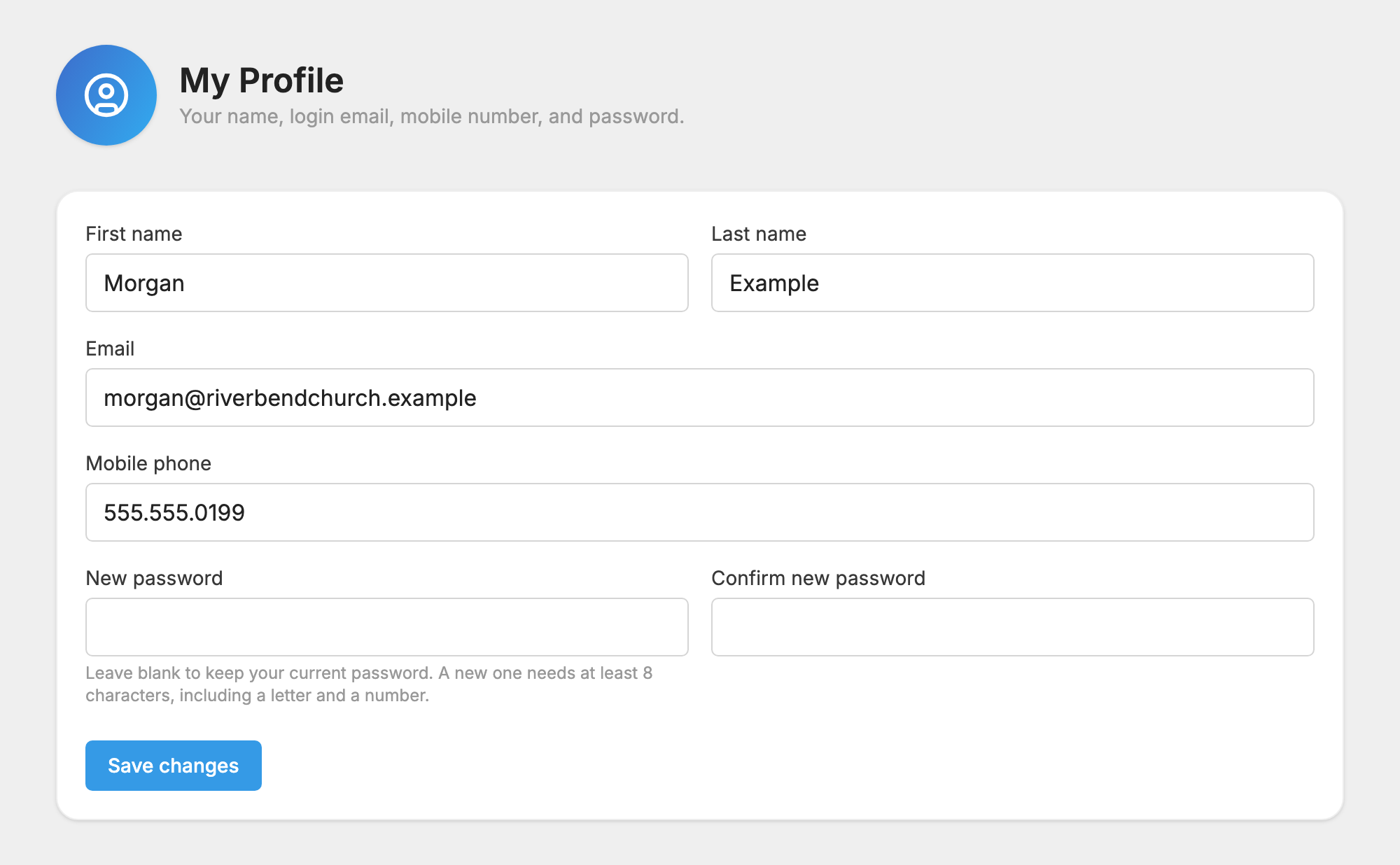
Everyone with a MojoTxt login has their own My Profile page. It holds your name, the email you sign in with, your mobile number and your password. You don't need any special access to use it, and nobody else can change your email or password for you.
Change your profile
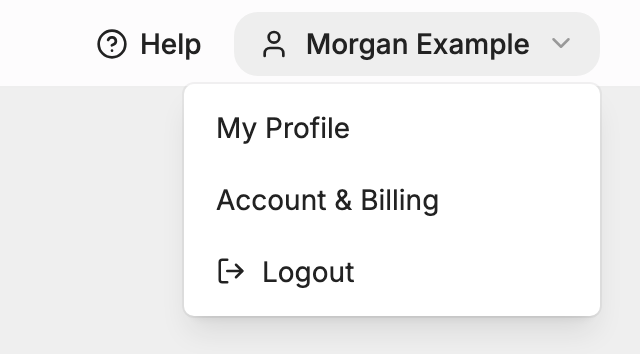
- Click your name at the top right of any page.
- Choose My Profile.
- Change your First name, Last name, Email or Mobile phone.
- Press Save changes.
The Email box is the address you sign in with, so when you change it, use the new address the next time you log in. Each email address can belong to only one login. If yours is taken, you see "Another user is already using this email address."
Change your password
- On My Profile, type your new password in New password and again in Confirm new password.
- Press Save changes.
A new password needs at least 8 characters, including a letter and a number. Leave both boxes blank to keep your current password.
If you forgot your password
- On the sign-in page, click Forgot password?
- Enter your email and press Send reset link.
- Open the email and follow the link within 1 hour to choose a new password.
An account administrator can't set a password for you. If you were invited and never set one, ask them to press Resend invite, as Users and Access explains.
Signing in
- Stay logged in on the sign-in page keeps you signed in on that device.
- Sign in with Google works when your Google email matches your MojoTxt login email. If it doesn't, you see a message saying no MojoTxt account is linked to that Google email. Sign in with your email and password instead.
- To sign out, click your name at the top right and choose Logout.
Settings for the rest of your account
My Profile is only about your own login. Your organization's details are on Account & Billing, and what each person can see is on Users and Access.
The settings page for people on your lists
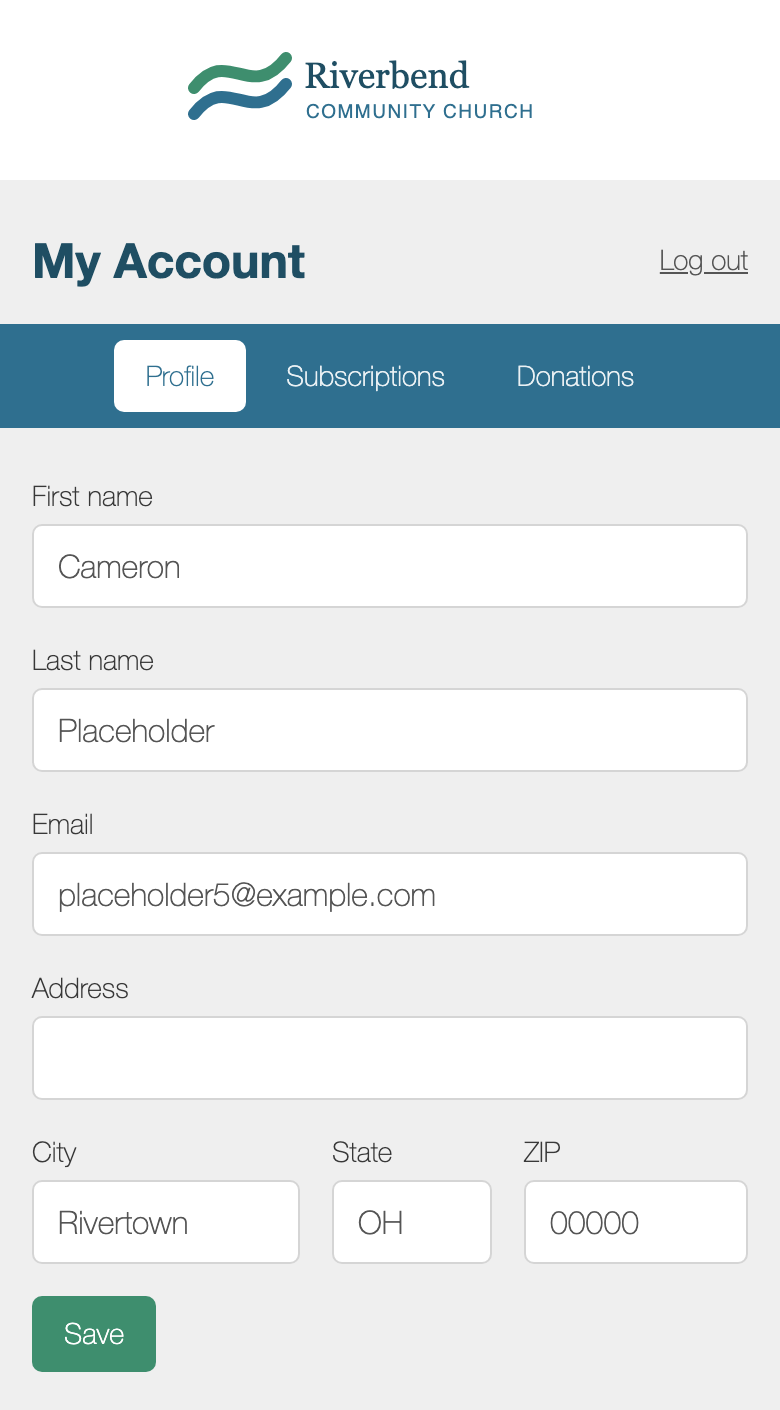
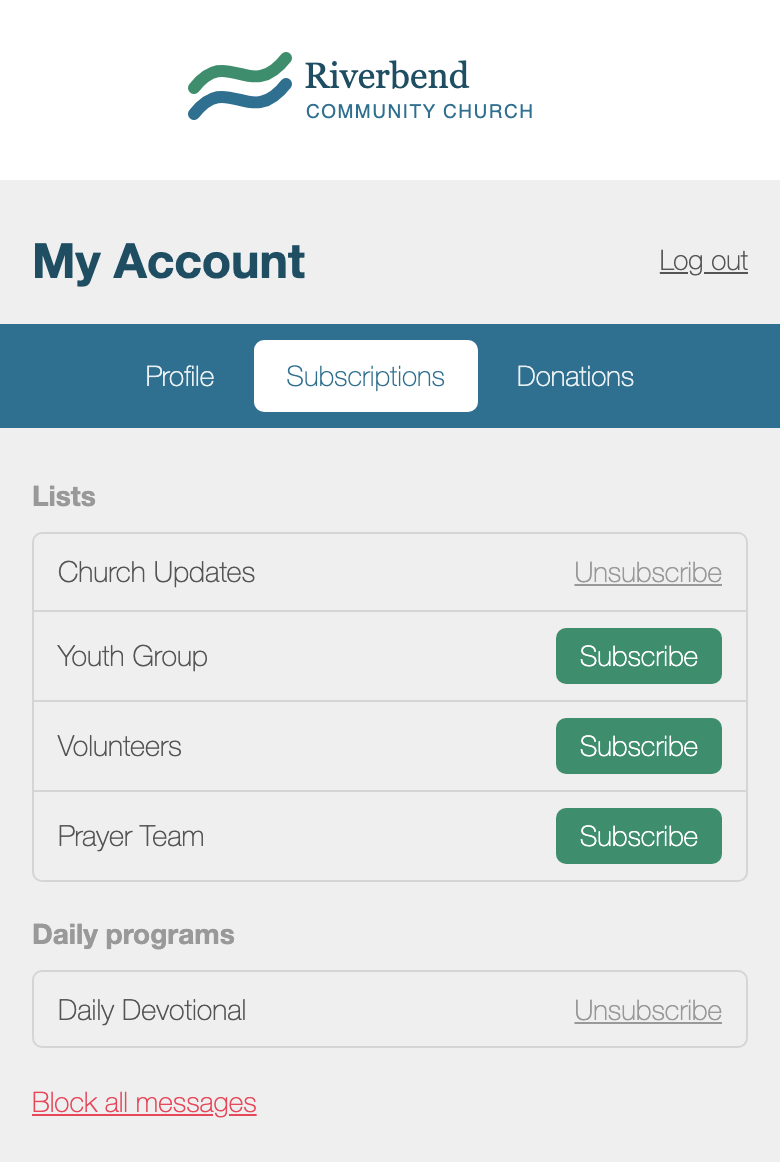
People who text your number have a settings page of their own, called My Account. No login is needed: they get a private link by text. There they can update their name and contact details, manage their subscriptions, make a donation and more.
Anyone can text one of these words to your number to get the link:
- SETTINGS: opens the page.
- PROFILE: opens Profile, to view and update contact information.
- SUBSCRIBE, JOIN or SUBSCRIPTIONS: opens Subscriptions, to join or leave a list or daily program.
- DONATIONS: opens
 Donations, to change repeating gifts and see giving history.
- DONATE or GIVE: starts a donation by text.
The donation words work only if you have created at least one donation fund. If you use one of these words as your own keyword, your keyword takes its place.
To put the link in a message or automation, choose Their profile / settings under Add a link (optional). Each person gets their own link. See  Messages.
