

Tools
 Donations
 lets people give to your organization by texting a keyword to your number. They can pay by card, or by bank account with some payment services, and they can make the gift repeat.
Set up giving
- Connect a payment service on the
 Payment Services page. Until you do, donations stay in test mode and no money moves. See Payment Services.
- Click
 Donations under Tools in the left-hand menu, or open Donations.
- Click New Fund.
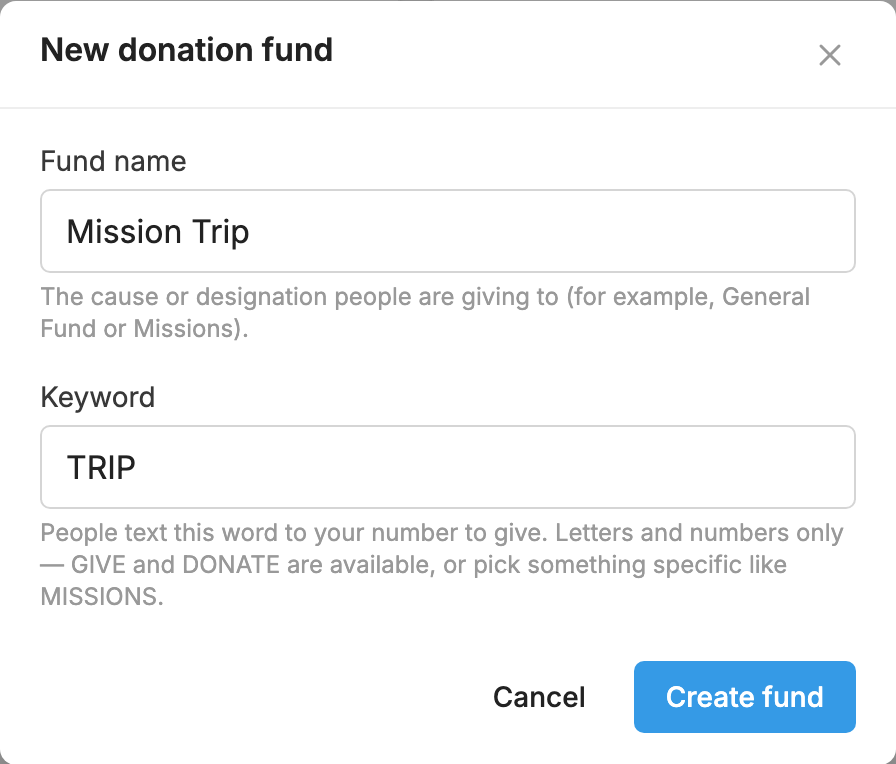
- In Fund name, type what people are giving to, such as General Fund or Missions.
- In Keyword, type the word people will text to give.
- Click Create fund. You land on the fund's
 Settings tab.
- Check the Thank-you message, then click Save changes.
You may also want to set up  Branding, so the giving page shows your logo and colors.
Funds
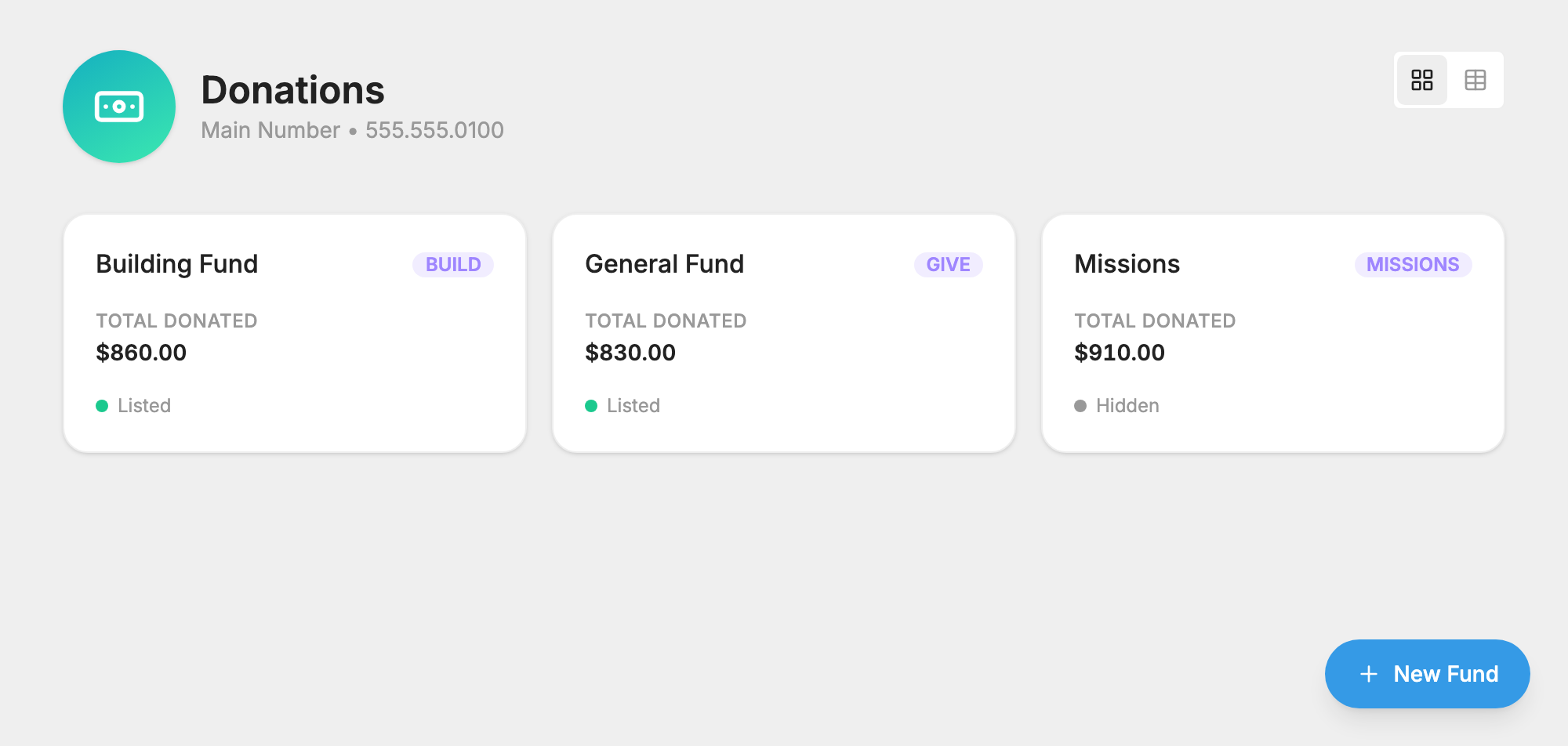
A fund is one thing people can give to, with its own keyword, such as General Fund, Missions or Building. Create as many as you need. Every gift is recorded against its fund.
The Donations page shows each fund with its keyword, its total and whether it's Listed or Hidden. Click a fund to open it. Each fund has three tabs: Donations, Scheduled and Settings.
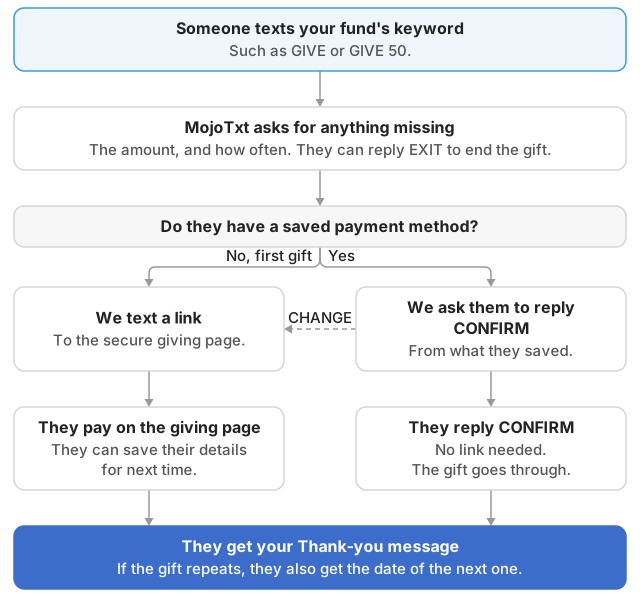
How giving by text works
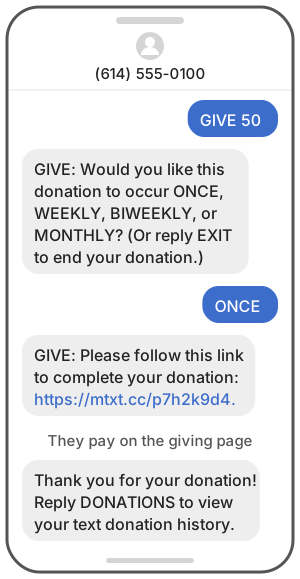
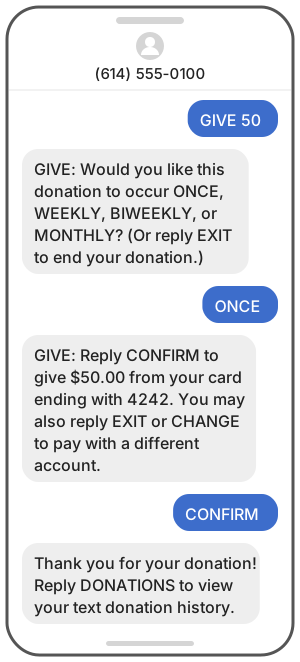
Someone texts your fund's keyword to your number. They can add the amount, and how often to give, in the same text:
- GIVE starts a gift, and MojoTxt asks for what it needs.
- GIVE 50 gives $50.
- GIVE 50 monthly gives $50 every month.
If something is missing, they get a question by text:
- The amount. They're asked "How much would you like to donate?" unless the fund has a Default amount. Gifts can be from $1 to $5,000.
- How often. They're asked to reply ONCE, WEEKLY, BIWEEKLY or MONTHLY, unless the fund has a Default schedule or the text already said.
- Payment. What happens next depends on whether they've given before:
- First-time givers get a link to the secure giving page.
- People with a saved payment method get a text asking them to reply CONFIRM to give from their card or account. They can also reply CHANGE to use a different one.
- Thank you. They get your Thank-you message. If the gift repeats, they also get the date of the next one.
People can reply EXIT at any point to end the gift. Don't suggest they reply CANCEL, because CANCEL unsubscribes them from everything on your number.
If someone stops partway through, they get one reminder text to finish.
Built-in giving words
People can also text GIVE or DONATE, even if you haven't made those your keywords, or just an amount such as 25 or $25.
- With one listed fund, the gift goes to that fund.
- With several listed funds, they're asked: "Which fund would you like to donate to?" with your keywords listed.
- A fund with Show this fund when people make a donation turned off isn't offered here. People can still give to it by texting its keyword.
A text of just an amount doesn't start a gift while the person is in a conversation with you. It goes to your inbox instead.
The giving page
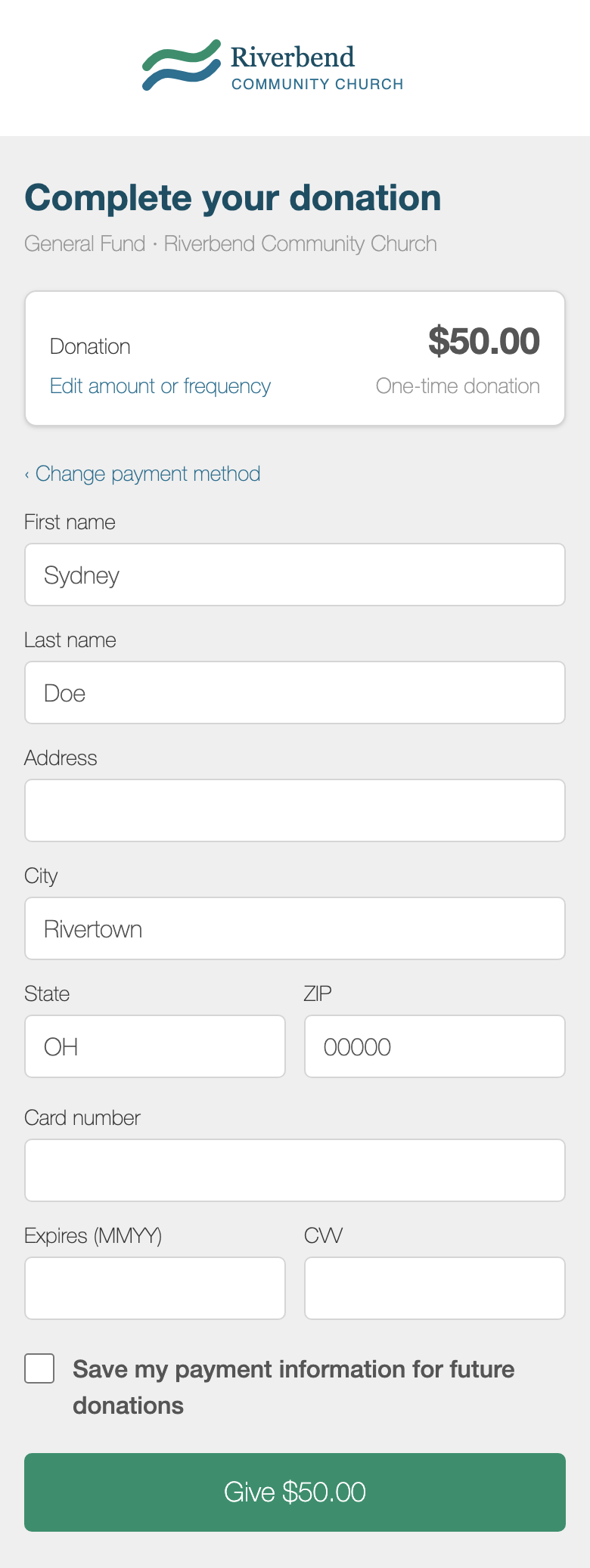
The giving page is where someone enters their payment details. People reach it from the link we text them. It shows your logo and colors, the fund and the gift.
On the page, a donor can:
- Click Edit amount or frequency to change the gift before paying.
- Choose Credit/Debit Card. With Nelnet Payment Services or BluePay they can also choose to pay from a checking account. With Stripe, the page takes cards only.
- Fill in their name, email and address.
- Tick the box to save their payment information, so they can give by text alone next time. A repeating gift needs saved payment information.
If they already have a saved payment method, the page offers to use it.
When the gift goes through, they see a thank-you on the page and get your thank-you text.
Recurring gifts
A recurring gift repeats weekly, every two weeks or monthly until it's stopped. There are three ways to start one:
- The donor adds a word to their text, such as GIVE 50 weekly.
- The donor answers WEEKLY, BIWEEKLY or MONTHLY when asked. They're asked if the fund's Default schedule is Ask donor. That's the setting to use if you want to encourage repeat giving.
- The donor chooses a frequency on the giving page.
You'll see these on the fund's Scheduled tab, with each donor's schedule, amount, next donation and last status. A status of Active means the last gift went through.
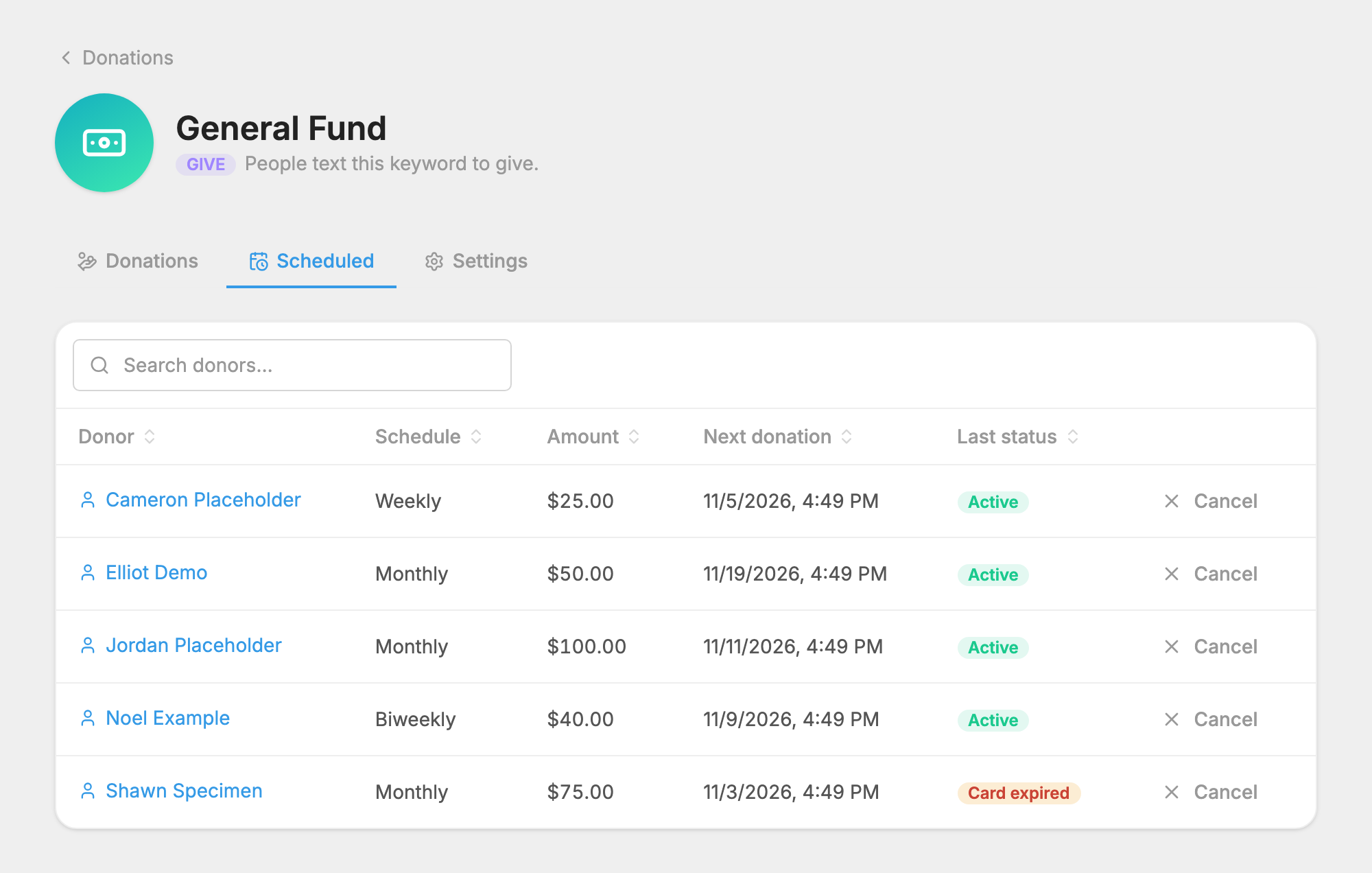
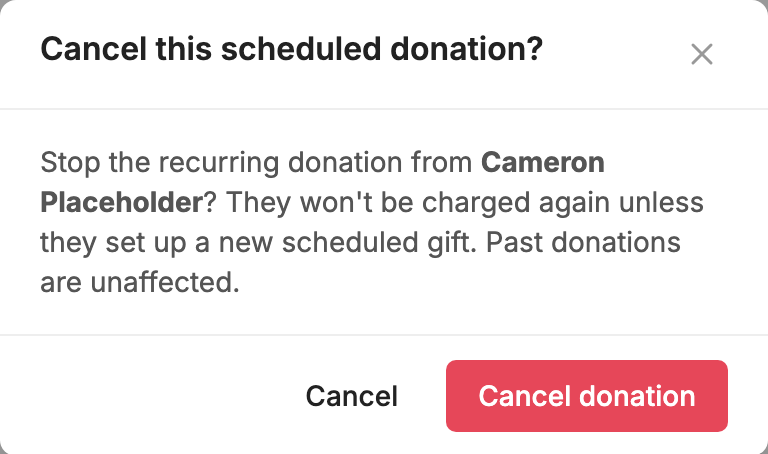
To stop one, click Cancel in its row, then Cancel donation. Past gifts aren't affected.
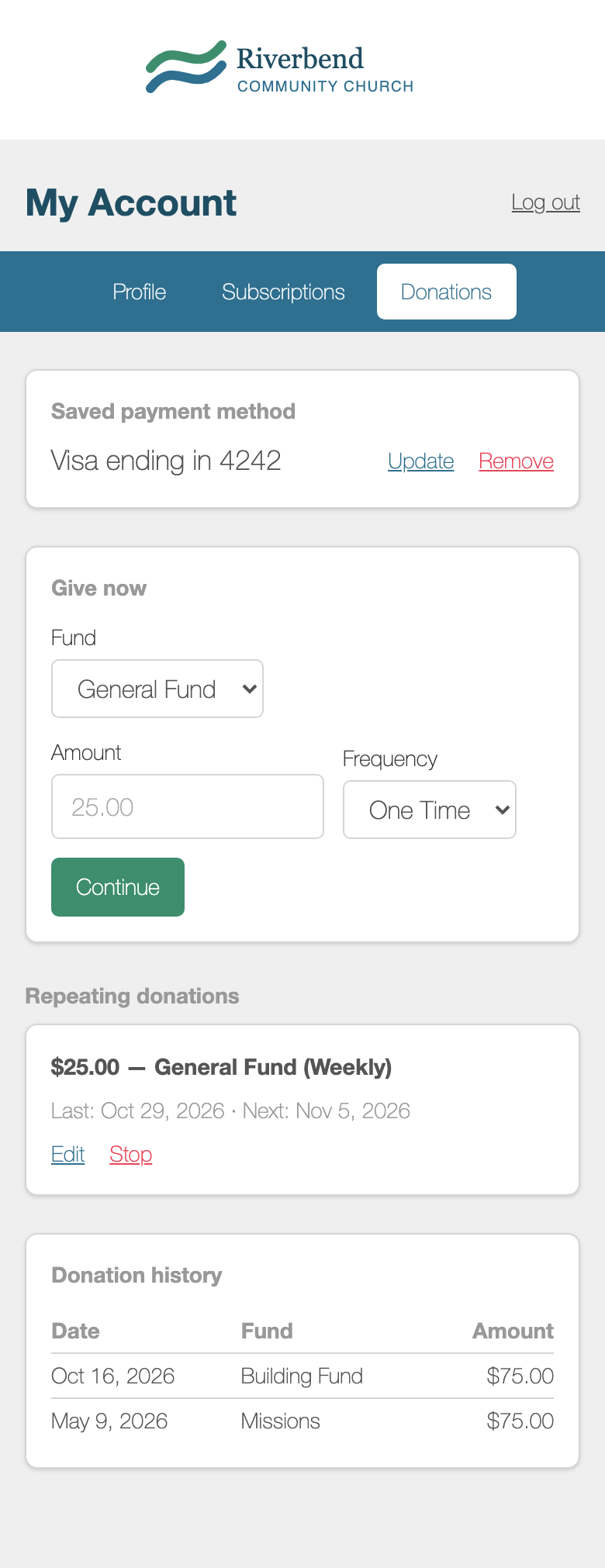
Donors can manage their own gifts. When they text DONATIONS, they get a link to a page where they can edit or stop a repeating donation, update or remove their saved payment method, make a new gift under Give now, and see their Donation history. Removing a saved payment method also stops their repeating donations.
Donors can also stop a recurring gift by text. STOP followed by the fund's keyword stops the gift to that fund. STOP by itself stops all their gifts and everything else on your number.
If a recurring gift can't be charged, the donor gets a text explaining what happened and asking them to reply CHANGE to update their payment information or EXIT to stop the gift. For some failures they can also reply RETRY.
See your donations
Open a fund to see the Donations tab. At the top are three totals: Total donated, Donations and Donors. Click View donor list to see those donors in  People.
Below that is a line for each gift, showing the date and time, the donor and the amount.
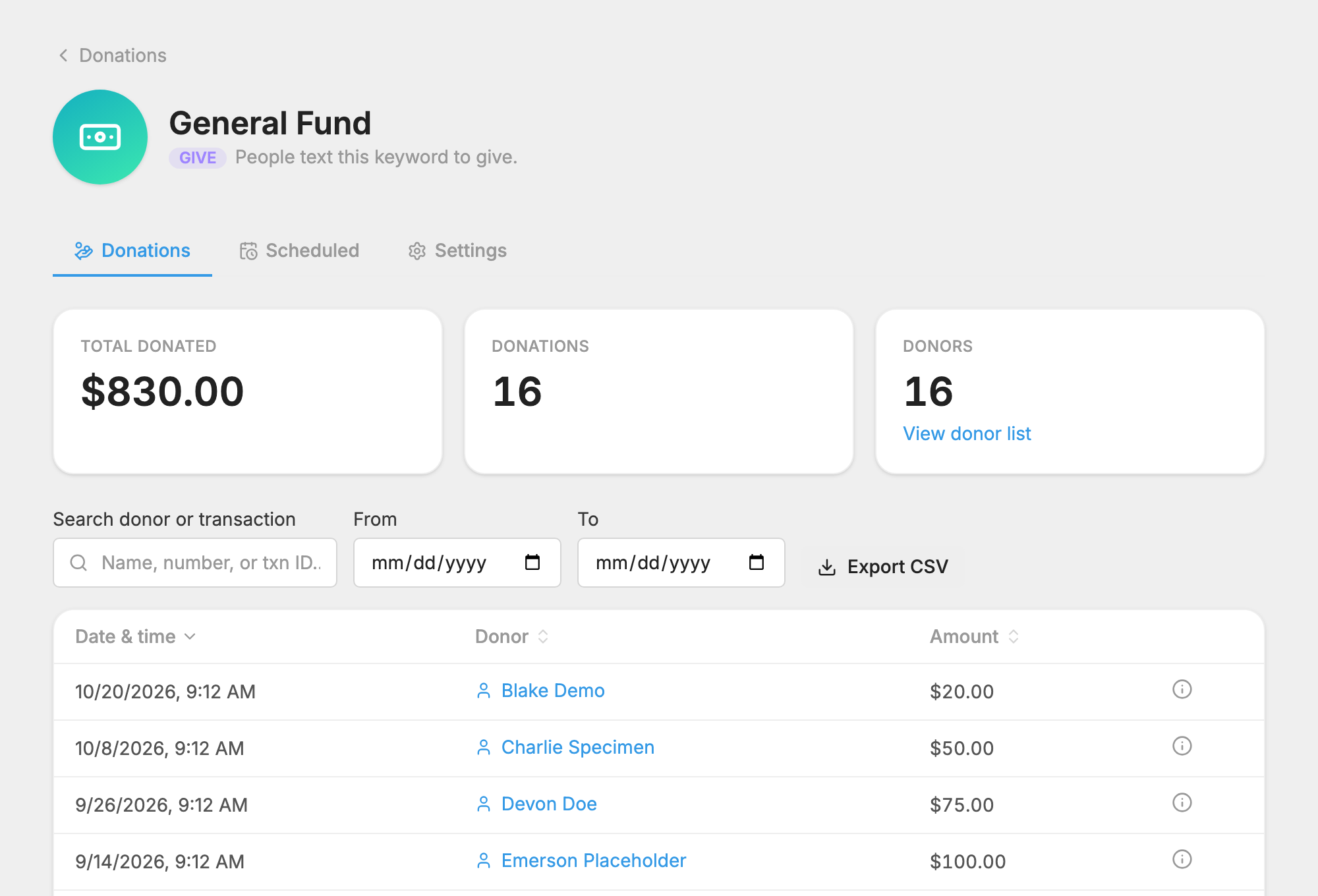
- Search with Search donor or transaction, by name, number or transaction ID.
- Use From and To to pick a date range. The totals change to match.
- Click a column heading to sort.
- Click a donor's name to open their record.
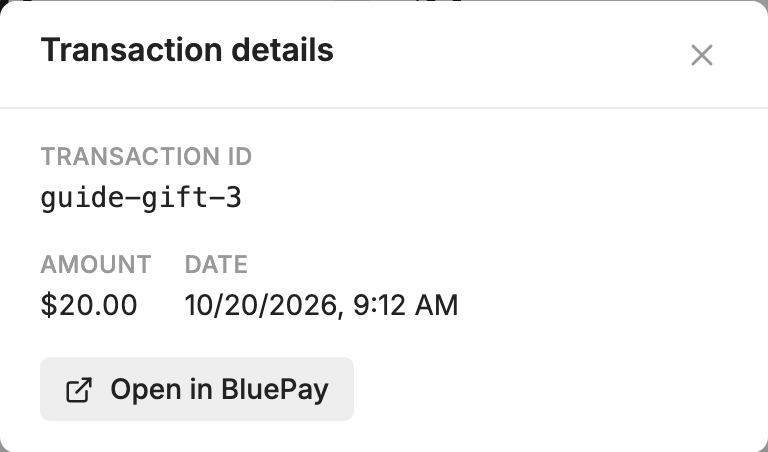
- Click the info icon in a row to see the Transaction details, including the transaction ID and a link to that payment in your payment service, such as Open in Stripe.
A gift made in test mode has a Test label beside the amount.
Export your donations
- Open the fund.
- Set a search or date range if you want only some of the gifts.
- Click Export CSV.
The file lists each gift with its date, amount, first and last name, transaction ID, donor ID, phone, address, city, state, ZIP and email. That covers what you need for receipts and thank-you letters. Each fund exports separately.
Export dates are in UTC, which can differ from your account's time zone near the start or end of a day. Check any gifts around midnight when your range matters to the day.
If your account is connected to Church Community Builder, you can also send donations there. Each fund gets a CCB fund setting, and  Export Donations appears in the left-hand menu under CCB Integration.
Fund settings
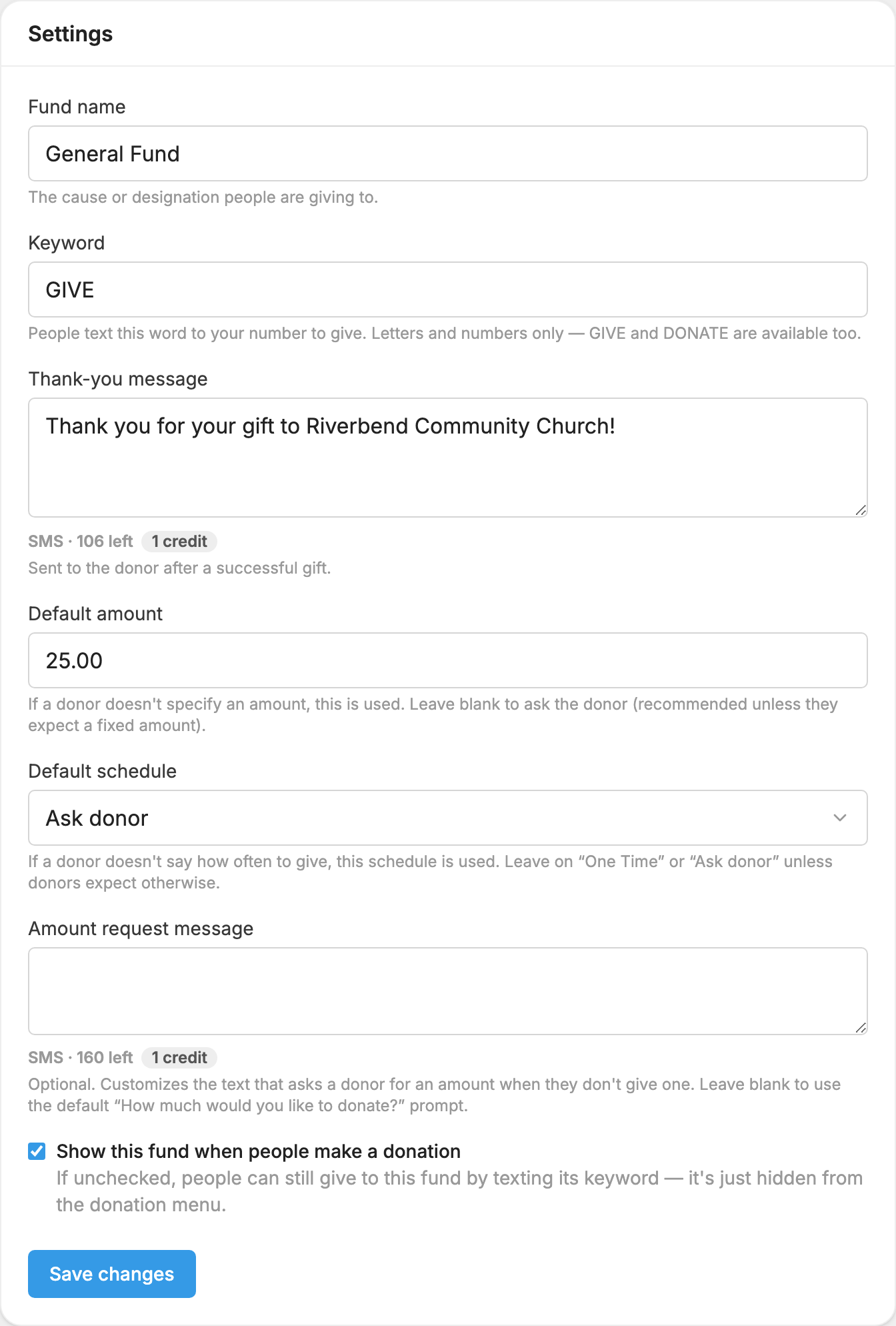
These are on the fund's Settings tab. Click Save changes when you're done.
- Fund name: the cause or designation people are giving to.
- Keyword: the word people text to give.
- Thank-you message: sent after a successful gift. The default is "Thank you for your donation! Reply DONATIONS to view your text donation history."
- Default amount: used when a donor doesn't name an amount. Leave it blank to ask them, which we recommend unless they expect a fixed amount.
- Default schedule: used when a donor doesn't say how often to give. Choose Ask donor to ask them, One Time to skip the question, or a repeating schedule if donors expect it.
- Amount request message: your own wording for the question that asks for an amount. Leave it blank to use "How much would you like to donate?"
- Show this fund when people make a donation: when this is off, the fund is hidden from the donation menu, and people can still give by texting its keyword.
- CCB fund: only shows if you've connected Church Community Builder. It sets where gifts to this fund post in CCB.
To delete a fund, click Delete fund at the bottom of this tab and confirm. Its keyword stops accepting gifts. The donation history is kept for your records, but you can't get to it here any more, so export it first.
Test mode
Until you connect a payment service, or if you've turned on test mode on the Payment Services page, your donations pages show a notice that donations are in test mode.
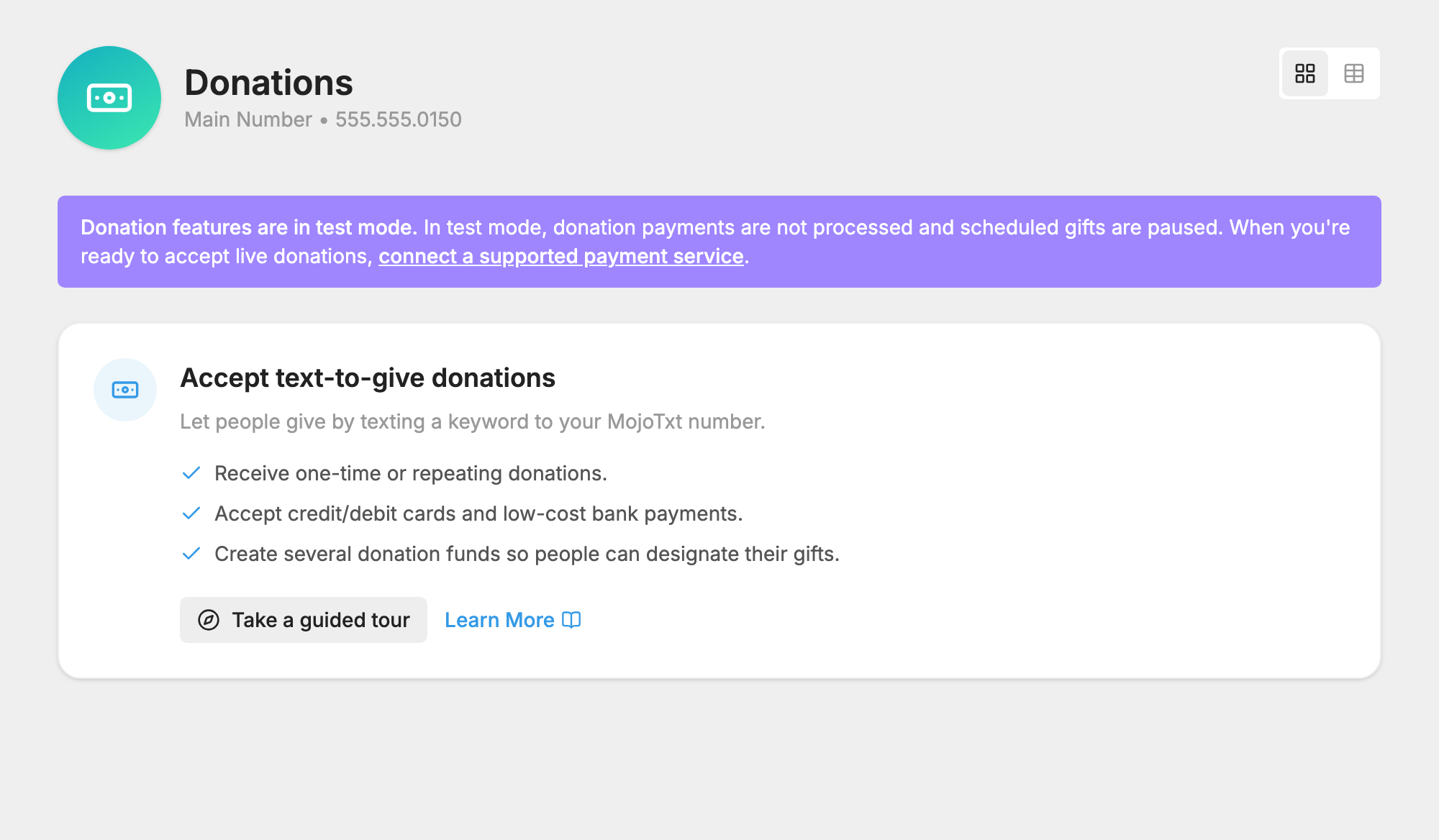
In test mode:
- No money is processed and no card is charged.
- The whole giving flow still works, so you can try it from your own phone.
- A test gift is recorded with a Test label, and the donor is told no charge was made.
- Repeating gifts can't be set up, and existing scheduled gifts are paused.
To take real gifts, connect a payment service, or turn test mode off if you already have one connected. We work with Stripe, Nelnet Payment Services (formerly PaymentSpring) and BluePay. See Payment Services.
What giving by text costs in credits
Every text in the giving exchange is a message, so each one uses credits like any automatic reply: the question for the amount, the link to the giving page, the thank-you and so on. See Credits and message length. What your payment service charges for each gift is between you and that service.
