

How do I… Lists and sign-ups
 Export Your People to a Spreadsheet
You can download your people as a CSV file at any time. It opens in Excel, Numbers or Google Sheets.
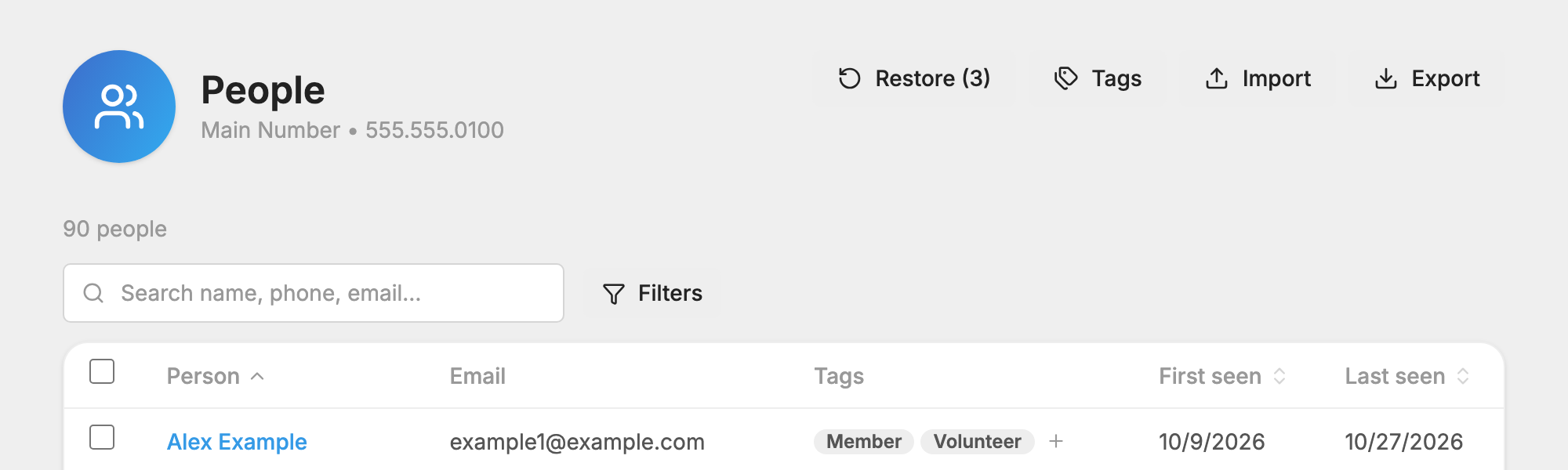
Export everyone on a number
- Open
 People.
- Press Export. On a phone, it's in the actions menu at the top of the page.
The file downloads as people.csv.
Export some of your people
- Open People.
- Search, or press Filters and choose lists, tags or donation funds.
- Check the people you want, or use the checkbox at the top of the table to select the whole page.
- Press Export in the bar that appears at the bottom.

Export one list
- Open Subscription Lists and press the list.
- Go to the Members tab.
- Press Export.

What's in the file
Each file has these columns: ID, FirstName, LastName, PhoneNumber, Address, City, State, Zip and Email.
The file doesn't show who has opted out. See Opting Back In After STOP.
Move people to a new list
If you're cleaning up your lists, you don't need to export anything:
- Open People and filter to the people you want.
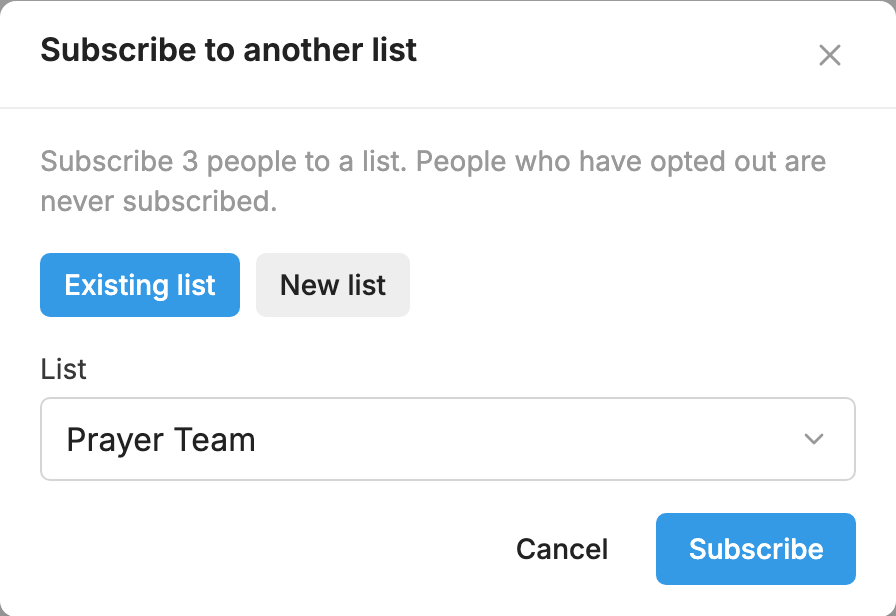
- Check them, then press Subscribe to list in the bar at the bottom.
- Choose the list. People who have opted out are skipped.
The Message Log can't be exported. You can filter it by person, list, date and status, and read it on the screen. See  Message Log.
