

How do I… Auto-responders and programs
 Change an Auto-Responder's Settings
You can change an auto-responder at any time. If you haven't made one yet, see Create an Auto-Responder.
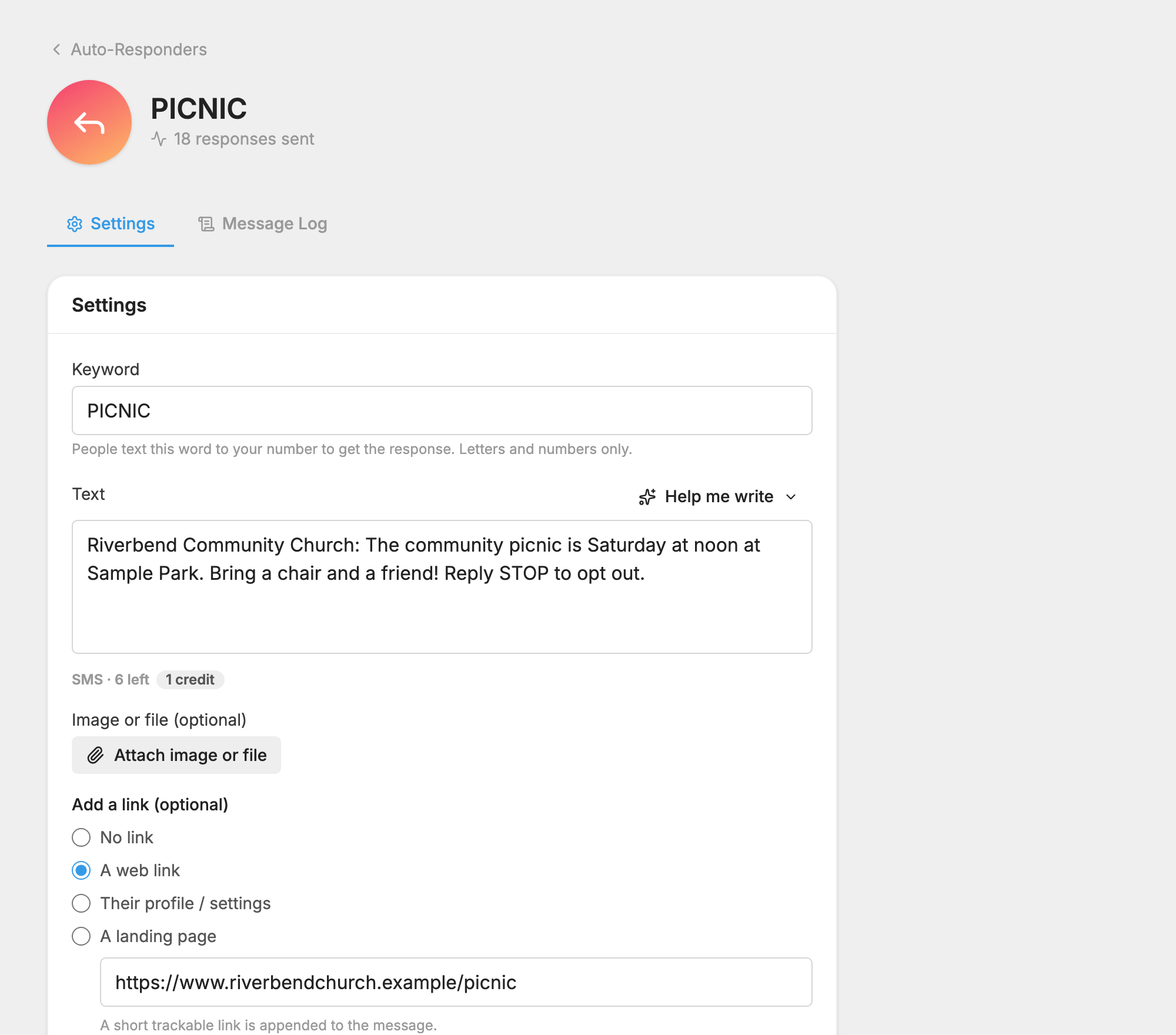
Open the settings
- Open Auto-Responders.
- Press the auto-responder you want to change. It opens on the
 Settings tab.
What you can change
- Keyword: the word people text.
- Text: the reply people get.
- Image or file (optional): an attachment. This makes the reply a picture message.
- Add a link (optional): a web link, a link to the person's settings page, or a landing page you write here.
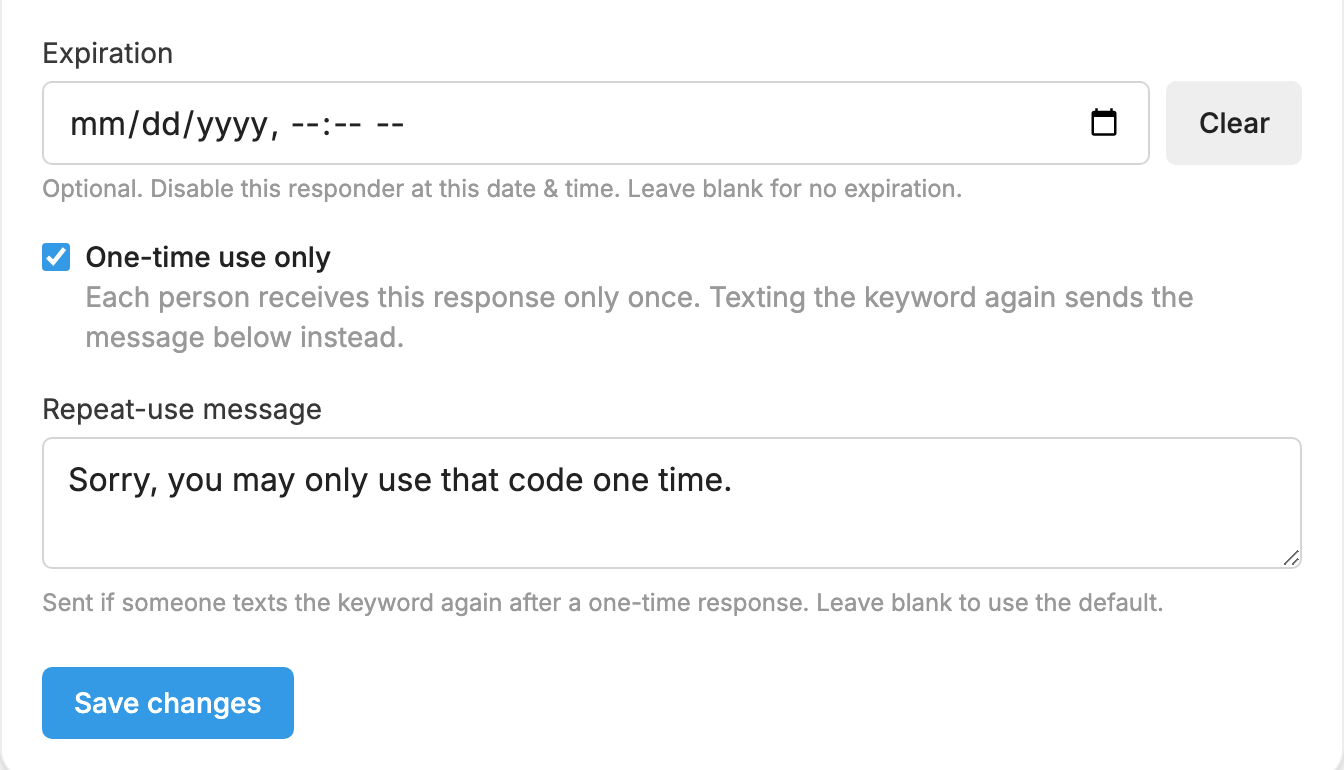
- Expiration: a date and time when the auto-responder stops working, such as a registration deadline. Leave it blank for no expiration. When you set one, Expiration message appears, for anyone who texts the keyword afterward.
- One-time use only: each person gets the reply only once, which is useful for a one-time offer. When you check it, Repeat-use message appears, for anyone who texts the keyword again.
Press Save changes when you're done.
Delete an auto-responder
At the bottom of the Settings tab, use Delete auto-responder.
