

How do I… Donations
 Accept Repeating Donations
Donors can set up a gift that repeats weekly, every two weeks or monthly. Repeating gifts need a connected payment service with test mode turned off. In test mode, scheduled gifts are paused. See Choose a Payment Service.
Three ways to offer repeating gifts
- The donor says so. They add a schedule word to their text: ONCE, WEEKLY, BIWEEKLY or MONTHLY. For a keyword of GIVE, they might text GIVE 100 WEEKLY.
- MojoTxt asks. On the fund's
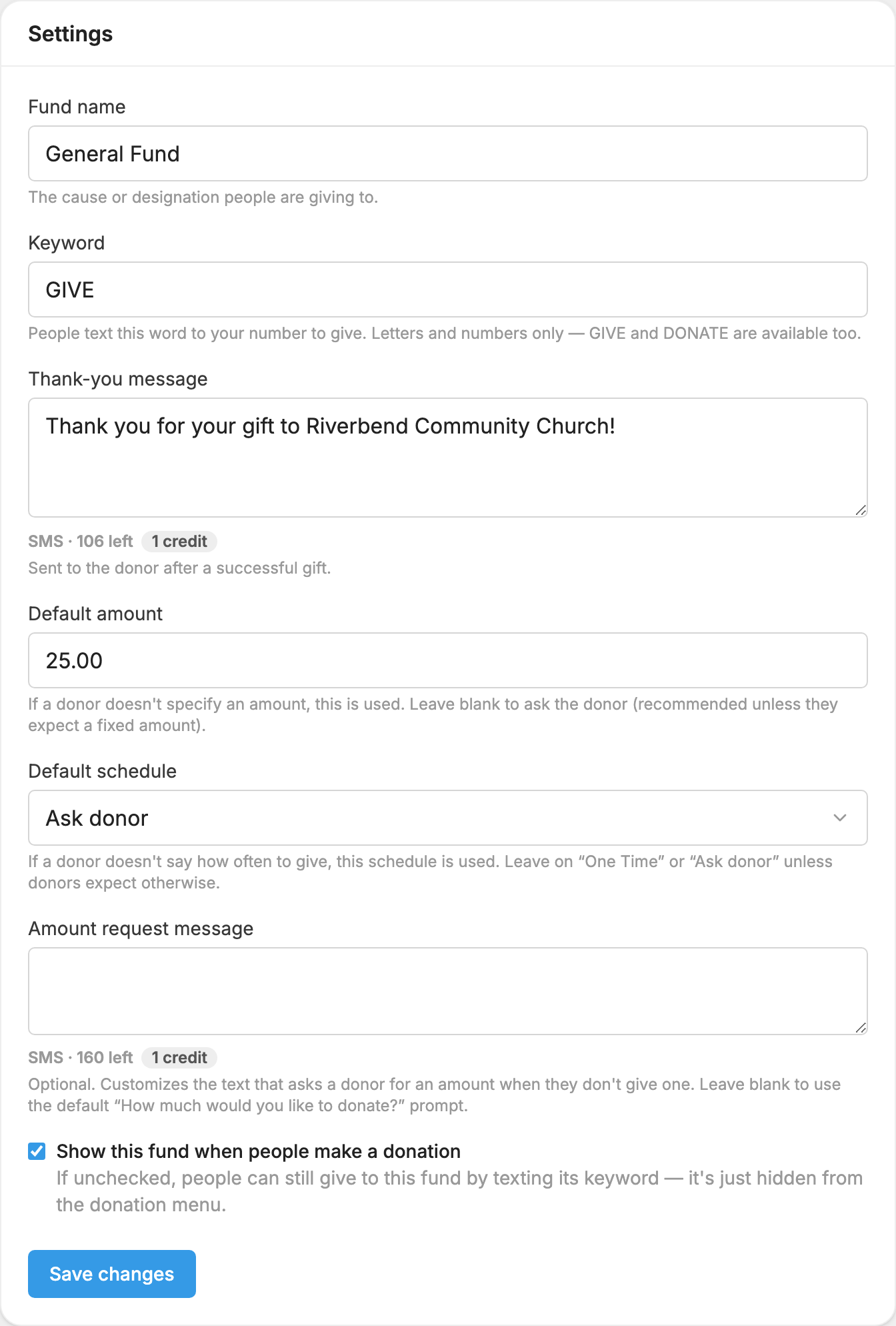
 Settings tab, set Default schedule to Ask donor. If a donor doesn't give a schedule, MojoTxt asks how often they want to give.
- The keyword decides. Set Default schedule to Weekly, Biweekly or Monthly to make a keyword just for repeating gifts. Add a Default amount and you can offer something like "Text MISSIONS to give $50 a month." Only do this if people know what to expect when they text the keyword.
A donor can have one repeating gift per fund.
What your donor receives
- After the first gift: a text with the date of the next one, which ends "To change or stop your repeating donations, reply DONATIONS at any time."
- About a day before each gift: "Your weekly $10.00 donation to Fund Name is scheduled to be given tomorrow. Reply DONATIONS to change or cancel repeating donations."
- After each gift: a thank-you text that says "Your weekly $10.00 donation to Fund Name has been given" and ends "Reply DONATIONS to change or cancel repeating donations."
- If a gift fails: a text explaining the problem and asking them to reply CHANGE to update their payment information or EXIT to stop the scheduled donation. For some failures they can also reply RETRY.
How a donor changes or stops a gift
- Text DONATIONS to get a link to their settings page, where they can change or stop a repeating gift.
- Text STOP and the fund's keyword, such as STOP MISSIONS, to end the gift to that fund.
Manage scheduled gifts yourself
- Open Donations and open the fund.
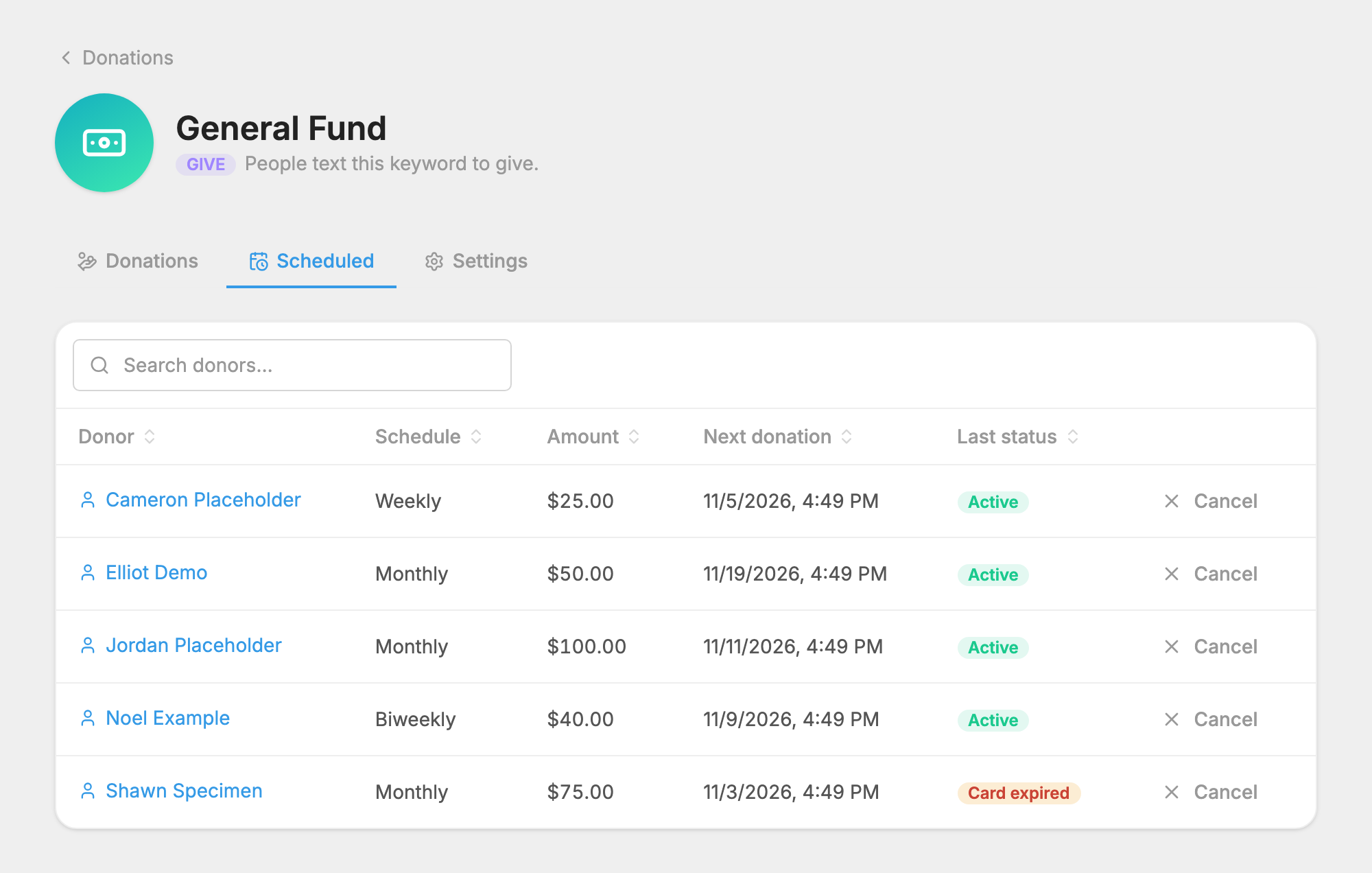
- Press the Scheduled tab. You see each donor, their schedule, amount, next donation and last status.
- Press Cancel next to a gift to stop it, then Cancel donation. Past gifts aren't affected.
More is in Recurring gifts.
