

Your account
 Users and Access
Give your staff and volunteers their own logins, and let each one see only what they need. A youth pastor might use one list and nothing else, while your office manager handles billing and registration.
You need Account Settings access to do any of this. Find it under Account & Billing, Users.
Invite someone
- Open Users.
- Press New user.
- On the Profile tab, enter their First name, Last name, Email and Mobile phone.
- Open the Access permissions tab and choose what they can use. See below.
- Press Send invite.
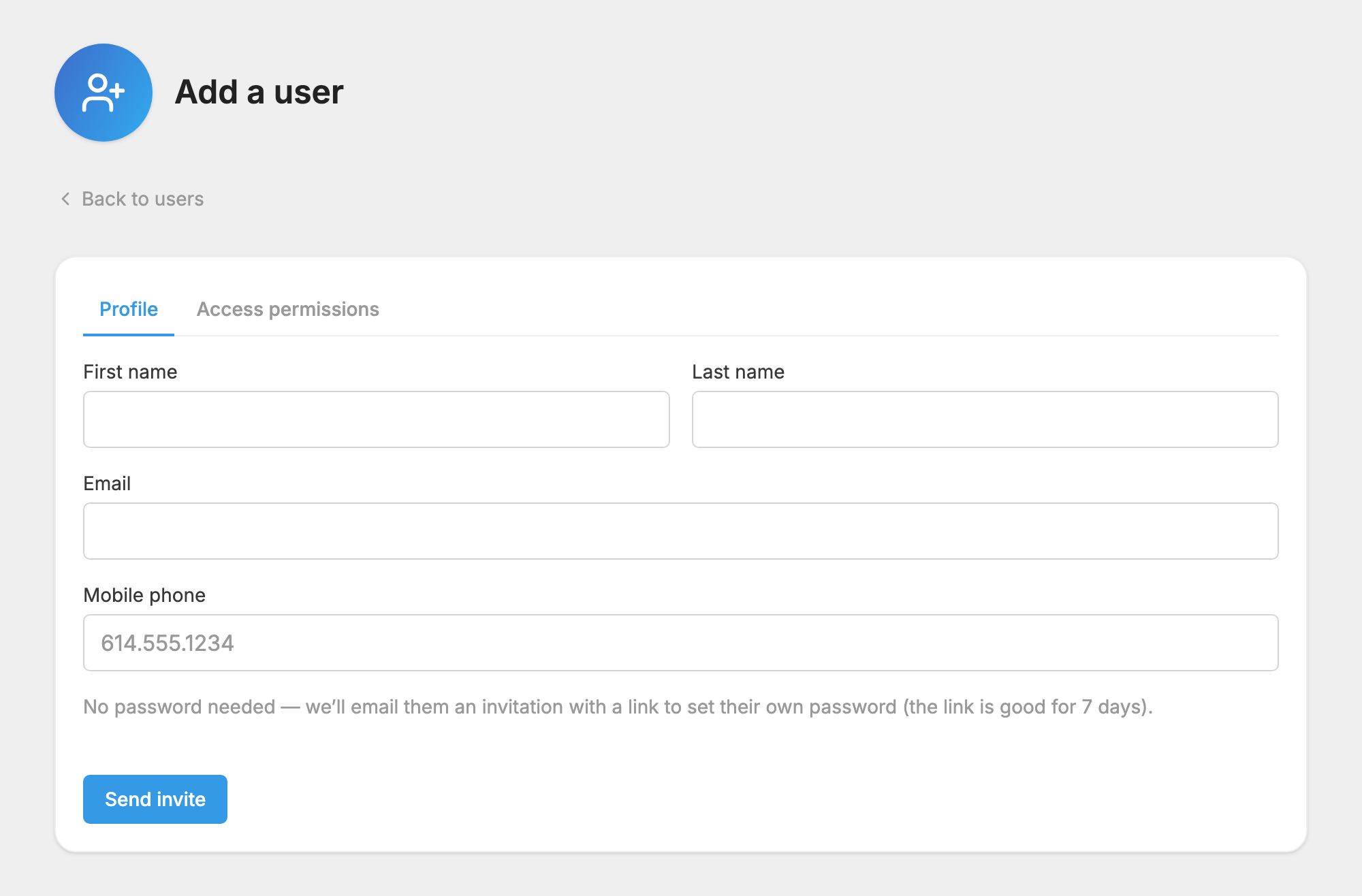
You don't choose a password for them. They get an email with a link to set their own, and the link is good for 7 days.
Until they set a password, an Invite pending label shows next to their name. If the link ran out or the email got lost, press Resend invite.
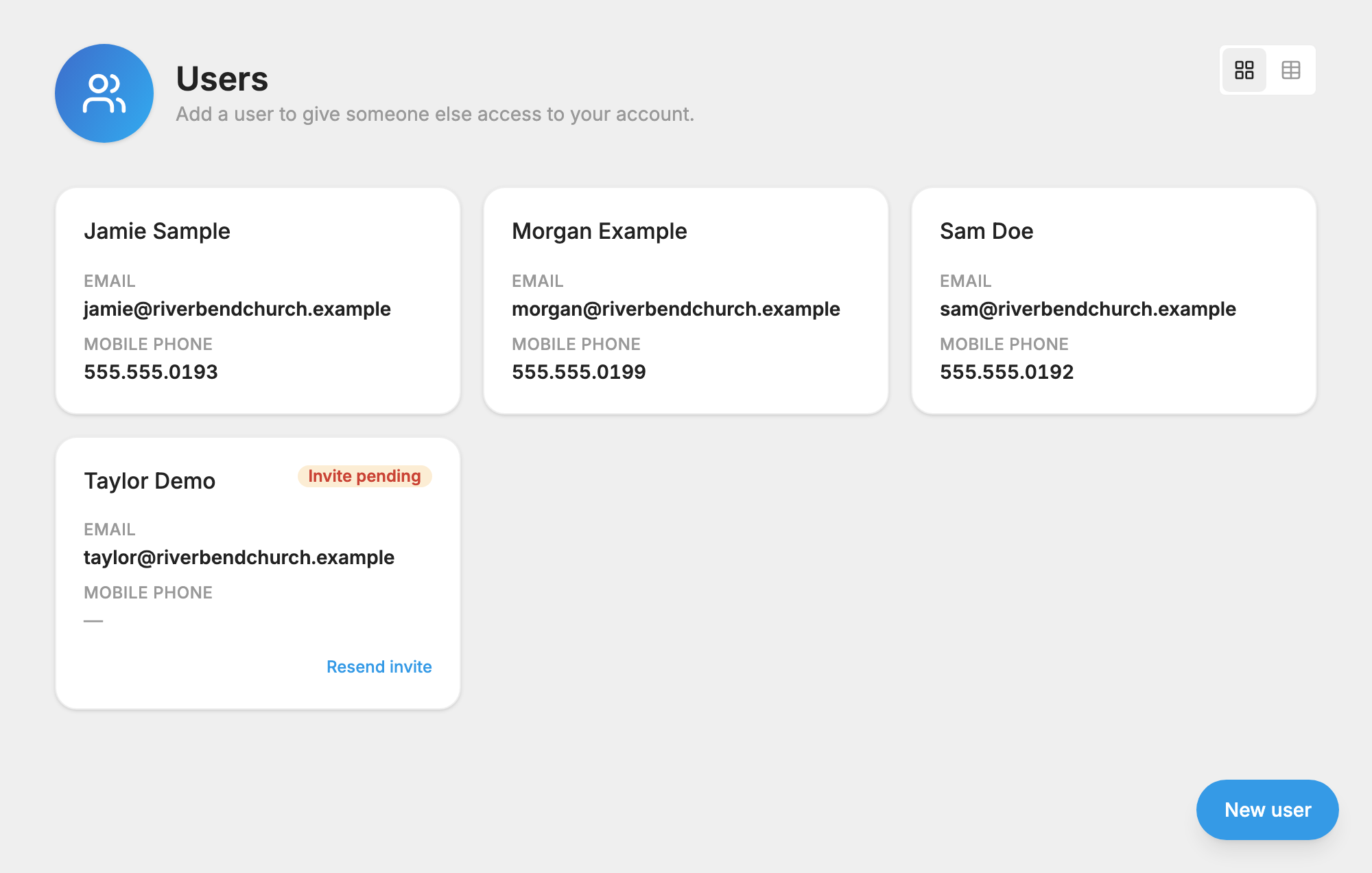
Each email address can belong to only one login, so an address that already has a login can't be used again.
Change or remove someone
Click a person's name to open them, make your changes, and press Save.
- Their email and password belong to them. You can't change either one for someone else. If they have lost access, they can use the password reset link on the sign-in page. See User Settings.
- Removing someone is permanent. Press Remove user, then Remove. This can't be undone. Messages they sent stay in your history.
- You can't remove yourself or change your own permissions. The Access permissions tab doesn't appear when you open your own name. Ask another person with Account Settings access.
Choose what someone can use
The Access permissions tab shows your account as a tree. Press the arrow next to an item to open it, and click the item itself to change its setting.
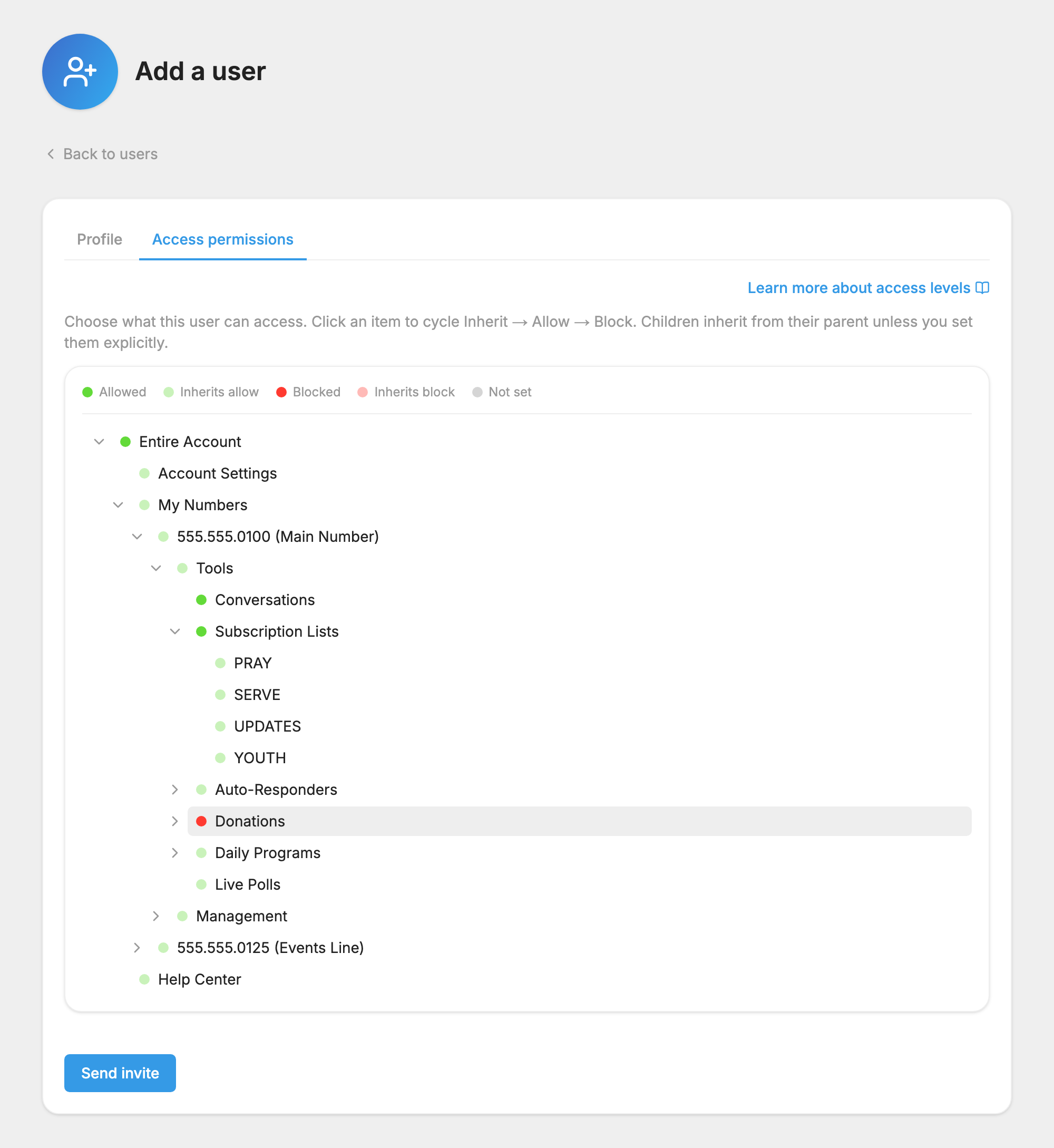
Each click moves through three settings:
- Inherit follows whatever is set on the item above it.
- Allow gives access to the item and everything under it.
- Block takes away access to the item and everything under it.
A colored dot shows where each item stands. The key at the top of the tree reads Allowed, Inherits allow, Blocked, Inherits block and Not set.
The setting closest to an item wins. If you allow a number and block  Donations under it, the person can use everything on that number except donations. An item that is Not set, with nothing allowed above it, is not available to them.
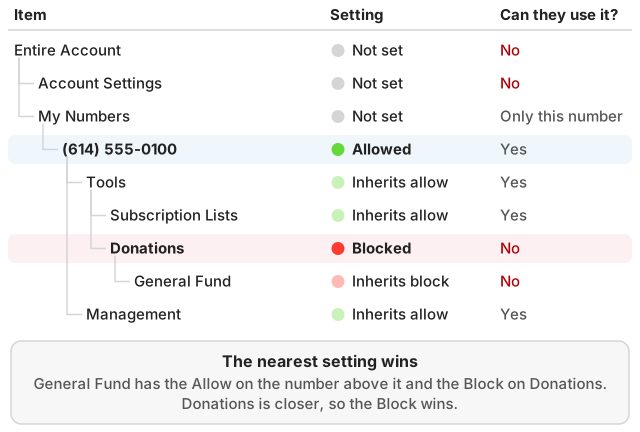
You can only give access you have yourself. If you try to allow something you can't use, the save is refused.
What's in the tree
| Item | What it controls |
|---|---|
| Entire Account | Everything below. |
| Account Settings | The Account & Billing pages. See below. |
| My Numbers | All your phone numbers. Open it to set each number on its own. |
| Tools | Under a number:  Conversations,  Subscription Lists,  Auto-Responders, Donations,  Daily Programs and  Live Polls. |
| Management | Under a number: People,  Alternate Keywords,  Branding,  Message Log and  Settings. |
| CCB Integration | Under a number: linking profiles and exporting donations. It appears only if you have connected Church Community Builder. See Integrations and API. |
| Help Center | The  Help button and the Help Center. |
Subscription Lists, Auto-Responders, Donations and Daily Programs each open to show every item you have made, so you can give someone a single list or a single fund. Live Polls has no items to open.
The  Messages and
 Automations pages follow the Subscription Lists setting.
Examples
When you add someone, first clear what was copied from your own access. Click Entire Account until its setting is Inherit. Then:
- Someone who manages one list: open My Numbers, your number, Tools and Subscription Lists, and set that one list to Allow.
- A volunteer who answers texts: open your number and Tools, and set Conversations to Allow.
- Staff who can do everything but billing: set Entire Account to Allow and Account Settings to Block.
What Account Settings access gives someone
Treat this as the administrator setting. Someone with Account Settings access can use every page under Account & Billing:
- Settings: Phone Numbers, Company Profile, Users, Payment Services, Integrations and Carrier Registration.
- Billing: Pricing Plan, Payment Method, Invoices and Cancel Account.
That means they can invite other people, change the plan and card, connect a donation account, and close the account. They also see the bars at the top of the page about billing problems and used-up credits. People without this access don't see those bars, and they can't complete a carrier registration.
Anyone with Account Settings access also gets emails about billing problems. Those are the emails when a payment fails, when an account is suspended, and the reminders before its numbers are released. We send them to the main contact and to everyone with this access, so the message reaches someone who can fix it. See If a payment fails. Payment receipts go to the main contact only.
Allowing Entire Account includes Account Settings. To keep someone off these emails, set Account Settings to Block for them.
