

Your number
 Phone Number Settings
Each phone number has its own settings. To open them, click Settings under Management in the left-hand column. The page has three tabs: General,  Conversations and Contact card. Open Settings
Each tab saves on its own, so click Save settings before moving to another tab.
General settings
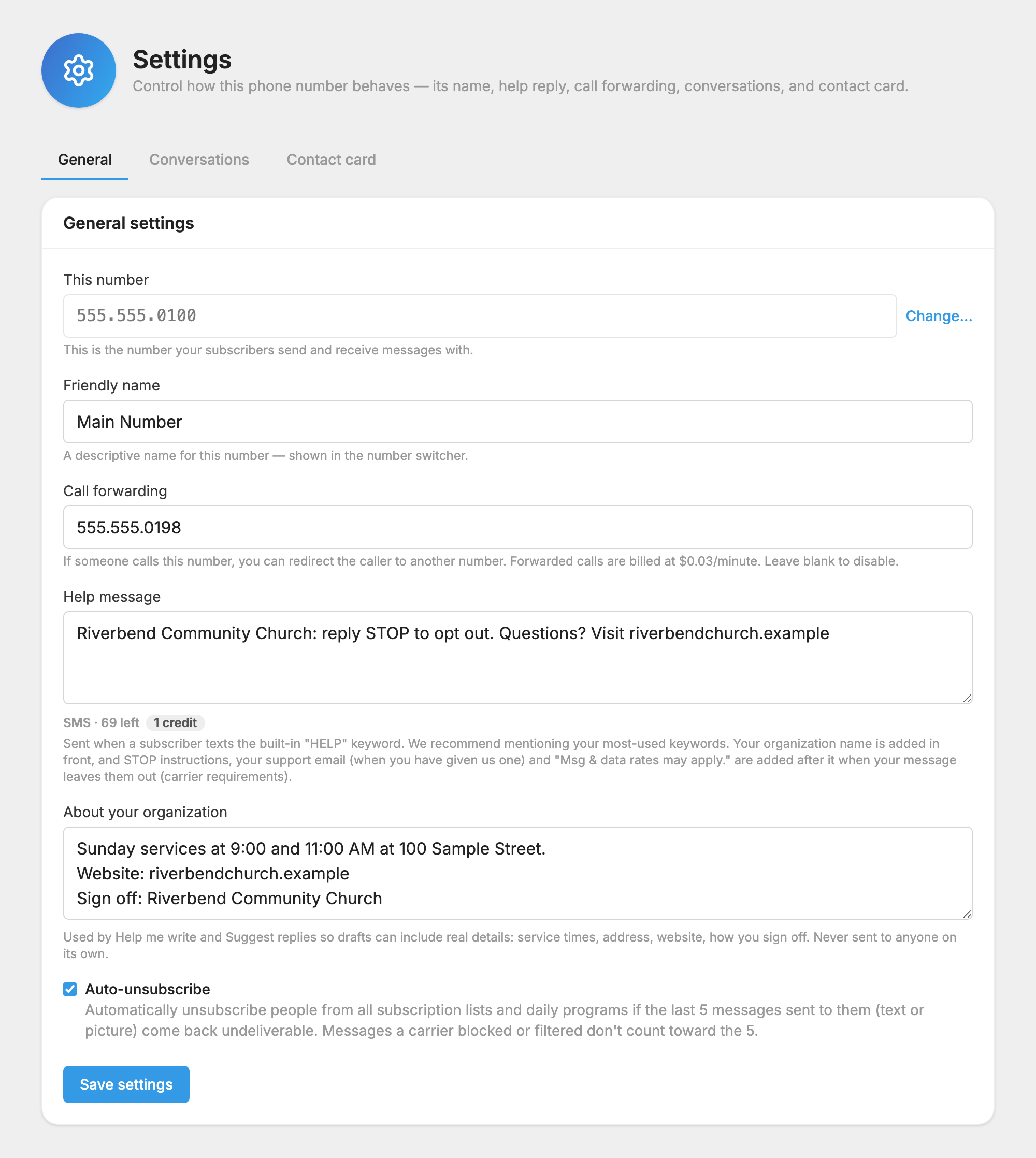
- This number: the number people text. Click Change… to replace it. See Your Phone Numbers.
- Friendly name: a descriptive name for this number, shown in the number switcher.
- Call forwarding: if someone calls this number, the call can go on to another number, such as your office. Forwarded calls are billed at $0.03/minute. Leave it blank to turn it off.
- Help message: sent when someone texts the built-in HELP keyword. Mention your most-used keywords. You can write up to 160 characters. Your organization's name is added in front, and STOP instructions, your support email when you have given us one, and "Msg & data rates may apply." are added after it when your message leaves them out. Carriers require these.
- About your organization: a few lines for Help me write and Suggest replies, such as service times, address, website, office hours and how you sign off. Drafts use these details instead of guessing. It is never sent to anyone on its own. You can write up to 1,000 characters.
- Auto-unsubscribe: takes someone off all subscription lists and daily programs if the last 5 messages sent to them, text or picture, come back undeliverable. Messages a carrier blocked or filtered don't count toward the 5.
If Auto-unsubscribe ever removes people by mistake, for example during a phone company outage, you can put them back.
Conversations settings
These settings control Conversations on this number.
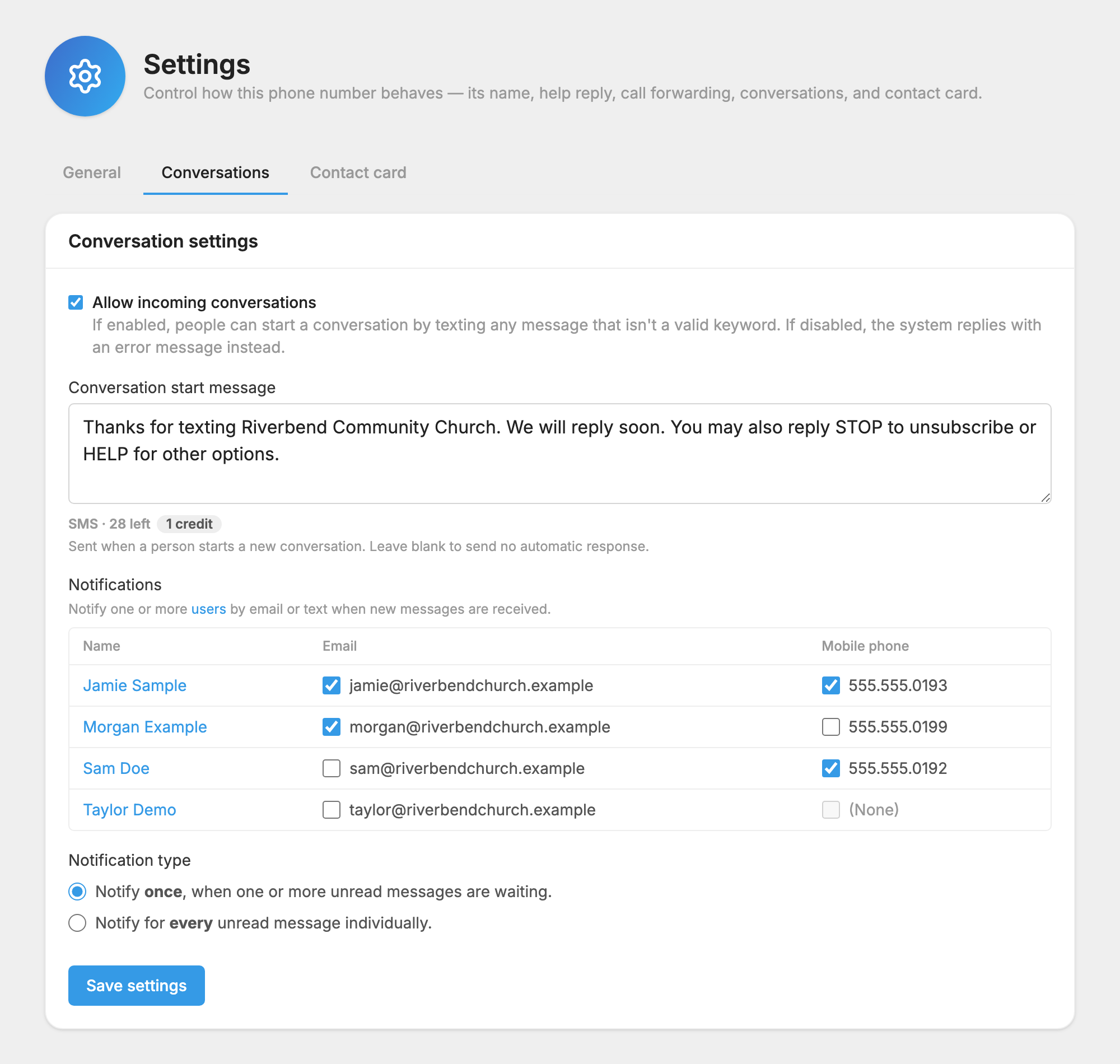
- Allow incoming conversations: when on, someone can start a conversation by texting anything that isn't a valid keyword. When off, the system replies with an error message instead.
- Conversation start message: sent when a person starts a new conversation. Leave it blank to send no automatic reply. You can write up to 160 characters.
- Notifications: tick the users to alert by email or text when new messages come in. A user needs a mobile number on their profile to get texts.
- Notification type: Notify once, when one or more unread messages are waiting, or Notify for every unread message individually.
Contact card
A contact card lets people save your number in one tap, so every text you send shows your name instead of a number.
Make the card
- Open the Contact card tab.
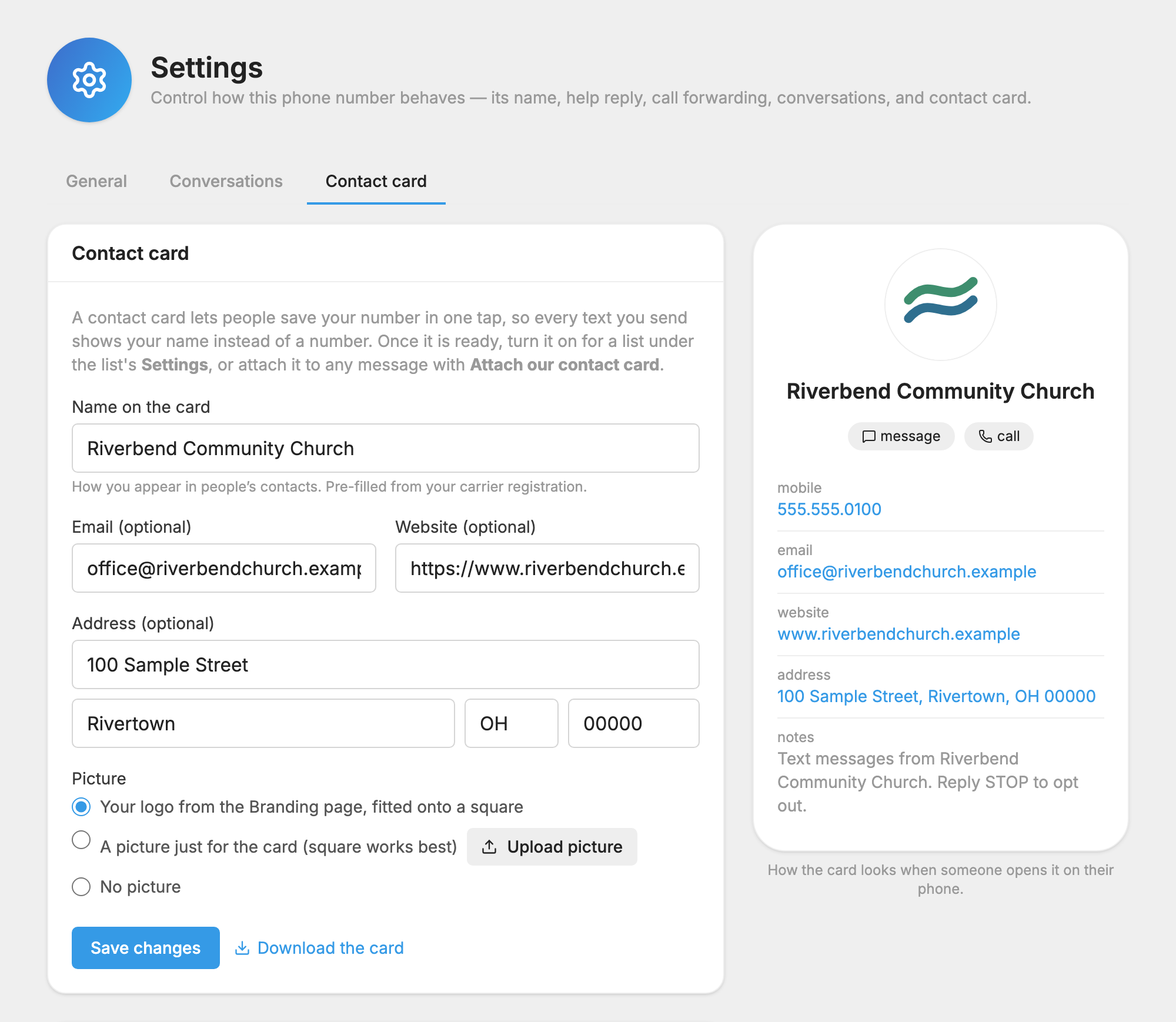
- Check Name on the card. This is how you appear in people's contacts. It starts with the name on your carrier registration.
- Add Email (optional), Website (optional) and Address (optional).
- Under Picture, choose one:
- Your logo from the Branding page, fitted onto a square. It sits on your logo background color.
- A picture just for the card (square works best). Click Upload picture.
- No picture.
- Click Make the card. Afterwards this button reads Save changes.
The preview on the right shows how the card opens on a phone. Every save rebuilds the card, so your lists always send the latest version.
Send the card
- When someone joins: turn it on in a list's Settings. See
 Subscription Lists.
- With any message: click Attach our contact card next to the attach button. It works in
 Messages and
 Automations.
Each card goes out as a picture message, so it uses the credits of a picture message.
If your number can't send picture messages, this tab says so, and the card can't be sent.
Try it, download it or remove it
- Text me the card sends it to the number under Send a test to, so you can try it on a real phone. This uses one picture message from your credits.
- Download the card saves a copy of the file.
- Remove card, then Yes, remove it, deletes the card. Lists stop attaching it to their welcome message. Messages already scheduled with it still send it.
