

How do I… Account and support
 Change the Card on File
The card on file pays your monthly MojoTxt bill. You can change it at any time. You need access to account settings to do this.
Update your card
- Open Account & Billing from the side menu or your account menu.
- Under Billing, press
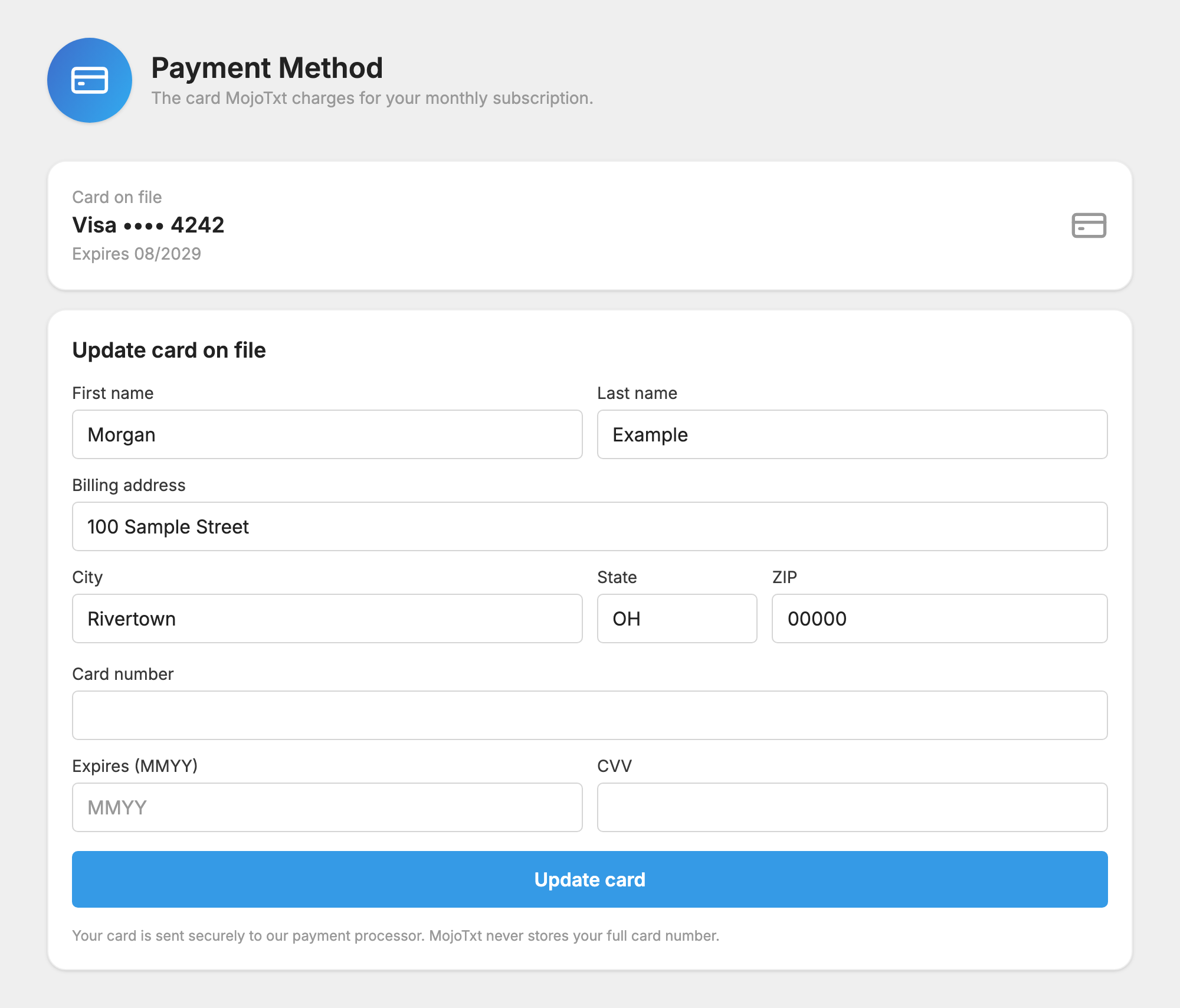
 Payment Method. You'll see your Card on file and when it expires.
- Under Update card on file, enter the name, billing address, Card number, Expires (MMYY) and CVV.
- Press Update card.
When it works, you'll see "Your payment information has been updated successfully."
If a payment failed
If we couldn't bill your card, a banner at the top of the app says so and gives the date to update it by. Update your card before that date to keep your account active.

If you have a balance due, the page shows it and the button reads Update card & pay with the amount. Updating your card tries to pay that balance right away.
If you see "Your card could not be processed", check the details and try again, or use a different card.
If you can't get in
- You forgot your password or lost that email. Use the password reset link on the sign-in page. If the email is gone, ask someone else with access to account settings to update the card, or to add you as a user.
- You don't see Payment Method. Ask someone with access to account settings. A free trial has no card on file until you upgrade, so see Get More Credits. If a reseller manages your account, the reseller handles the card.
- Your account is inactive. Reactivate it first. See Cancel or Reactivate.
Donations use a different account
This page only changes how you pay for MojoTxt. Text-to-give donations go through your organization's own payment service, which you set up under Payment Services. A donor who wants to change their own card can do it from their settings link.
See past charges under  Invoices, in the same Billing section. More about plans and billing is in Account and Billing.
