

How do I… Sending messages
 Schedule a Message
Write a message now and choose when it goes out. You can send it once at a later time, or repeat it every day, week or month.
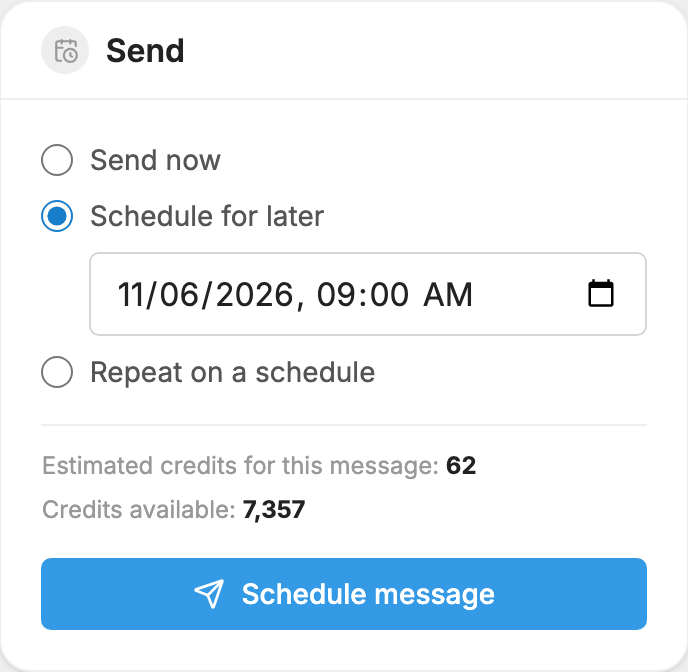
Schedule a message for later
- Open Messages and press New message.
- Under Who gets this message, choose your lists or other groups.
- Write your message in the Text box.
- Optional: use Send a test first to send a copy to your own phone.
- In the Send box, choose Schedule for later.
- Pick the date and time.
- Press Schedule message.
Repeat a message
- Follow steps 1 to 4 above.
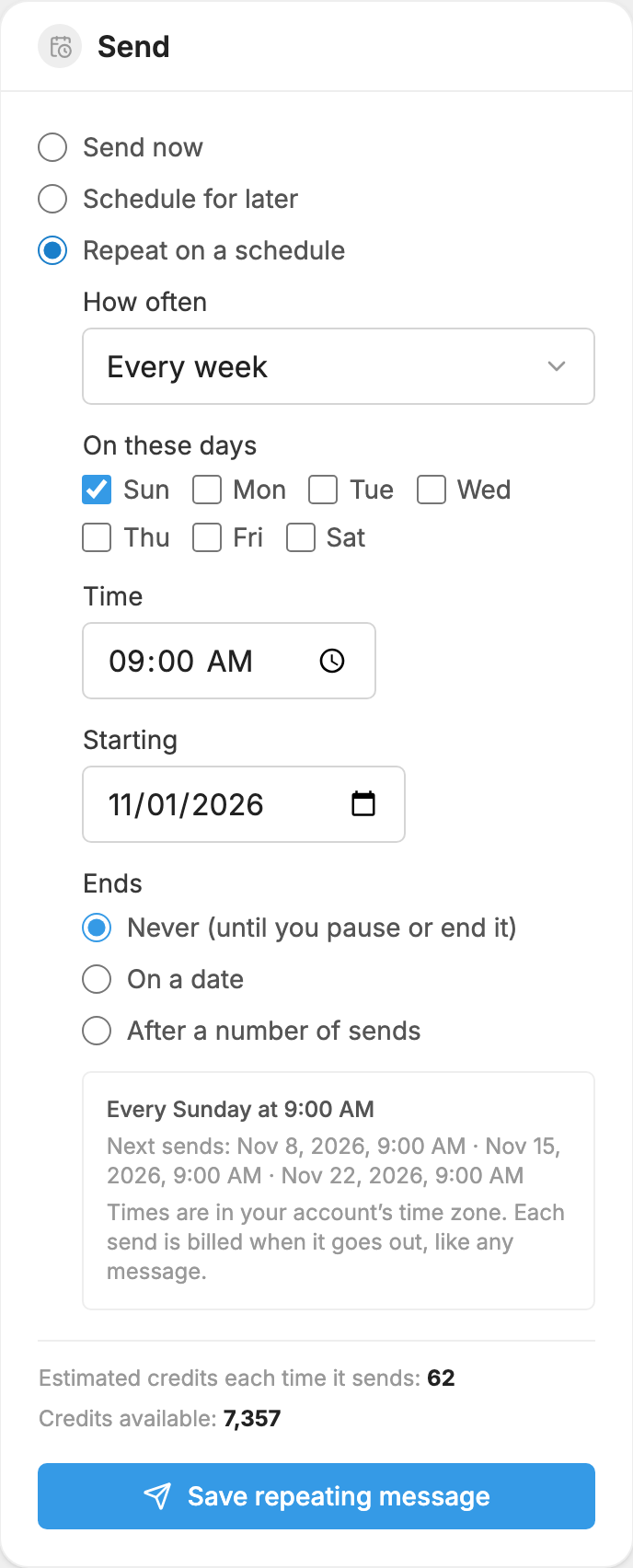
- In the Send box, choose Repeat on a schedule.
- Under How often, choose Every day, Every week, Every 2 weeks or Every month.
- For a weekly schedule, check the days under On these days. For a monthly one, choose the Day of the month. In a shorter month it sends on the last day.
- Set the Time and the Starting date.
- Under Ends, choose Never (until you pause or end it), On a date or After a number of sends.
- Press Save repeating message.
Change or cancel a scheduled message
- Open Messages and go to the Scheduled tab.
- Press Edit to change the wording, the audience or the time, then press Save changes.
- Or press Cancel, then Cancel message, so it won't be sent.
Edit and Cancel are there until the message starts sending.
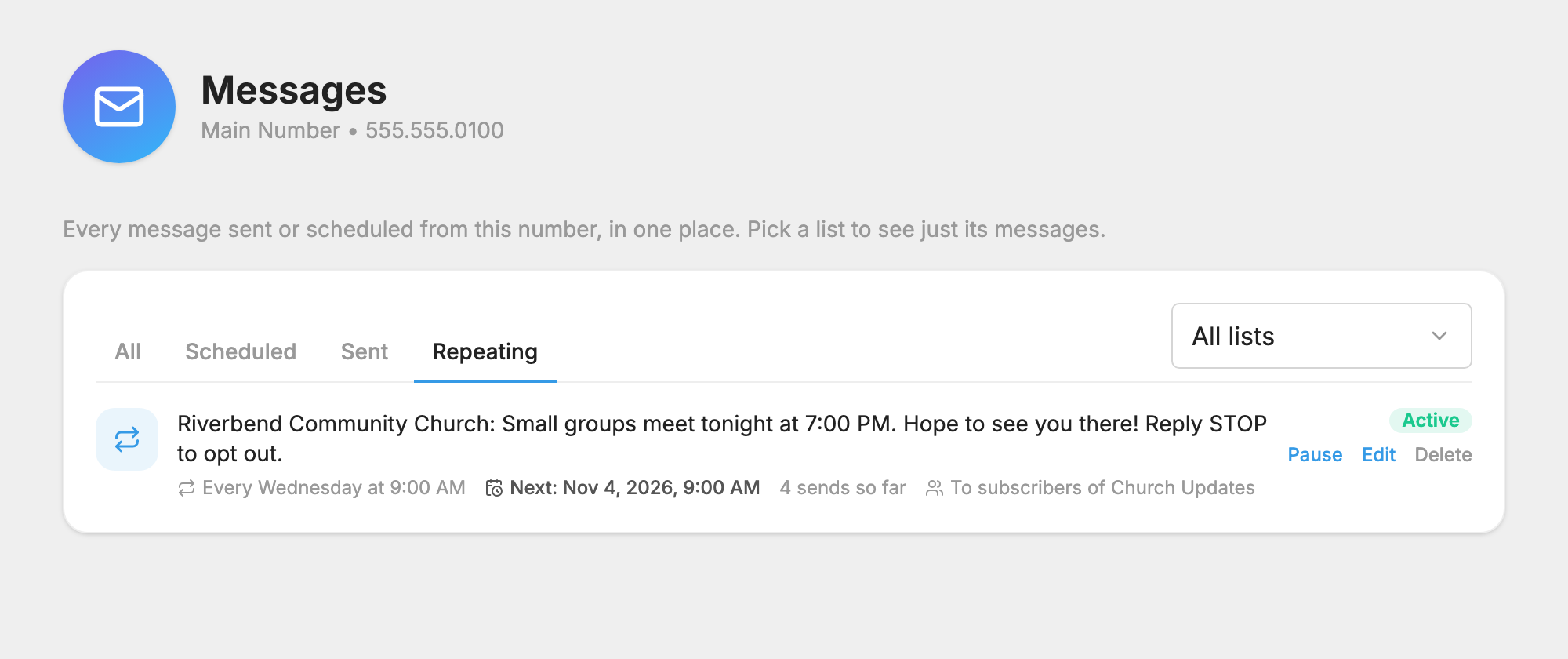
For a repeating message, editing or cancelling one send on the Scheduled tab changes that send only. The next one is still scheduled. To change the whole series, go to the Repeating tab, where you can Pause, Resume, Edit or Delete it. Deleting it stops future sends, and messages it already sent stay in Sent.
Good to know
- The list is checked when the message sends. People who join after you schedule it will get it, and people who leave or text STOP before then won't.
- Check the time zone. The date and time you pick use the clock on your computer or phone. The Messages list and repeating schedules use your account's time zone, which you can change under Time zone in
 Company Profile.
- Credits are used when it sends, not when you schedule it. The Send box shows an estimate, and a repeating message shows the estimate for each send.
- Your number must be registered before a scheduled message can go out. See
 Carrier Registration.
Reuse a message you send often
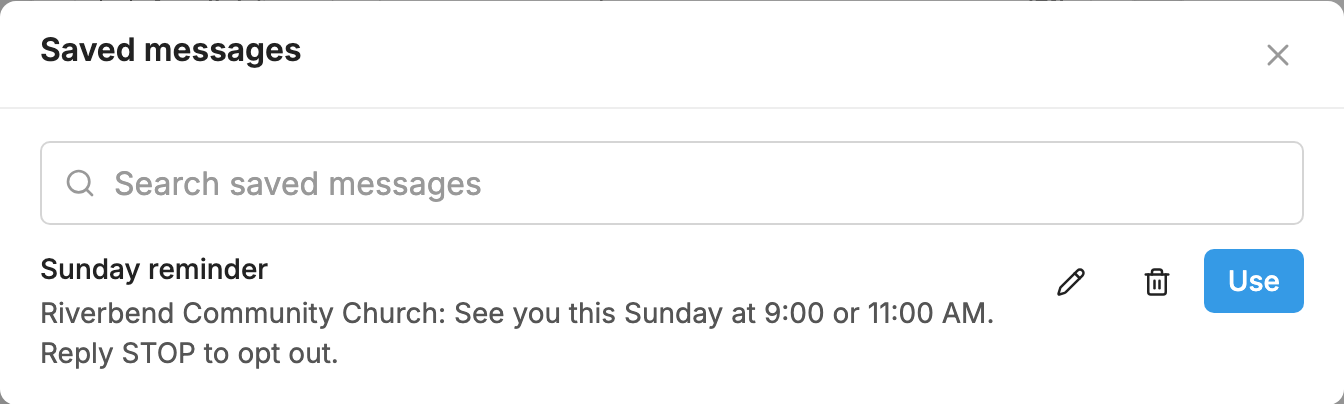
The Saved messages menu above the Text box lets you Save this message and later Use a saved message, so you don't have to retype it. If it goes out on a regular schedule, use Repeat on a schedule instead.
More about writing and sending is in Messages.
