

How do I… Account and support
 Limit What a User Can See
If you don't want someone to have full access to your MojoTxt account, you can limit what they can see and do. A volunteer or small group leader, for example, can send to their own list without seeing anything else, such as donation history.
You need Account Settings access to change this.
Set a user's access
- Open
 Users.
- Press a user, or press New user.
- Press the Access permissions tab.
- Click items in the tree to set them, then press Save, or Send invite for a new user.
A new user's tree starts as a copy of your own access. You can't change your own access, and you can only give someone access you have yourself.
How the tree works
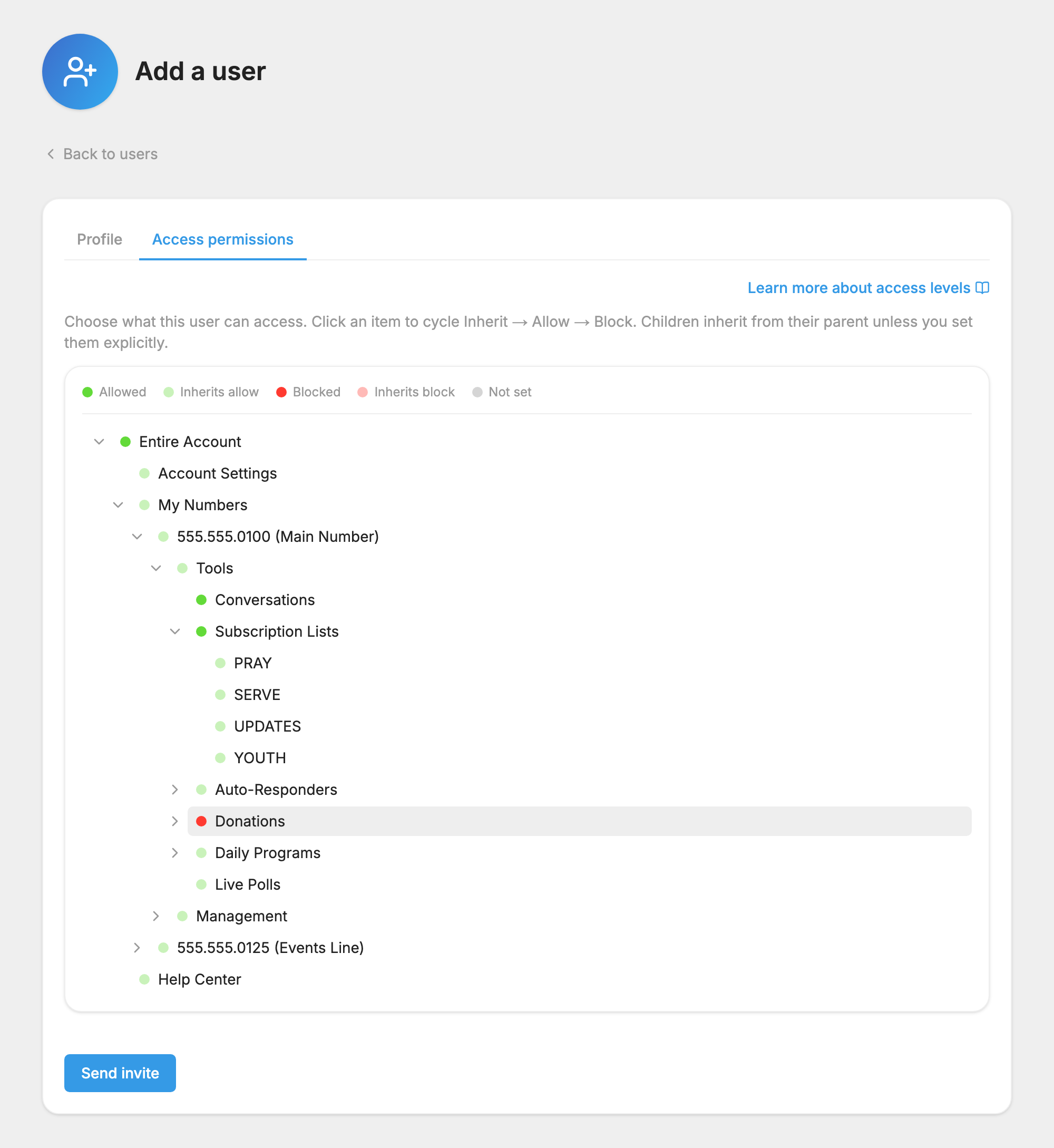
The tree shows everything in your account: Entire Account at the top, then Account Settings and My Numbers. Under each number are Tools and Management, and under those are the features. Lists, auto-responders, donation funds and daily programs show each of their keywords.
A setting at a higher level flows down to everything below it, until something lower is set differently. If Entire Account is allowed, the user can reach everything in the account, including items you create later.
What the colors mean
Click an item to move it through Inherit, Allow and Block.
- Allowed (green): the user can see and use this item.
- Inherits allow (light green): the user can use this item because something above it is allowed.
- Blocked (red): the user can't see or use this item.
- Inherits block (light red): the user can't use this item because something above it is blocked.
- Not set (gray): nothing is set here or above it, so the user has no access.
Anything not allowed is off by default.
Let a volunteer send to one list
If the list doesn't exist yet, create it first. Then:
- Open Users and press New user.
- On the Profile tab, enter their name, Email and Mobile phone. You don't choose a password for them.
- Press the Access permissions tab. The tree starts as a copy of your own access, so you need to limit it.
- Click Entire Account until its setting is Inherit.
- Open My Numbers, your number, Tools and
 Subscription Lists. Click the keyword of each list this person may use until it shows Allowed.
- Check that nothing else shows as allowed unless you mean it to.
- Press Send invite.
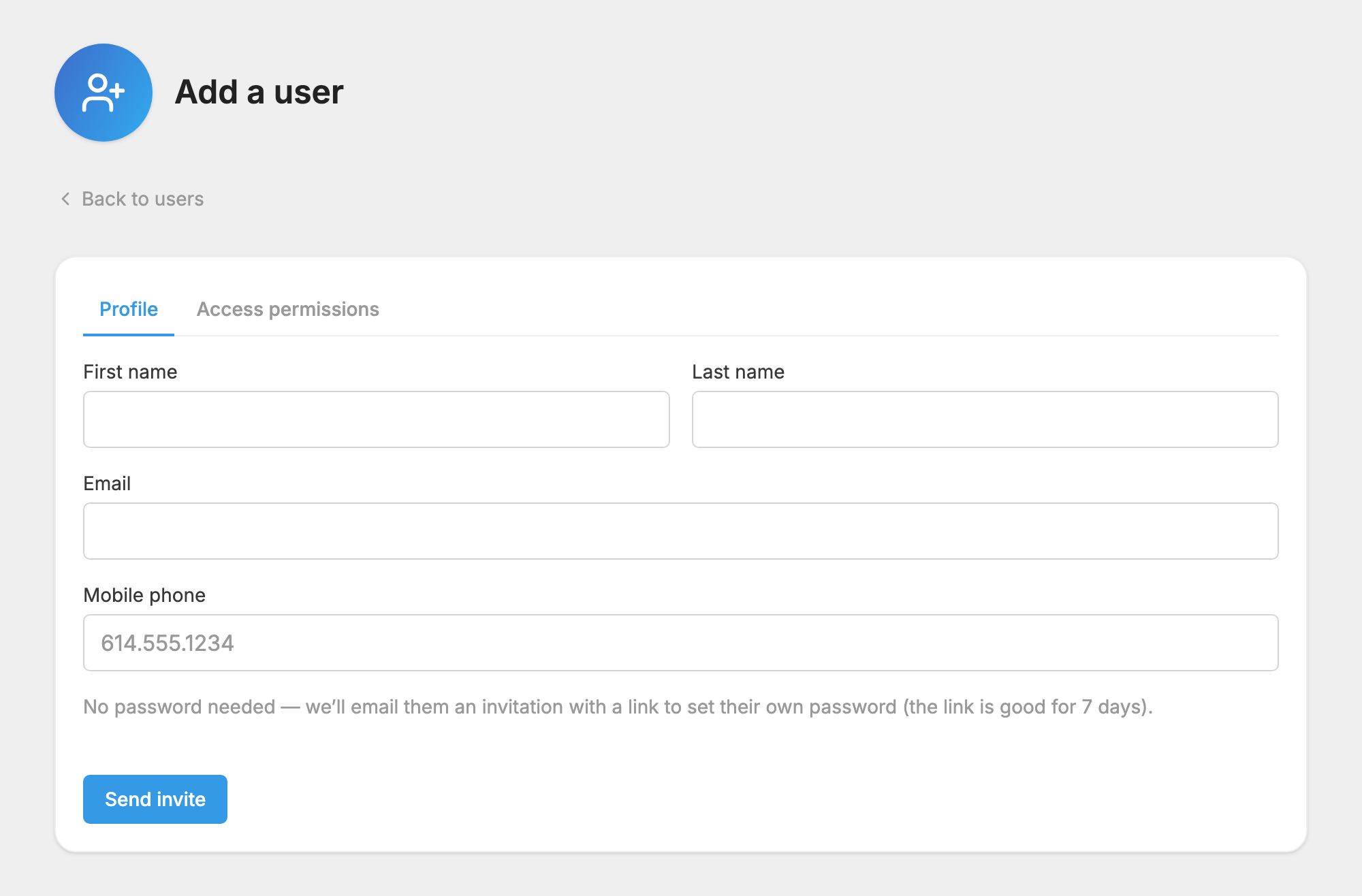
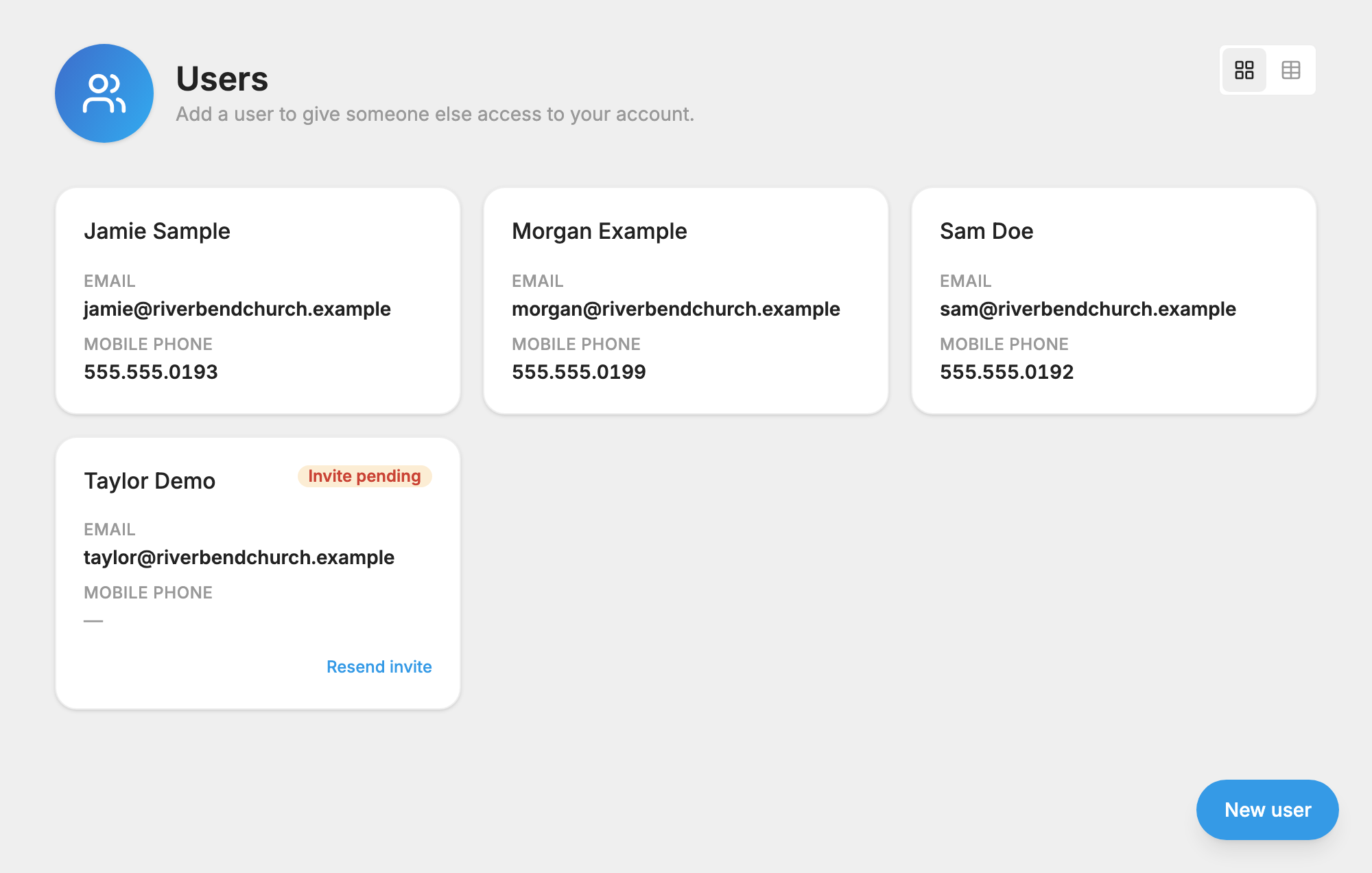
They get an email with a link to set their own password. The link is good for 7 days. If it runs out, use Resend invite on the Users page.
If a volunteer needs to see replies
You can allow  Conversations for your number. This gives them all the conversations on that number, not only the ones from their lists.
More examples are in Users and Access.
