

How do I… Lists and sign-ups
 Import a Spreadsheet of People
If you have your people in a spreadsheet, you can add up to 5,000 at a time. You need a mobile number for each person. Names, email and address are optional.
Only import people who have given you permission to text them. The app asks you to confirm this.
Get your file ready
- Make sure each row has one person, with their mobile number in its own column.
- Save the spreadsheet as a CSV file. In Excel, use File → Save As. In Numbers, use File → Export To → CSV.
The file can be .csv, .tsv or .txt, up to 8 MB. Numbers need to be 10-digit US or Canadian numbers. Rows without one are skipped.
Import the file
- Open
 People and press Import. On a phone, it's in the actions menu at the top of the page.
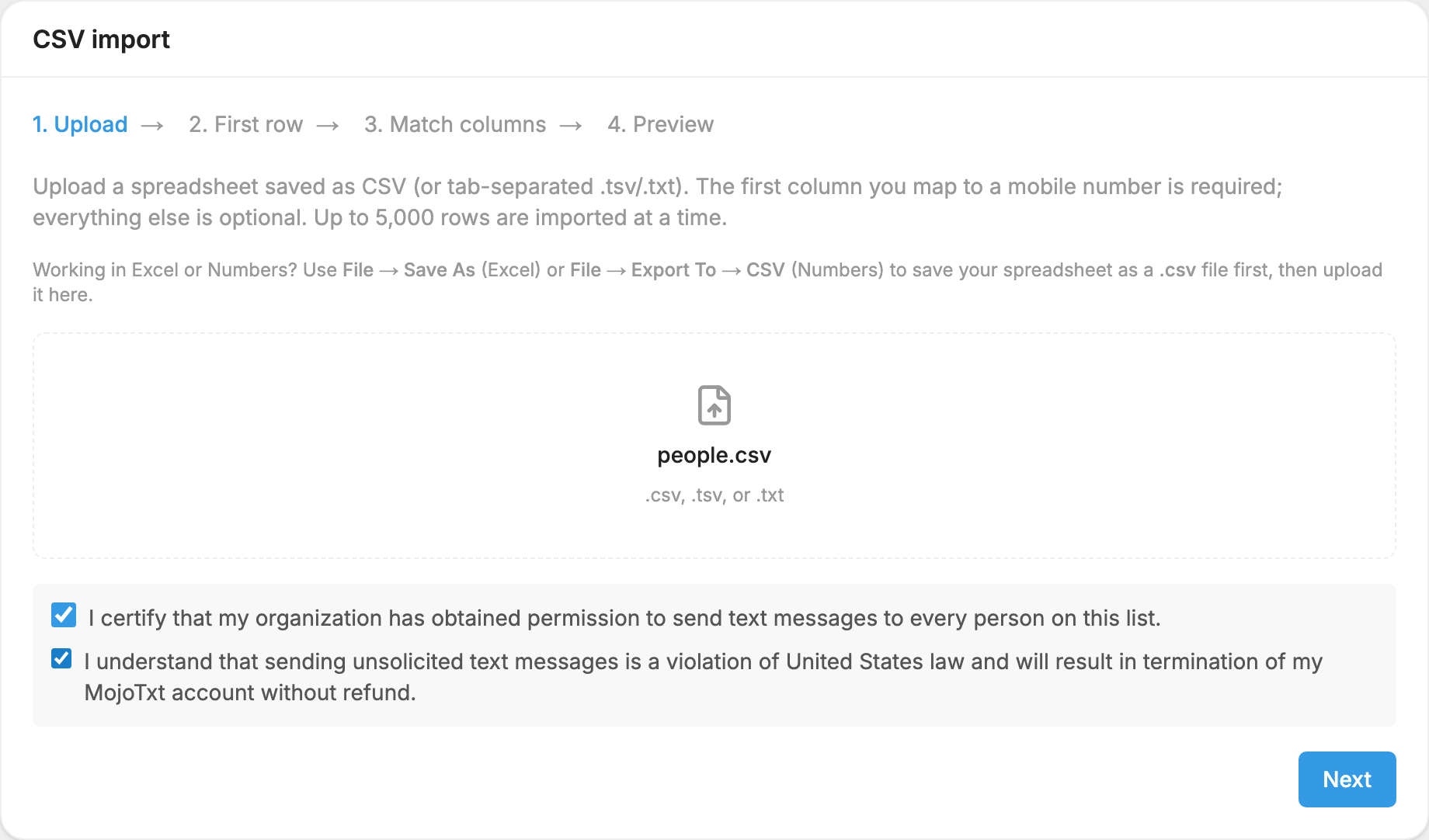
- Press Choose a CSV file and pick your file.
- Check both boxes. One says your organization has permission to text everyone in the file. The other says you understand that unsolicited texts break United States law and will end your account without a refund. Press Next.
- Look at the first row of your file. Press Column names if it has headings, or Subscriber data if it starts with a person. Press Next.
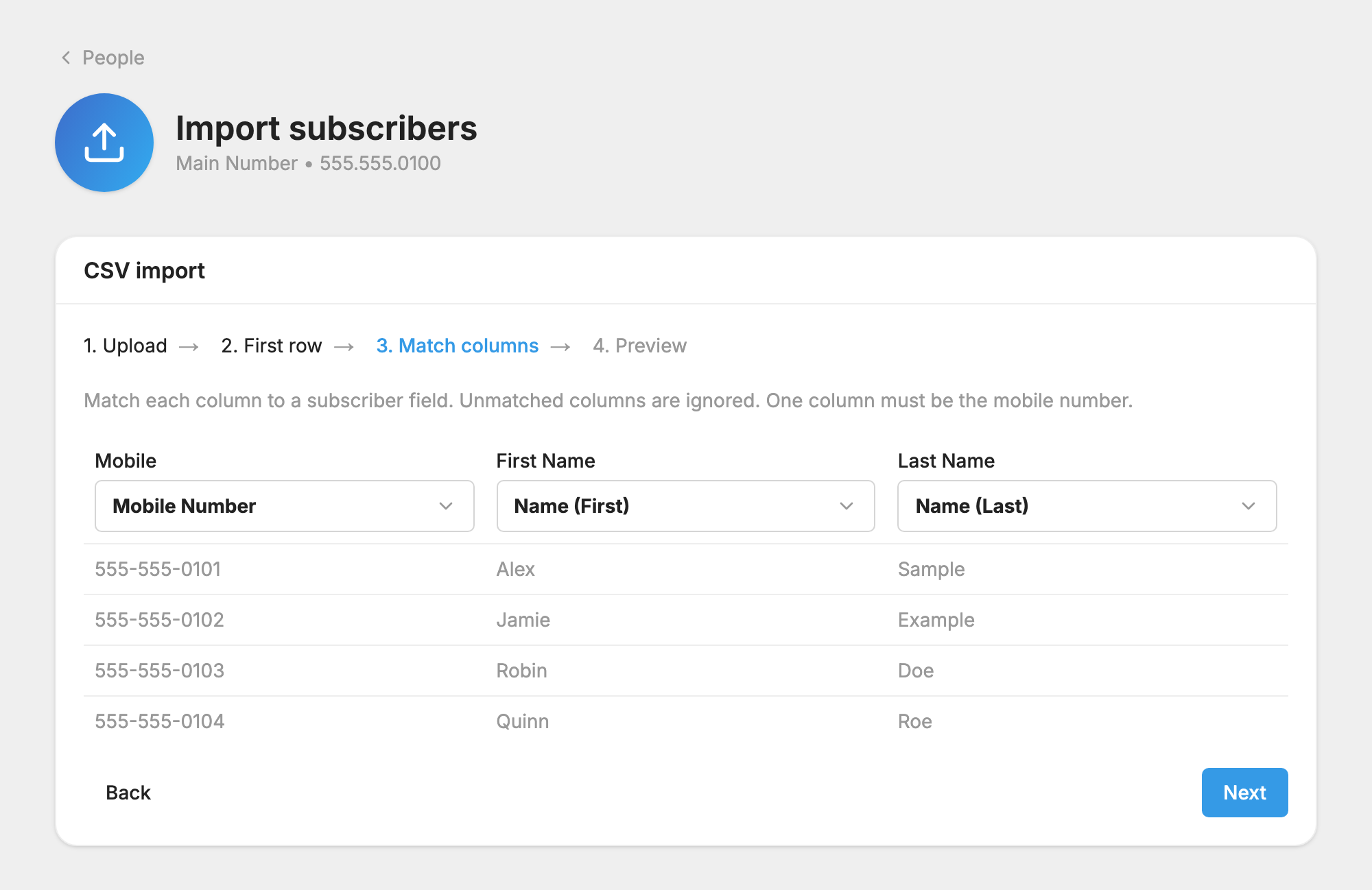
- For each column, choose what it holds, such as Mobile Number or Name (First). Leave a column on (Ignore) to skip it. One column must be Mobile Number. Press Next.
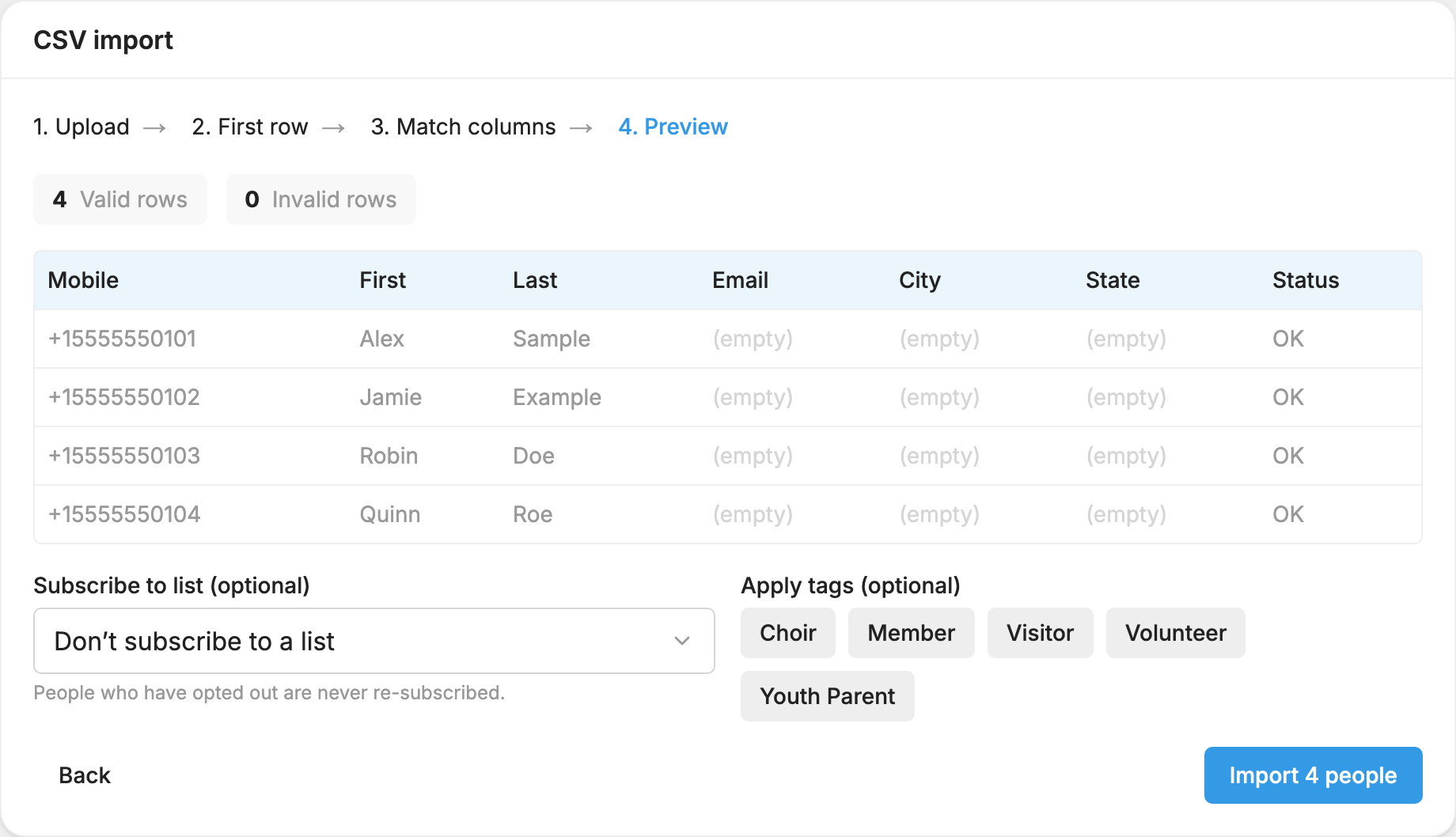
- Check the Valid rows and Invalid rows counts and the sample rows.
- To put these people on a list, choose it under Subscribe to list (optional). To label them, choose under Apply tags (optional).
- Press Import. The button shows how many people will be added.
Stay on the page until you see Import complete. It shows how many new people were added, how many already existed, and how many were subscribed or skipped.
To import straight onto one list, open the list's Members tab, press Import and choose Import a CSV file…. To copy people who used another keyword instead, choose Import from a keyword… in the same menu.
What to expect
- Importing doesn't send a welcome message. If the list has automations, the people you import count as new joiners, so those automations can send to them.
- Your next message may be the first they hear from this number. Put your organization's name in it and tell them how to stop, such as "Reply STOP to opt out." This lowers the chance they report your message as spam.
- People already on your number aren't duplicated. Empty fields get filled in. Anything already on their record stays as it is.
- People who texted STOP are not put back on a list. They are counted as skipped. See Opting Back In After STOP.
- Importing the same file twice is safe. It doesn't create duplicates.
- Files over 5,000 rows are cut off. Only the first 5,000 rows are imported. Split the file and import again, or contact support for a large-file import.
- If all your data shows up on one line, open the file in Excel, check that each person is on their own row, save it again as CSV, and start over.
Add just a few people
- Open People and press Add Person.
- Type a US mobile number, or search for someone already on this number.
- Check the box confirming you have their consent, then press Add person.
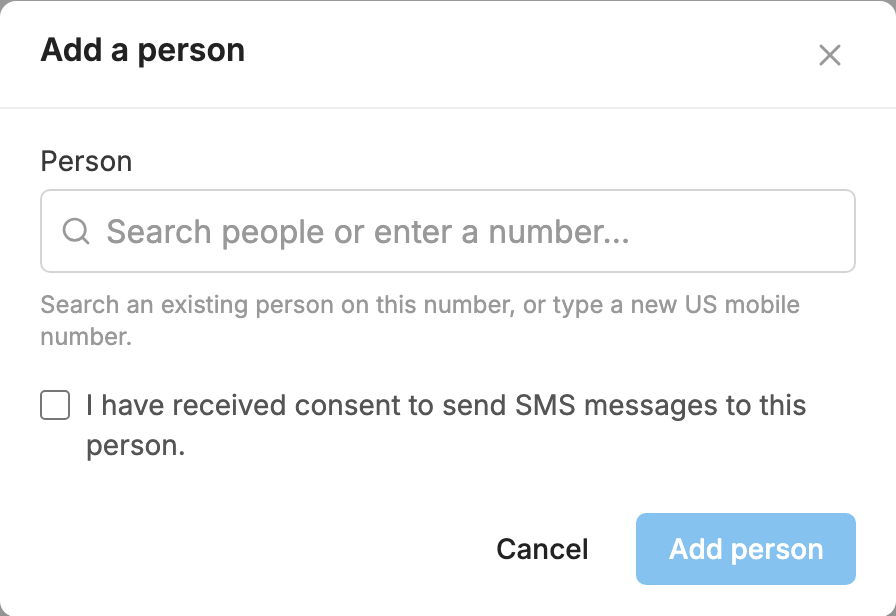
This adds them to People, not to a list. To add someone to a list directly, open the list's Members tab and use Add member.
You can also let people sign themselves up. On any list, press Share to copy a sign-up link, or tell people to text the list's keyword. See Subscription Lists.
