

Tools
 Live Polls
A live poll lets a room full of people vote by text while the results update on a screen in front of them. You write a question and some answers, people text a letter to your number, and the bars move as the votes come in.
Here's the whole job in order:
- Create the poll and add its answers.
- Make it live so it accepts votes.
- Put the results on screen.
- Test it, then clear your test votes.
- Tell people how to vote and watch the results.
- Turn it off or switch to your next poll.
Your number needs to be registered before people can vote.
Create a poll
- Click
 Live Polls under Tools in the left-hand menu, or open Live Polls.
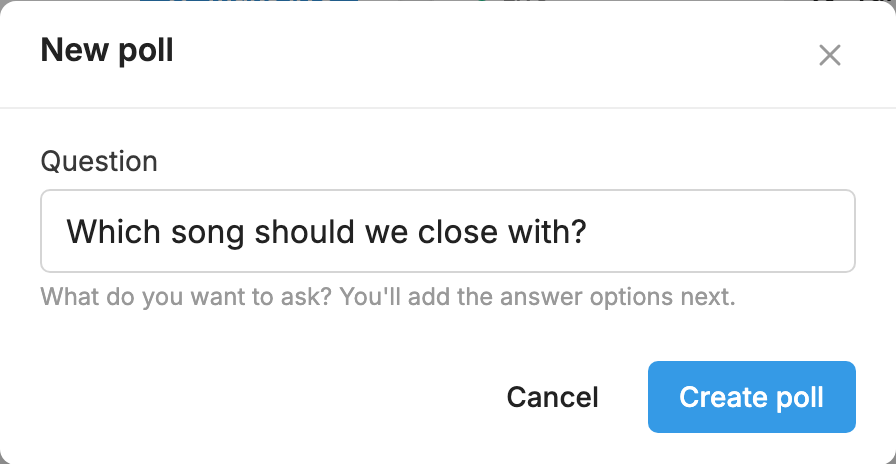
- Click New Poll.
- Type your Question. It's shown at the top of the results screen.
- Click Create poll. You land on the poll's own page.
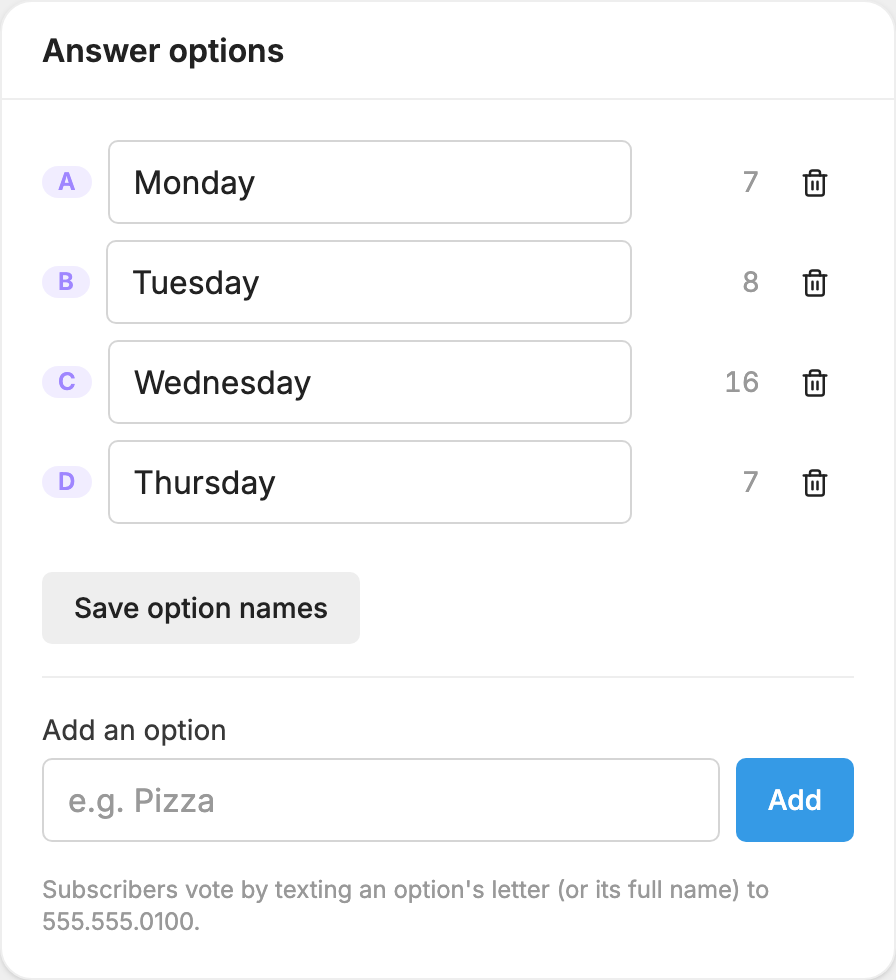
- Under Answer options, type your first answer in Add an option and click Add. It gets the letter A.
- Add the rest the same way. They get the letters B, C, D and so on.
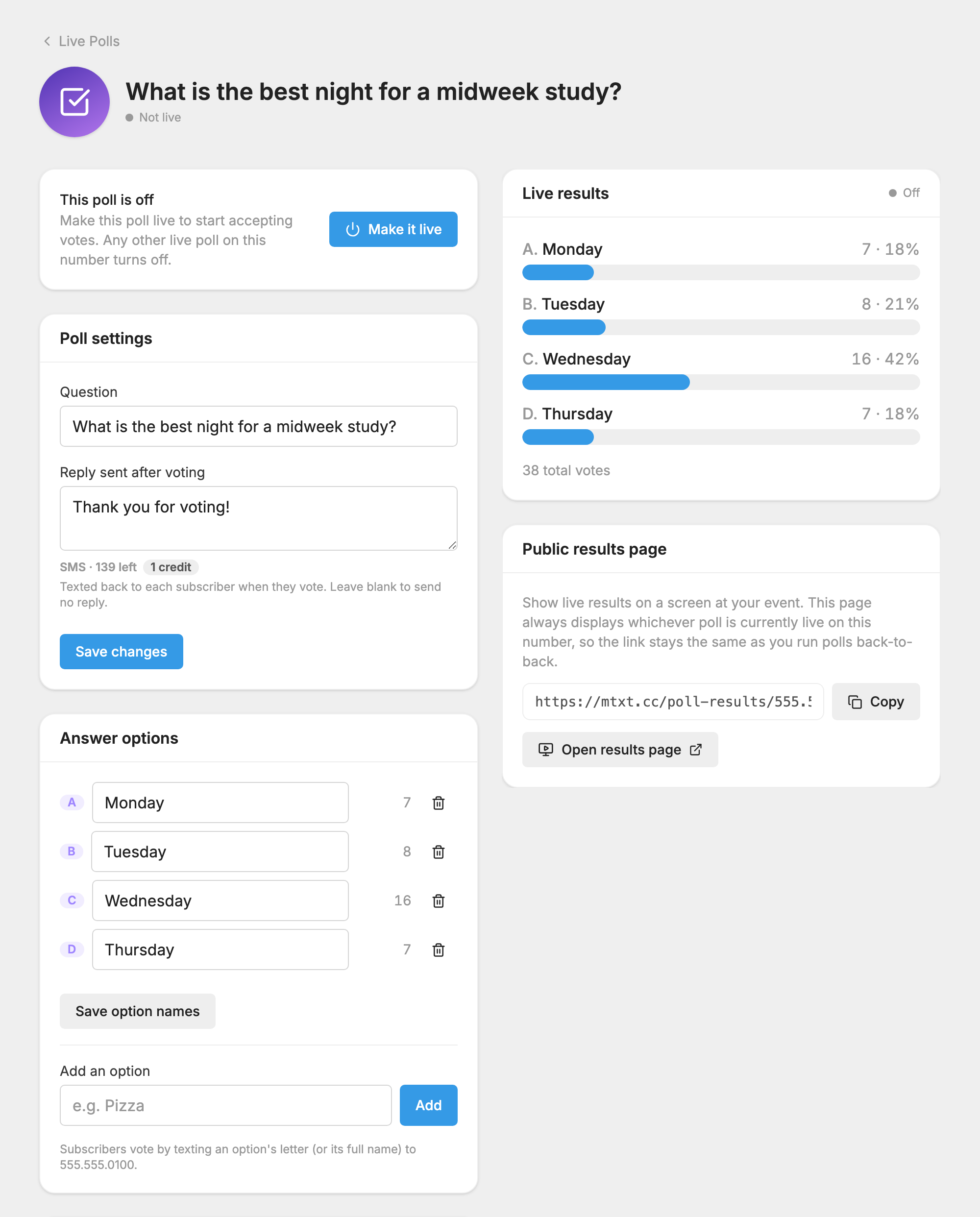
Answers can be up to 25 characters. You can have up to 26, but about four fit best on a screen. To fix a typo, change the name and click Save option names. The letter and any votes stay. To remove an answer, click its trash icon. Its votes go with it.
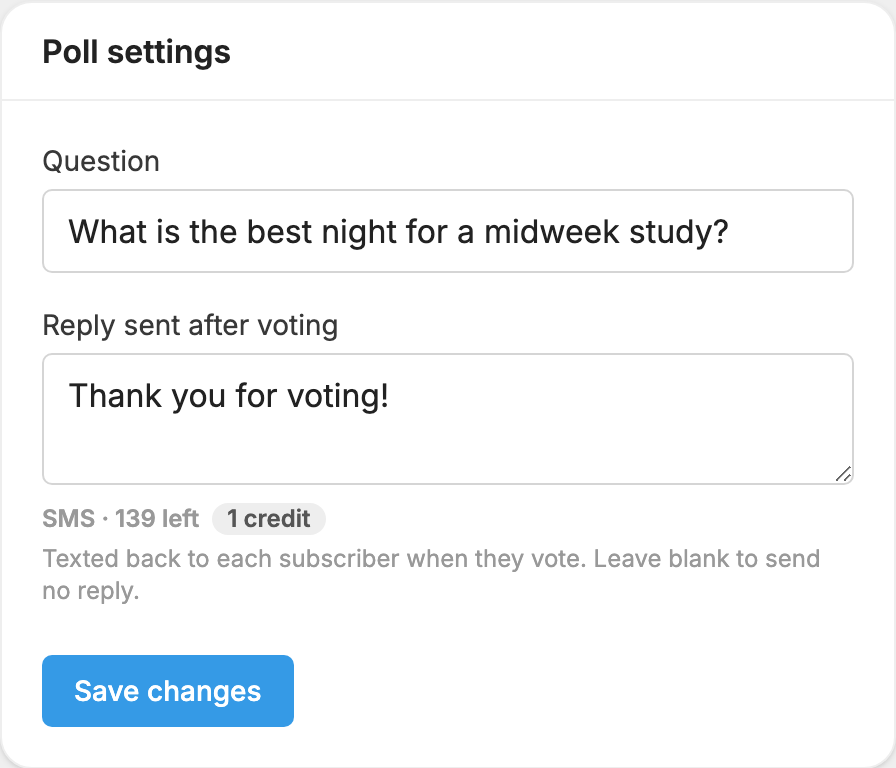
Under Poll settings you can change the Question and the Reply sent after voting. Click Save changes when you're done.
Reply sent after voting is the text each person gets back after they vote. A new poll starts with "Thank you for voting!" You can use it to point people to something else, such as "Thanks for voting! Reply INFO to join our text list." Each reply uses a credit, so in a big room you may prefer to clear the box and send no reply.
Make the poll live
A poll only counts votes while it's live, and only one poll on a number can be live at a time.
- On the poll's page, click Make it live. The button appears at the top of the page. A poll needs at least one answer first.
- The page now says This poll is live, and the line under the question shows it's accepting votes.
Making a poll live turns off any other live poll on the number.
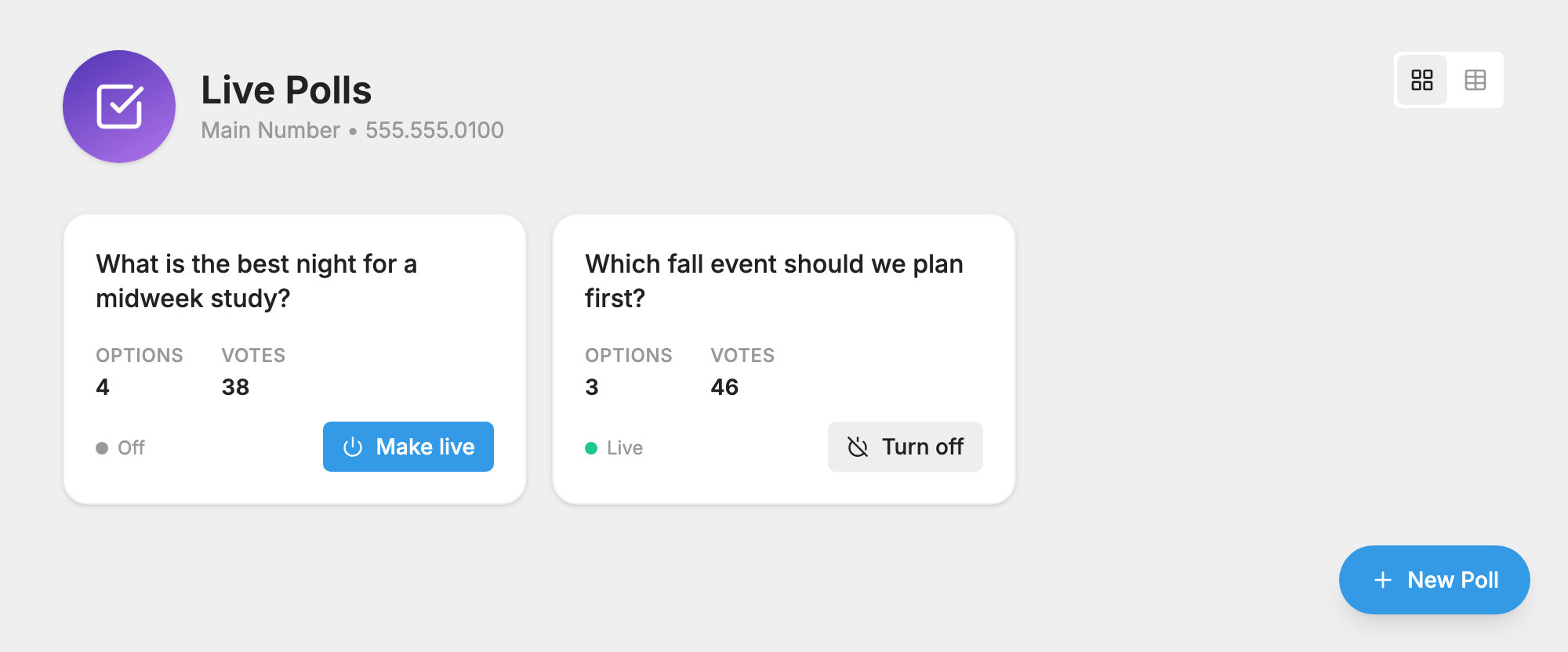
You can do the same from the Live Polls page, where each poll has its own Make live button. That's the quickest way to run several polls back to back.
Show the results on screen
The results screen is a web page anyone can open, with no login. It's built for a projector or TV: big text, moving bars, and a line at the bottom telling people what to text, such as "Text A, B, or C to 614.555.0100".
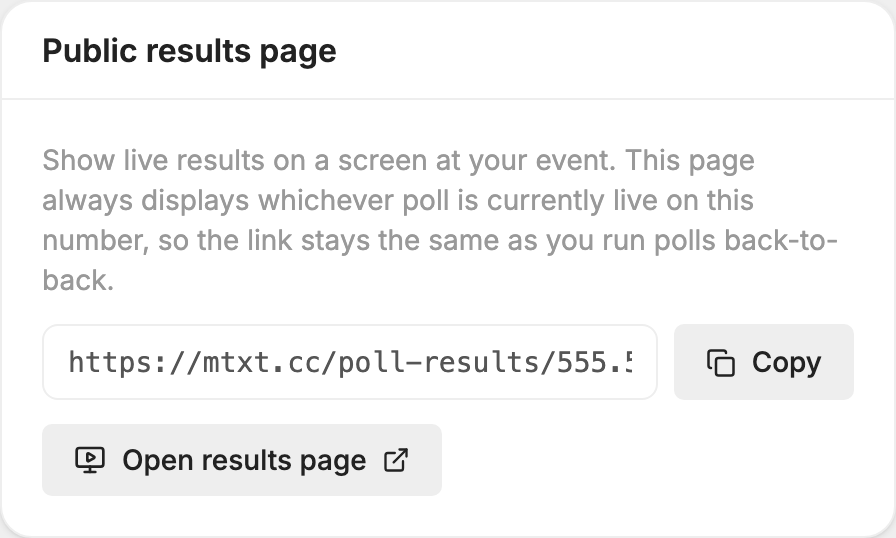
- On the poll's page, find the Public results page card.
- Click Copy to copy the link, or click Open results page to open it in a new tab. The link looks like https://mtxt.cc/poll-results/614.555.0100.
- Open that link on the computer connected to your screen.
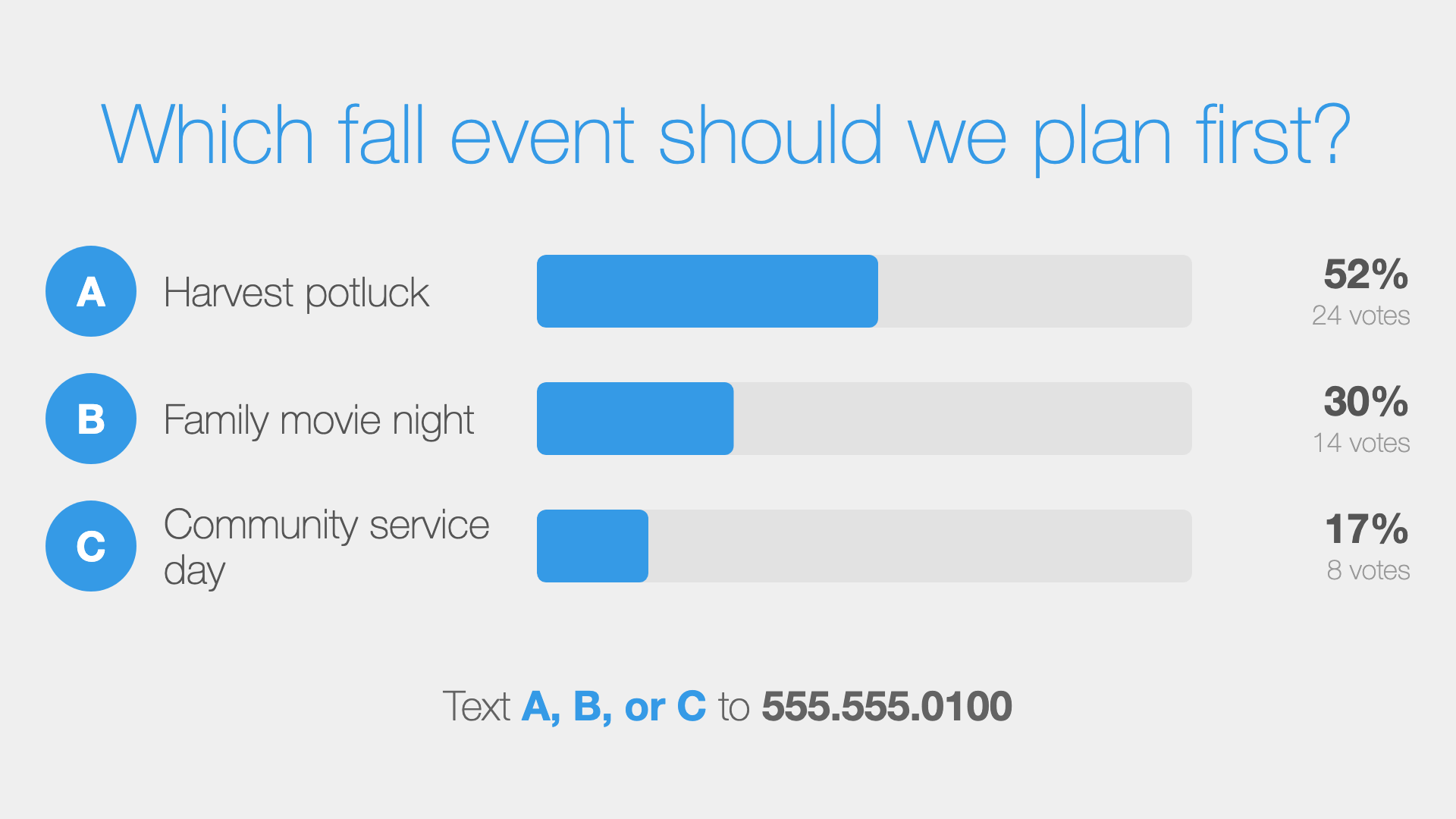
The link belongs to your phone number, not to one poll. It's the same for every poll you run, and it always shows whichever poll is live. When you make a different poll live, the screen switches by itself within a few seconds, so you never need to refresh it or swap links. You can save the link in your presentation ahead of time.
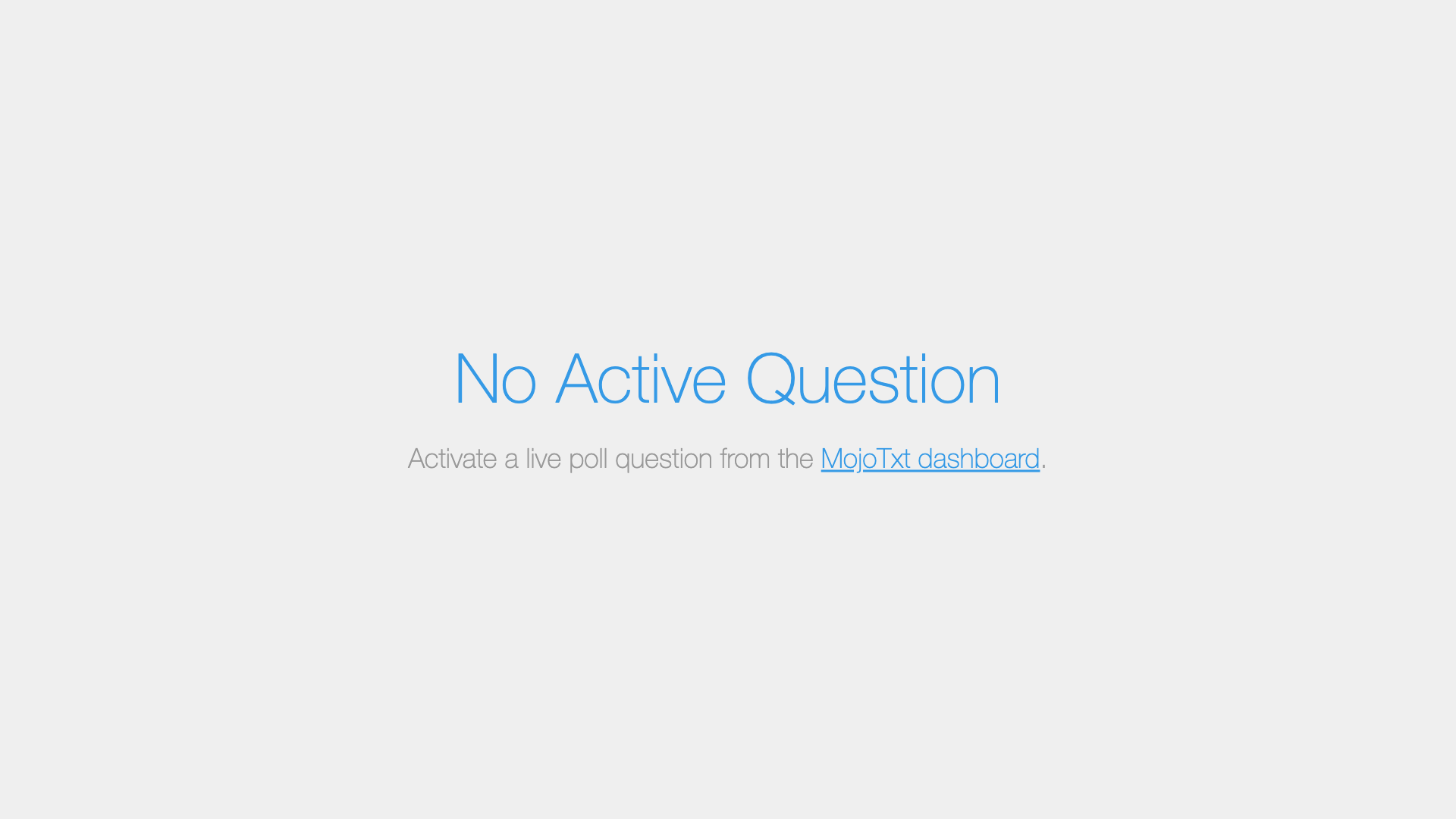
The screen shows No Active Question when no poll is live. That's normal. Make a poll live and it appears.
Full screen in Chrome
- Open Chrome and paste the link into the address bar.
- Press F11 on Windows, or choose Enter Full Screen from the View menu on a Mac.
To make things bigger or smaller, zoom the browser with Ctrl and + or - on Windows, or Command and + or - on a Mac.
You can also add a zoom setting to the link itself, which is handy in presentation software where you can't zoom. Add ?zoom=150 to the end of the link for 150% size. Add ?margin=5 to put space around the edges. To use both, join them with &:
https://mtxt.cc/poll-results/614.555.0100?zoom=150&margin=5
In ProPresenter or other presentation software
Use your software's option for showing a web page, and paste in your Public results page link. Because no login is needed, it works on an unattended computer. Add the link once, then control the poll from MojoTxt on a separate device.
Test it before your event
- Make the poll live and open the results screen.
- Text a letter from your own phone to your MojoTxt number. Your vote appears within a few seconds on the screen and in the Live results panel on the poll's page.
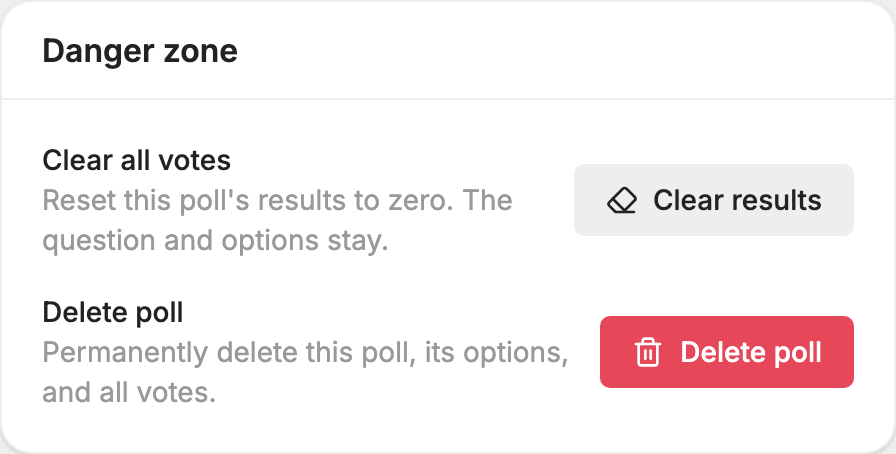
- Go to the Danger zone card on the poll's page and click Clear results, then confirm. The votes reset to zero, and the question and answers stay.
How people vote
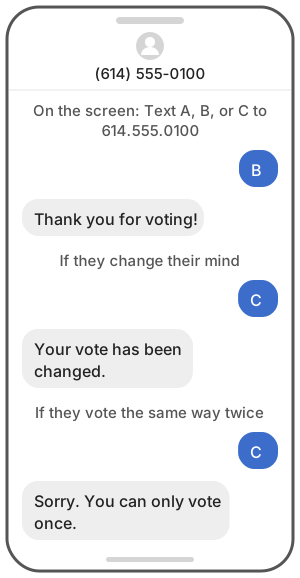
People text the letter of their answer to your MojoTxt number. They don't need to join anything first or text a keyword.
- Capitals don't matter. A and a are the same vote.
- They can also text the exact words of an answer instead of the letter.
- If they vote again for the same answer, the vote isn't counted twice. They get "Sorry. You can only vote once."
- If they text a different answer, their vote moves and they get "Your vote has been changed."
- Your Reply sent after voting only goes out on their first vote.
Say something like "Text A, B or C to" and your number. The results screen shows the same line.
Watch the results
The Live results panel on the poll's page shows each answer with its vote count, its percentage and a bar, plus the total, and it updates every few seconds. The Live Polls page shows the number of options and votes for each poll.
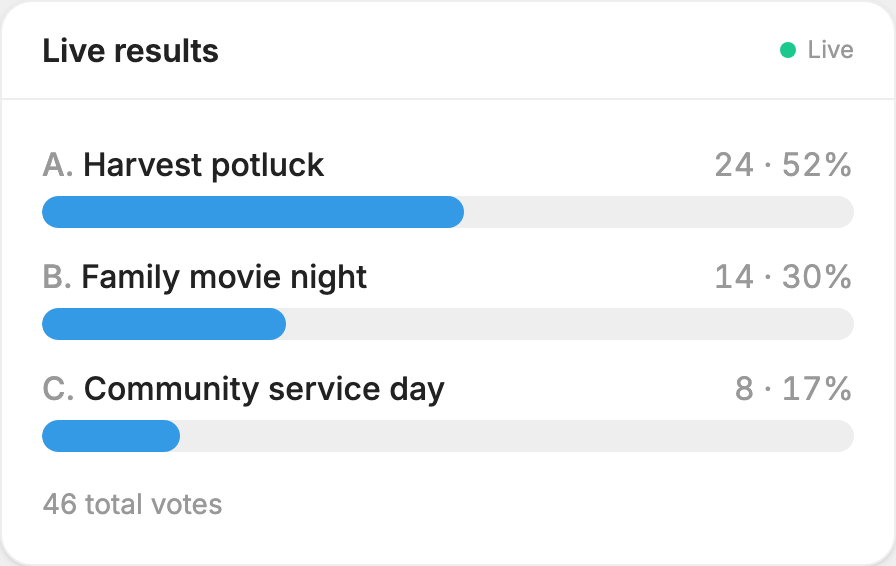
You can leave the poll's page open on your own device and keep the results screen up for the room. Both update on their own.
Run several polls in a row
- Create all your polls ahead of time, and test each one.
- Open the Live Polls page on your device, and put the results link on screen.
- Click Make live on the first poll.
- When you're ready for the next one, click Make live on it. The first turns off, and the screen switches by itself.
Turn a poll off
Click Turn off on the poll's page or on the Live Polls page. The results are kept. You can make the poll live again later, and votes will carry on from where they were. To start over, use Clear results.
Deleting the last answer of a live poll turns the poll off too.
To delete a poll, go to Danger zone on its page and click Delete poll, then confirm. This removes the poll, its answers and its votes for good.
After an event, you can send a message to the people who voted in a poll. See  Messages. See also Send a poll.
If votes aren't showing up
- Is the poll live? The poll's page should say This poll is live. When no poll is live, a letter is treated like any other text. It lands in
 Conversations, or gets the automatic error reply if conversations are turned off.
- Is the screen showing the right number? The link has to be for the number people are texting. If you have more than one number, check the number in the link.
- Does the screen say Oops or show an error? Check the link was copied in full.
- Did the person text just the letter? A sentence such as "I pick A" doesn't count, and neither does an answer that isn't an exact match. Those go to Conversations.
- Does a keyword get in the way? Keywords are checked before votes. If you have a keyword called B, or a keyword that matches the start of an answer's words, the text goes to that keyword. Use the letter, or change the keyword.
- Has the person opted out? Someone who texted STOP gets a reminder to reply UNSTOP, and their vote isn't counted.
- Is the person partway through something else? Someone finishing a gift may have their text read as part of that. See What happens to an incoming text.
