Sending
 Messages
The  Messages page shows every message sent or scheduled from your number, and it is where you write a new one. For the difference between this page and Automations, see Sending.
Send a message
- Click Messages under Sending in the left-hand column.
- Click New message.
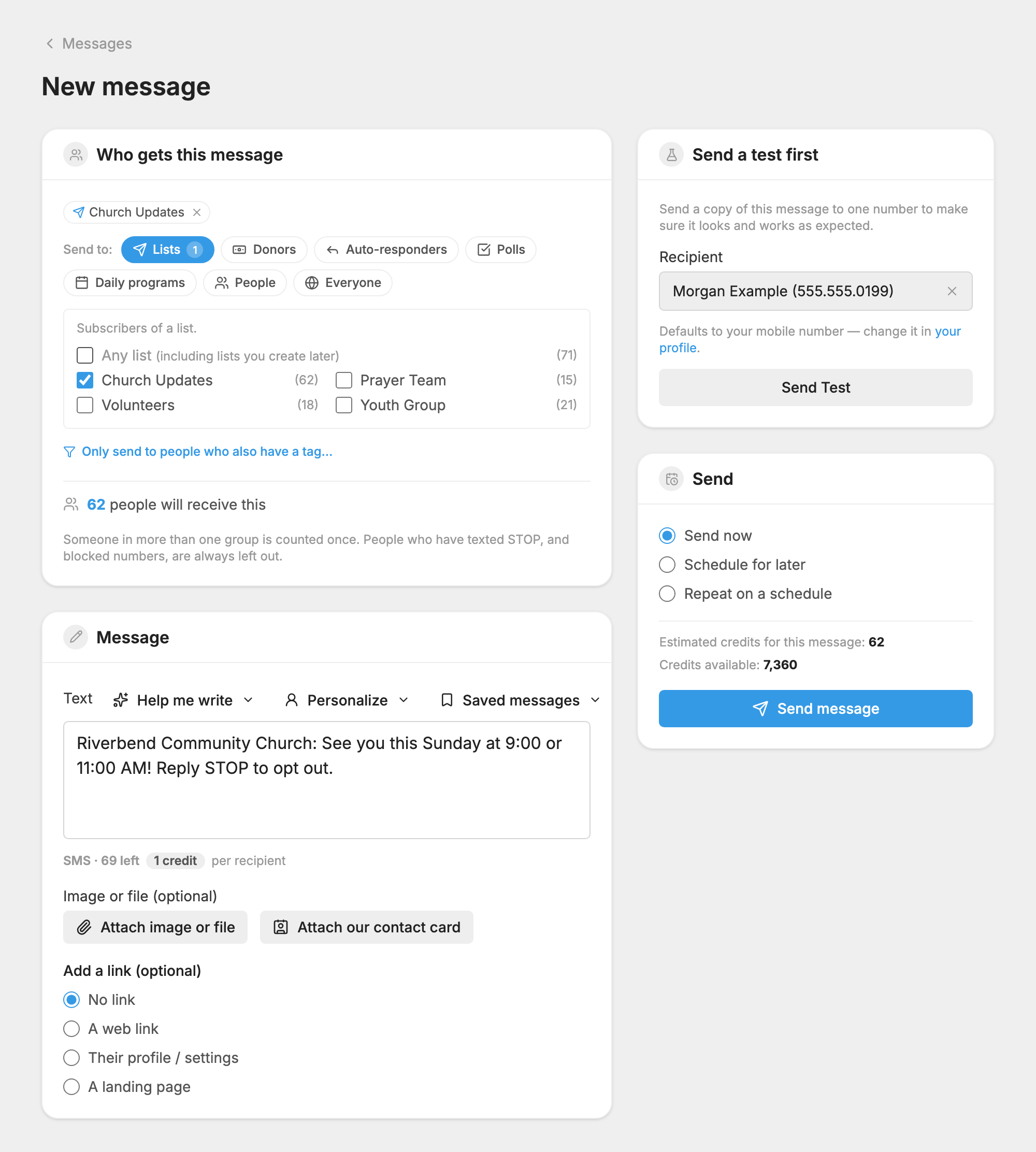
- Under Who gets this message, choose who it goes to.
- Type your message in the Text box.
- Under Send a test first, click Send Test to see it on your own phone.
- In the Send box, choose Send now, Schedule for later or Repeat on a schedule.
- Click the button at the bottom of the Send box. It reads Send message, Schedule message or Save repeating message.
The Messages page
The page has four tabs: All, Scheduled, Sent and Repeating.
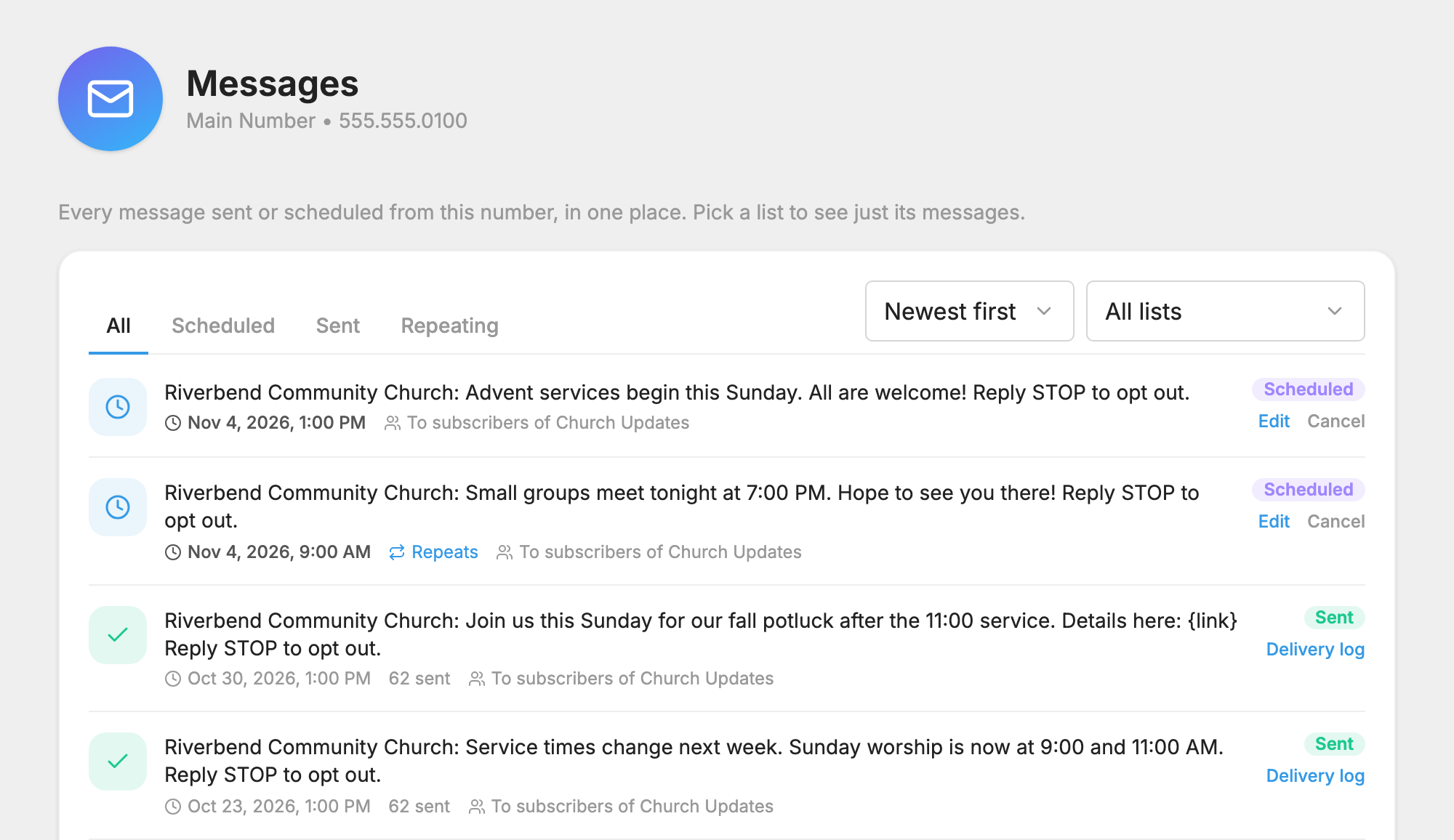
- Pick a list in the box at the top to see only that list's messages, or choose All lists to see them all. A list's own Messages tab opens this page filtered to that list.
- Messages with no list, such as those sent to Everyone or to chosen people, show when the box says All lists.
- Choose Newest first or Oldest first to change the order.
- Hover over a message to read all of it and see what each copy costs.
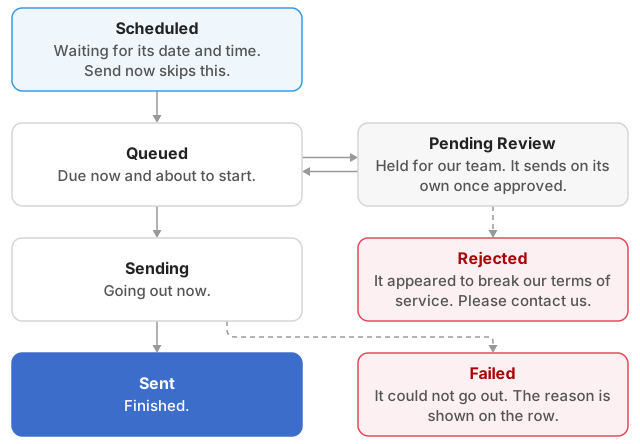
Each row shows when it goes out, who it goes to, and a status:
- Scheduled: waiting for its date and time.
- Queued: due now and about to start.
- Pending Review: held for a review by our team. It sends on its own once approved, and you can still edit or cancel it.
- Sending: going out now.
- Sent: finished.
- Failed: it could not go out. The reason is shown on the row.
- Rejected: it appeared to break our terms of service. Please contact us if you see this.
Choose who gets a message
The Send to row opens on your lists. Each button opens its choices, A to Z, and what you pick shows above the row as small labels you can remove. A button only appears if your number has something to offer under it.
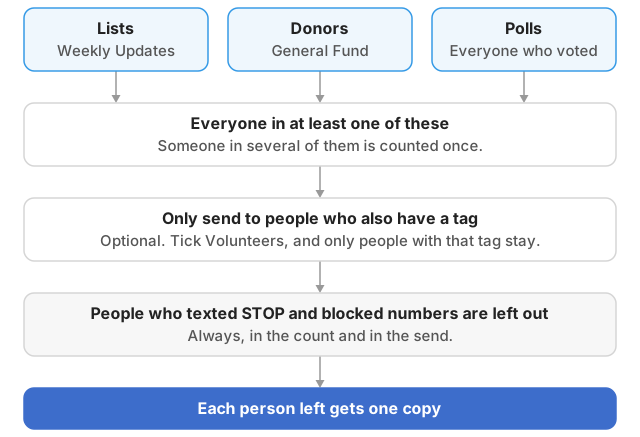
Add as many as you like. A person who is in several of them gets the message once.
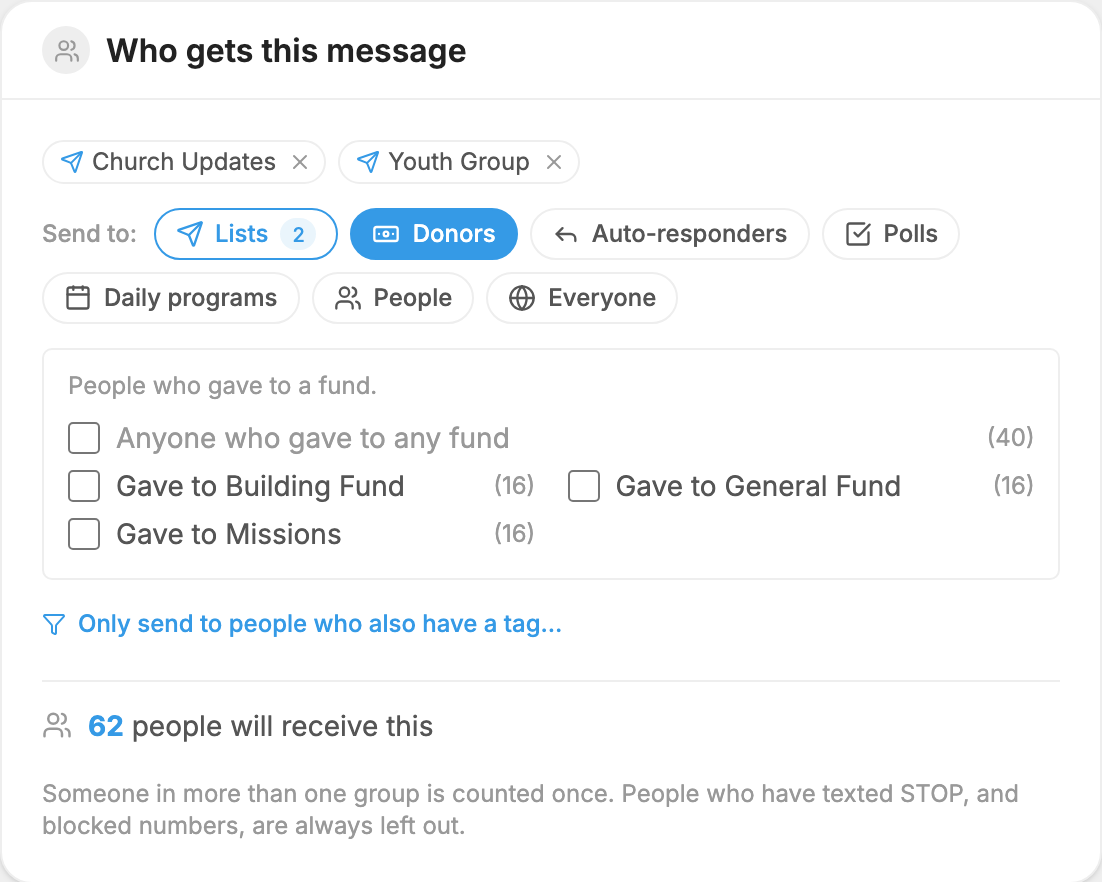
- Lists: the people subscribed to a list. Any list covers every list, including lists you create later, which is handy for a repeating message.
- Donors: people who gave to a fund, or choose Anyone who gave to any fund.
- Auto-responders: everyone who has texted that keyword.
- Polls: everyone who voted in that poll.
- Daily programs: everyone subscribed to that program.
- People: type a name or number to add people one by one. They get the message whether or not they are on a list. Only people already on your number can be added here.
- Everyone: everyone who has ever texted this number or been added to it. It replaces your other choices. Click any other button and Everyone switches off again.
When a button has many choices, you see the ones you used most recently, with a search box and a Show all link.
Any list, Everyone and Anyone who gave to any fund are offered to logins with full access to those tools. A login given specific lists picks from those lists. See Users and access.
Narrow it by tag
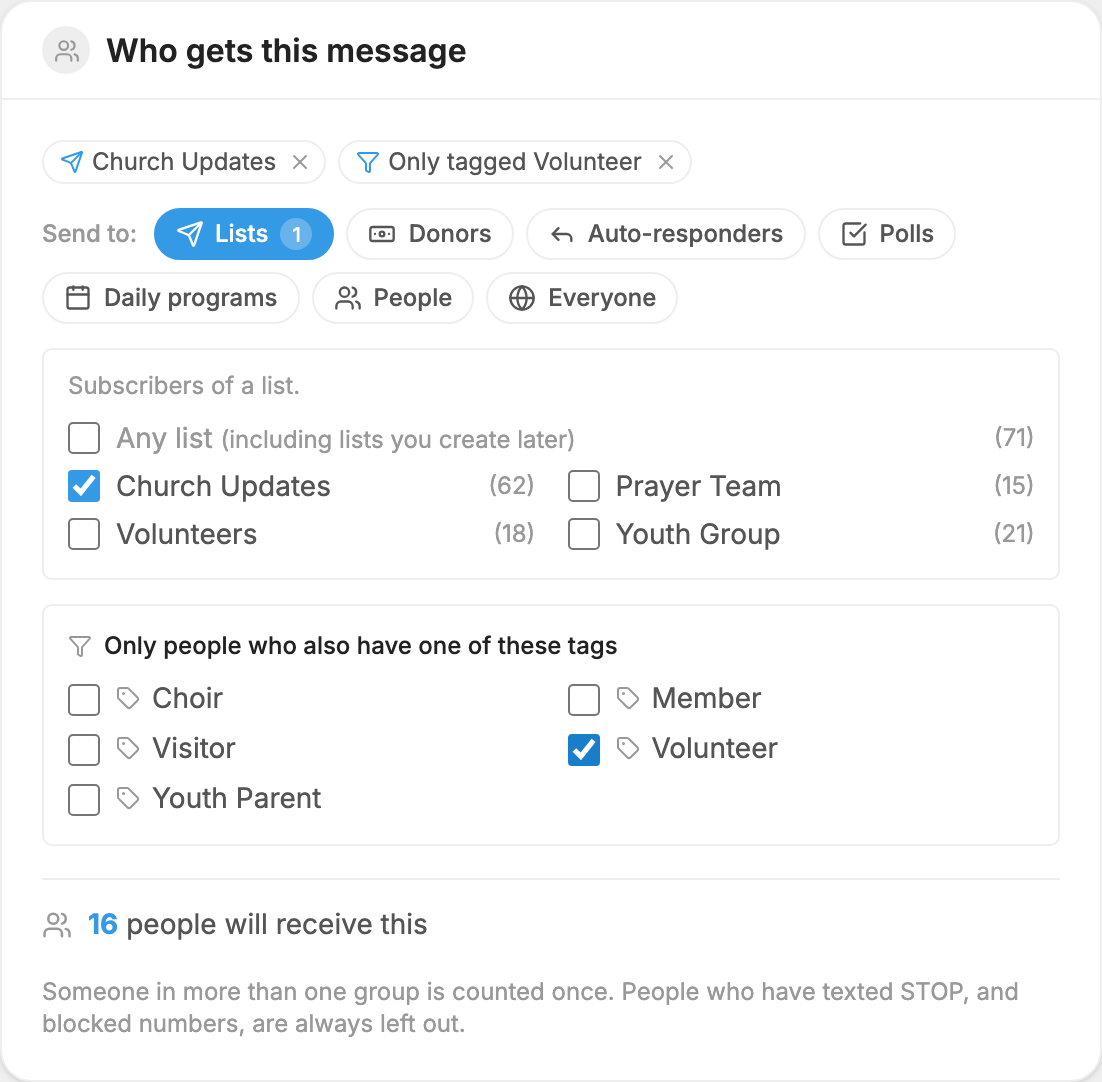
Tags work as a filter, not a group of their own. A tag is a label you put on people on the  People page.
- Choose who gets the message.
- Click Only send to people who also have a tag… under the row.
- Tick one or more tags.
The message then goes only to people in your choice who also have one of those tags. To text everyone with a tag, choose Everyone and then the tag.
Check the count
Each choice shows how many people it reaches, and the line under the box counts the whole audience. Click that count to see the people by name before you send.
People who have texted STOP, and numbers you have blocked, are always left out of both the count and the send.
Greet people by name
- Click in the Text box where the name should go.
- Open Personalize, on the right of the Text label. On a phone only the person icon shows.
- Choose Insert first name or Insert last name.
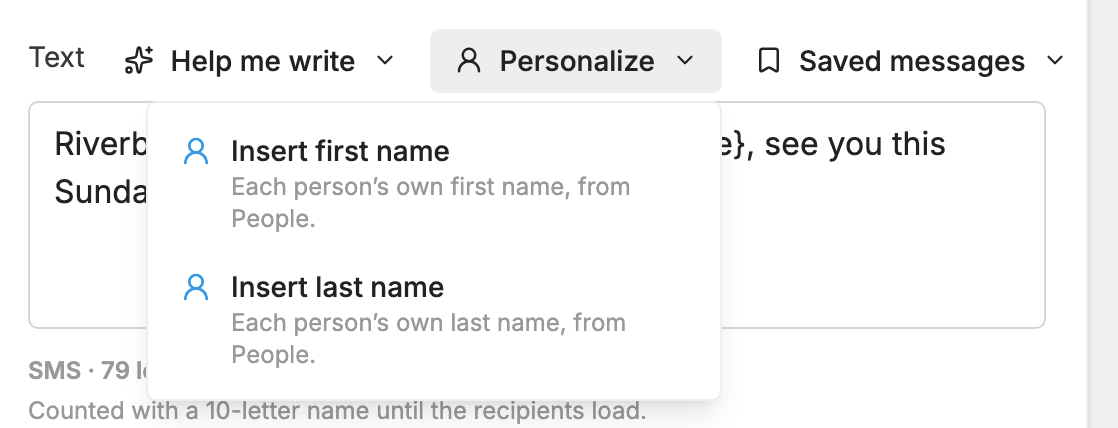
A tag such as {first name} is added, and each person receives their own name in its place: "Hi Sarah, see you Sunday." You can also type the tag yourself.
Not everyone has a name on file, so a line appears under the box asking what to say instead:
- When we don't have a first name, say starts as "there", for "Hi there."
- When we don't have a last name, say starts as "church", for "Hi church family."
Change the word for each message, or leave it blank to drop the name. Names are tidied as the message sends, so JOHN becomes John, and a name that is really a number or a code is treated as missing. Nothing in People is changed.
Attach a picture or file
Click Attach image or file under the message. You can also send an attachment with no text at all.
- Images: JPEG, PNG and GIF. WebP images are converted for you.
- PDF files.
- Contact cards: .vcf files.
- Audio: MP3, M4A, WAV and AMR.
Other file types are refused. Images are made smaller for you so they fit. An animated GIF keeps its animation, so one that can't be shrunk enough is refused. Try a shorter or smaller GIF, or a still image. PDF, contact card and audio files can't be shrunk, so they need to be under about 450 KB.
If your number has a contact card, Attach our contact card appears next to the attach button, so you can send the card to people who are already subscribed. See Phone Number Settings.
Any attachment turns the message into a picture message, which costs 3 credits at any length. Replace file swaps it, and the X on the small preview removes it.
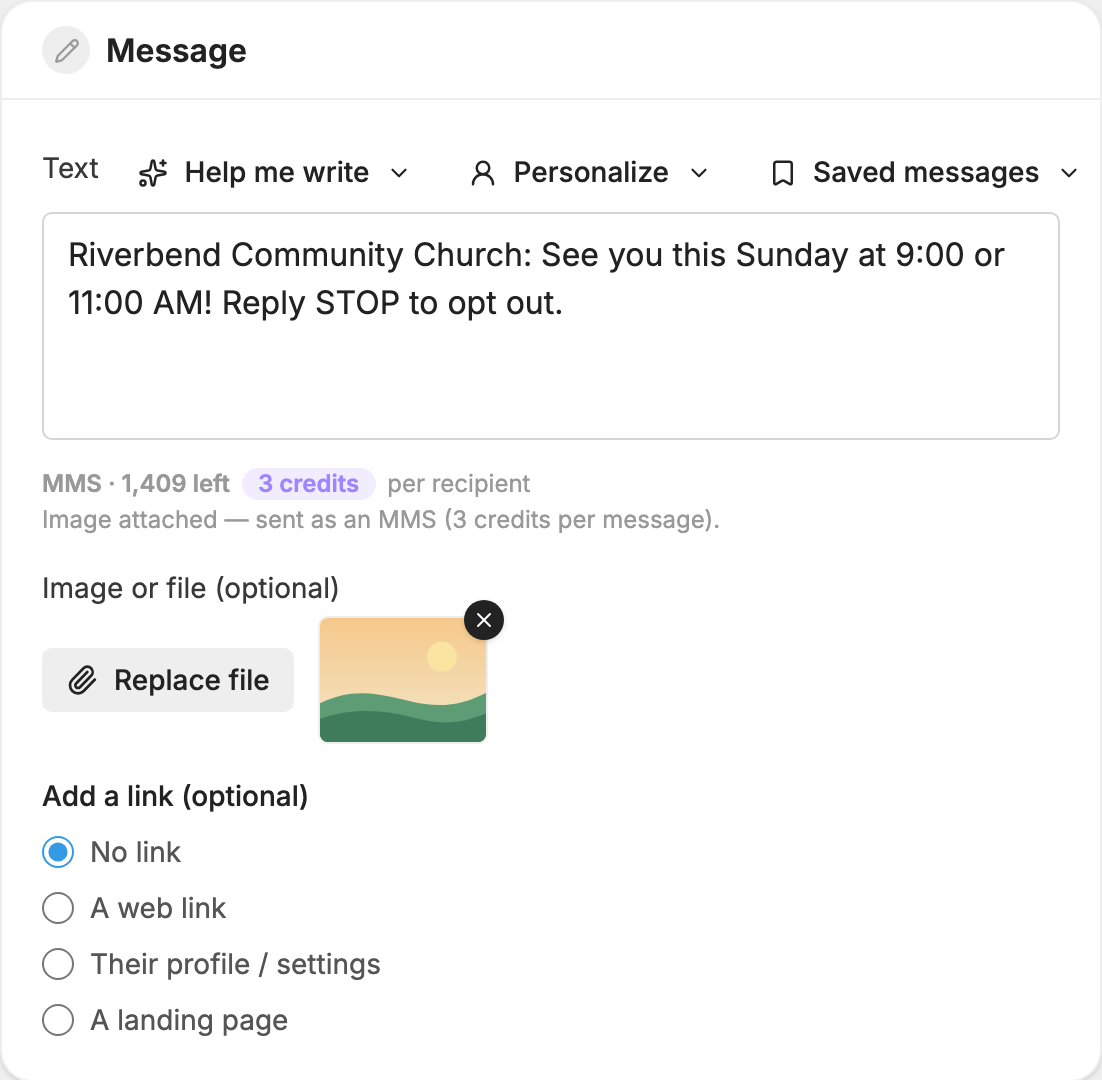
If you don't see the attach button, your number can't send picture messages.
Add a link
Under Add a link (optional), choose one:
- A web link: enter the web address.
- Their profile / settings: a link to the person's own settings page, where they can update their details and subscriptions.
- A landing page: build a short page with text, images, videos and links. People open it from the link.
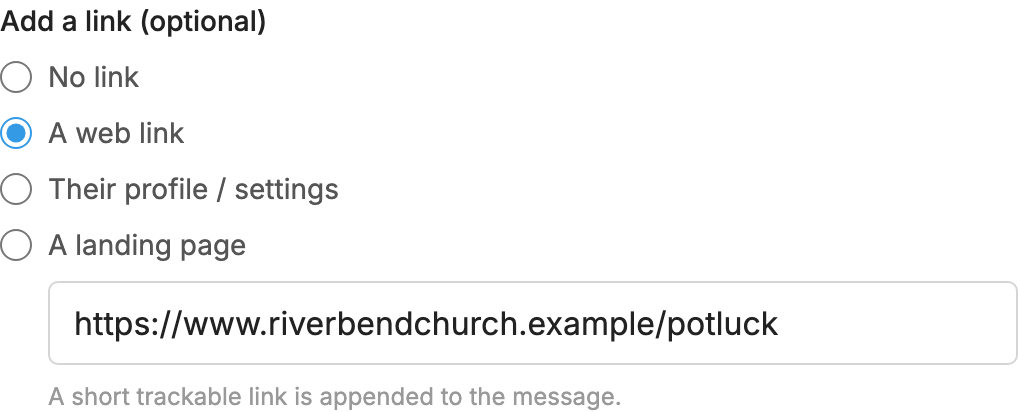
A short trackable link is added to the end of the message, and the counter saves room for it. Each person gets their own link, so the Delivery log can show who followed it. The landing page and settings pages use your  Branding.
Help me write
Click Help me write, the sparkle on the right of the Text label. On a phone only the icon shows. All four helpers only change the text in the box. You still read it over, edit it and send it yourself. An Undo button appears next to the menu until you type, and puts your own text back.
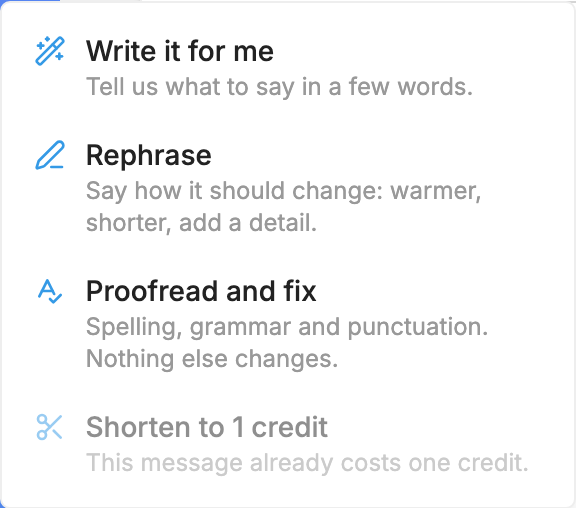
- Write it for me: type a few words, such as "potluck after the 10am service Sunday, bring a dish", and click Write. A message appears, written to fit in one credit and in the tone of messages you have sent before. Start with our organization's name and End with "Reply STOP to opt out" are ticked to start, because carriers look for both. Untick either one when you don't want it.
- Rephrase: say how it should change, such as "warmer", "shorter" or "add that childcare is provided", and click Rephrase. Everything you don't mention stays as it is, and a one-credit message stays at one credit when it can.
- Proofread and fix: corrects spelling, grammar and punctuation, and changes nothing else.
- Shorten to 1 credit: rewrites the message so it fits in one text. It is greyed out while the message already costs one credit, or when something is attached, since a picture message costs the same at any length.
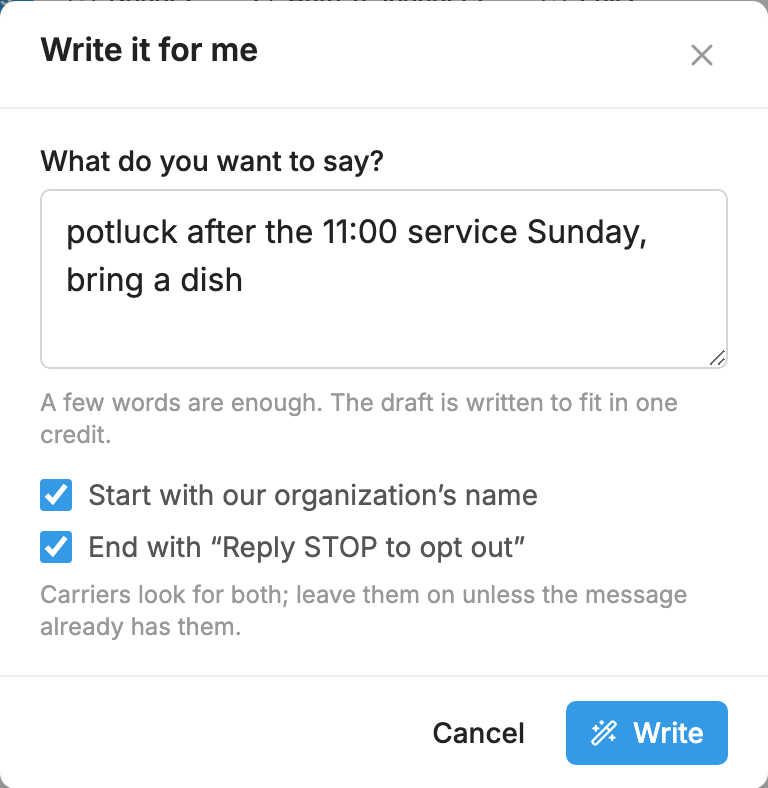
Drafts know only what you tell them. Add your service times, address, website and how you sign off under About your organization in Phone Number Settings, and drafts will use those details instead of leaving blanks.
The helpers are included on every plan, with a daily limit per account. You will also find them on automations, auto-responders, Send message on the People page, and when you start a new conversation.
Saved messages
Keep a message you use often, with its link and image, and drop it in next time.
- Write the message.
- Click Saved messages, on the right of the Text label, and choose Save this message.
- Give it a name and click Save message.
To use one, click Saved messages, choose Use a saved message, and click Use. You can search your saved messages, see how often each has been used, and rename or delete them from that list. Change anything you like before sending.
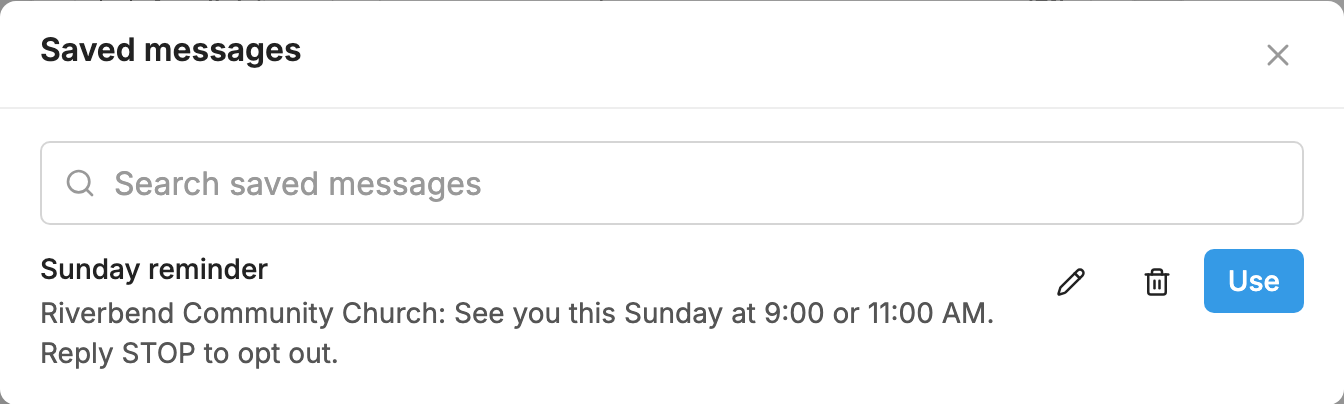
Saved messages belong to the number you are working on. Name tags are kept, so they still fill in each person's name.
Send a test first
The Send a test first box sends a copy to one number, so you can check how it looks and that any link works.
- Check the Recipient. It starts with your own mobile number from your profile. You can type another name or number.
- Click Send Test.
- Watch the status change from Preparing to send… to Sent and then Delivered.
- Click Send another test to try again.
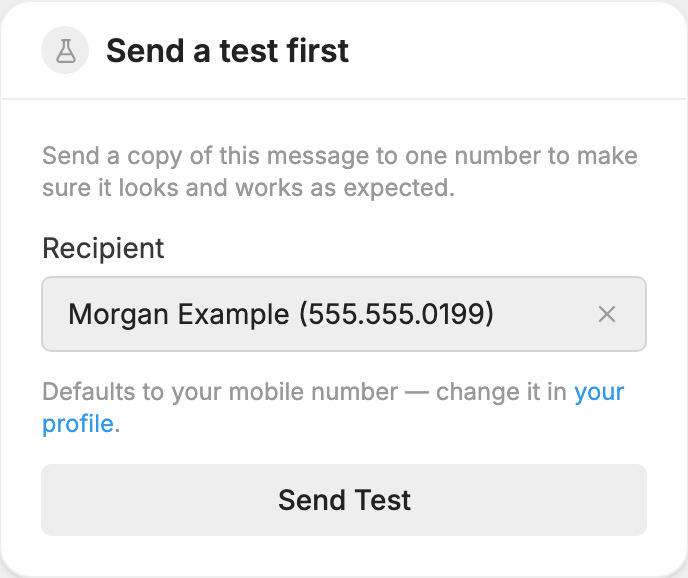
A test uses credits like one copy of the message. Name tags use the name on file for that number, or your fallback word if there isn't one. You can't send a test to a number that has texted STOP or that you have blocked.
Check the credits
The line under the Text box shows the kind of message, how many characters are left, and what each person's copy costs:
- SMS: a standard text of up to 160 characters costs 1 credit.
- Extended SMS: up to 306 characters costs 2 credits.
- MMS: a picture message, or a text too long for an extended SMS, costs 3 credits. It can hold up to 1,500 characters.
Emoji and some special characters lower those limits. A number that can't send picture messages stops at the extended limit. The line turns red, and sending is turned off, when a message is too long.
At the bottom of the Send box you will see:
- Estimated credits for this message, or each time it sends for a repeating message.
- Credits available.
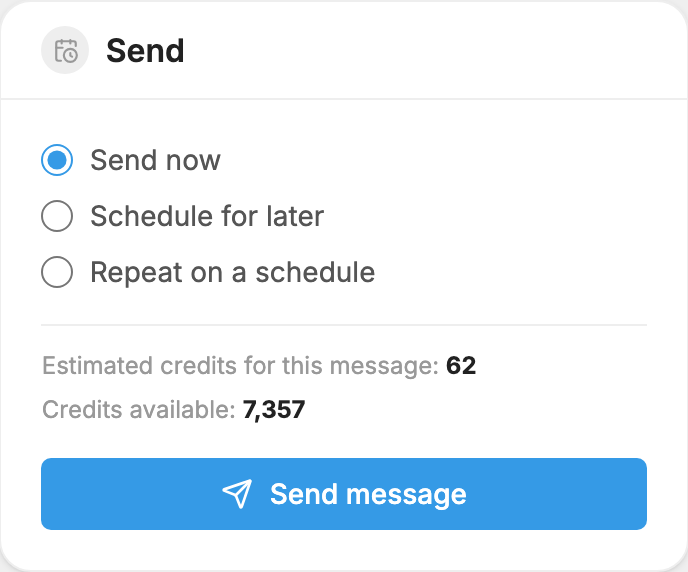
If the estimate is more than you have available, a paid plan can still send, and the overage is billed to your account. On a trial, the send button turns off until you remove some recipients or upgrade.
For more, see Credits and message length.
Schedule a message
- Choose Schedule for later in the Send box.
- Pick a date and time in the future. This box uses the clock on the computer or phone you are using.
- Click Schedule message.
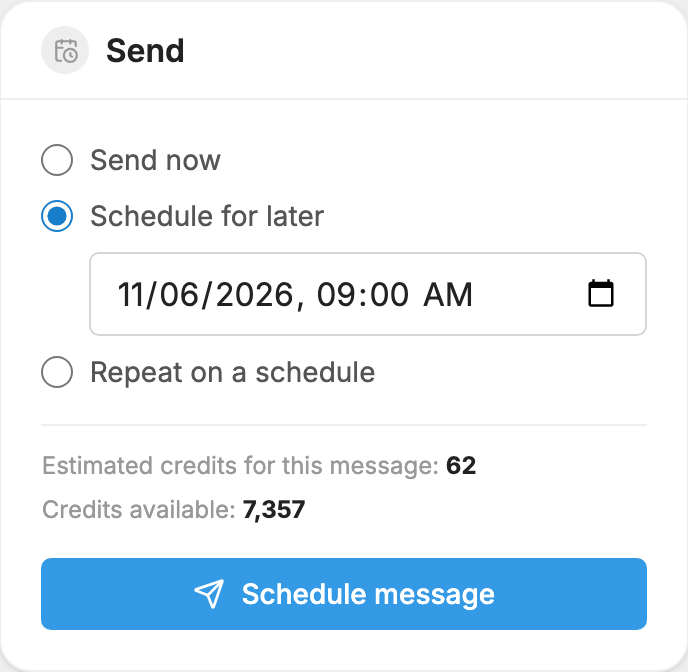
The message waits on the Scheduled tab. A scheduled message uses credits when it sends, at the price on that day.
Repeat a message on a schedule
To send the same message every week or month:
- Choose Repeat on a schedule in the Send box.
- Under How often, choose Every day, Every week, Every 2 weeks or Every month.
- Pick On these days, or the Day of the month. In a shorter month it sends on the last day.
- Set the Time and the Starting date.
- Under Ends, choose Never (until you pause or end it), On a date, or After a number of sends.
- Check Next sends, which lists the next three.
- Click Save repeating message.
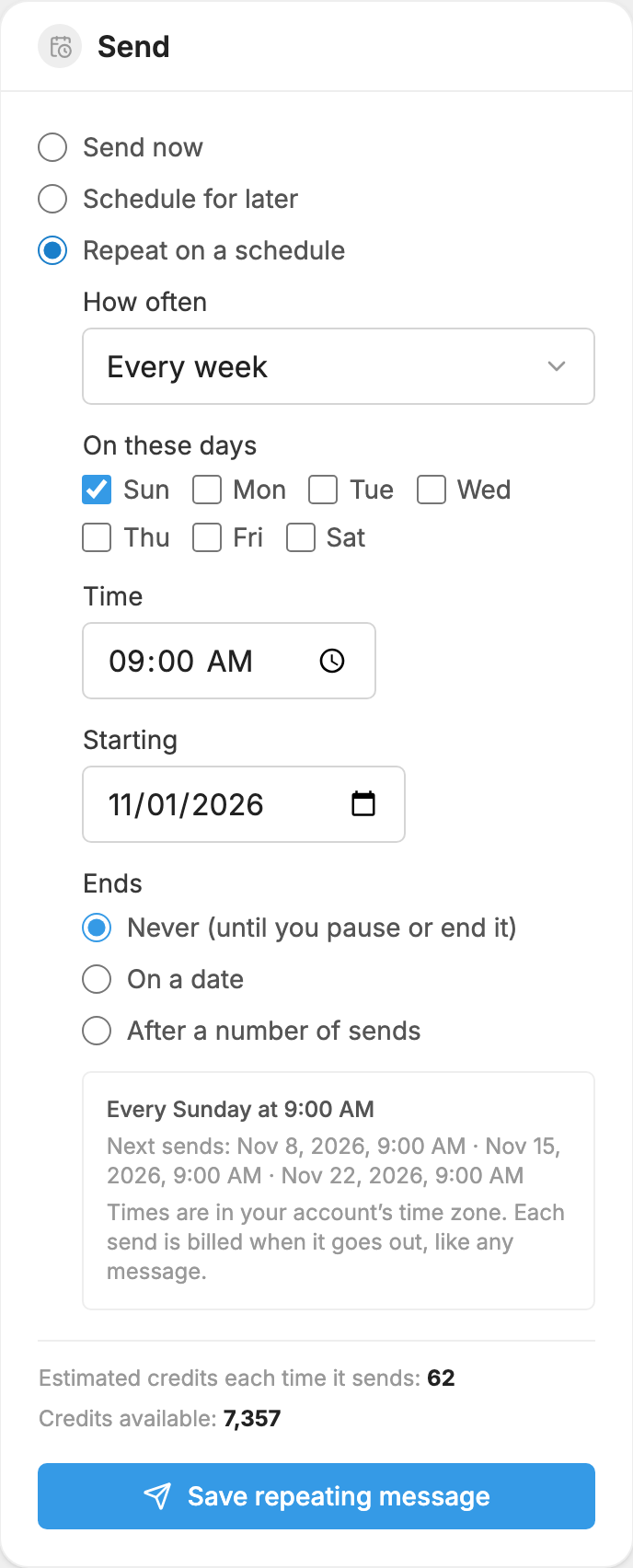
Times follow your account's time zone. Each send uses credits when it goes out, so a repeating message to 200 people uses about 200 credits or more every time.
The upcoming send appears on the Messages page like any scheduled message, marked Repeats. You can edit or cancel that one send without affecting the rest.
The Repeating tab lists the schedule itself: when it sends next, how many have gone out, and these choices:
- Pause and Resume stop and restart the schedule.
- Edit changes the audience, the message or the schedule.
- Delete stops it and takes it off the tab. The messages it already sent stay on the Sent tab.
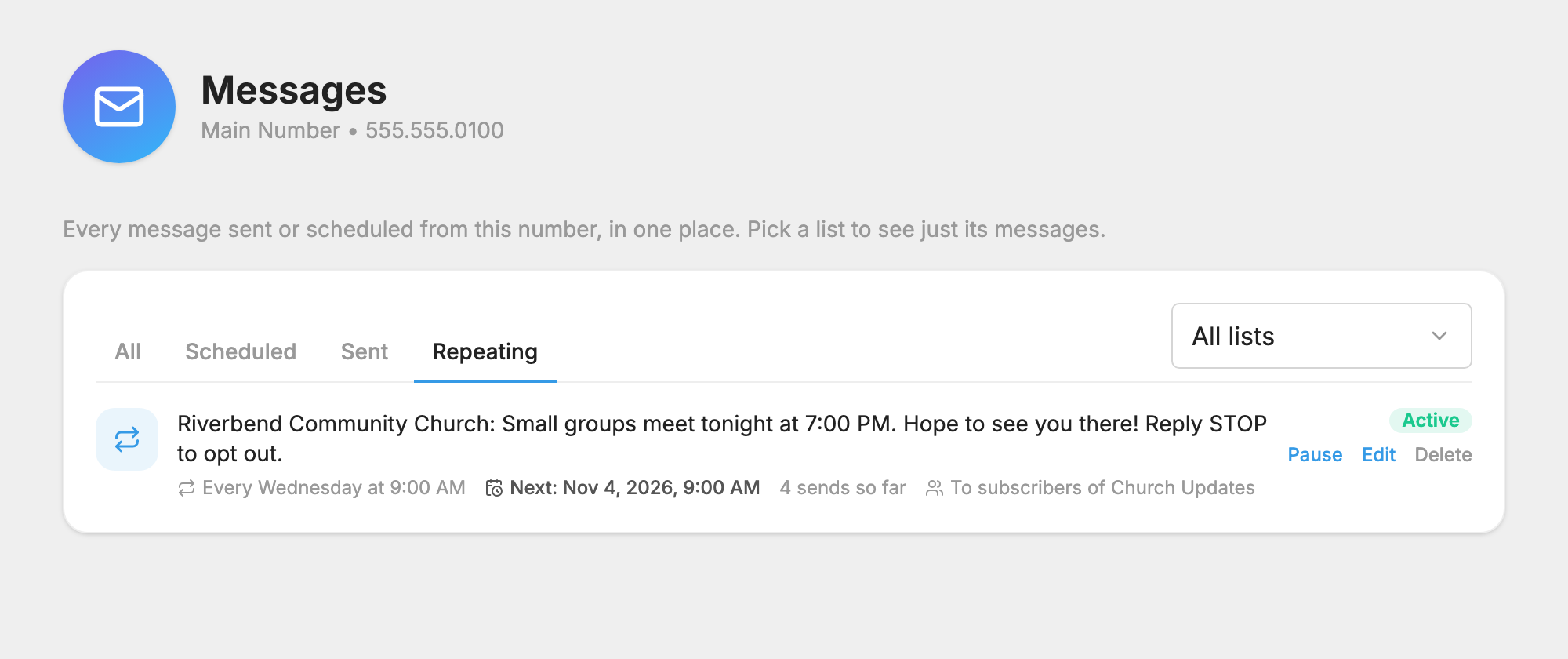
If a send can't go out, for example when a trial account runs out of credits or nobody is left to send to, the schedule pauses and the row says why. Click Resume when you are ready.
Edit or cancel a scheduled message
You can change a message until it starts sending. Its row shows Edit and Cancel while it is Scheduled, Queued or Pending Review.
Edit opens the same page as a new message, so you can change the wording, who gets it and when it goes out, send yourself a test, or make it repeat. Then click:
- Save changes to keep it scheduled.
- Save and send now to send it right away.
- Save as repeating message to turn it into a repeating message.
Editing a message in Pending Review sends it back for review.
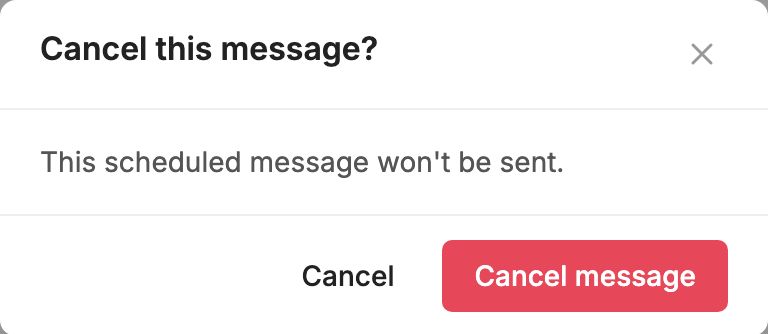
Cancel asks you to confirm with Cancel message, and the message won't be sent.
Sending the same message twice
MojoTxt refuses a message with the same text as one scheduled in the past 5 minutes, so a double click can't send it twice. If you meant to send it again, wait 5 minutes or change the wording.
See how a message did
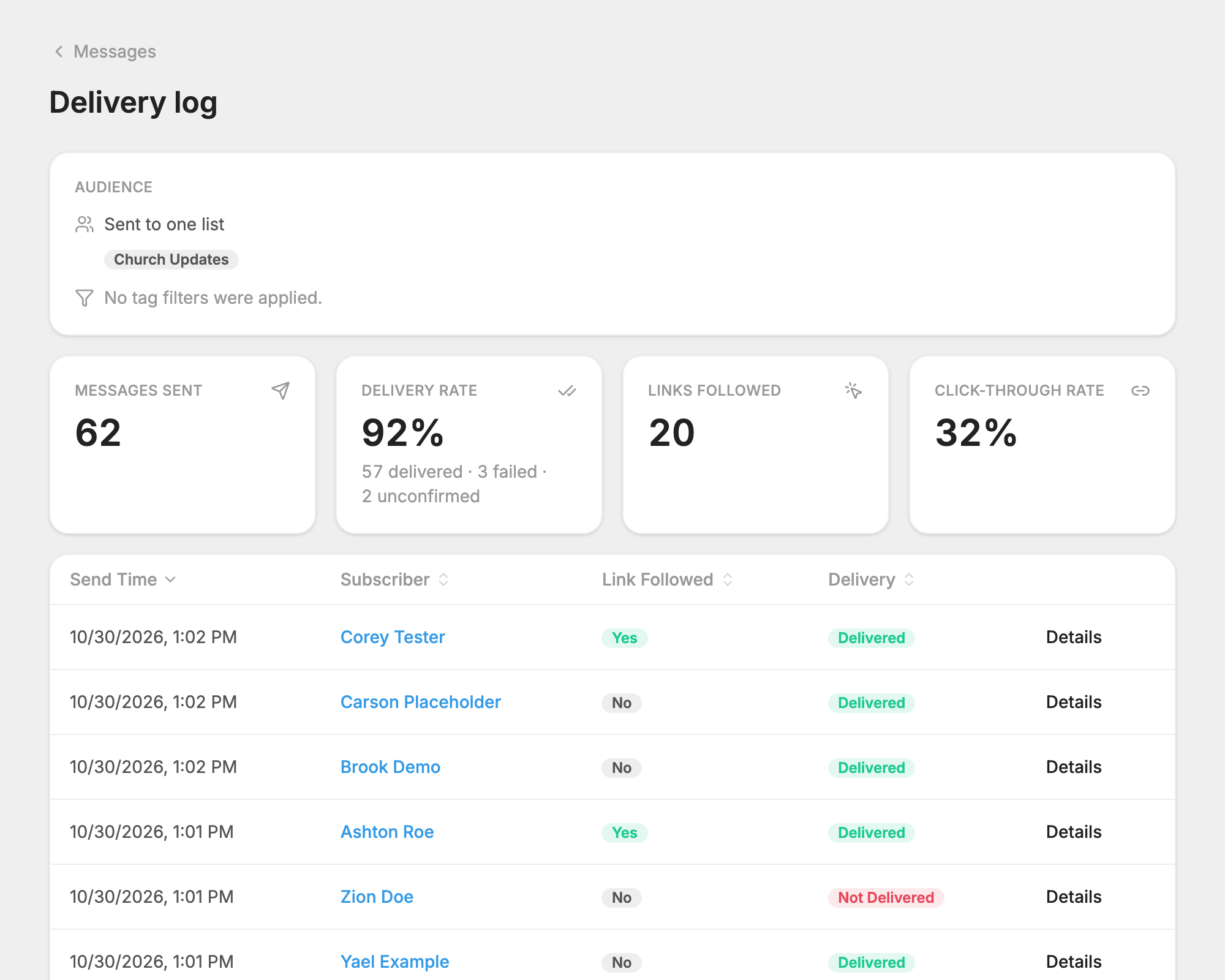
On the Sent tab, click Delivery log on any message.
- Audience shows every list and group it went to, and any tag filter.
- Messages Sent is how many copies went out.
- Delivery Rate is the share confirmed delivered. Click a count under it, delivered, failed or unconfirmed, to see only those people.
- Links Followed and Click-Through Rate show how many people opened your link. They appear when the message had a link.
- The table lists each person, with Details for one person's copy.
A rate can read low just after a send and climb as confirmations come in. For what each result means, see  Message Log.