

How do I… Sending messages
 Send a Poll
A live poll lets people vote by texting a letter to your number, and shows the results as the votes come in. Only one poll can be live on a number at a time. Registering your number comes first, so see  Carrier Registration if you haven't done that yet.
Set up the poll
- Open
 Live Polls and press New Poll.
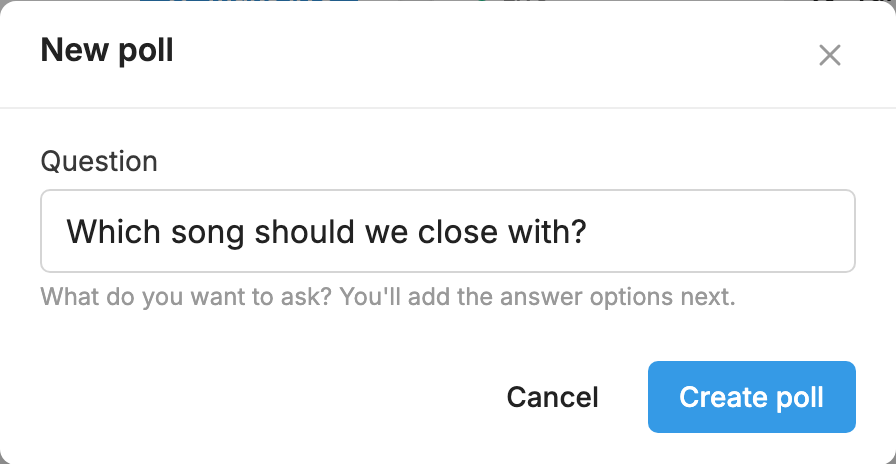
- Type your question and press Create poll.
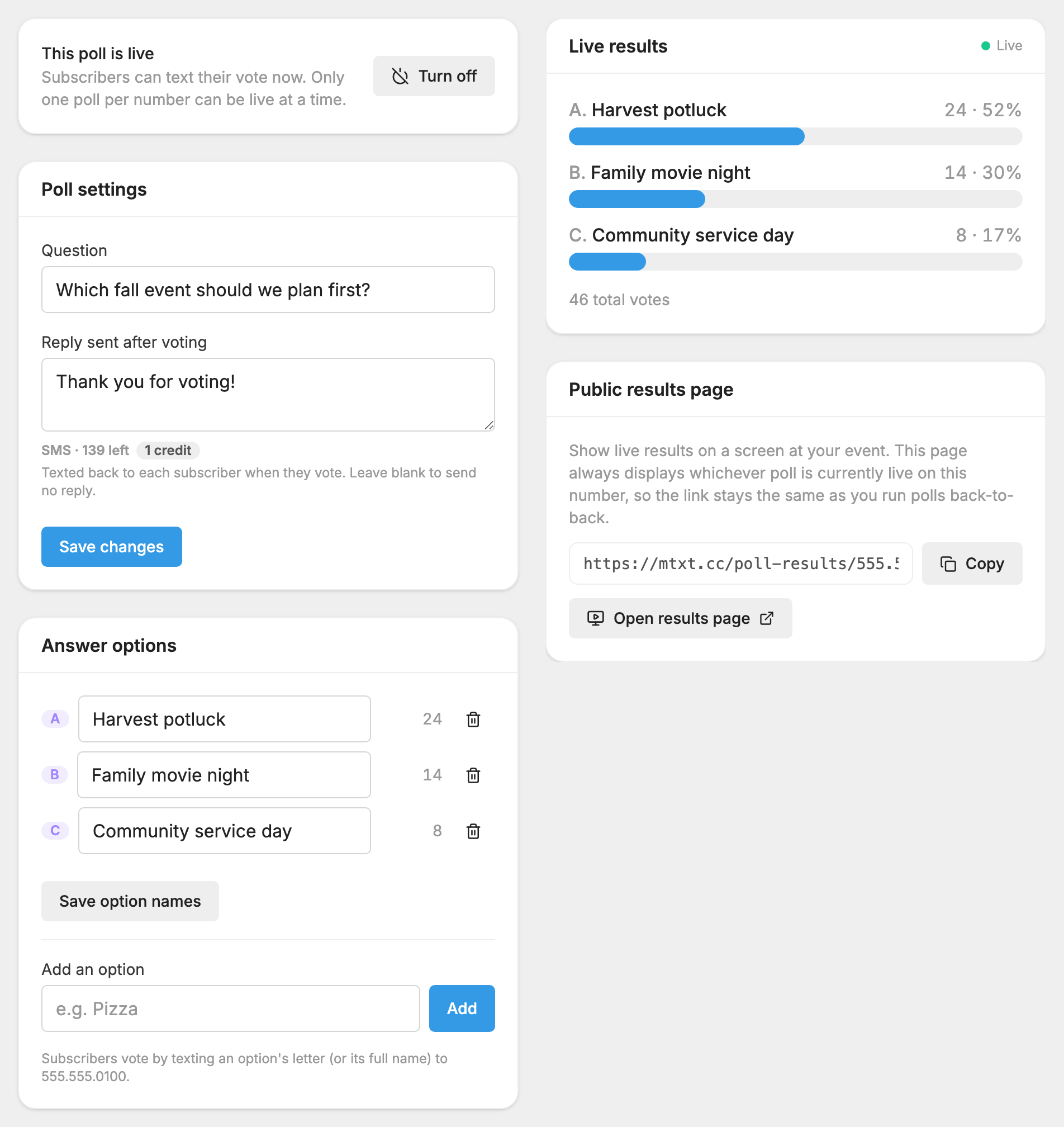
- Under Answer options, type a choice in Add an option and press Add. Repeat for each choice. MojoTxt gives them the letters A, B, C and so on. A poll can have up to 26 options of up to 25 characters each.
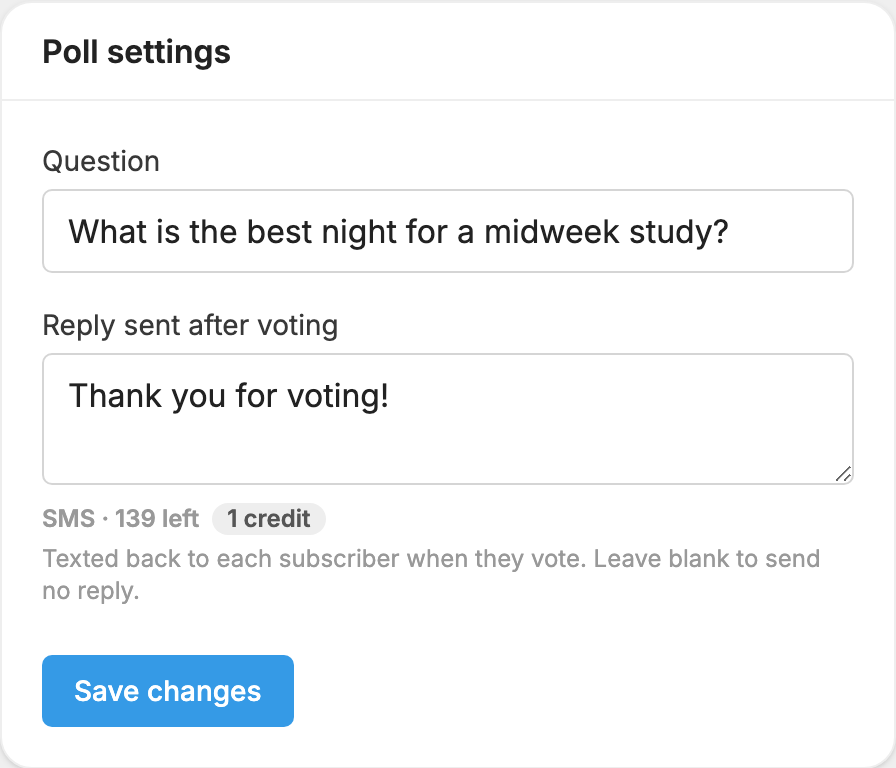
- Under Poll settings, check Reply sent after voting. This text goes back to each person when they vote. It starts as a short thank-you. Leave it blank to send no reply, then press Save changes.
- Press Make it live. Any other live poll on this number turns off.
Tell people how to vote
Making a poll live doesn't text anyone. You need to put the question in front of people yourself:
- Say it from the front of the room, or show it on a screen.
- Send a message with the question and the choices. Open Messages, press New message, and write something like this:
People vote by texting the letter, or the full name of the option, to your number. Capital letters don't matter.
How voting works
- Each phone gets one vote. Texting a different choice changes the vote and they get "Your vote has been changed." Texting the same choice again gets "Sorry. You can only vote once."
- Anyone who texts your number can vote, not only the people on your lists. A poll can't be limited to certain numbers.
- Someone who texted STOP can't vote. Their text gets the opt-out reminder instead.
- Your keywords come first. If a text starts with one of your keywords, it goes to that keyword and doesn't count as a vote. If an option's name starts with a keyword, ask people to text the letter.
- Votes are free, replies aren't. A text vote uses no credits. Each reply your number sends back uses credits, so a blank Reply sent after voting saves credits on a large poll.
Watch the results
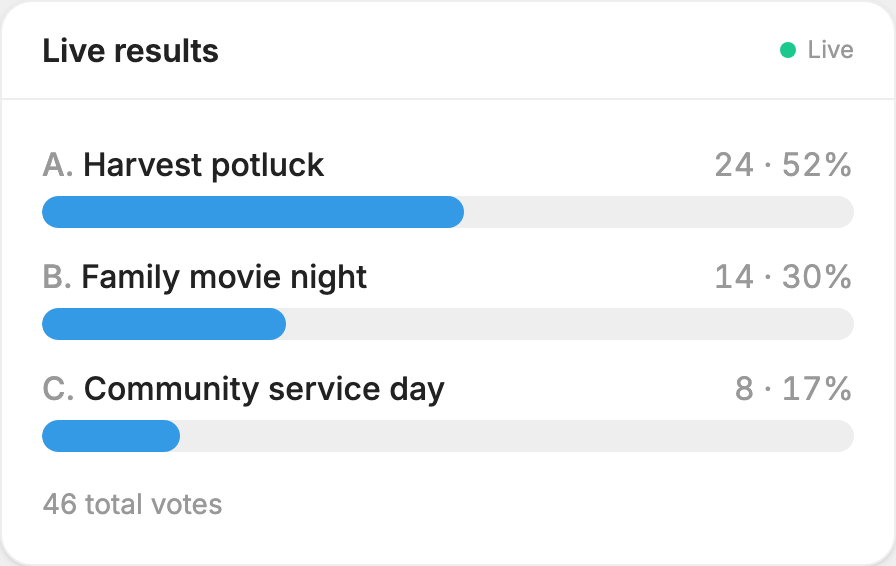
The Live results card on the poll's page updates every few seconds, with the votes and percentage for each option.
To show the results on a screen at your event:
- Under Public results page, press Open results page, or press Copy to copy the link.
- Open that page on the computer connected to your screen.
That page has no login and always shows whichever poll is live on this number, so the same link works for your next poll.
See who voted
The results show totals, not names. To see who voted for what, open the  Message Log and filter to Inbound. Each vote is there as a text from that person.
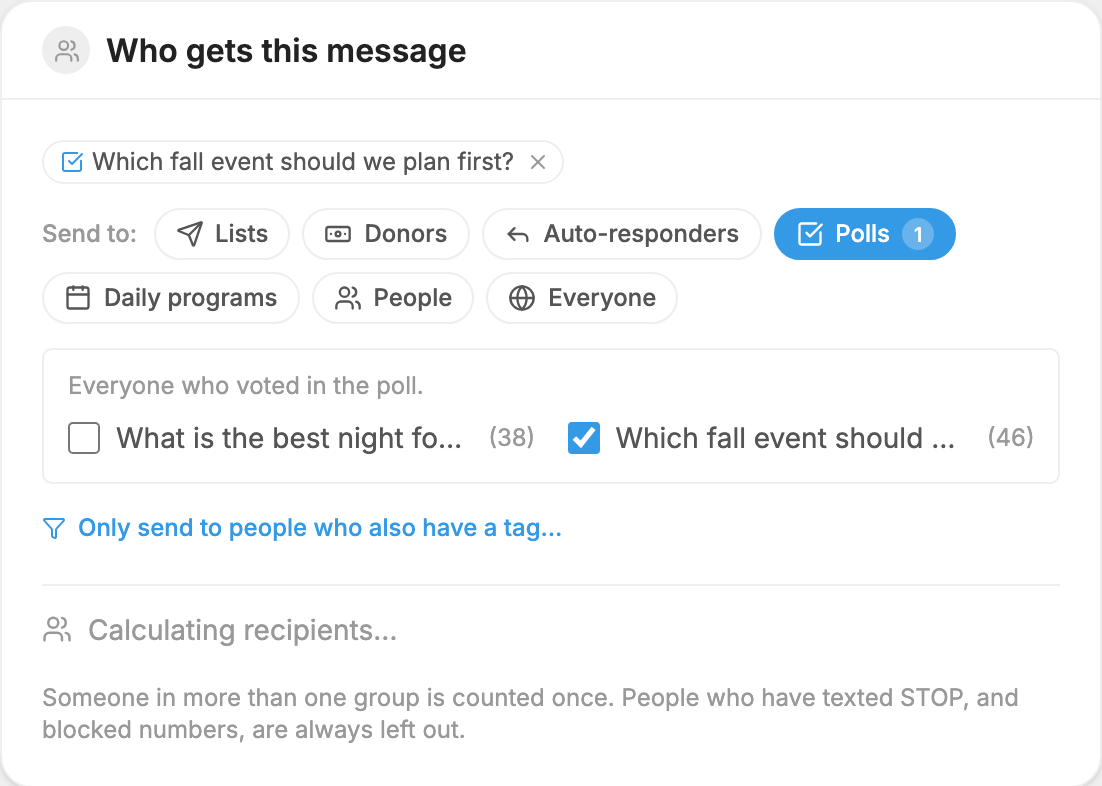
To send a follow-up to everyone who voted, press New message in Messages. Under Who gets this message, choose Polls, then choose your poll.
Finish the poll
- Stop accepting votes: press Turn off. After that, a text of "A" is treated like any other message to your number.
- Change a choice: edit its name and press Save option names. The letter and its votes stay. Deleting an option also deletes its votes.
- Start over: press Clear results under Danger zone. The question and options stay.
- Remove the poll: press Delete poll under Danger zone. This can't be undone.
