

Your account
 Payment Services
A payment service is the company that processes the gifts people give you. Connect yours so that money from  Donations lands in your organization's own account.
This page is about money coming to you. The card you pay MojoTxt with is separate, and it is on Account & Billing.
You need Account Settings access. Find this under Account & Billing, Payment Services.
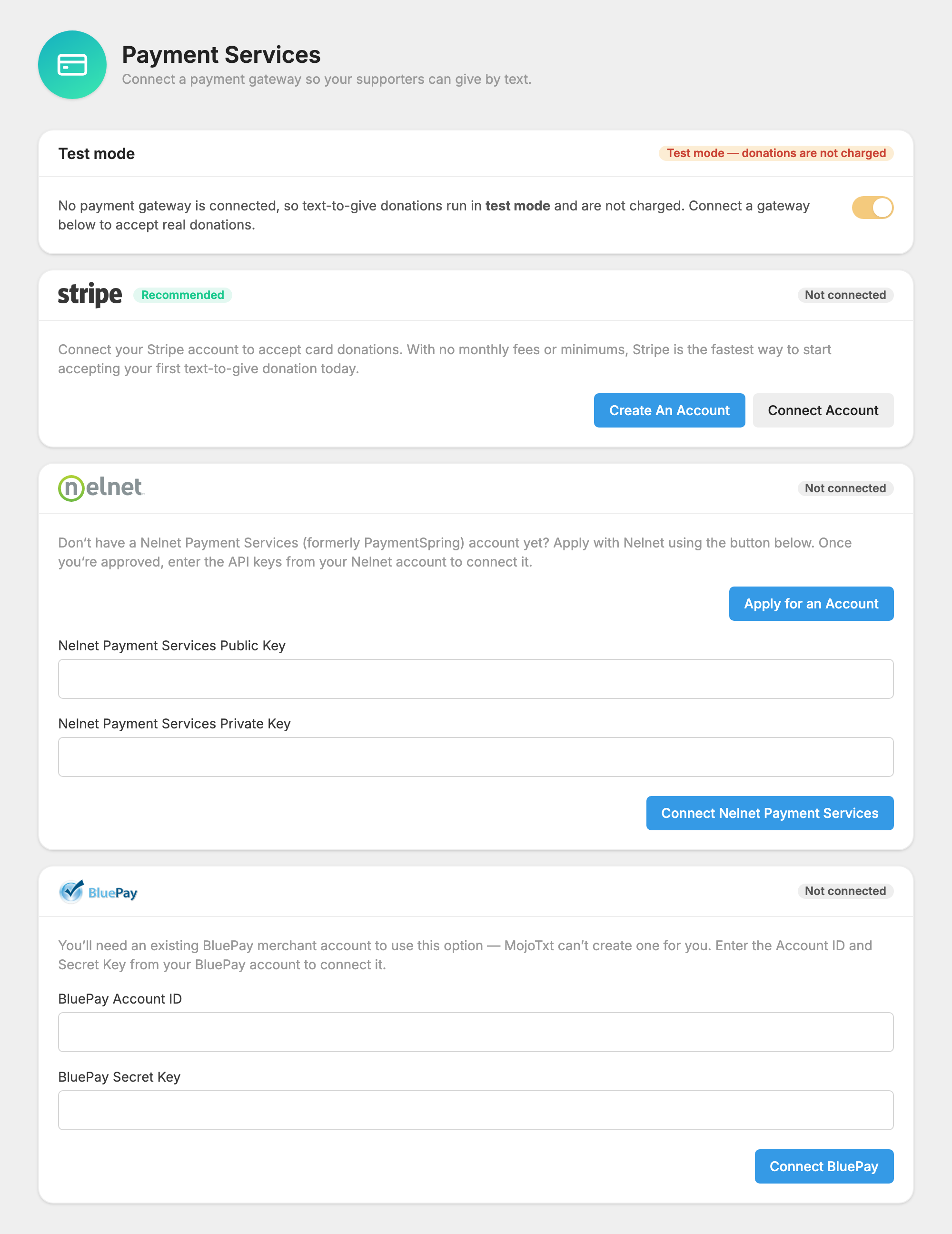
Choose a payment service
| Service | Getting an account | How people can give |
|---|---|---|
| Stripe (recommended) | Create one from this page. No monthly fees or minimums. | Card |
| Nelnet Payment Services (formerly PaymentSpring) | Apply with Nelnet from this page, then enter your keys. | Card or checking account |
| BluePay | You need an existing BluePay merchant account. We can't create one for you. | Card or checking account |
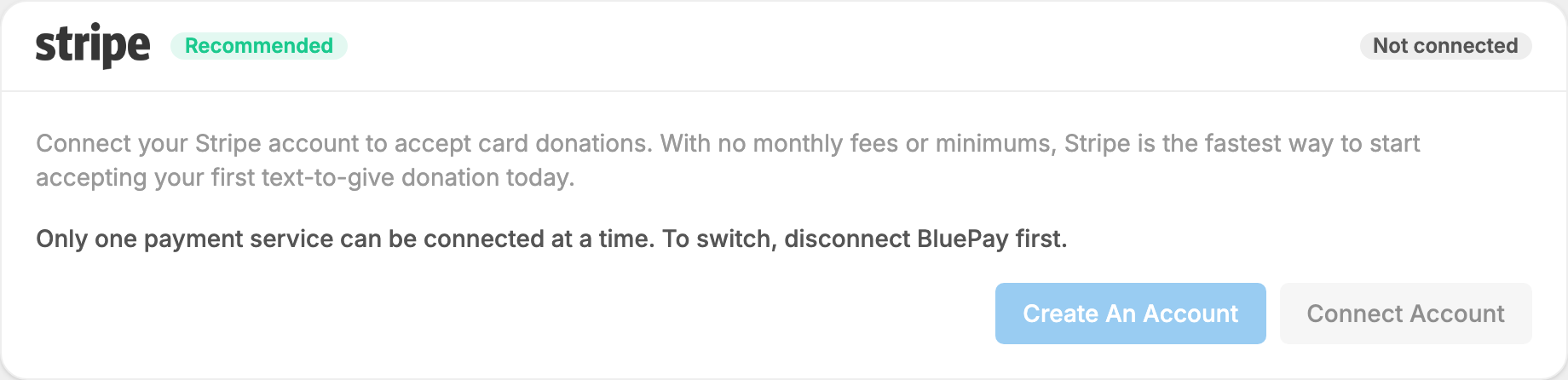
Only one payment service can be connected at a time. To change, see Switch to a different service.
Connect Stripe
- Open Payment Services.
- On the Stripe card, press Create An Account. If you already have a Stripe account, press Connect Account.
- Follow the steps on Stripe's site. You come back here when you finish.
Connect Nelnet Payment Services
- On the Nelnet card, press Apply for an Account and complete Nelnet's application.
- Once you are approved, enter your Nelnet Payment Services Public Key and Nelnet Payment Services Private Key.
- Press Connect Nelnet Payment Services.
Connect BluePay
- On the BluePay card, enter your BluePay Account ID and BluePay Secret Key.
- Press Connect BluePay.
For Nelnet and BluePay, we check your keys with the service before saving them. If they don't work, you see a message asking you to double-check them.
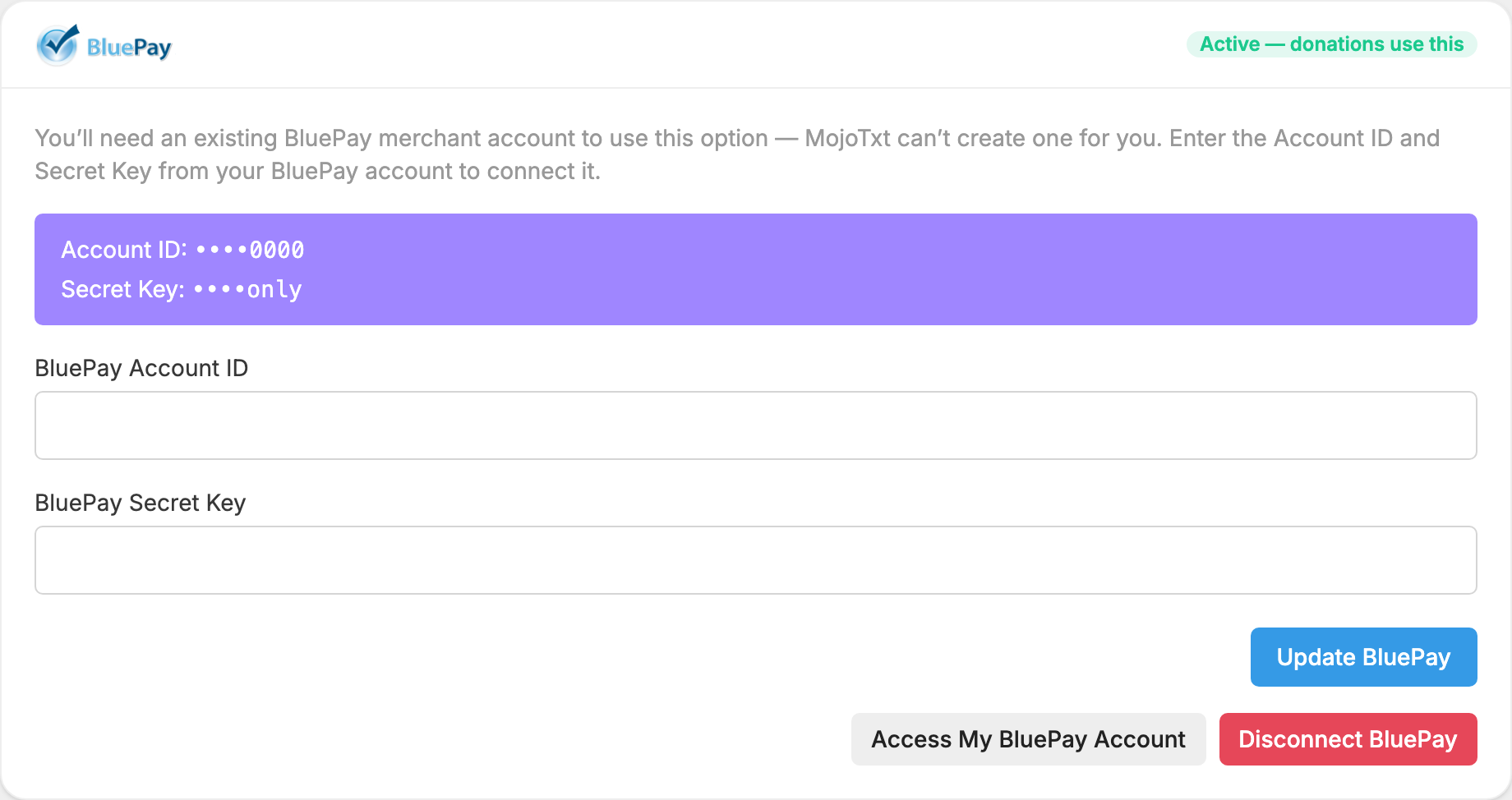
Once connected, the card has a badge saying donations use it, and a button such as Access My Stripe Account to open your account with that service. The Nelnet and BluePay cards also show your keys with most of the characters hidden.
Test mode
Test mode lets you try giving from start to finish without charging anyone. The Test mode card at the top of the page shows which state you are in.
- No service connected: giving always runs in test mode, and the switch is locked on.
- Test mode on: donations are simulated. No cards are charged, and scheduled (repeating) gifts are paused.
- Test mode off: donations are live and charged through your connected service. The card reads Live.

You can turn test mode back on at any time. This setting affects donations only, not your MojoTxt bill.
Switch to a different service
When one service is connected, the other cards show "Only one payment service can be connected at a time." To change:
- On the connected card, press Disconnect and the service's name, then confirm.
- Connect the new service as described above.
Entering new keys for the service you already have, with the Update BluePay or Update Nelnet Payment Services button, removes saved payment methods in the same way. If any donor has one saved, we ask you to confirm first.
