

Getting started
 Welcome
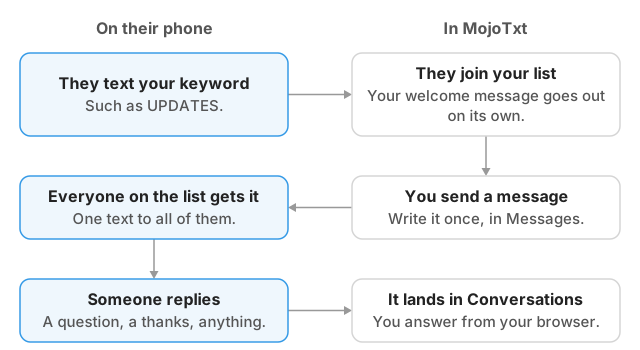
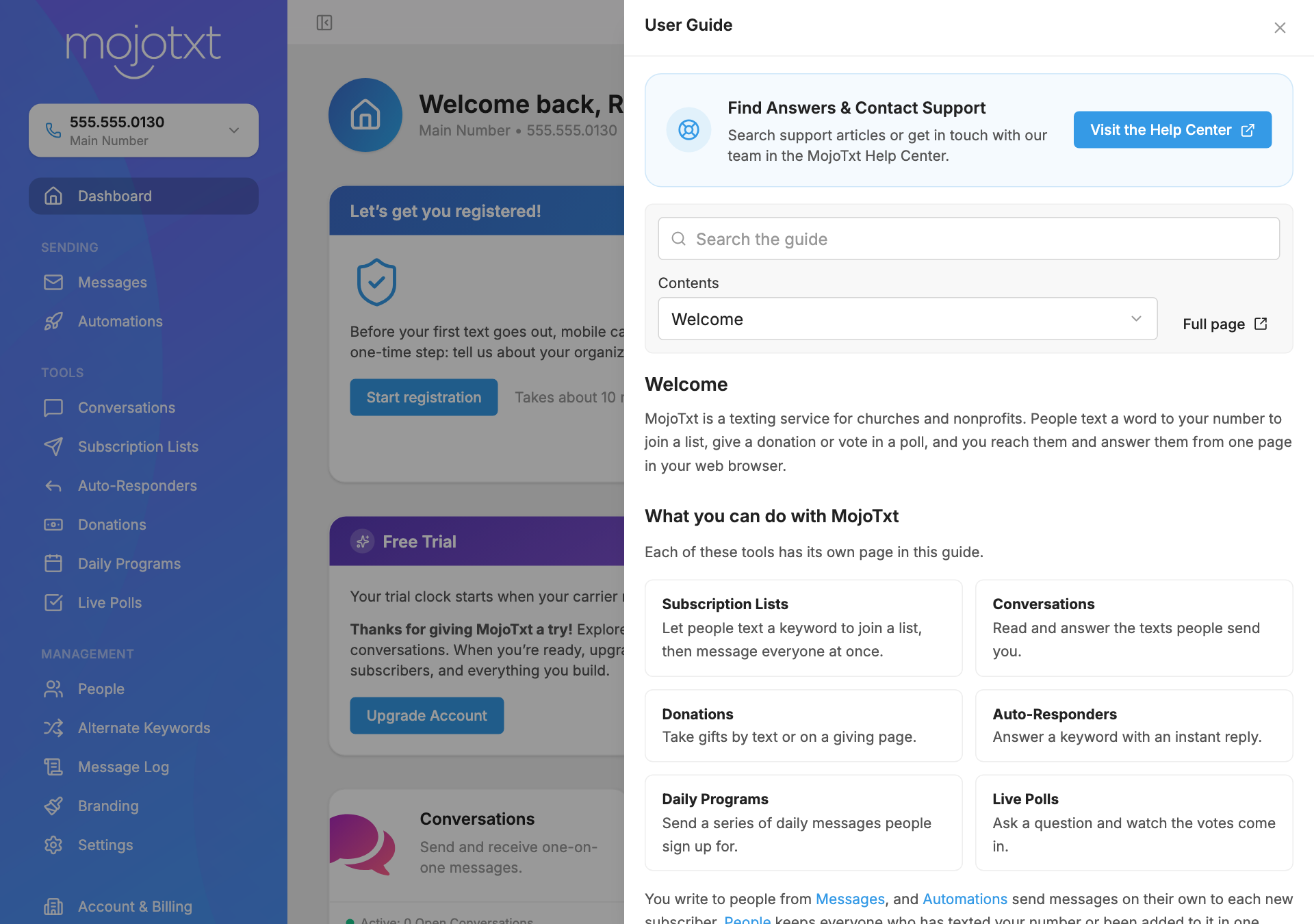
MojoTxt is a texting service for churches and nonprofits. People text a word to your number to join a list, give a donation or vote in a poll, and you reach them and answer them from one page in your web browser.
What you can do with MojoTxt
Each of these tools has its own page in this guide.
 Subscription ListsLet people text a keyword to join a list, then message everyone at once.
 ConversationsRead and answer the texts people send you.
 DonationsTake gifts by text or on a giving page.
 Auto-RespondersAnswer a keyword with an instant reply.
 Daily ProgramsSend a series of daily messages people sign up for.
 Live PollsAsk a question and watch the votes come in.
You write to people from  Messages, and
 Automations send messages on their own to each new subscriber.
 People keeps everyone who has texted your number or been added to it in one place.
What to set up first
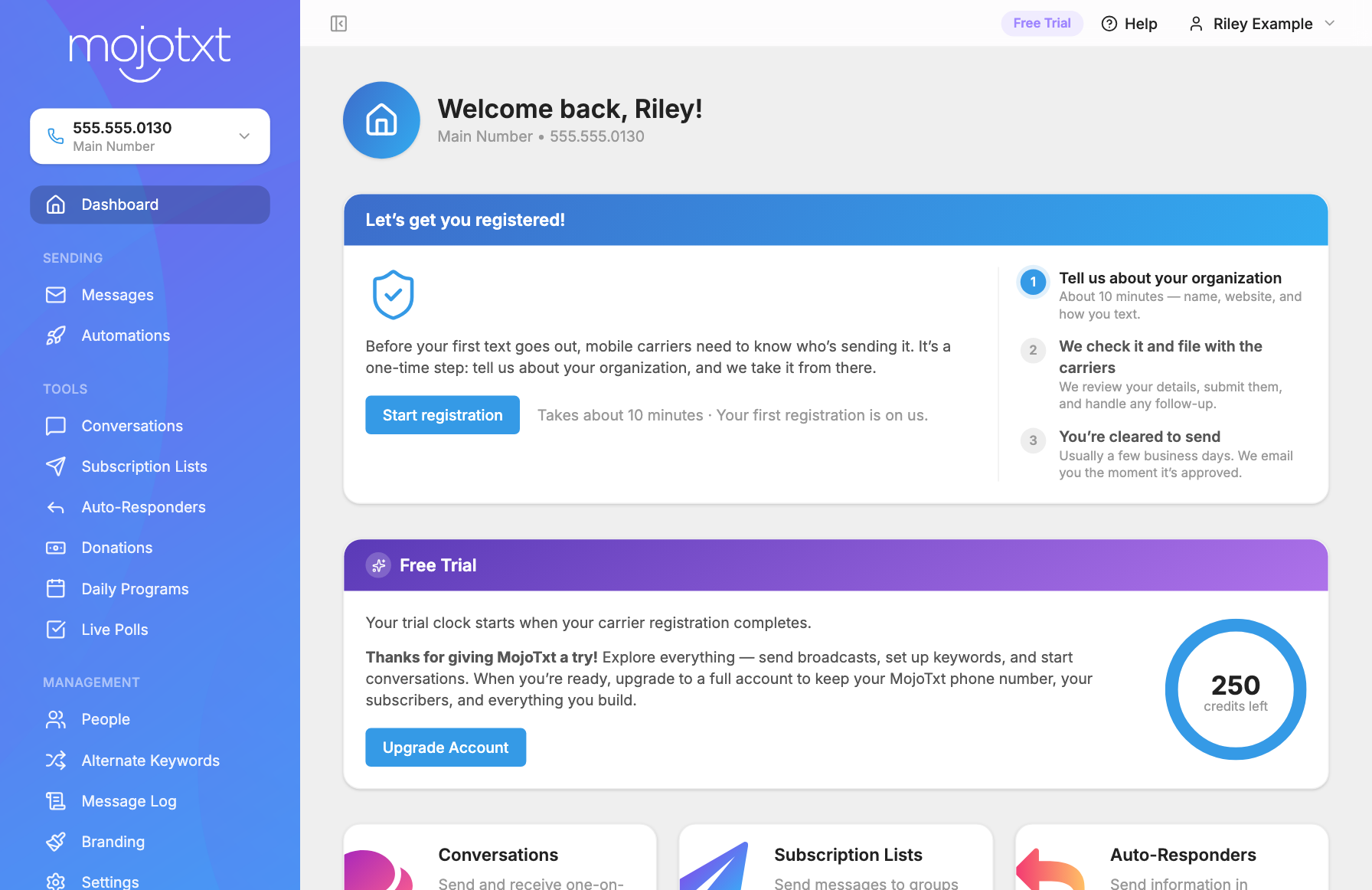
Do these in order. The first two are required before anything can be sent.
- Get a number. You can pick an area code when you sign up, and your account gets a number you can text from. To add more, see Your Phone Numbers.
- Register with the mobile carriers. The mobile phone companies, called carriers, require every organization that texts to register first. It takes about 10 minutes, and carrier review usually takes a few business days. Start from the
 Carrier Registration page.
- Create your first list. Pick a word people can text to join it. See
 Subscription Lists.
- Send a message. See Messages.
You can build your lists and tools while your registration is in review, but you won't be able to send messages until it is complete.
When you have the basics working, these are worth a look:
- Phone Number Settings has call forwarding, your help message, and a note about your organization for the writing helpers.
 Branding makes the web pages your people see match your colors and logo.
 Payment Services connects the account that receives donations. Until you connect one, giving runs in test mode.
- Users and Access lets you invite other people to help.
The free trial
A free trial needs no credit card. Your trial clock starts when your carrier registration completes.
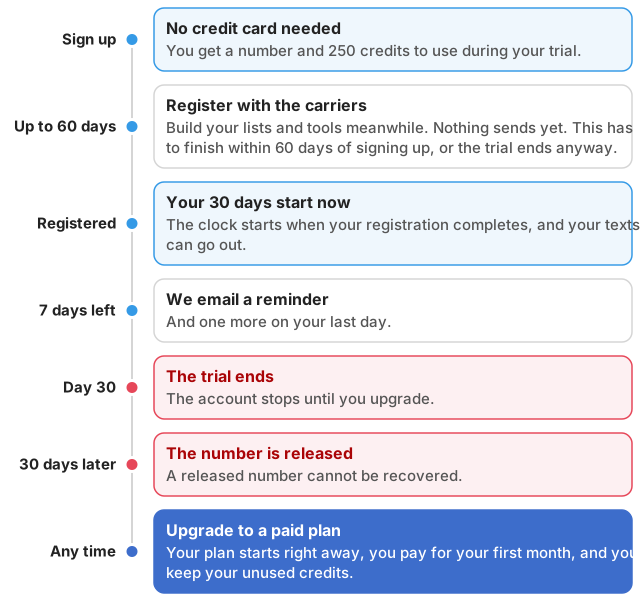
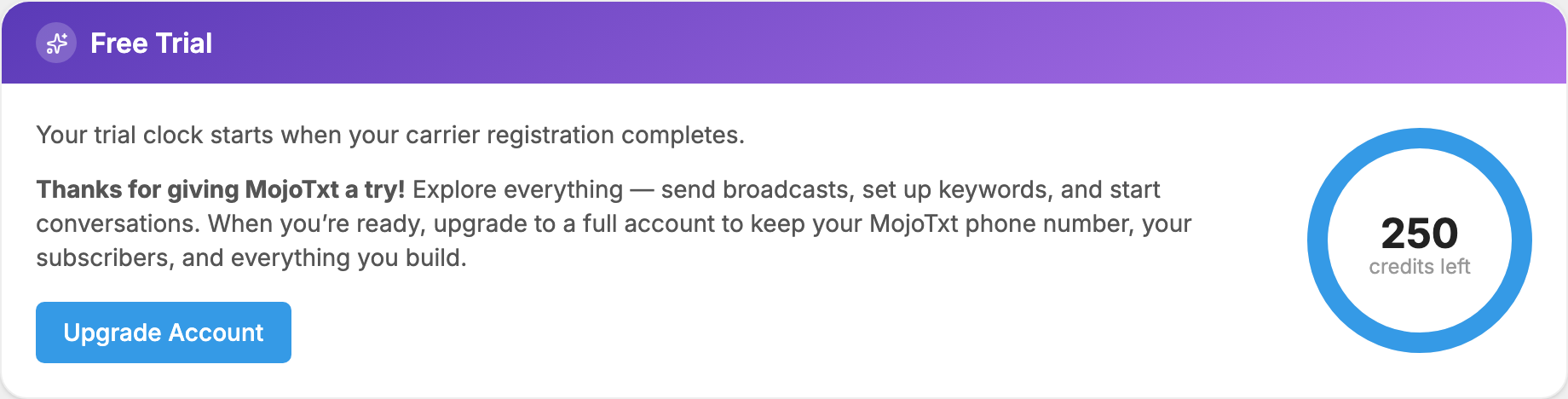
While you are on a trial, a Free Trial label sits in the top bar and a Free Trial card on your dashboard shows your credits left. Every text you send uses credits, as Credits and Message Length explains. To move to a paid plan, click the label or press Upgrade Account on the card. See Account & Billing.
Finding your way around
Press  Help at the top of any page to open this guide beside your work. It opens on the page about the screen you are on. Use Search the guide or Contents to get to any other page.
In the app, some pages of this guide have a Take a guided tour button that walks you through the real screens. The tours are on Subscription Lists,  Conversations and
 Donations. They appear on a computer, not on a phone.
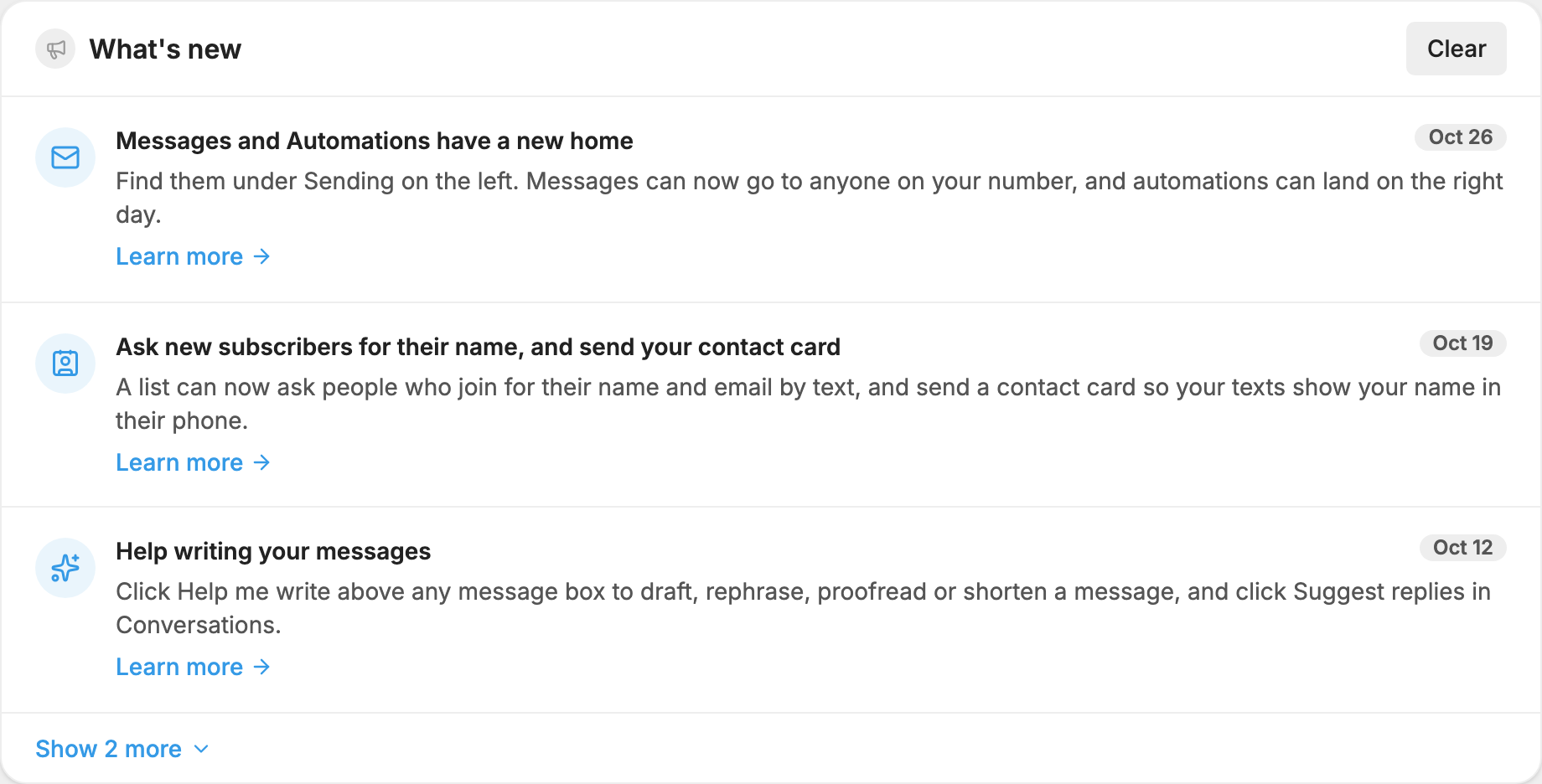
When we add something new, a What's new card appears on your dashboard for a while. Press Clear once you have read it.
If you need a person, see More Information.
