

How do I… Account and support
 Add Another Person to Your Account
Each person who works in MojoTxt should have their own login. Your plan doesn't limit how many users you add. The phone numbers listed on a plan are numbers people text, not logins.
You need access to account settings to do this.
Add a user
- Open
 Users and press New user.
- Enter their name, email and mobile phone. Each email can only be used by one user.
- Go to the Access permissions tab to choose what they can see. It starts with the same access you have.
- Press Send invite.
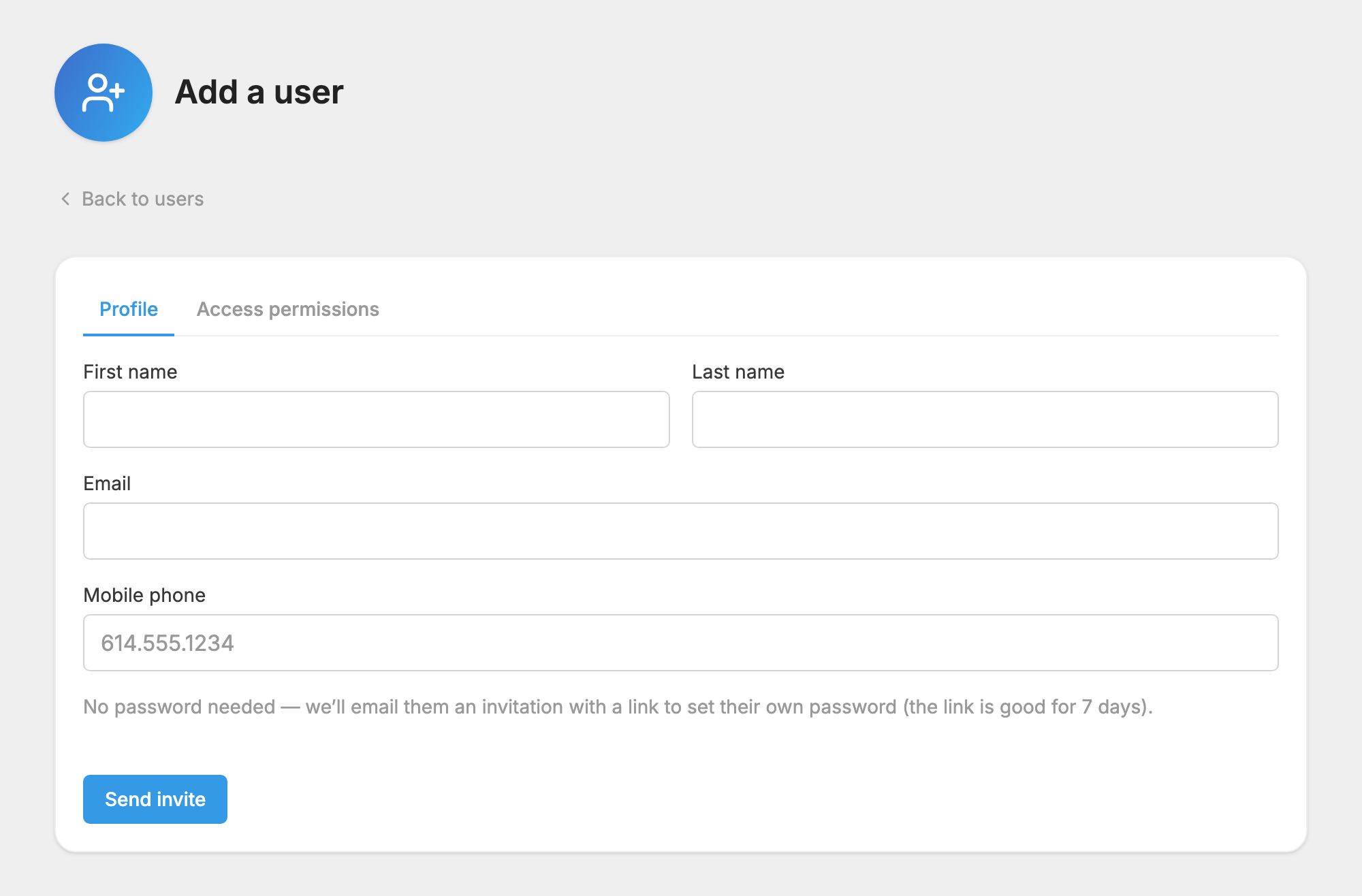
They get an email with a link to set their own password. The link is good for 7 days.
If they didn't get the invite
- Open Users.
- Find the person with the Invite pending badge.
- Press Resend invite.
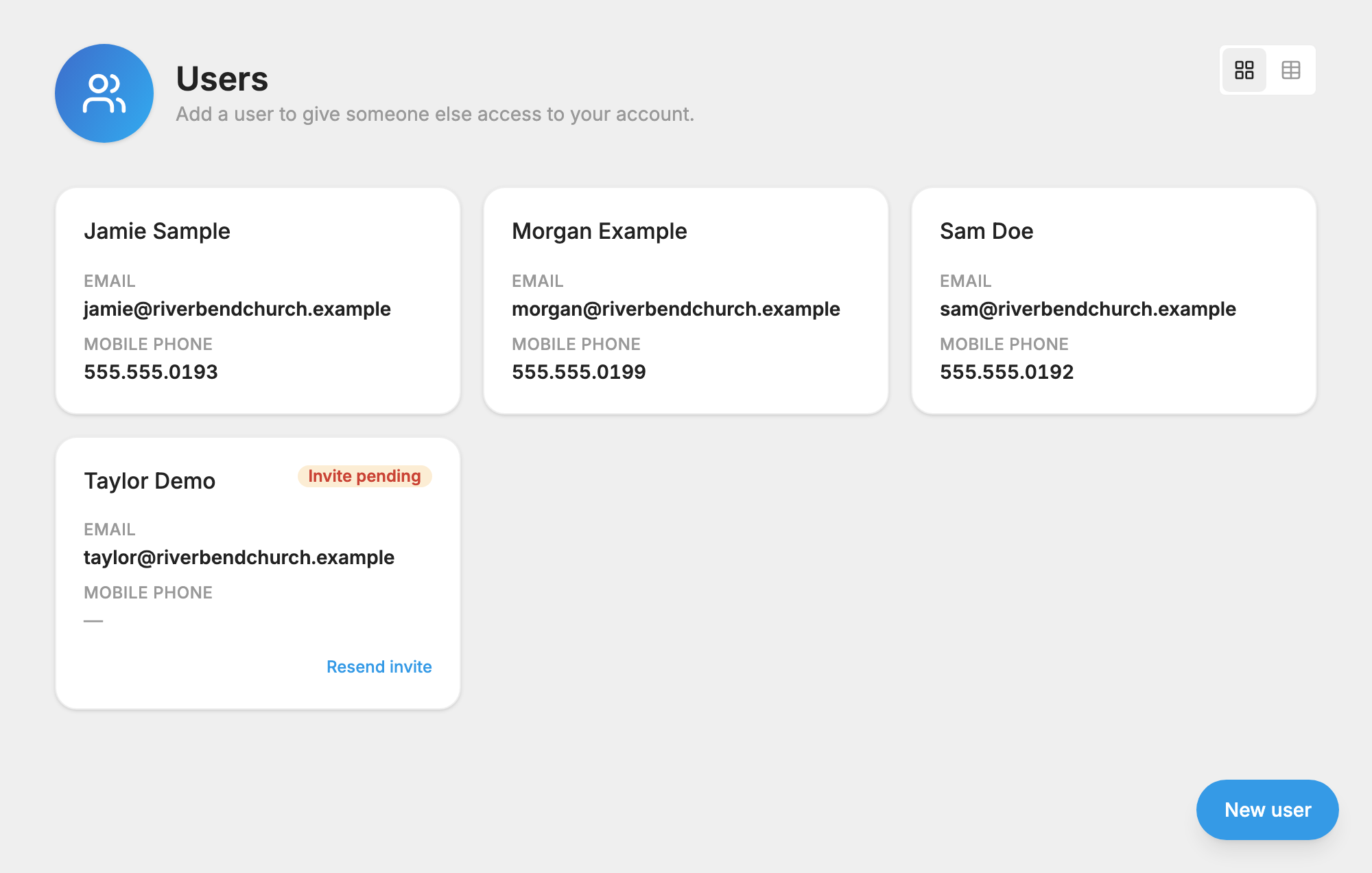
Ask them to check their spam folder. If they have already set a password and can't sign in, they can use the password reset link on the sign-in page. Only the user can change their own email or password.
Limit what someone can see
- Open Users and press their name.
- Go to the Access permissions tab.
- Click an item to move it through Inherit, Allow and Block. An item follows the one above it unless you set it yourself.
- Press Save.
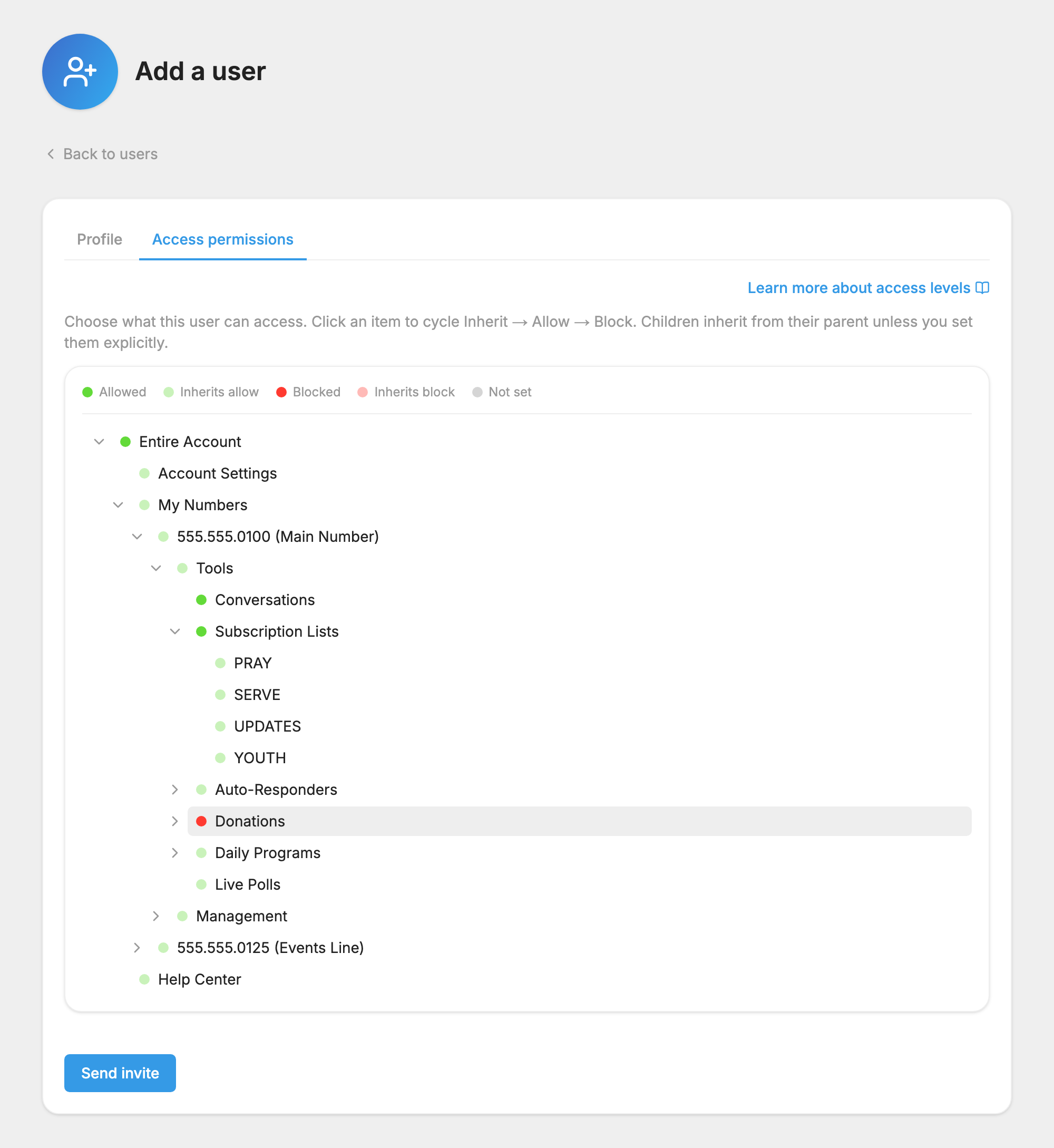
You can't change your own access. You also can't give someone access you don't have.
For what the colors mean and how to let a volunteer text one list, see Limit What a User Can See.
Hand the account to someone new
When a pastor or administrator changes, there is no separate owner to transfer. Set up the new person, then remove the old one:
- Add the new person as a user, following the steps above. Make sure they have full access.
- Once they've signed in, update the primary contact in
 Company Profile.
- If the card is changing too, update it in
 Payment Method. See Change the Card on File.
- The new person opens Users and presses the old user's name.
- They press Remove user, then Remove.
You can't remove your own login, so someone else has to do step 5. Removing a user can't be undone. Their messages and history stay on the account.
If nobody who can sign in has account access, contact support.
More about logins and access is in Users and Access.
