

Tools
 Auto-Responders
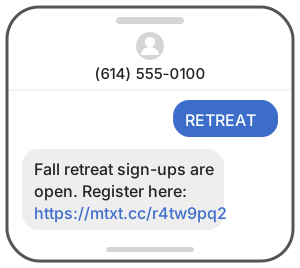
An auto-responder sends an instant reply when someone texts a keyword to your number. It's useful with a crowd: put a keyword on the screen, and everyone who texts it gets your registration form, video, or directions right away. They don't join a list by doing this.
Create an auto-responder
- Click
 Auto-Responders under Tools in the left-hand menu, or open Auto-Responders.
- Click New Auto-Responder.
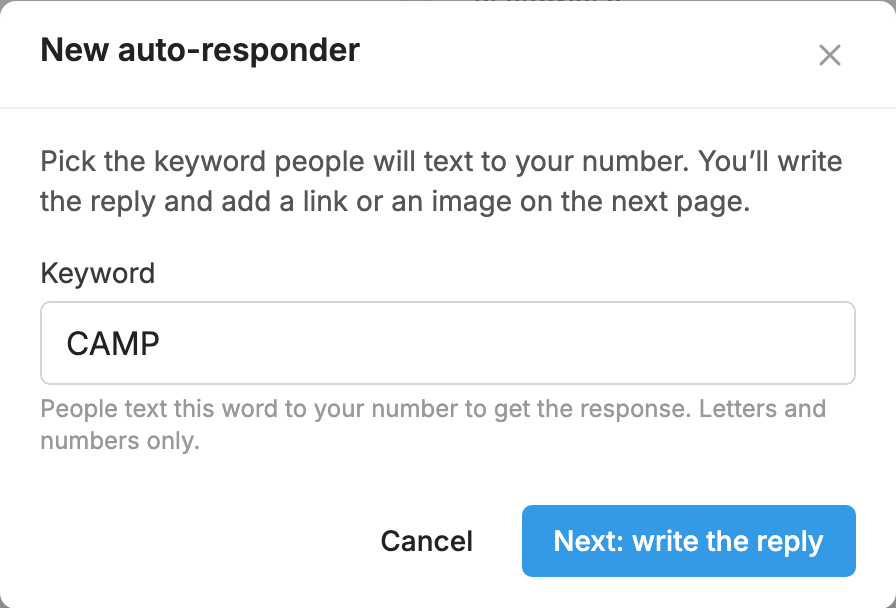
- In Keyword, type the word people will text.
- Click Next: write the reply.
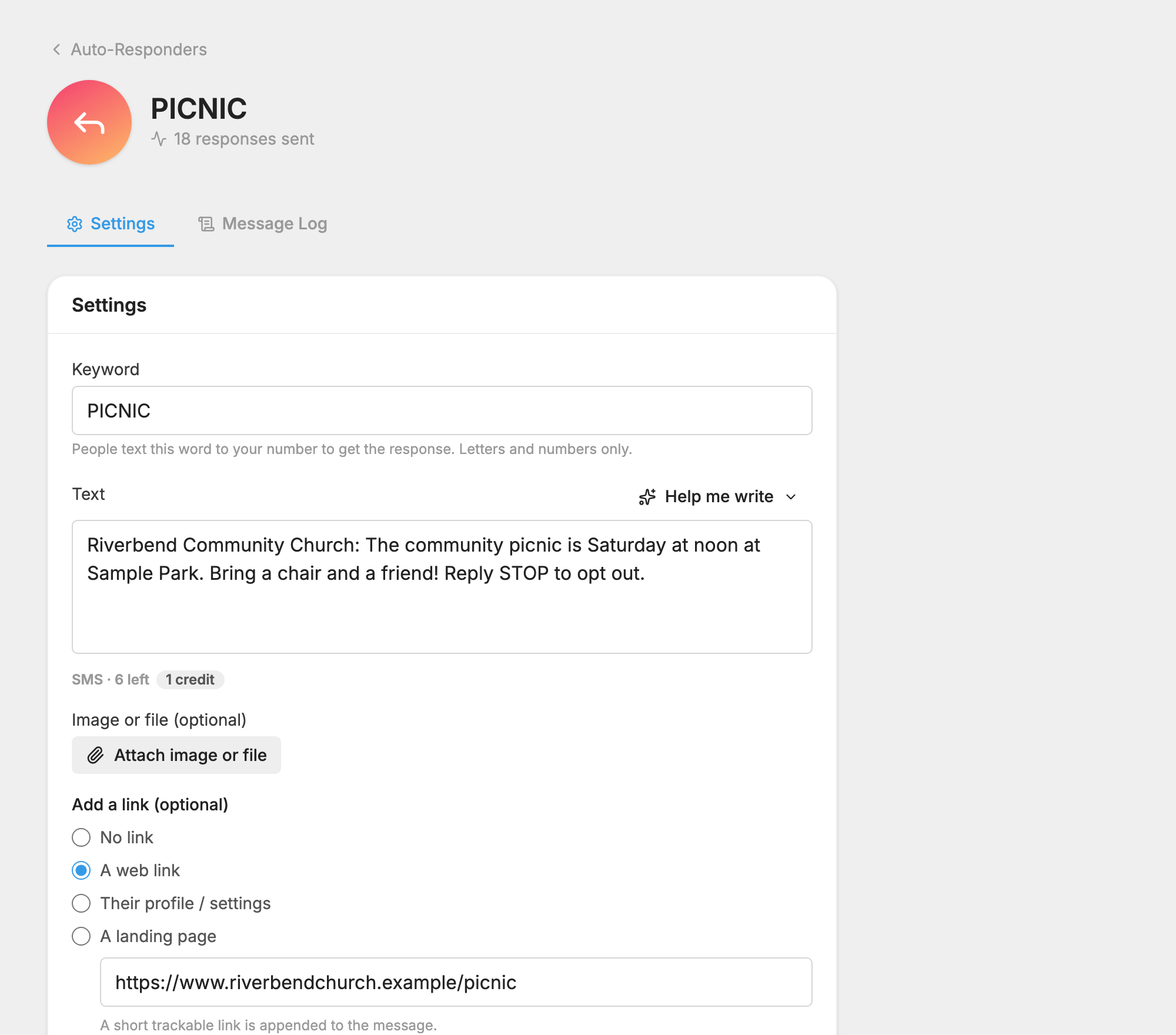
- In the Text box, type the message people should get back. Help me write above the box can draft it for you.
- To send people somewhere, choose an option under Add a link (optional).
- Click Save changes.
Until you save a reply, the keyword won't send anything back, so don't skip the last step.
What you can send
- Text: your message. The counter under the box shows how many credits it uses. A reply that fits in one text uses 1 credit, a longer one uses 2, and a very long one goes out as a picture message and uses 3. See Credits and message length.
- Image or file (optional): attach an image, a PDF, a contact card or an audio file. The reply then goes out as a picture message and uses 3 credits. You can send an attachment with no text at all. This option doesn't appear if your number can't send picture messages.
Add a link
Choose one under Add a link (optional):
- No link: just your message.
- A web link: enter the full address, starting with http:// or https://. It's turned into a short link we can track when someone uses your keyword.
- Their profile / settings: a personal link to the page where the person can update their details and subscriptions.
- A landing page: build a simple web page right here, with text, images, videos and links. People open it from the link in the text.
The link is added to the end of your message, and the counter leaves room for it.
Limit who can use it
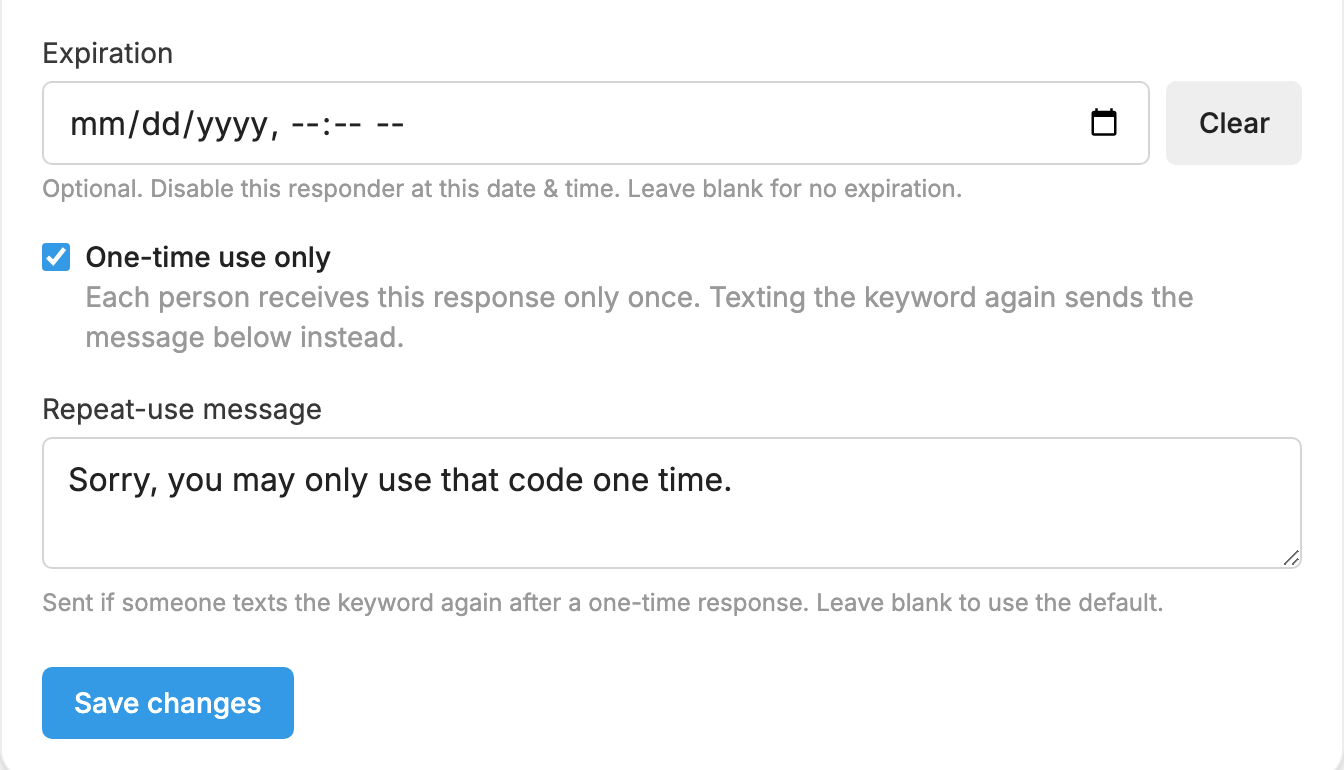
One-time use only
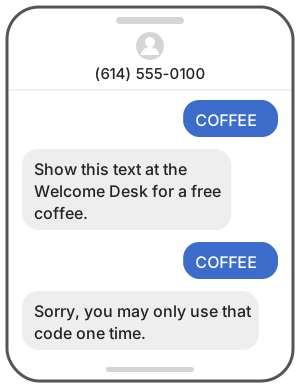
Tick One-time use only so each person gets this reply once. If they text the keyword again, they get your Repeat-use message instead. Leave that blank to use the default: "Sorry, you may only use that code one time."
This suits a coupon, a code or a limited giveaway.
Expiration
To stop the reply at a certain time, set a date and time in Expiration. After that, anyone who texts the keyword gets your Expiration message. Leave that blank to use the default: "Sorry, that code has expired." Click Clear to remove the expiration.
The date and time you enter use your computer's time zone.
See who used it
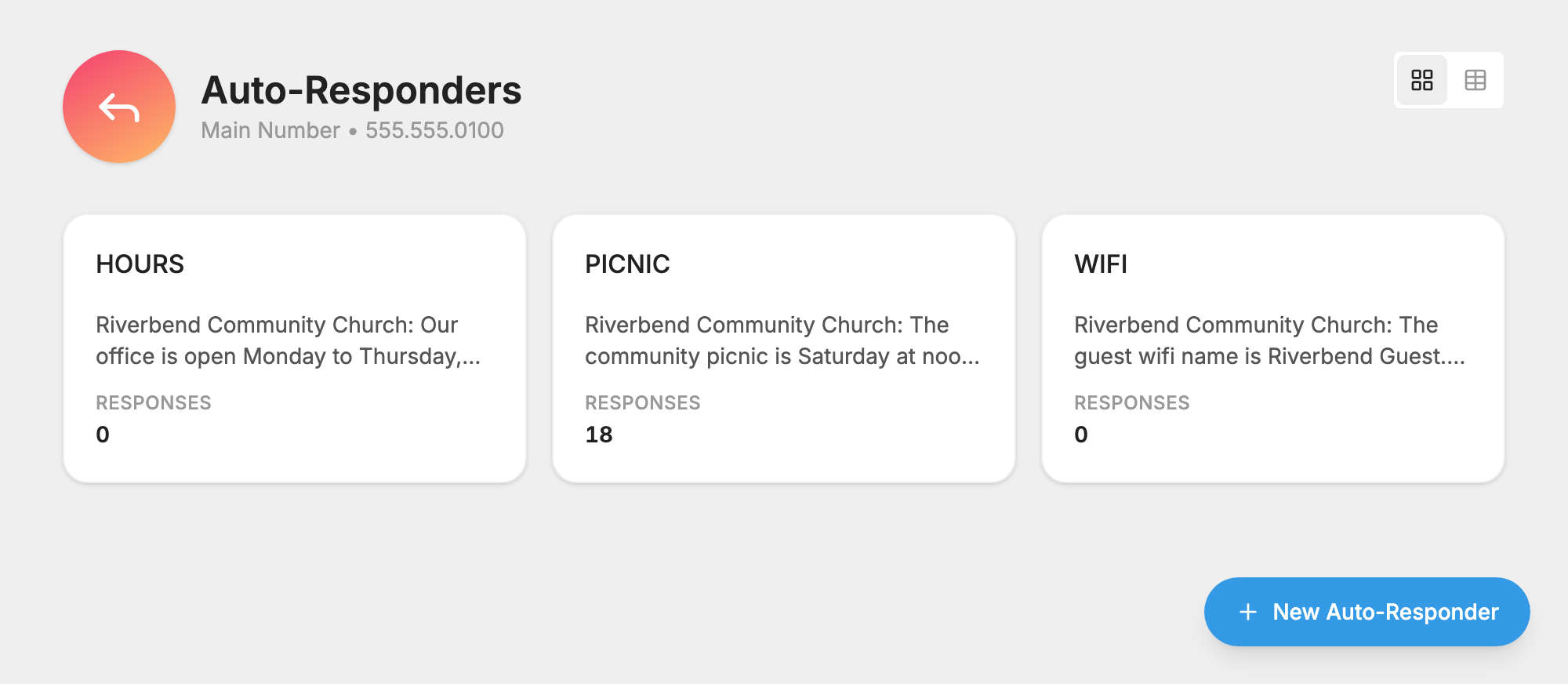
The Auto-Responders page shows each keyword with its message and how many responses have gone out. Click one to open it. Each auto-responder has two tabs,  Settings and
 Message Log.
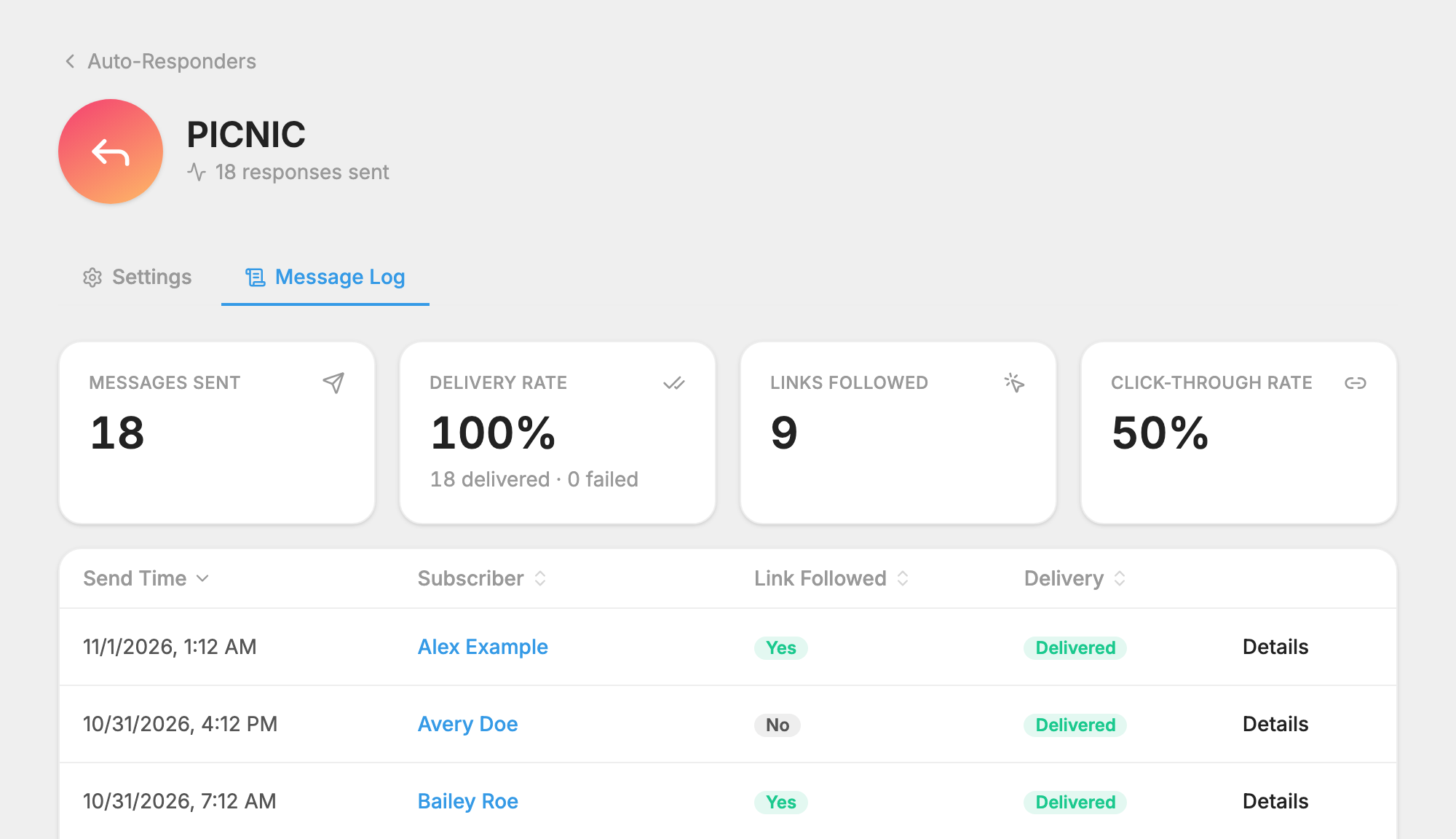
The Message Log tab shows how many messages were sent and how many were delivered. If your reply has a link, it also shows how many people followed it and your click-through rate. Below that is a line for each person, with the send time, their name, whether they followed the link and whether the message was delivered. See Message Log.
Things to keep in mind
- Texting an auto-responder keyword doesn't add anyone to a list. To follow up with these people later, you can send a message to everyone who used the keyword, or use Import from a keyword if they've agreed to join a list.
- Someone who has opted out of everything on your number gets a reminder to reply UNSTOP, not your auto-response.
- Name tags such as
{first name}aren't offered here, so write your reply for anyone.
Delete an auto-responder
- Open the auto-responder's Settings tab.
- Click Delete auto-responder at the bottom.
- Confirm by clicking Delete auto-responder again.
The keyword is freed up so you can use it again.
