

How do I… Connecting other software
 Connect Church Community Builder
Connect MojoTxt to Church Community Builder (CCB) to export donations, share contact information and link profiles.
Set up an API user in CCB
- Log in to your CCB site with your master administrator account.
- Click the Settings (gear) icon, choose API, and click Add a new API User.
- On the User tab, choose a username and password.
- On the Services tab, select these services:
- create_individual
- individual_profile_from_id
- individual_search
- online_giving_insert_gift
- transaction_detail_type_list
- update_individual
- Click Save.
Connect MojoTxt
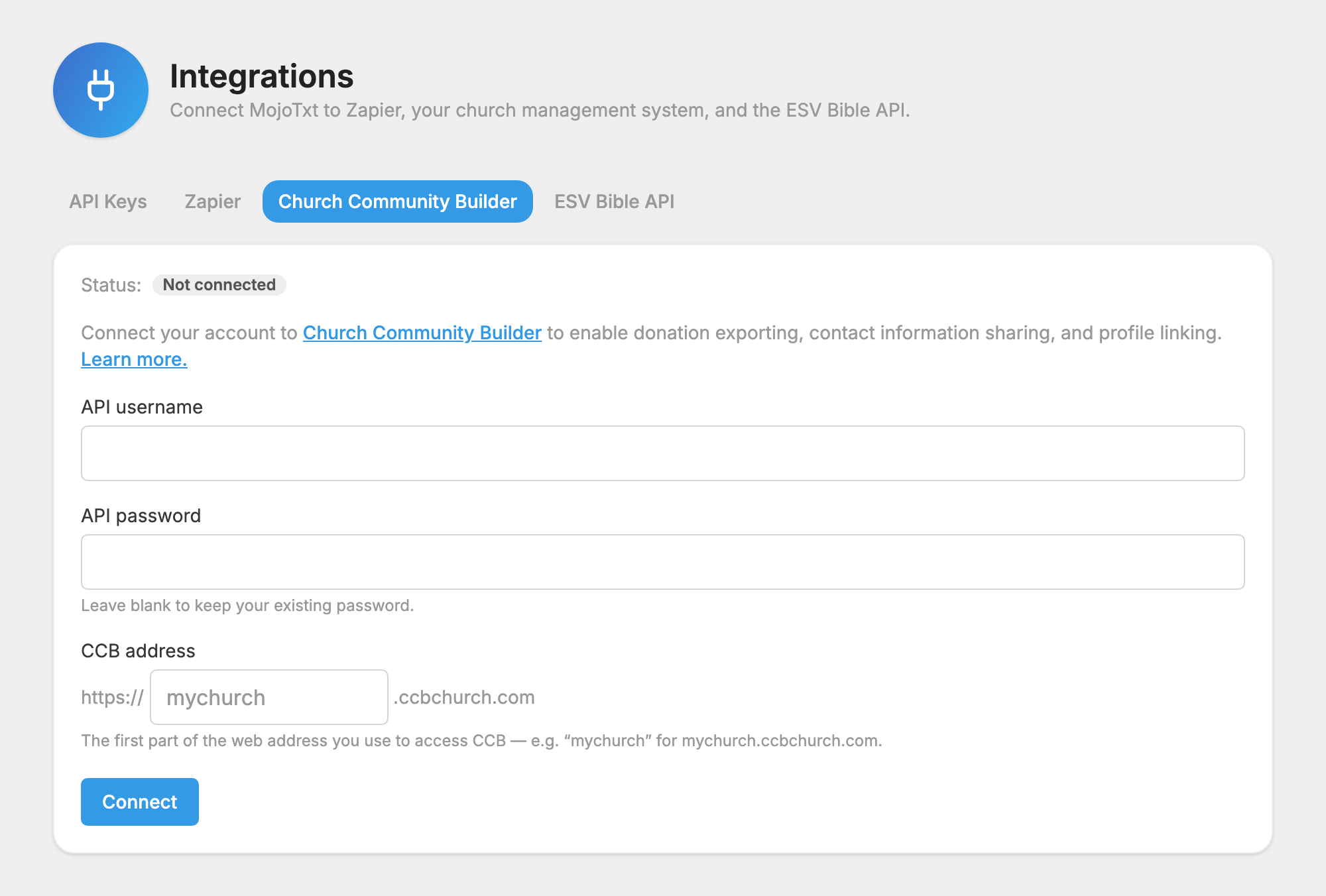
- Open Church Community Builder under Account & Billing, Integrations.
- Enter your API username and API password.
- For CCB address, enter the first part of your CCB web address. For mychurch.ccbchurch.com, enter mychurch.
- Press Connect.
Choose a CCB fund for each donation fund
Once you're connected, each donation fund's  Settings tab has a CCB fund option. Set it for each fund, or leave it on Account default.
Link profiles
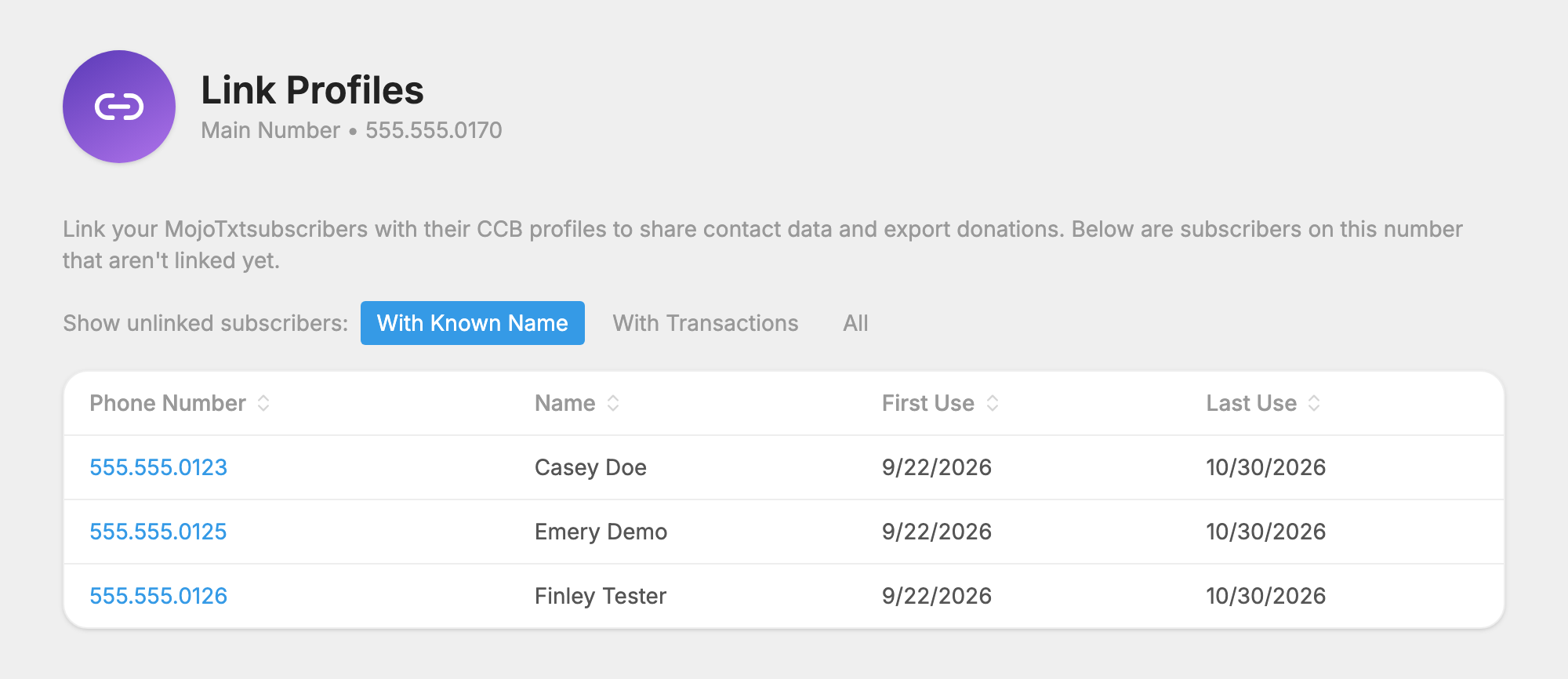
Linking a person in MojoTxt to their CCB profile lets you export their donations. It also fills in missing details in both places. For example, if someone gives you their email in MojoTxt and CCB doesn't have it, it is added to their CCB profile.
- Press
 Link Profiles under CCB Integration in the left-hand column. You see people who aren't linked yet.
- Press a person. MojoTxt searches CCB and shows possible matches.
- Choose a profile to link, or create a new one in CCB if there is no match.
Export donations by hand
- Press
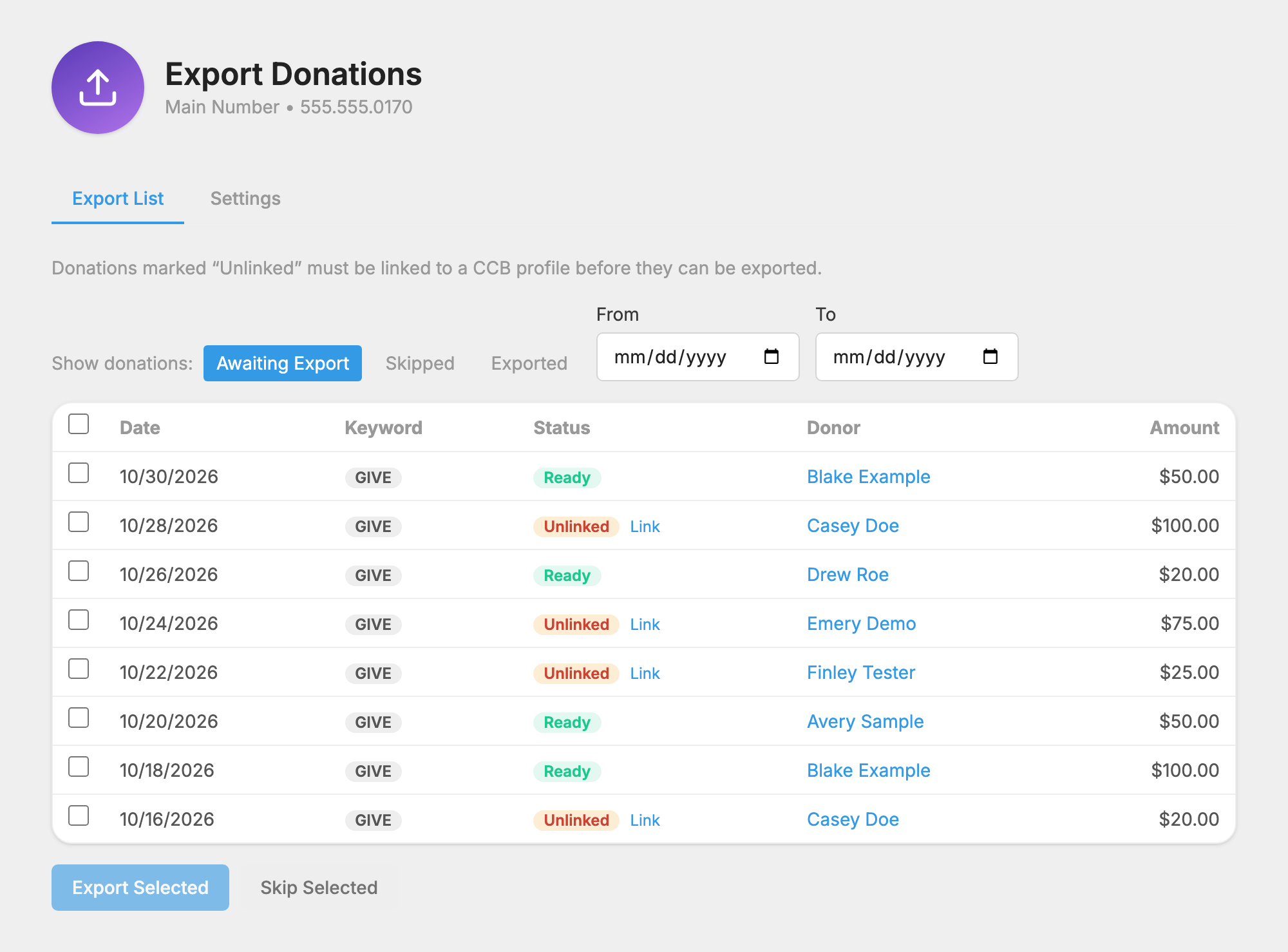
 Export Donations under CCB Integration. You're on the Export List tab, showing Awaiting Export.
- A donation marked Unlinked must have its donor linked first. Press Link on that row.
- Check the donations you want and press Export Selected.
- To leave donations out, select them and press Skip Selected. Un-Skip Selected brings them back.
Export donations automatically
- Press Export Donations, then the Settings tab.
- Check Automatically export new donations.
- Under Notifications, choose who should be told about exports if you like.
- Press Save settings.
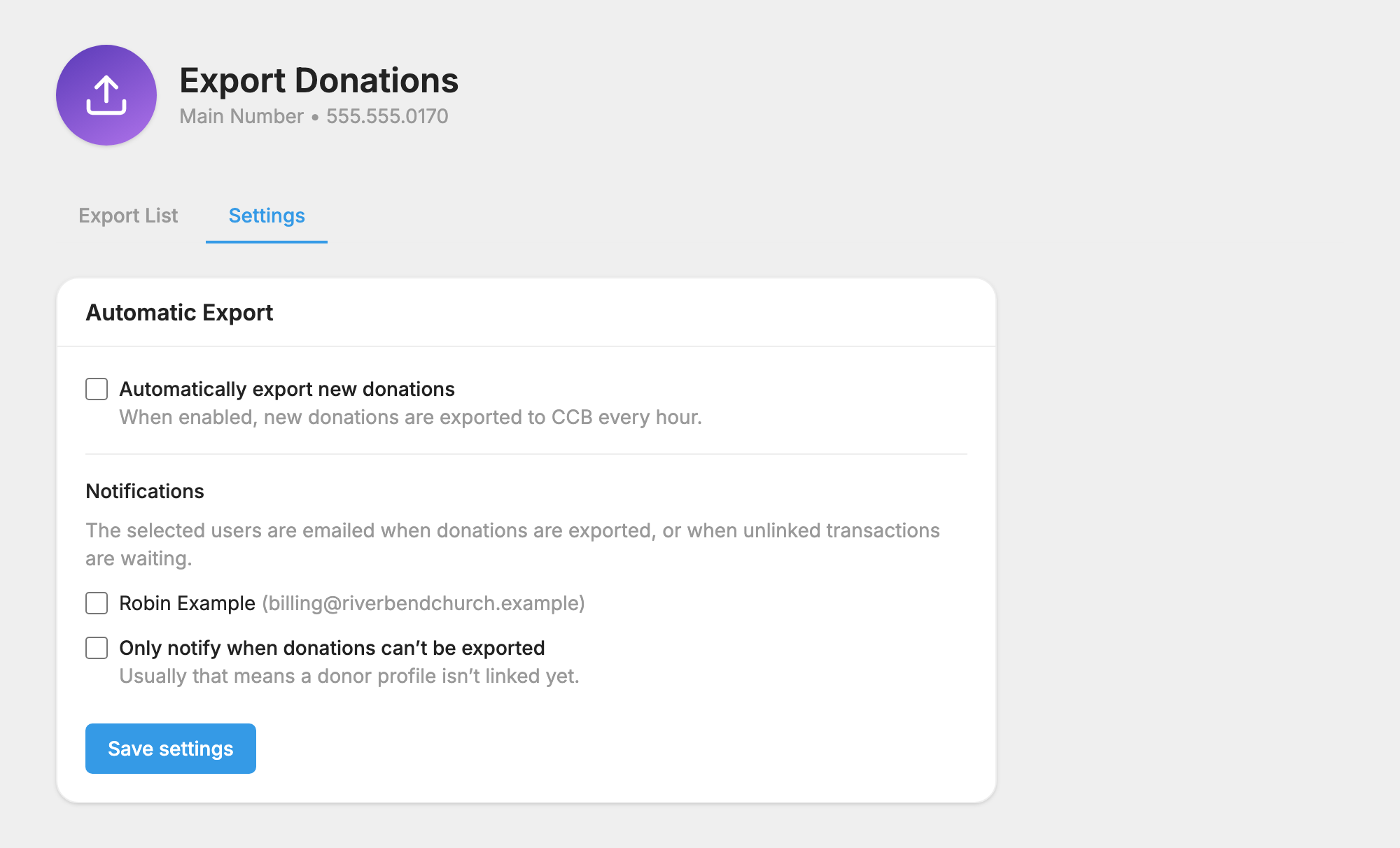
The automatic export runs about once an hour. It can only export donations from people with linked profiles.
More is in Integrations and API.
