Your account
 Integrations and API
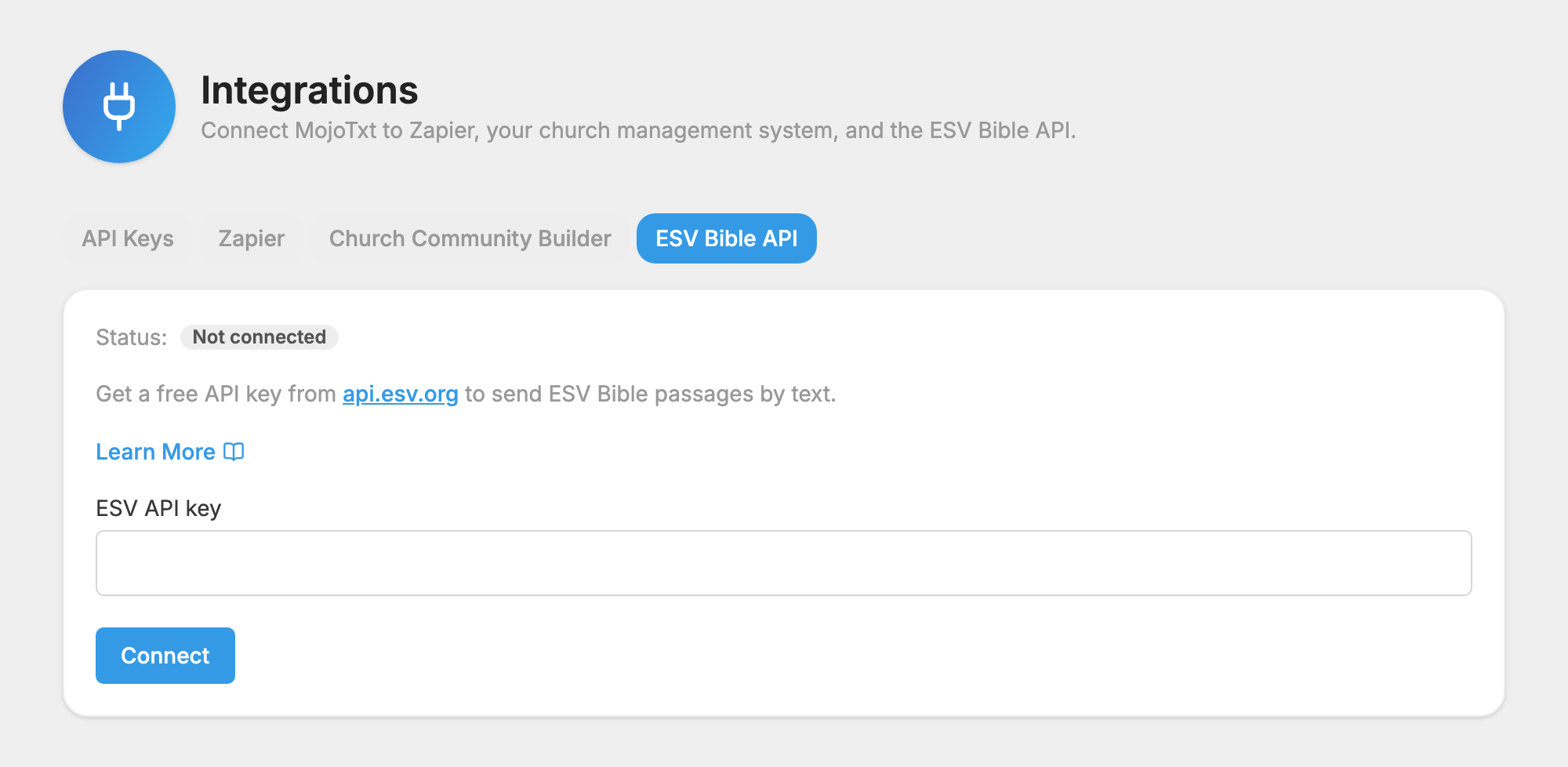
Integrations connect MojoTxt to the other software you use. You need Account Settings access. Find them under Account & Billing, Integrations, where each one has its own tab: API Keys, Zapier, Church Community Builder and ESV Bible API.
API keys
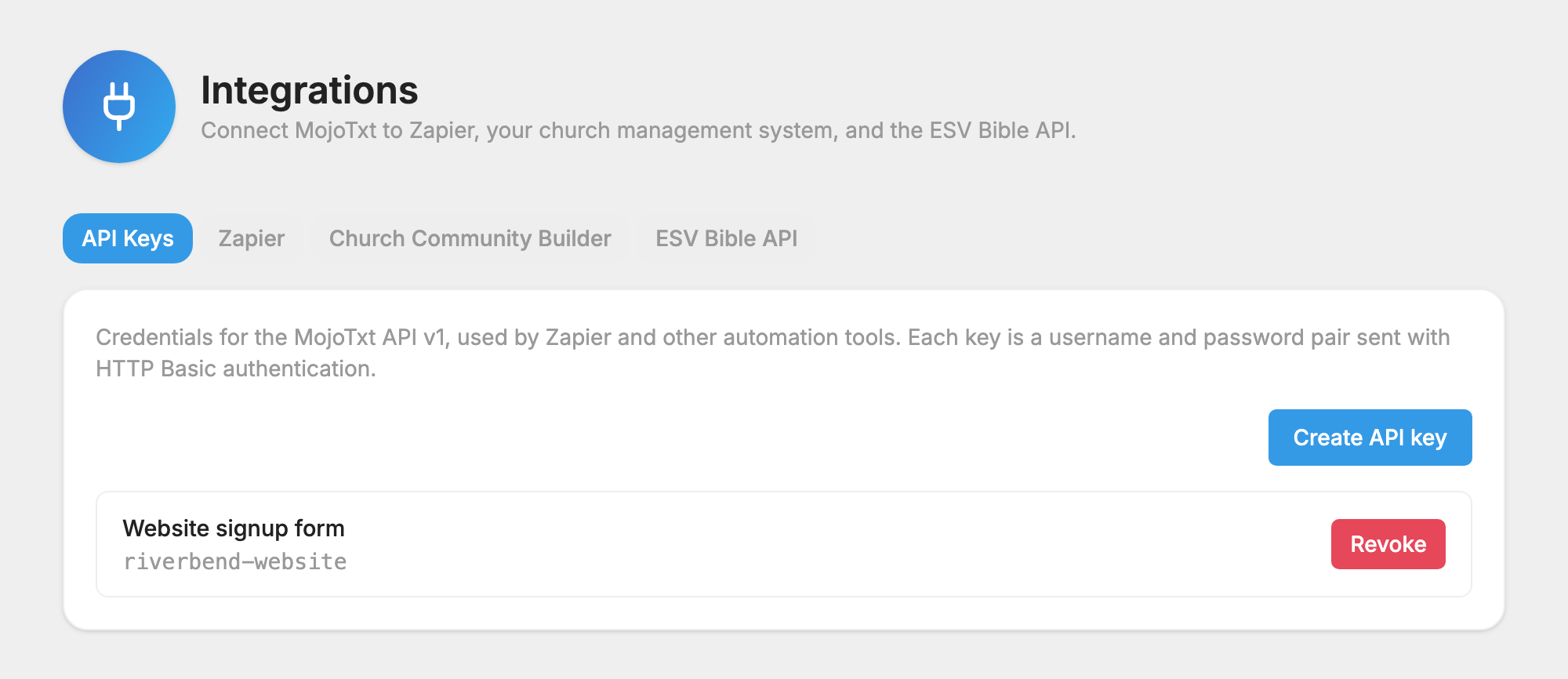
An API key lets Zapier or another automation tool reach your account. Each key is a username and password pair, used only by that tool, and it is separate from your own login. The MojoTxt API v1 uses them with HTTP Basic authentication, and it covers your account, phone numbers, subscribers, lists, donations, messages and message log.
Create a key
- Open API Keys.
- Press Create API key.
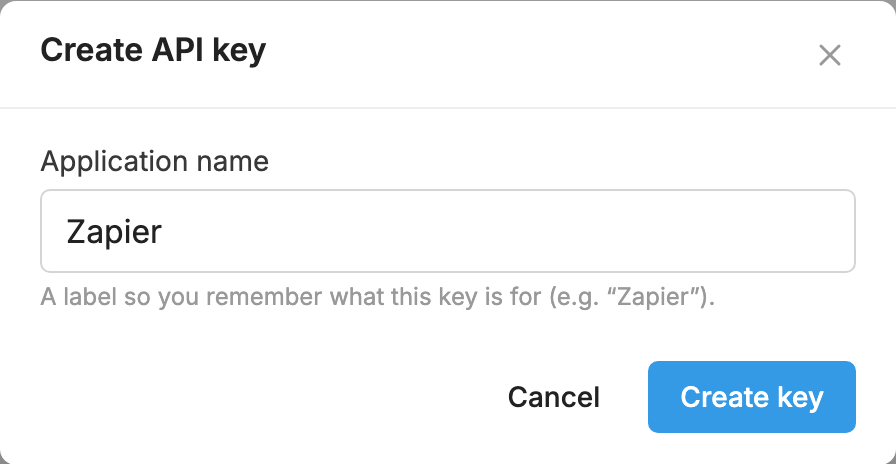
- Enter an Application name, such as "Zapier", so you remember what the key is for.
- Press Create key.
- Copy the Username and Password, then press Done.
Revoke a key
Press Revoke next to a key, then Revoke key. Any tool using that key loses access immediately, and this can't be undone. If a key is lost or a tool is no longer used, revoke it and create a new one if you need to.
Zapier
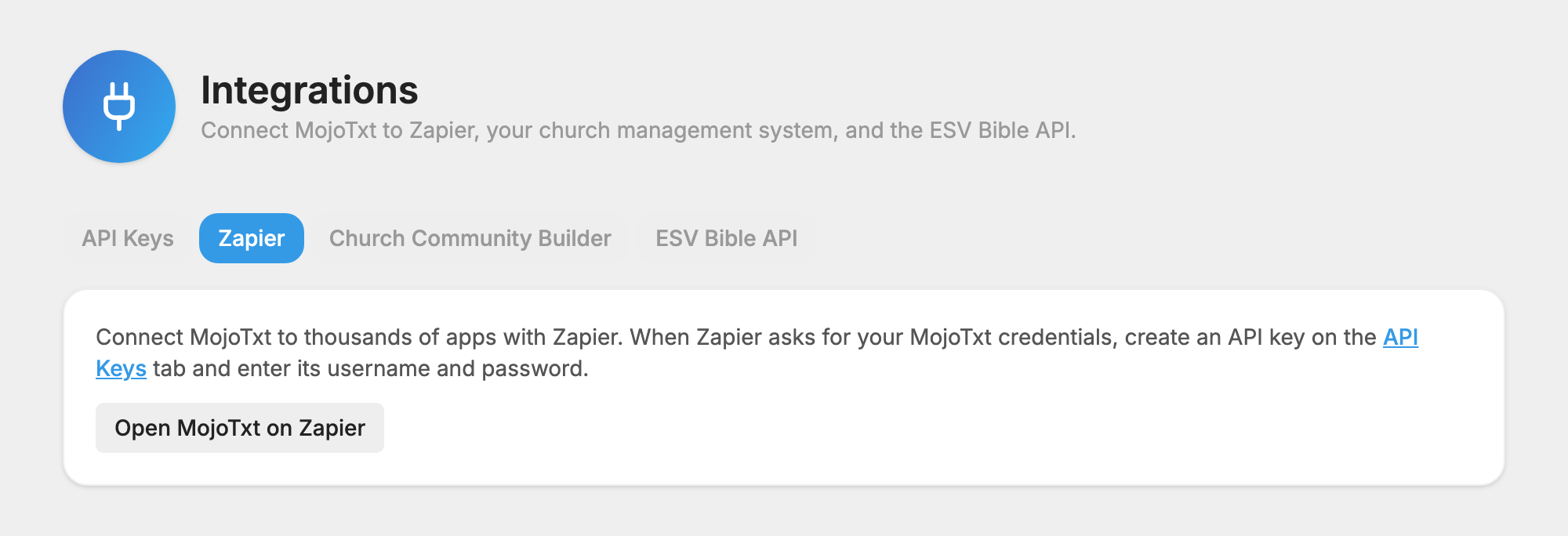
Zapier connects MojoTxt to thousands of other apps.
- Create an API key as described above.
- Open Zapier and press Open MojoTxt on Zapier.
- When Zapier asks for your MojoTxt credentials, enter the key's username and password.
Church Community Builder
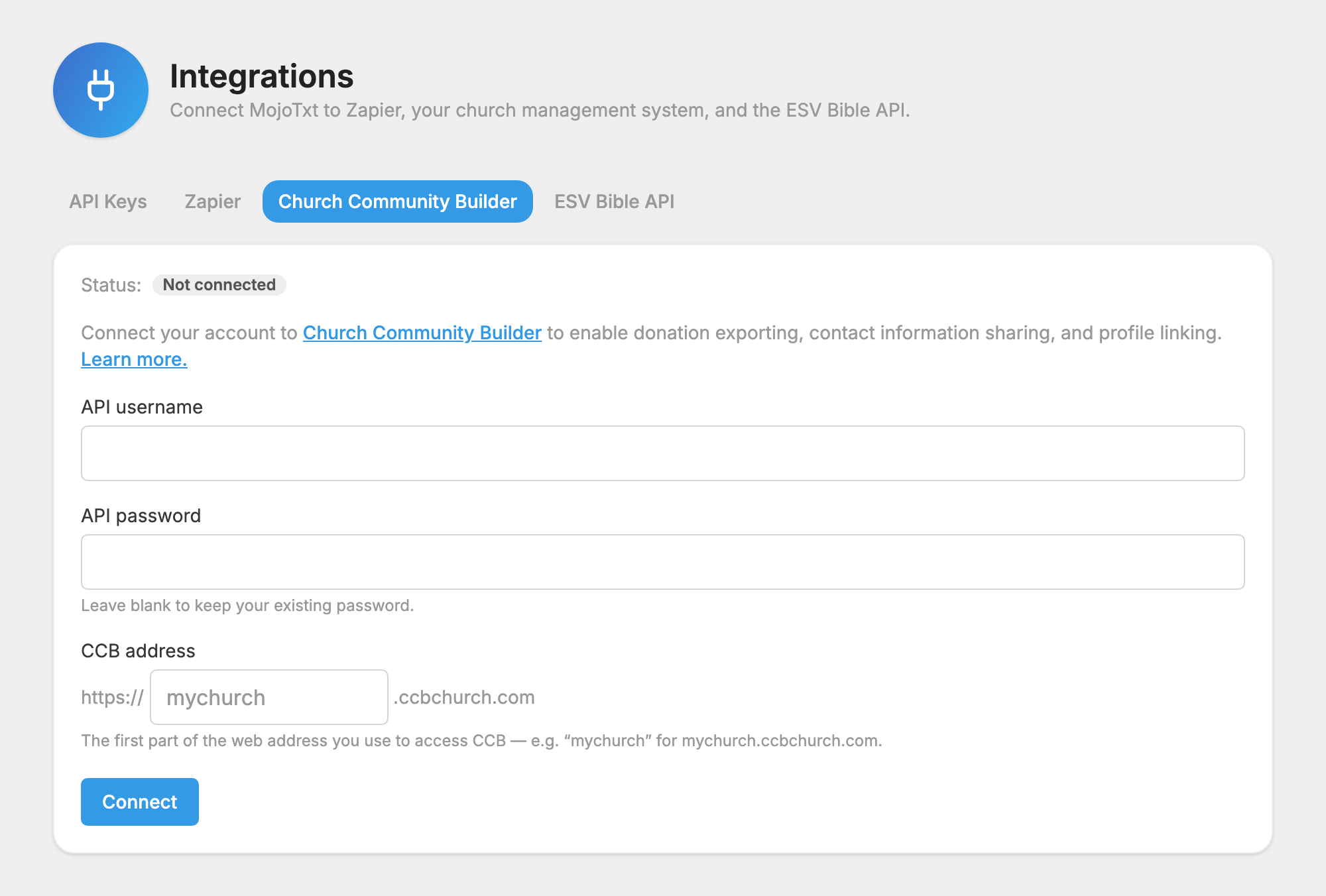
Connect your account to Church Community Builder (CCB) to enable donation exporting, contact information sharing, and profile linking.
- Open Church Community Builder.
- Enter your API username and API password.
- For CCB address, enter the first part of the web address you use to reach CCB. For example, enter "mychurch" for mychurch.ccbchurch.com.
- Press Connect.
We test the connection before saving it. If it fails, double-check your username, password and address, and that the required API services are enabled in CCB.
Once connected, each number gets a CCB Integration section in the left-hand column:
 Link Profiles matches people on your number to their CCB profiles.
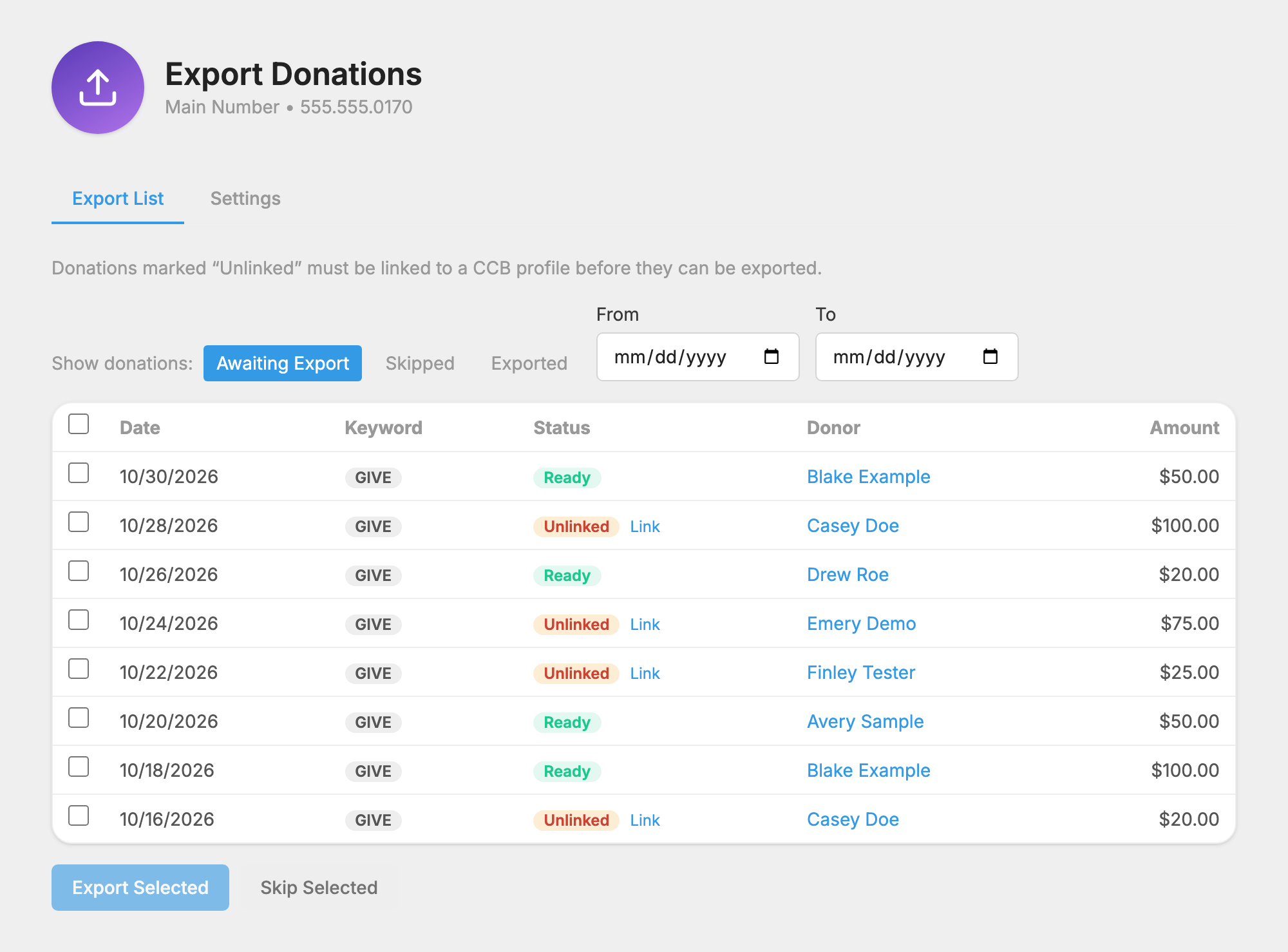
 Export Donations lists gifts to send to CCB. Its
 Settings tab has Automatically export new donations and options for who is notified.
To control who can use these pages, see CCB Integration in Users and Access.
To change your details, enter them again and press Update. Leave the password blank to keep the one you have. Press Disconnect to remove your stored CCB details. Donation export and profile linking stop working until you reconnect, but your existing profile links are kept.
ESV Bible API
Connect the ESV Bible API to use ESV passages in  Daily Programs.
- Get a free API key from api.esv.org.
- Open ESV Bible API.
- Enter it under ESV API key.
- Press Connect.
The tab shows Connected when your key is saved. To replace it, enter a new key and press Update key. If you press Disconnect, ESV passages in Daily Programs stop working until you connect a new key.