

Your account
 Account & Billing
 is where you run the account itself: change your plan, update your card, see your invoices, add numbers and manage who has access.
To get there, click Account & Billing at the bottom of the left-hand column, or click your name at the top right and choose it there. You need Account Settings access. See Users and Access.
The left-hand column then shows two groups:
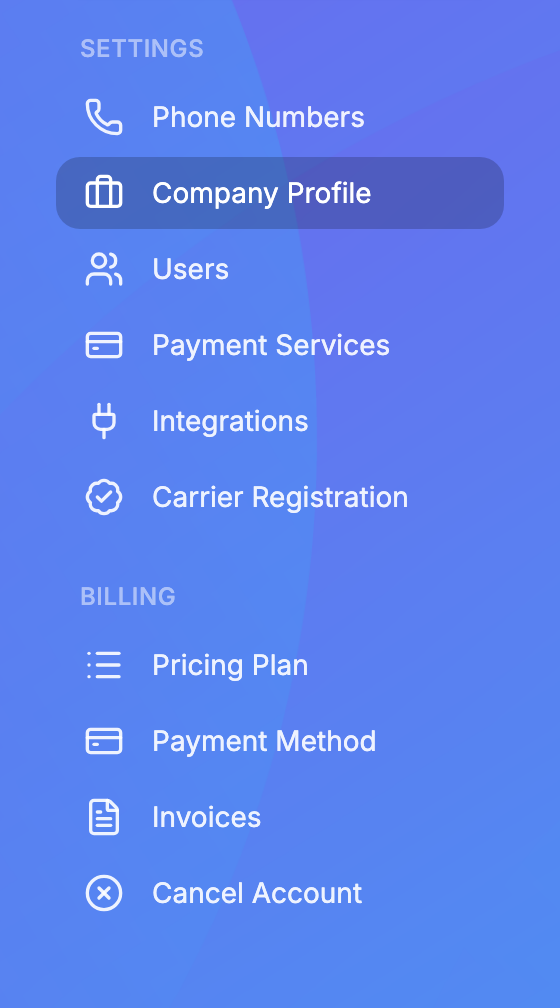
- Settings: Phone Numbers, Company Profile, Users, Payment Services, Integrations and Carrier Registration.
- Billing: Pricing Plan, Payment Method, Invoices and Cancel Account.
Your organization's details
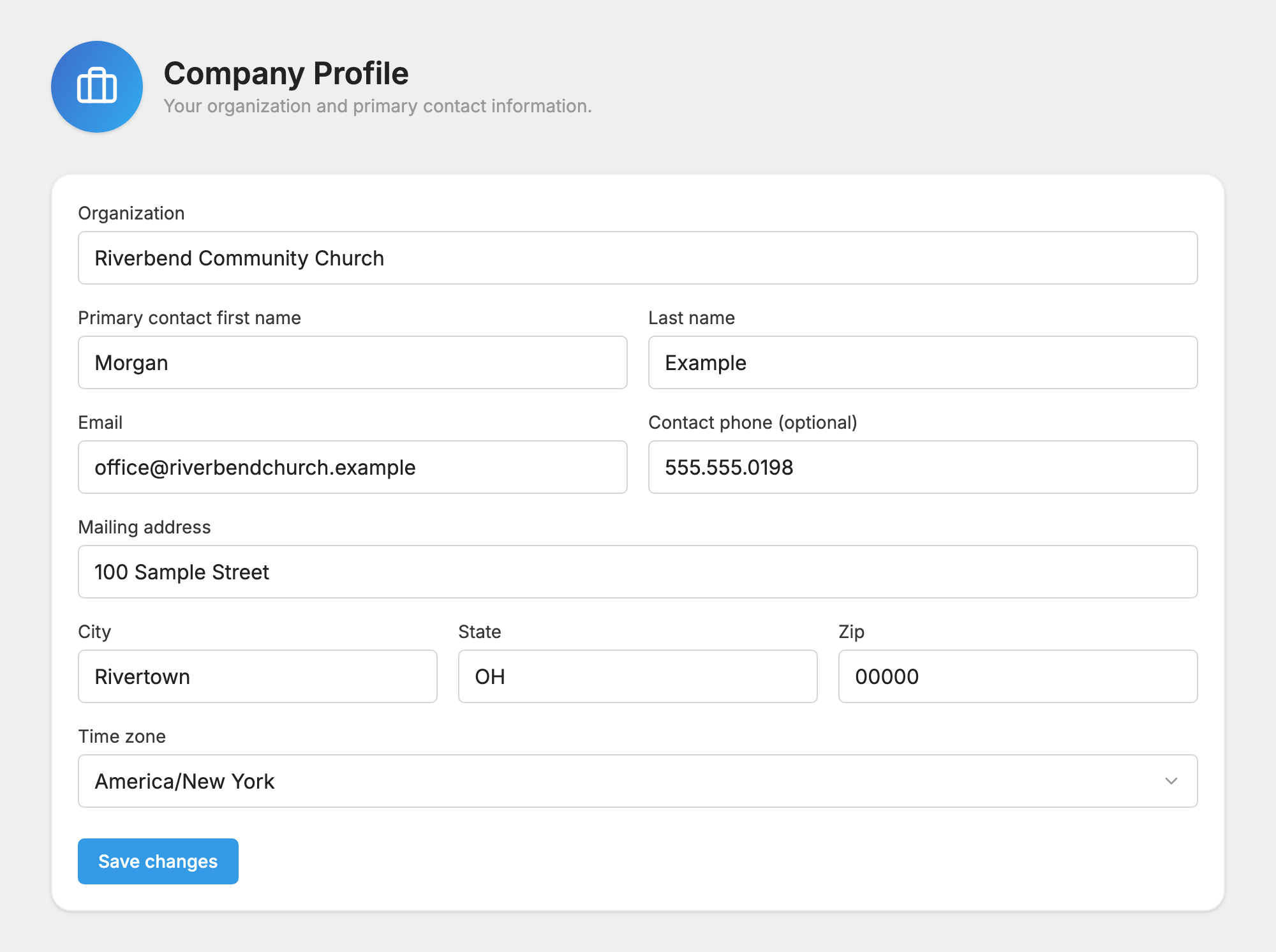
 Company Profile holds your Organization name, your primary contact's name, Email and Contact phone (optional), your Mailing address, and your Time zone. Press Save changes when you are done.
- The Email here is your account's main contact. It receives payment receipts and billing emails, so keep it current.
- The Time zone is the one your dates and scheduled messages follow.
Choose a plan
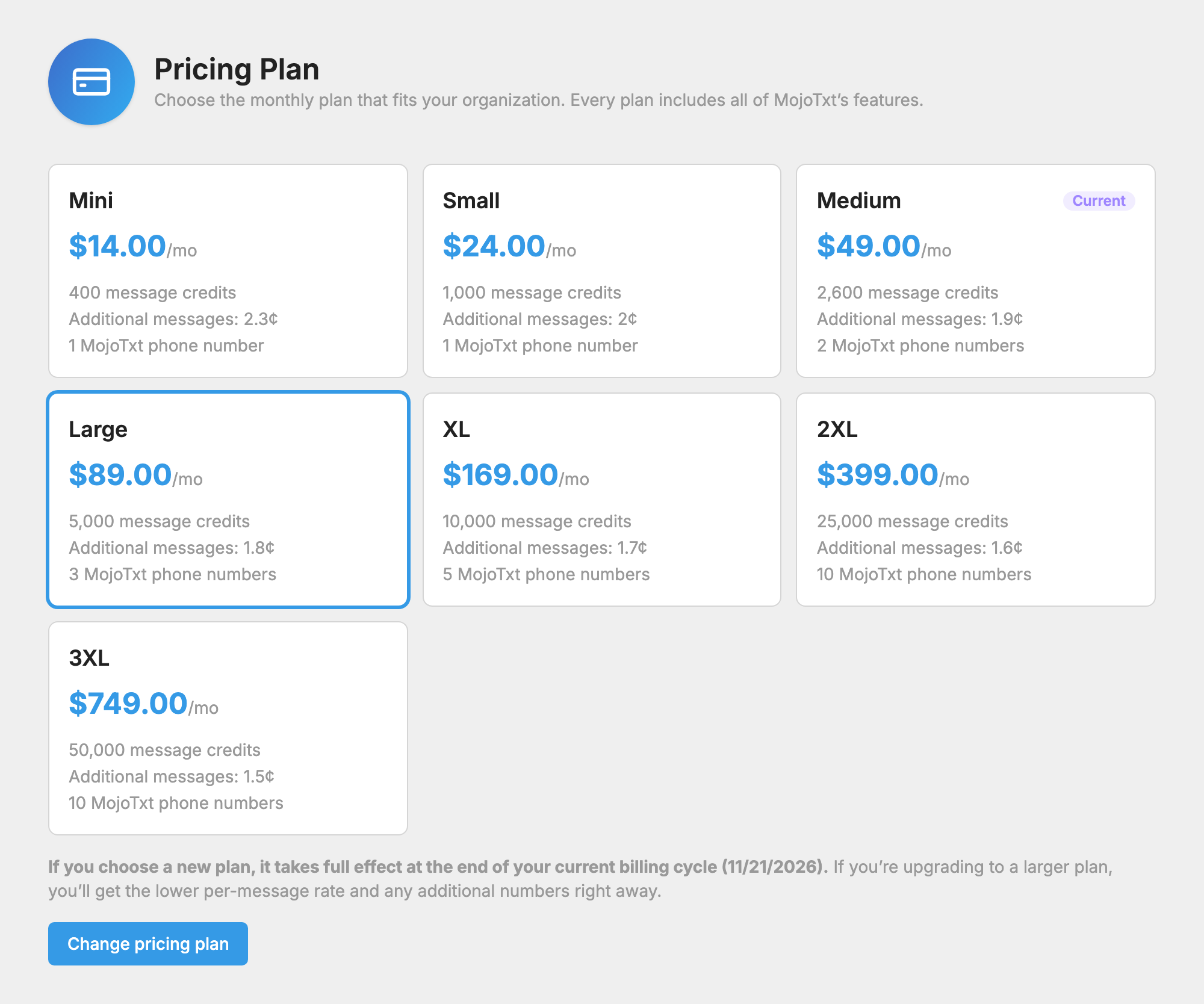
Every plan includes all of MojoTxt's features. Plans differ in their monthly price, how many message credits they include, the rate for additional messages, and how many phone numbers they include. A credit is what your texts use up, as Credits and Message Length explains.
- Open Pricing Plan. Your plan is marked Current.
- Click the plan you want.
- Press Change pricing plan.
Your new plan's monthly price and credits start with your next bill, and the page shows you that date. Its Additional messages rate applies right away, and that rate also prices any extra messages from your current cycle, so moving to a smaller plan can raise that part of your next bill. Nothing is charged when you make the change.
Move from a free trial to a paid plan
During a free trial, Pricing Plan,  Payment Method and
 Invoices are hidden, because there is nothing to bill yet. You upgrade from the Free Trial label in the top bar, or the Upgrade Account button on your dashboard.
- Click Free Trial or Upgrade Account.
- Under Step 1, select a plan.
- Under Step 2, enter your card details.
- Press Upgrade Account & Pay and the amount.
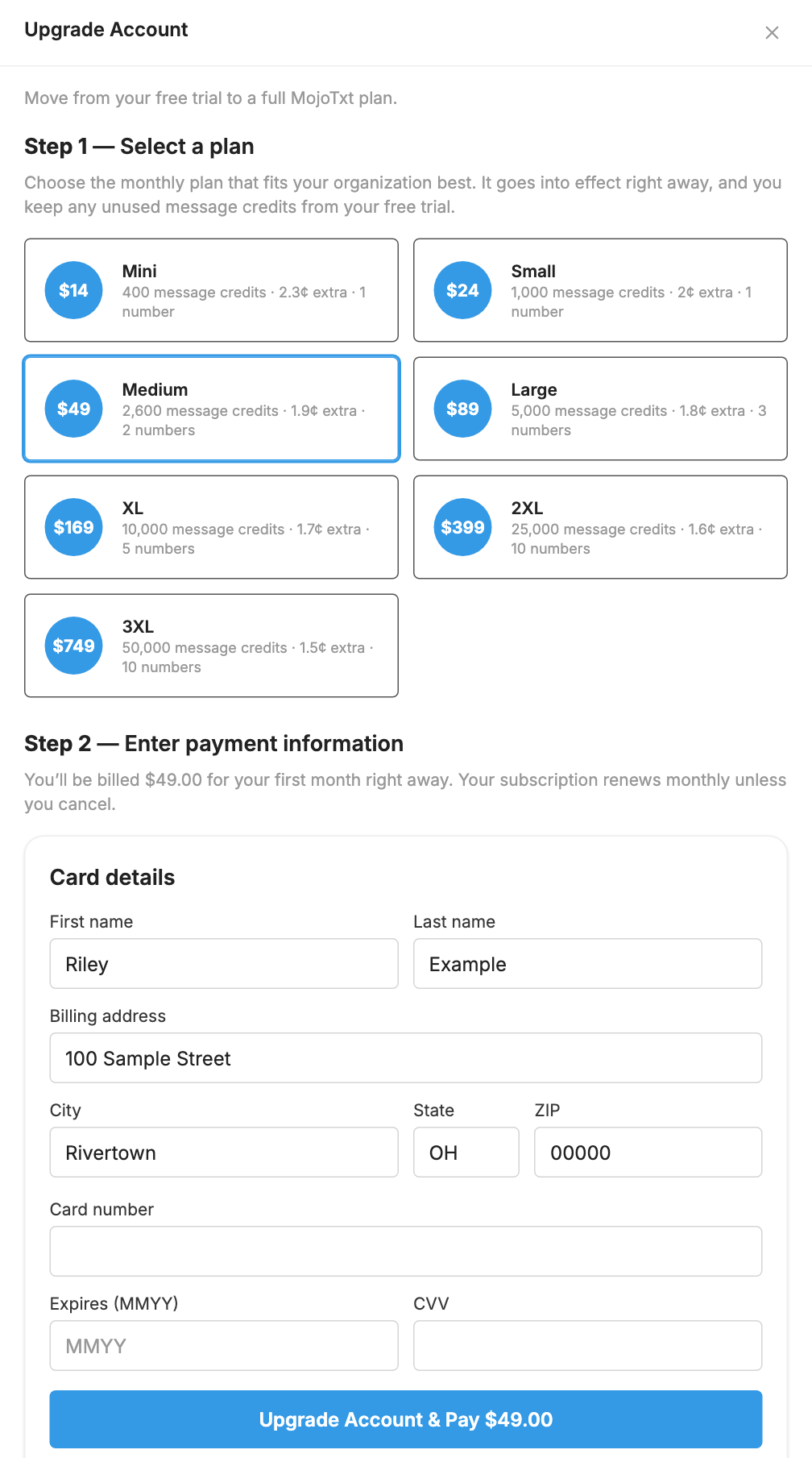
The plan goes into effect right away, and you are billed for your first month. You keep any unused message credits from your free trial. Your subscription renews monthly unless you cancel.
When a trial ends, the account stops until you upgrade. To keep your number, your subscribers and everything you've built, upgrade from the Free Trial card. As with any inactive account, its number is released after 30 days.
How billing works
Once a month, on your billing date, we write an invoice and charge the card on file for what you owe. An invoice can have these lines:
- Monthly Plan: your plan's price, which also adds the plan's message credits.
- Message Overage: credits you used beyond what you had.
- Extra Phone Numbers: numbers beyond what your plan includes.
- Carrier Registration: a monthly registration fee, if your registration has one.
If you use all of your credits, a bar at the top of the page tells you so. Your service stays active, and extra usage is billed automatically at the end of your billing cycle. You may want to consider a larger plan if this happens often.

After each payment, we email a receipt to your main contact.
Invoices
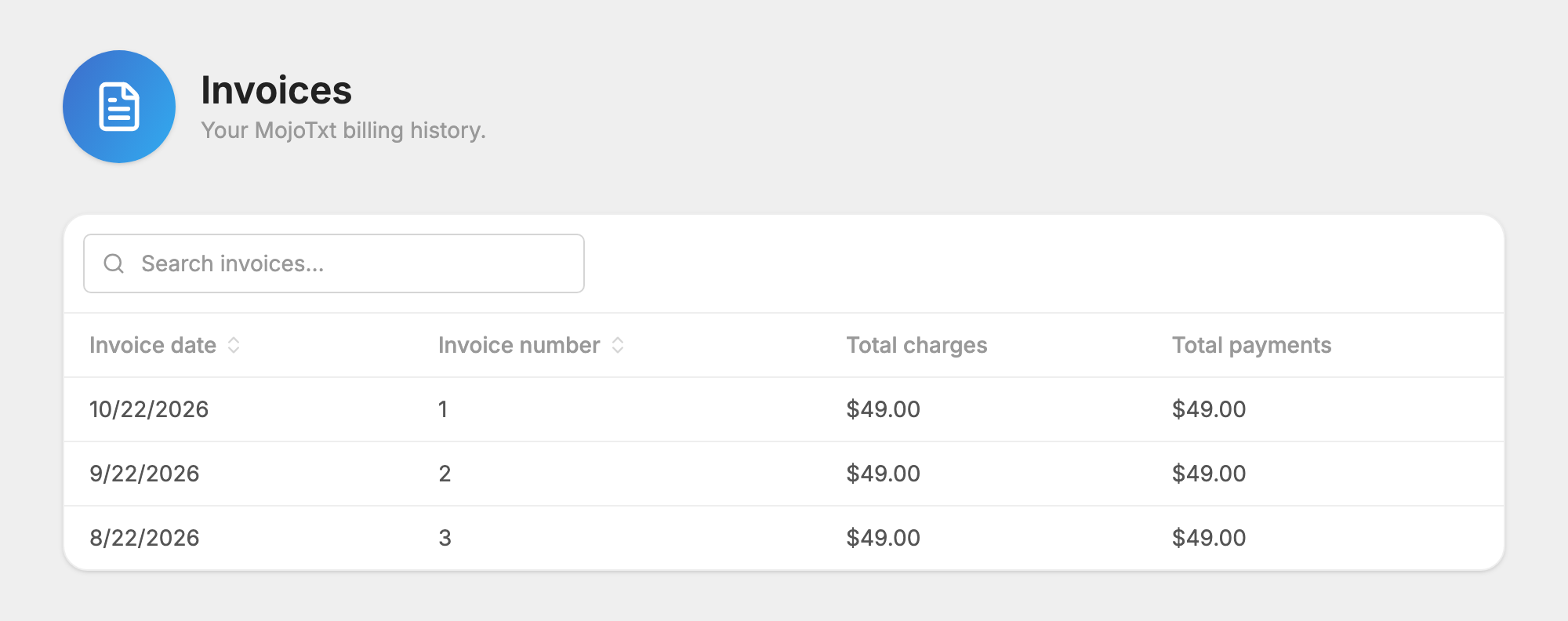
Invoices lists your billing history, newest first, with each Invoice date, Invoice number, Total charges and Total payments. Search the list, or click a row to open that invoice.
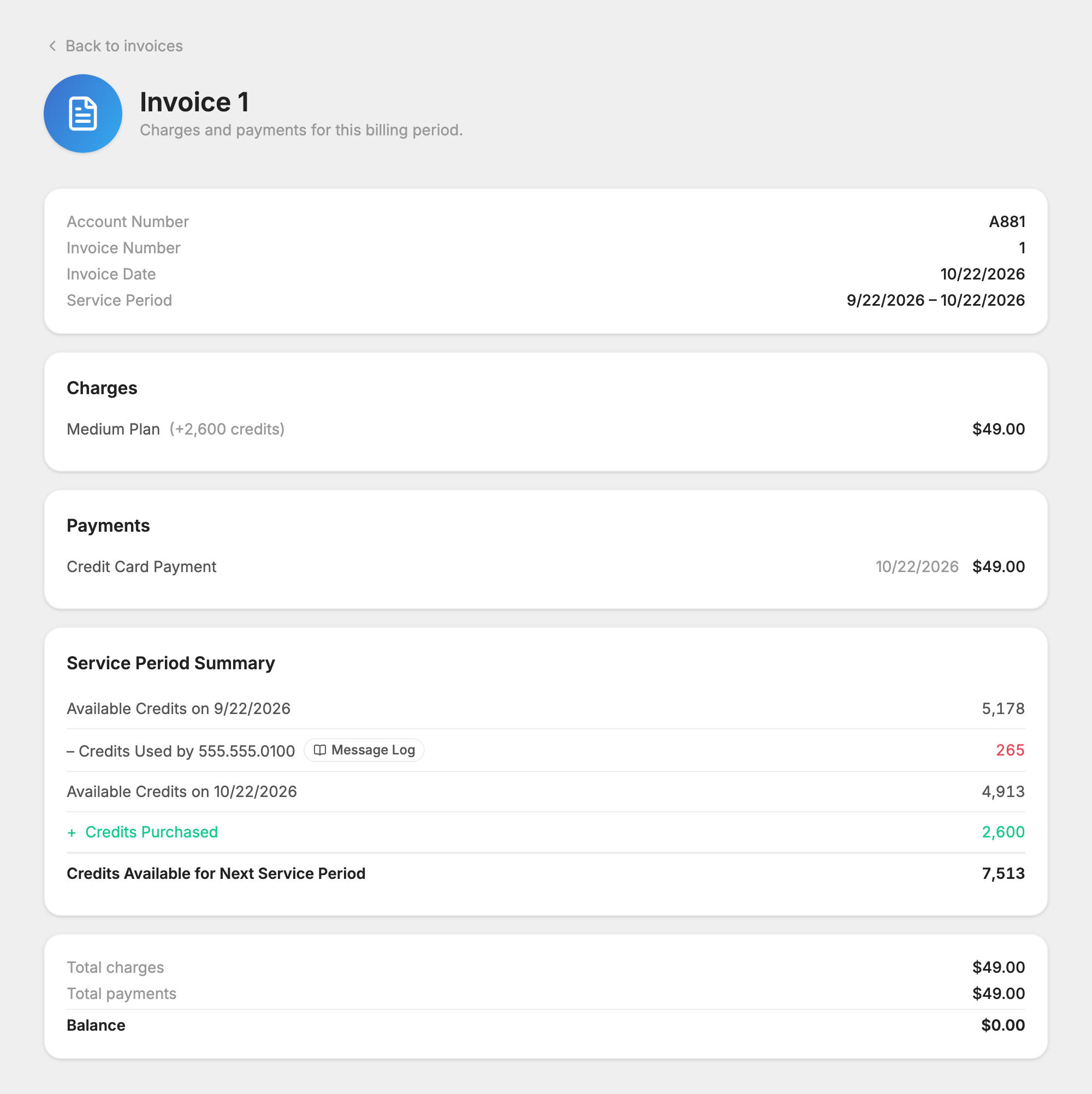
An invoice shows your Account Number, Invoice Number and Service Period, then its charges, payments and any adjustments. The Service Period Summary shows how your credits moved during that period: what you started with, what each number used, what you bought, and the Credits Available for Next Service Period. A  Message Log button next to each number opens that number's log for the same dates. See Message Log.
If you owe a balance or have a credit, a note at the top of the page shows the amount.
Update your payment method
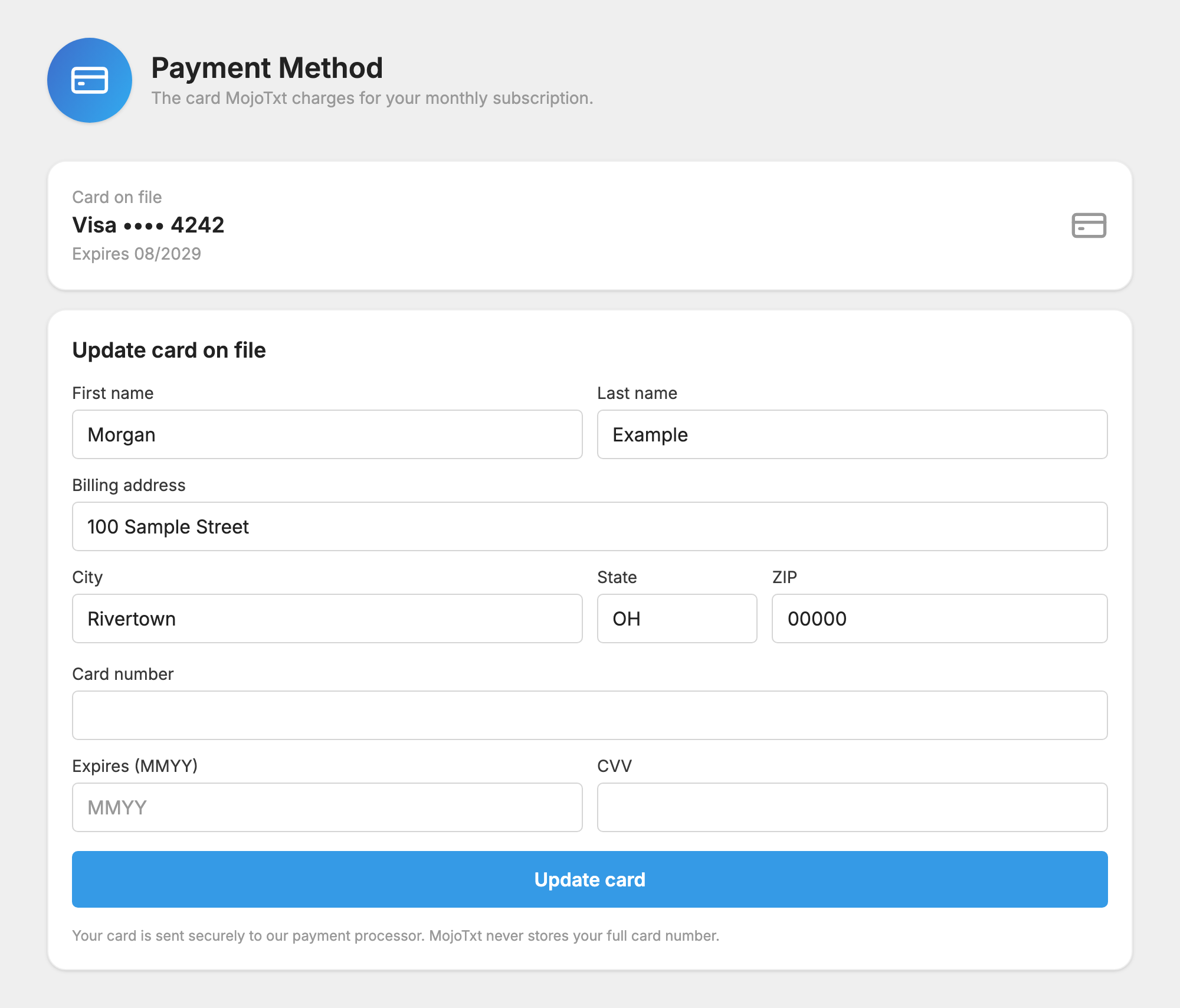
Payment Method shows the card MojoTxt charges for your monthly subscription. This is not where donations go. For that, see Payment Services.
- Fill in the Update card on file form.
- Press Update card.
If you have an outstanding balance, the button reads Update card & pay and the amount, and we try to pay that balance as soon as you press it.
If a payment fails
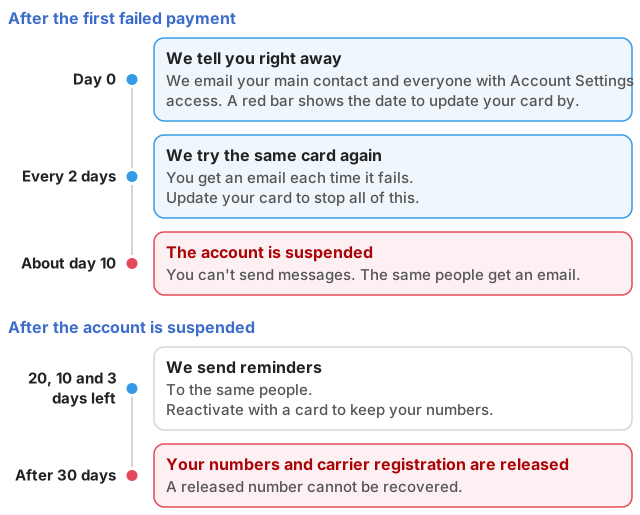
If we can't charge your card, or there is no card on file, this is what happens:
- We tell you right away. We email the main contact and everyone with Account Settings access. A red bar appears at the top of the page for people with that access, and shows the date to update your card by.
- We keep trying. We retry the same card every two days, and you get an email each time it fails.
- After about ten days, the account is suspended. The same people get an email. You can't send messages while the account is suspended.
- We remind you. If the account stays suspended, the same people get reminders with 20, 10 and 3 days left.
- 30 days after the account closes, the numbers and carrier registration are released. A released number cannot be recovered.
To stop this at any point before step 3, update your card as described above. If you owe a balance, we try to pay it as soon as you save the card. The Invoices page shows the date to update your card by and when we will try next.

Once the account is suspended, reactivate it with a card. See Cancel or Reactivate. The  Phone Numbers page shows Releases after and the date, next to each number.
Add a phone number
- Open Phone Numbers.
- Press Add A Phone Number.
- Choose Local number or Toll-free number. For a local number, enter an Area code.
- Press Search and pick a number.
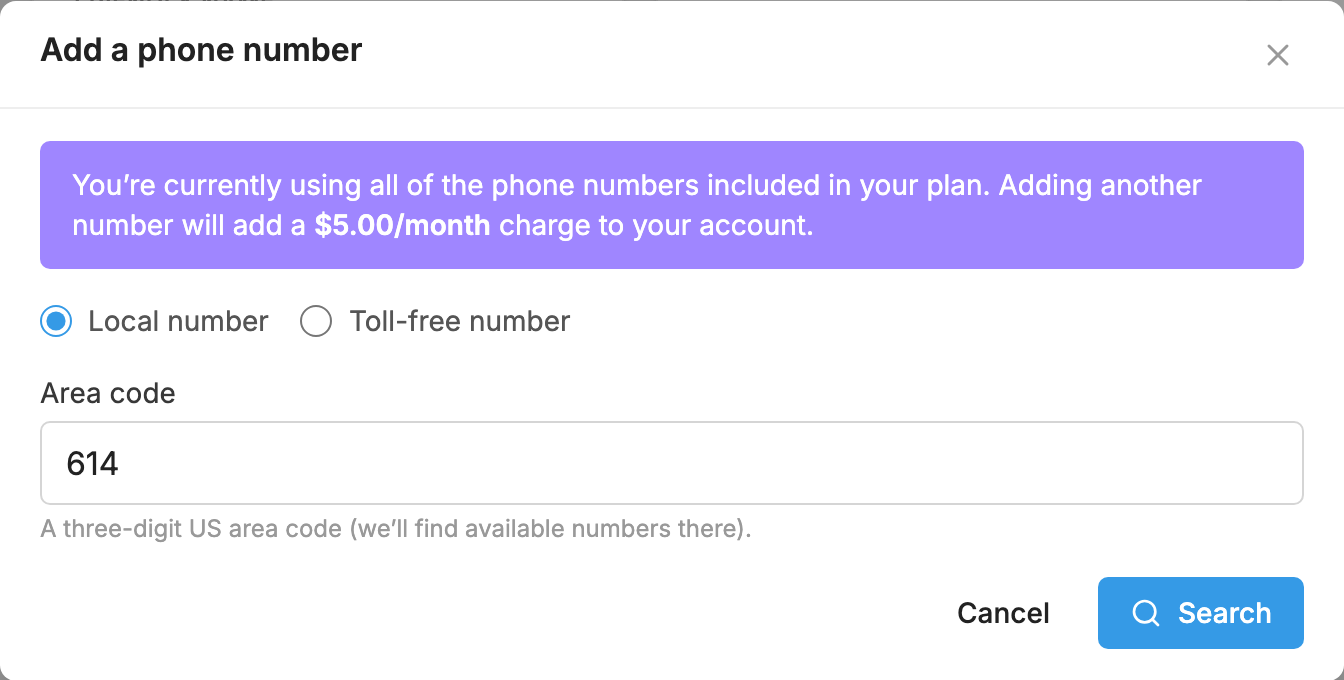
If you are already using all of the numbers your plan includes, the box shows the monthly charge for one more. A free trial is limited to one number.
A new number can't send until it is registered. See  Carrier Registration. For everything else on this page, see Your Phone Numbers.
Other things you can do here
- Users and Access: manage who can use your account.
- Payment Services: connect the account that receives your donations.
- Integrations and API: connect to other software, or use our API.
- Cancel or Reactivate: close your account, or bring it back.
