

How do I… Sending messages
 See Replies and Get Notified
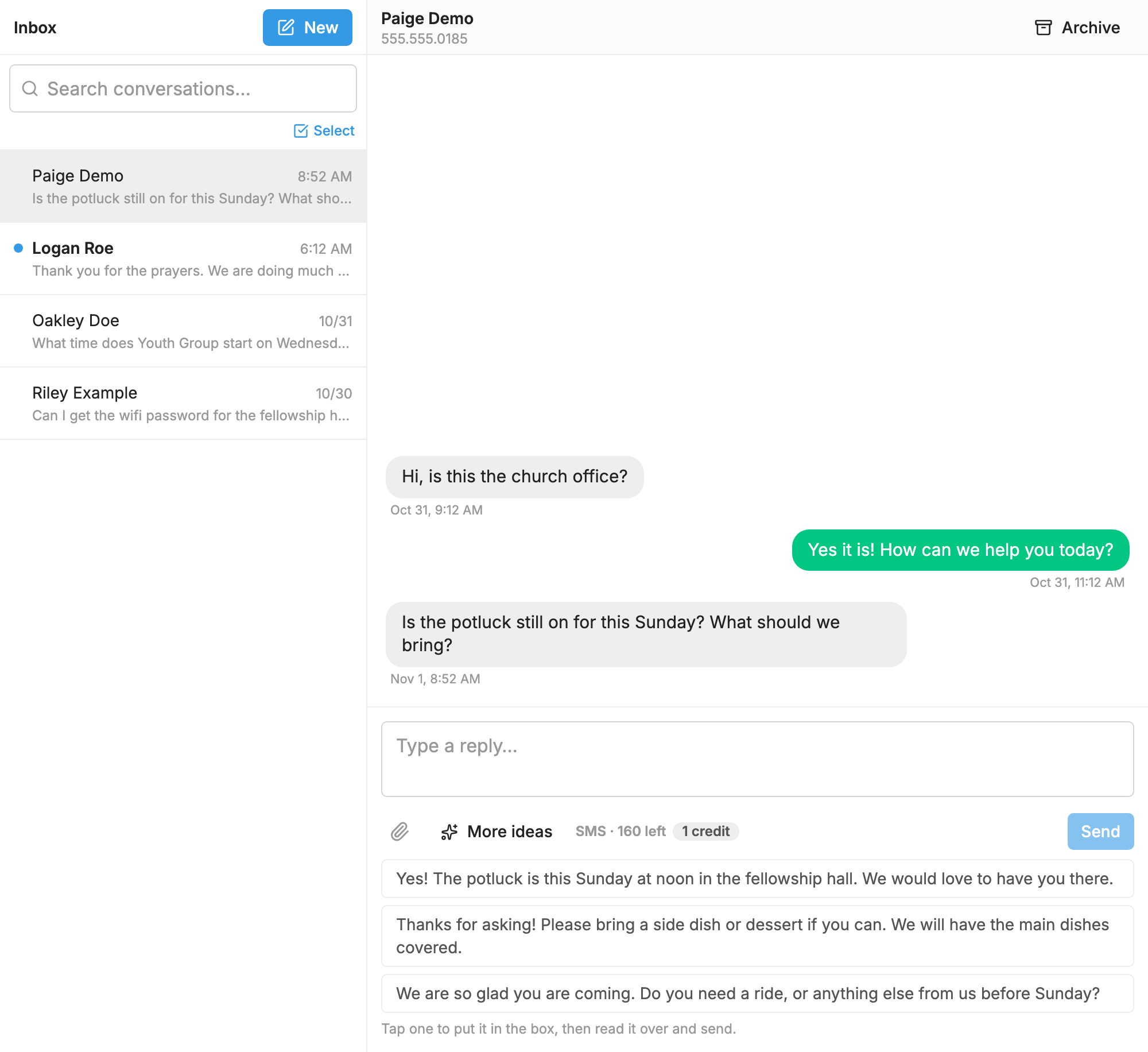
People can reply to your texts. Replies go to  Conversations, where you can answer them one to one. A text reply to you uses no credits. A picture sent to your number uses 1 credit.
See replies
- Open Conversations.
- Press a conversation to read it.
- Type your answer and send it.
Texts that match a keyword or a live poll vote are handled by that tool and don't appear in Conversations. You can see every text your number received in the  Message Log.
Get notified when a reply comes in
- Open
 Settings and go to the Conversations tab.
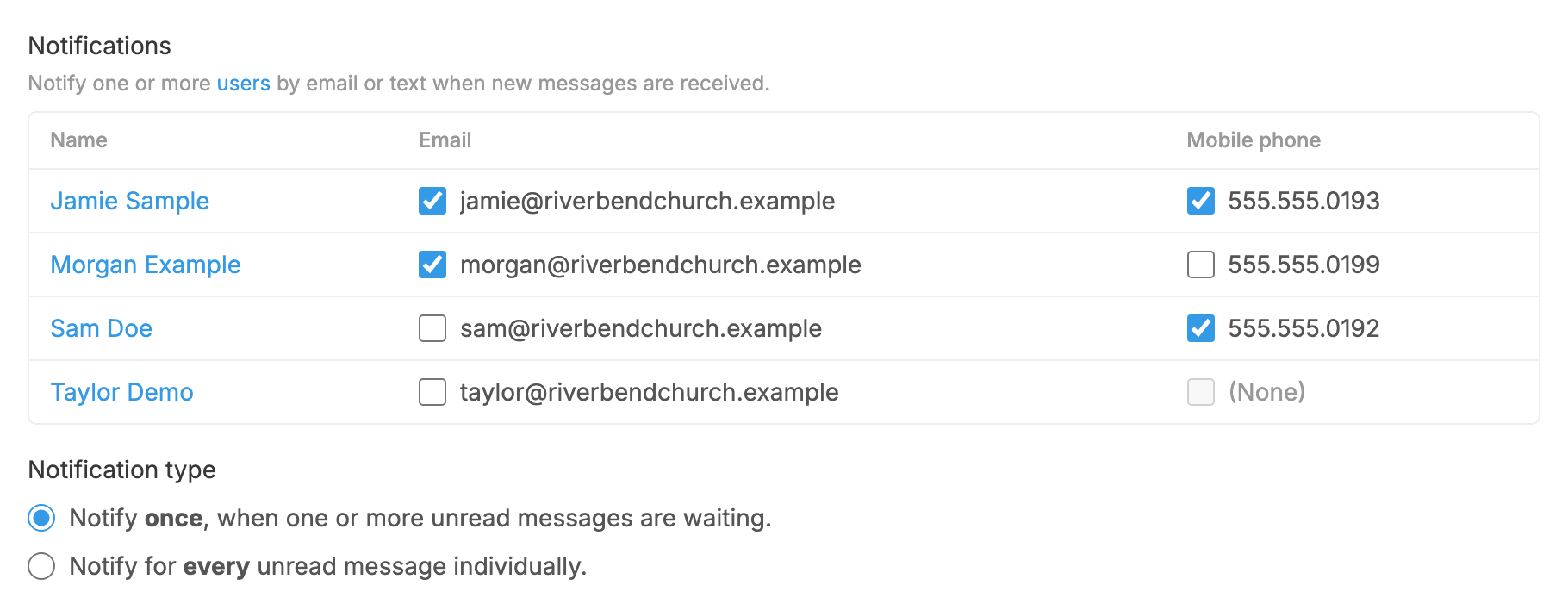
- Under Notifications, find the users you want to tell.
- Check the box beside a person's email, their mobile phone, or both. If it says (None), add a mobile phone to that user first.
- Under Notification type, choose whether to be told once, when one or more unread messages are waiting, or for every unread message.
- Press Save settings.
To notify someone who isn't listed, add them as a user.
Notifications are for messages that reach Conversations. A text that matches a keyword doesn't send one.
Find an archived conversation
There is no archive folder. Archive hides a conversation from your inbox and keeps its history.
- If they text you again, the conversation comes back by itself.
- To open it yourself, find them in
 People, open the actions menu on their page and choose Start a Conversation.
- To read the history, choose View Message Log from the same menu.
Stop people from replying
You can't stop someone from sending a text to your number, but you can choose what happens next:
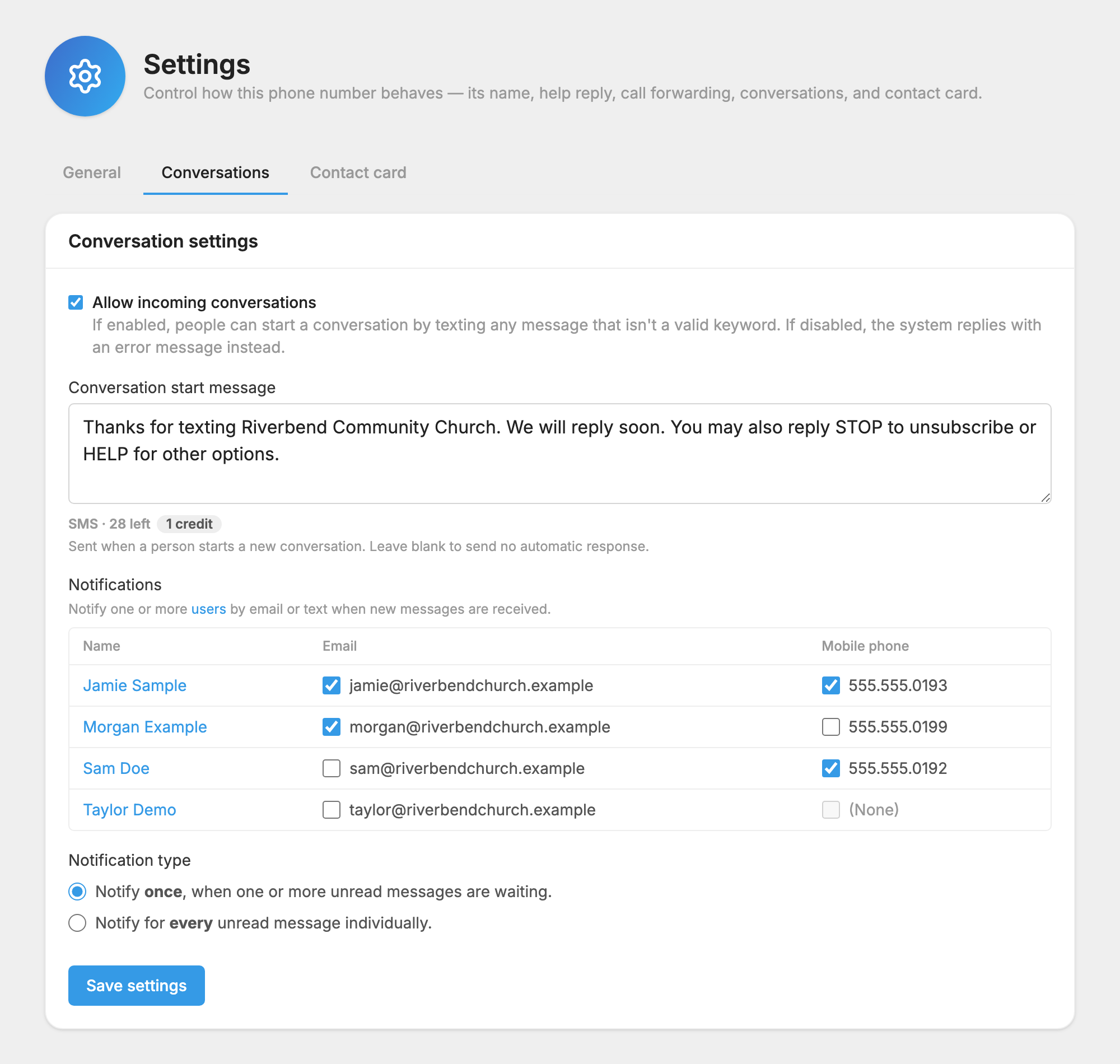
- Open Settings and go to the Conversations tab.
- Uncheck Allow incoming conversations.
- Press Save settings.
Now anyone who texts something that isn't a keyword gets an error reply and nothing reaches your inbox. STOP, HELP and your keywords keep working.
Send an automatic first reply
To let people know when you'll answer, fill in Conversation start message on the same tab. It goes out when someone starts a new conversation, and it uses credits like any other message. Leave it blank to send nothing.
See Conversations for more about working in your inbox.
