

Your number
 Your Phone Numbers
The Phone Numbers page lists every number on your account, with its type, friendly name and status. Only users who can manage the account see this page. See Users and access. Open Phone Numbers
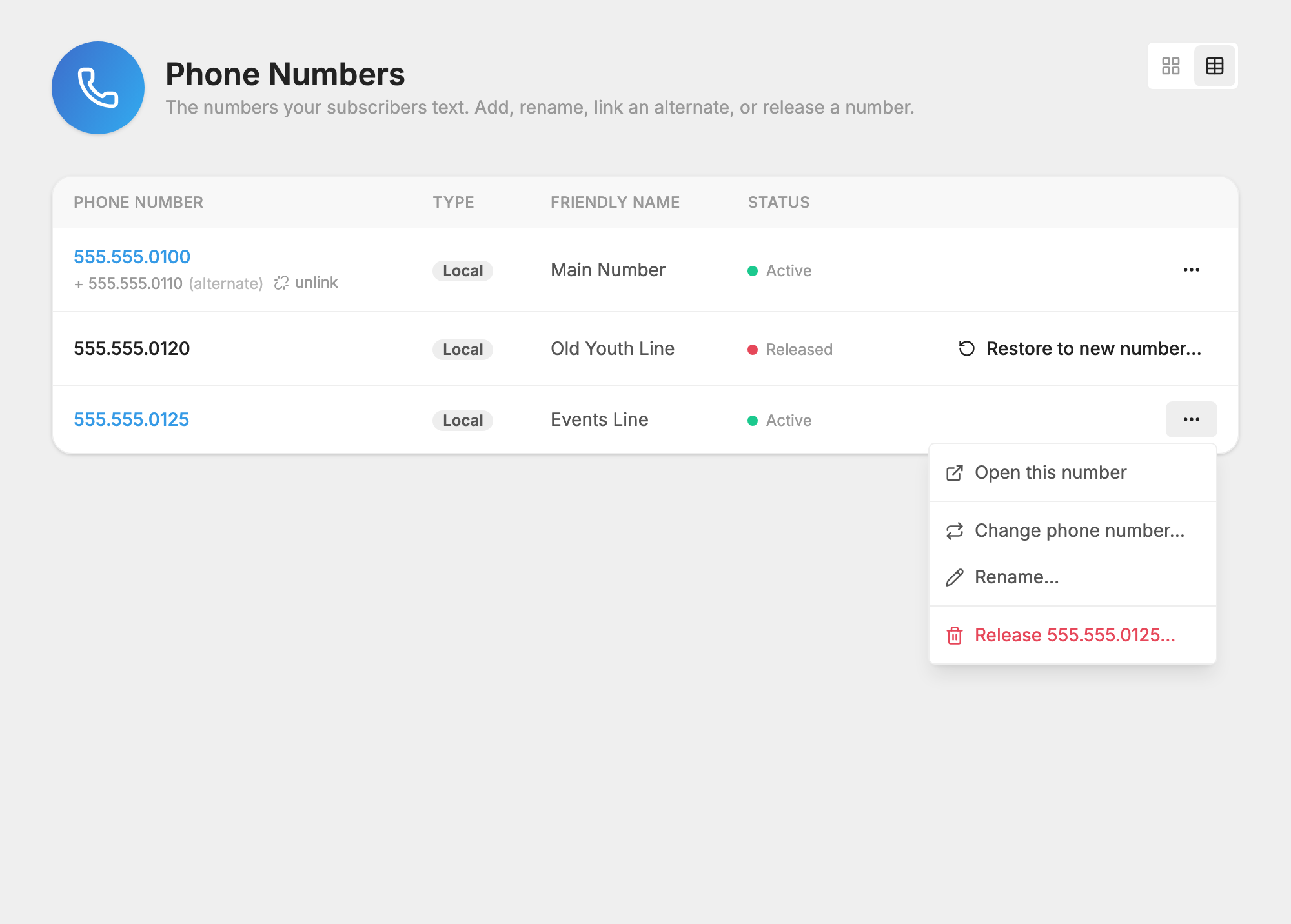
Each number shows as Local or Toll-free, and its status is one of these:
- Active: working normally.
- Suspended: your account is inactive. The page shows the date after which the number will be released if the account stays inactive.
- Released: returned to the carrier. You can restore its data to a new number.
Click a number to open it. The toggle at the top switches between cards and a table. To change a number, click its three-dot menu.
While your account is inactive, you can't add, rename or release numbers.
Add a number
- Click Add A Phone Number.
- Choose Local number and type a three-digit Area code, or choose Toll-free number.
- Click Search.
- Click the number you want.
- Add a Friendly name (optional) to help you recognize it.
- Click Add this number.
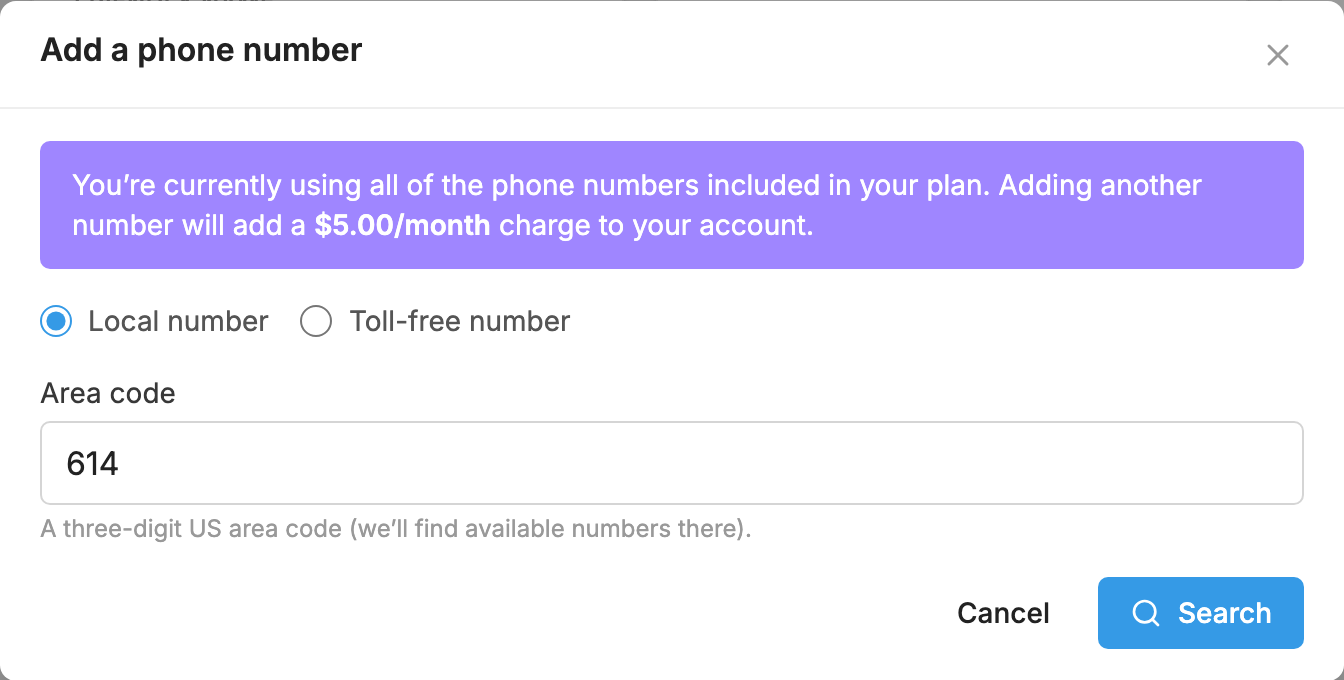
You are not charged right away. The number's monthly fee is added to your next invoice. If you are already using all the numbers your plan includes, the page shows the extra monthly charge before you add it.
A free trial includes one number. Upgrade your account to add more.
Registering a new number
A new local number joins your existing carrier registration on its own. A toll-free number is verified on its own, from the  Carrier Registration page.
Rename a number
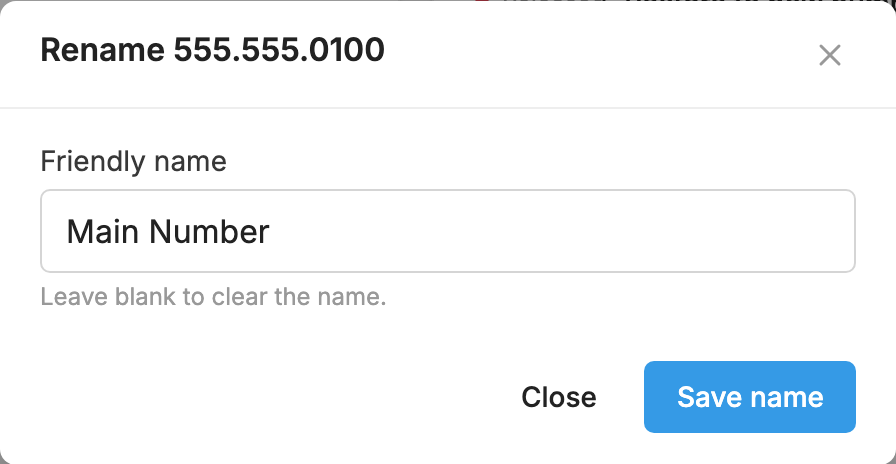
- Open the three-dot menu and choose Rename….
- Type a Friendly name. The name helps you tell your numbers apart.
- Click Save name.
You can also change it on the  Settings page.
Replace a number
Use this to change a number and keep everything on it. Your keywords, people and settings stay, and they move to the new number.
- Open the three-dot menu and choose Change phone number…. You can also click Change… on the Settings page.
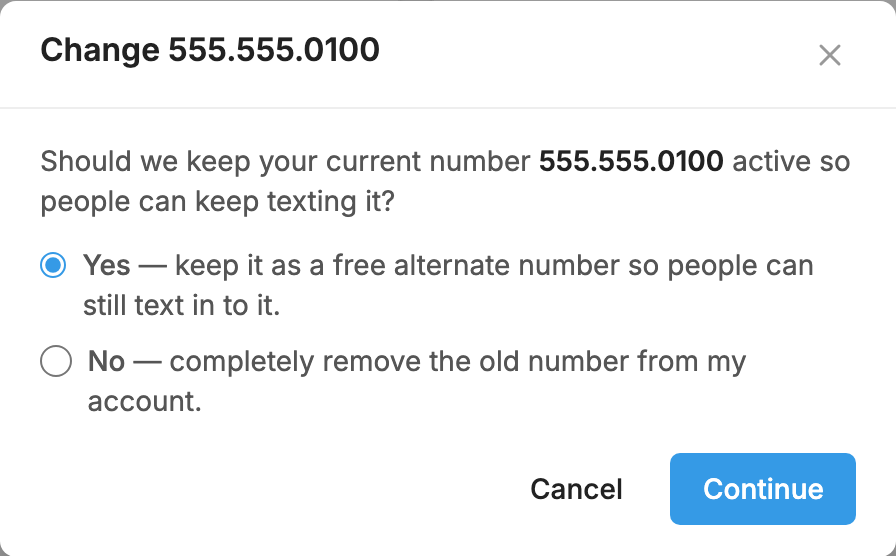
- Choose whether to keep your current number:
- Yes keeps it as a free alternate number, so people can still text in to it.
- No completely removes the old number from your account.
- Click Continue.
- Choose Local number with an Area code, or Toll-free number, and click Search.
- Click the number you want.
- Click Confirm. The new number's dashboard opens.
You can't replace a number during a free trial. A number that already has an alternate can't keep the old one too. Remove the alternate first, or choose No.
Switch to a toll-free number
Follow the steps in Replace a number and choose Toll-free number in the search. Choosing Yes keeps your old number working as a free alternate.
Toll-free searches cover 800, 888, 877 and other available prefixes. A toll-free number is verified on its own. See Carrier Registration.
Alternate numbers
An alternate number is a second number that forwards incoming texts to your main number. Replies come from your main number, not from the alternate the person texted. The alternate shows under your main number on this page.
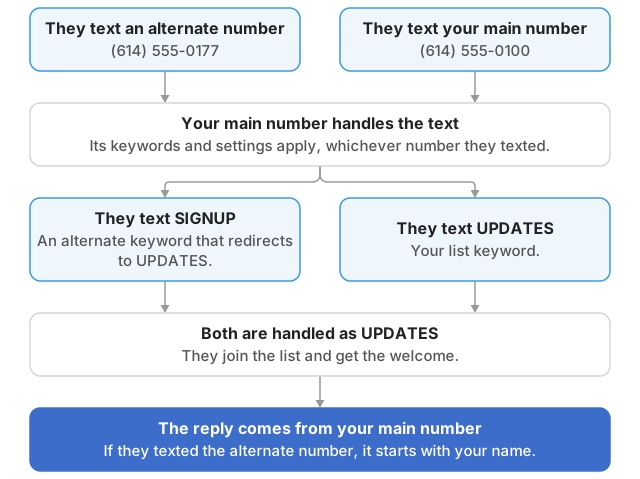
There are two ways to get one:
- Choose Yes to keep the old number when you replace a number.
- Link another number on your account: open the main number's three-dot menu, choose Link an alternate…, choose the Number to link as an alternate, and click Link alternate. This choice only appears if you have another number that can be linked.
To undo it:
- unlink, next to the alternate, makes it a separate number again.
- Delete, followed by the alternate's number, in the main number's three-dot menu, releases the alternate to the carrier. This can't be undone.
Release a number
Releasing a number returns it to the carrier.
- Open the three-dot menu and choose Release, followed by the number.
- Read the warning and click Release.
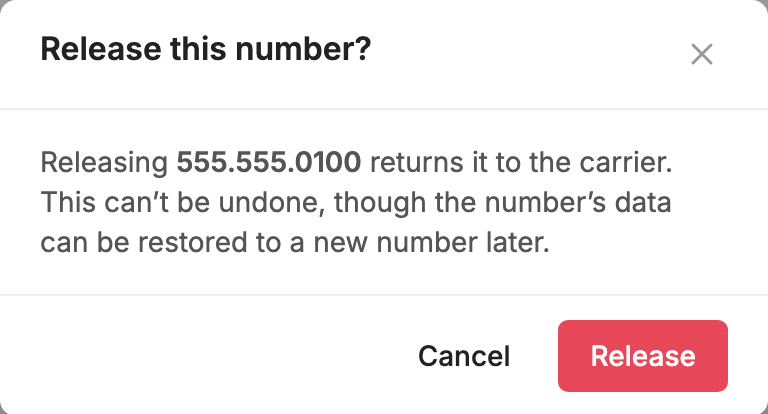
This can't be undone, but the number's data can be restored to a new number later. If the number has an alternate, remove the alternate first. You can't release a number during a free trial.
Restore a released number's data
A released number stays on this page with a Restore to new number… button, so you can bring its keywords, people and settings back on a new number. You can't get the old number itself back this way.
- Find the Released number and click Restore to new number….
- Choose Local number with an Area code, or Toll-free number, and click Search.
- Click the number you want.
- Click Confirm. The new number's dashboard opens, with the released number's data on it.
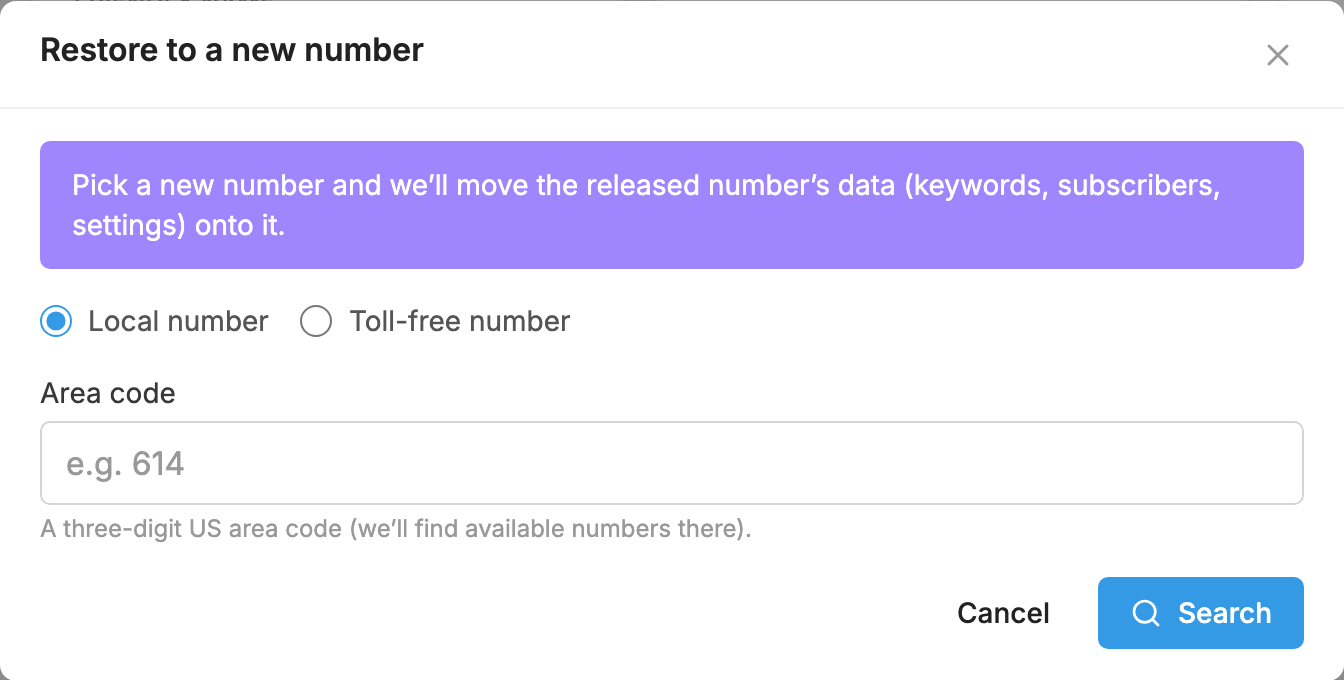
You can't do this during a free trial or while your account is inactive.
