

Tools
 Daily Programs
A daily program sends each subscriber one text a day, at a time they choose. The text links to a page that can hold your message, images, videos, scripture and private journal prompts. People use programs for devotionals, Bible reading plans and challenges.
Choose a program type
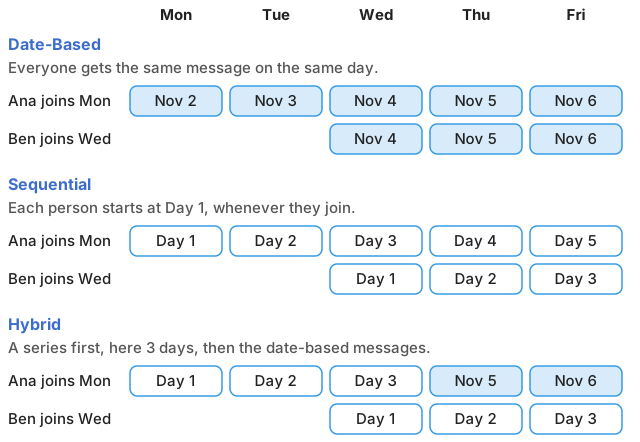
- Date-Based: you write a message for each calendar date, and everyone gets the same message on the same day.
- Sequential: you write a numbered series, sent one per day in order. Each person starts at Day 1, whenever they join.
- Hybrid: a sequential series first, and then the date-based messages once someone finishes it.
You can't change the type while people are subscribed.
Create a program
- Click
 Daily Programs under Tools in the left-hand menu, or open Daily Programs.
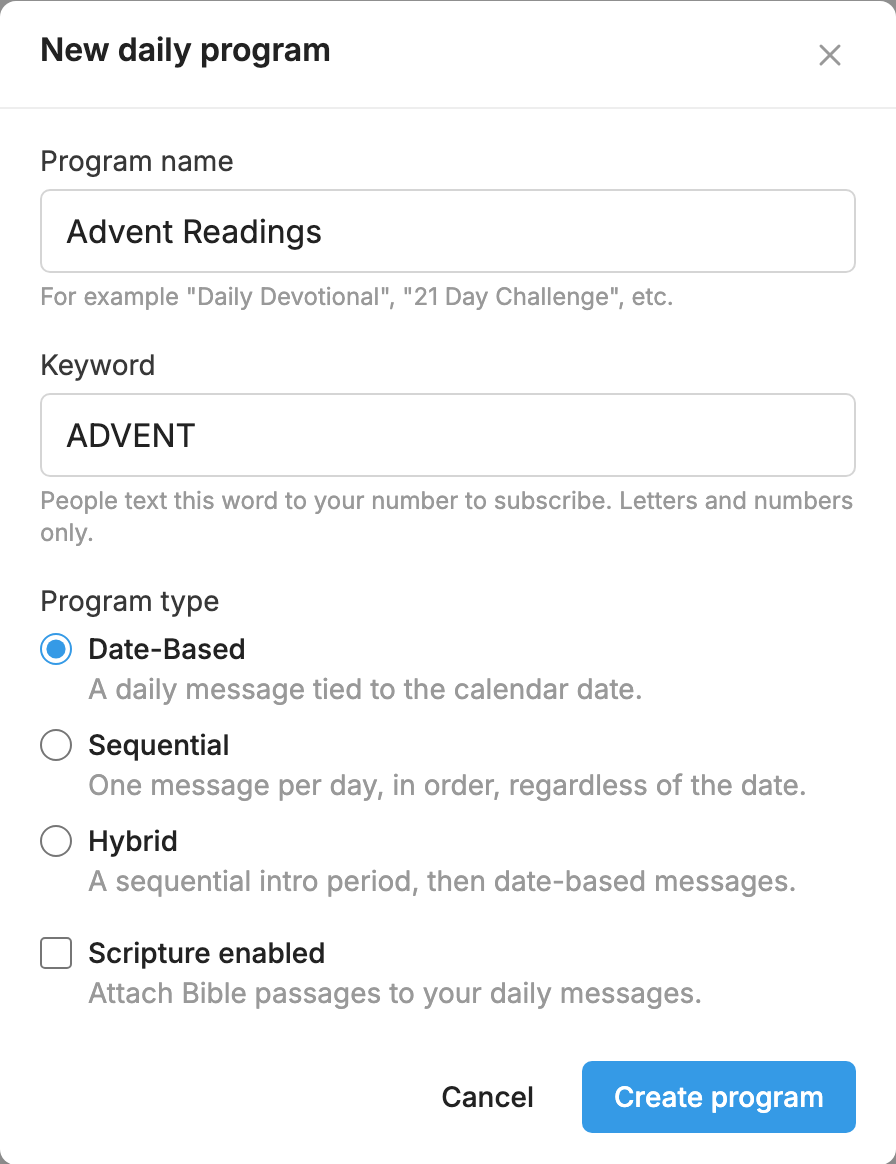
- Click New Daily Program.
- In Program name, type a name of up to 50 characters.
- In Keyword, type the word people will text to join. See What a keyword is.
- Under Program type, choose Date-Based, Sequential or Hybrid.
- Tick Scripture enabled if you want to add Bible passages.
- Click Create program. You land on the program's
 Settings tab.
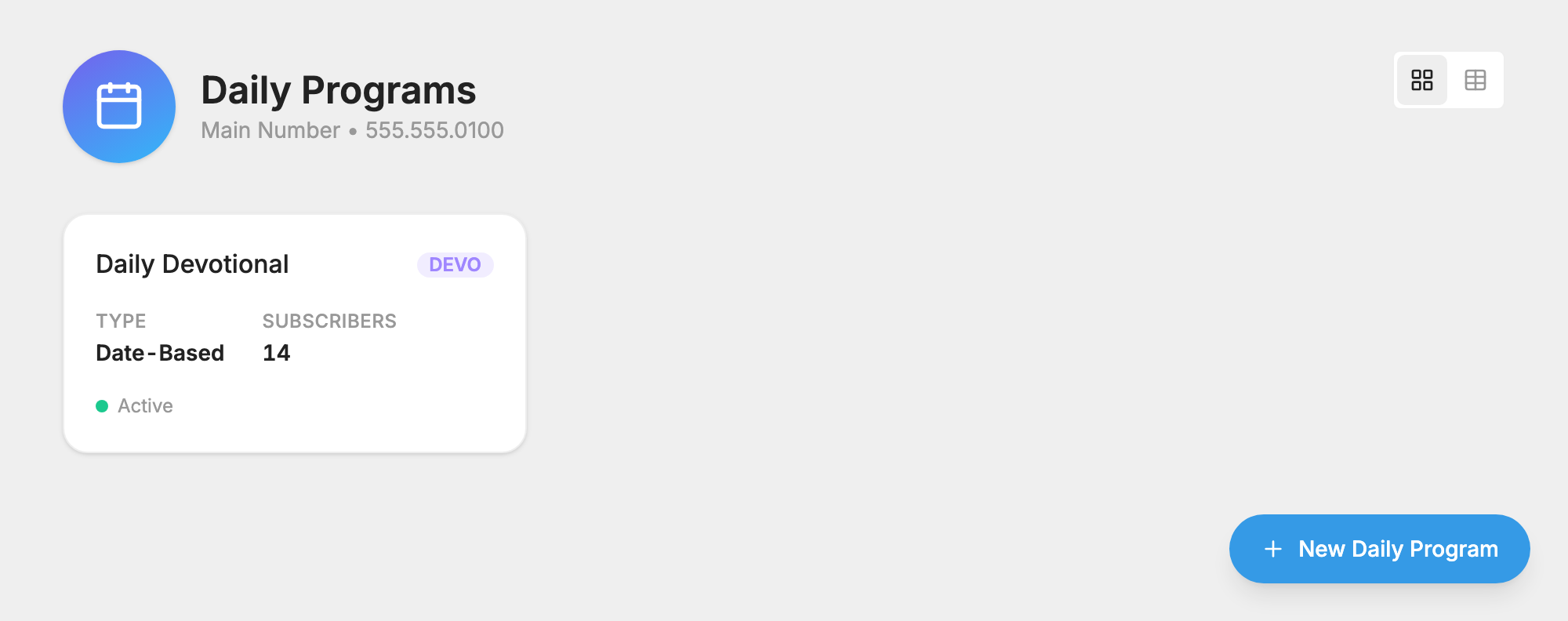
Each program has a Subscribers tab, a  Messages tab and a Settings tab. A hybrid program has two message tabs, Sequential and Date-Based, in place of Messages.
Add your messages
Nothing goes out until you've added and published a message.
- Open the program and click the Messages tab.
- Click Add message.
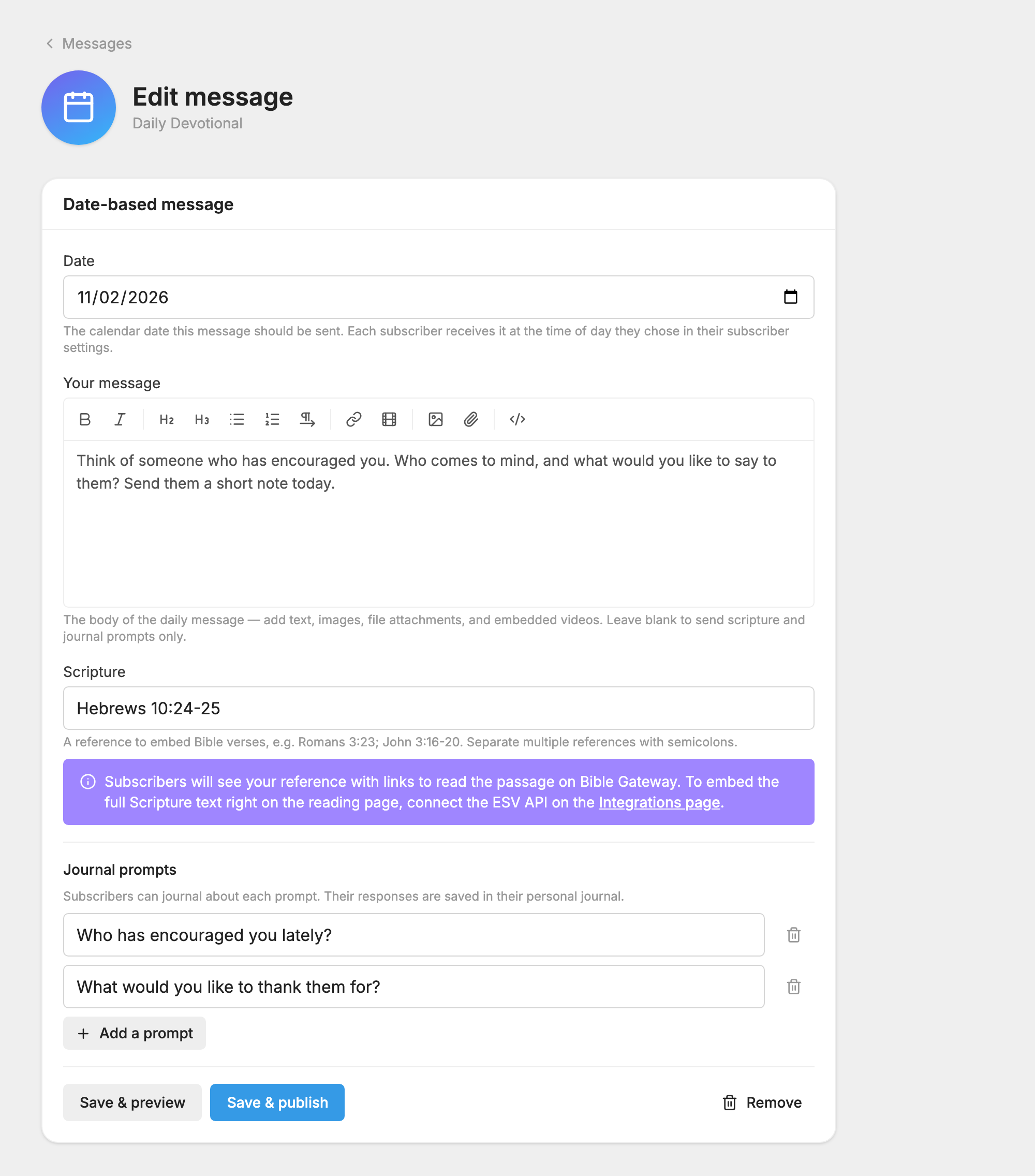
- For a date-based message, check the Date.
- In Your message, add your text. You can add images, attach files and embed YouTube or Vimeo videos with the tools in the editor. You can leave this blank if you only want scripture and journal prompts.
- If scripture is on, type a reference in Scripture, such as John 3:16. Separate several references with semicolons.
- To add a journal prompt, click Add a prompt and type your question. Add as many as you like.
- Click Save & preview to see how it will look. To change anything, click Edit message.
- Click Publish message, or Save & publish in the editor.
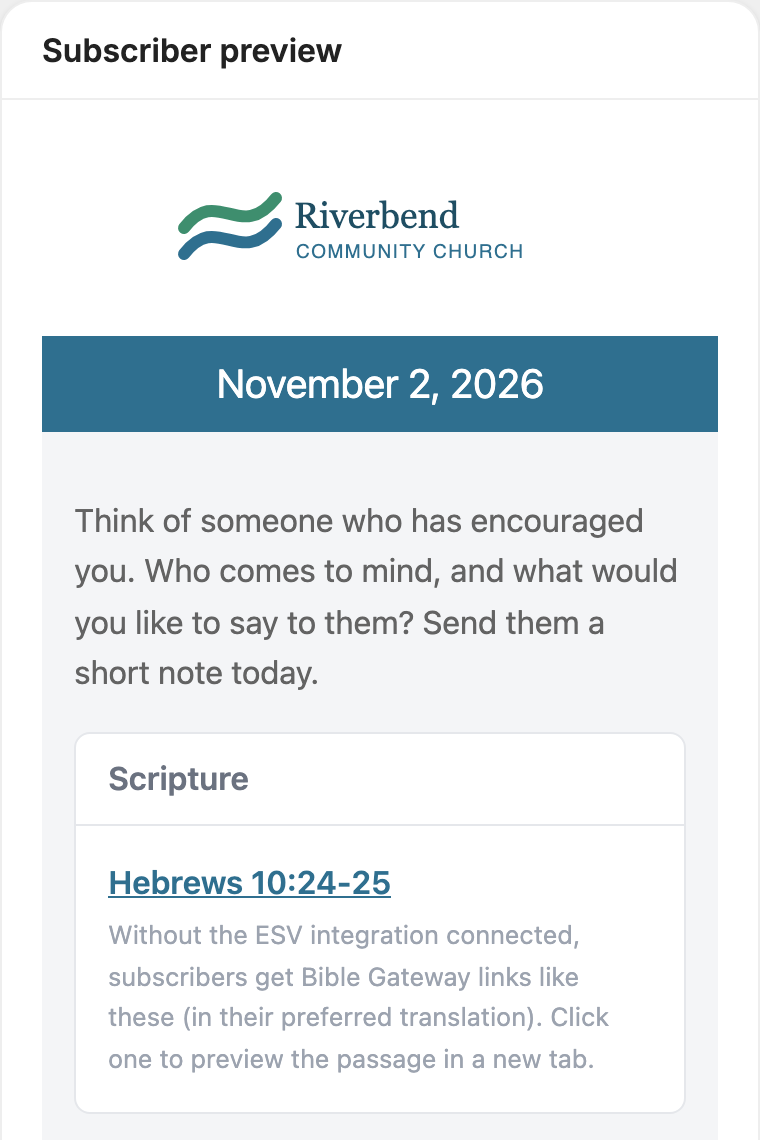
A message marked Draft isn't sent. Only Published messages go out.
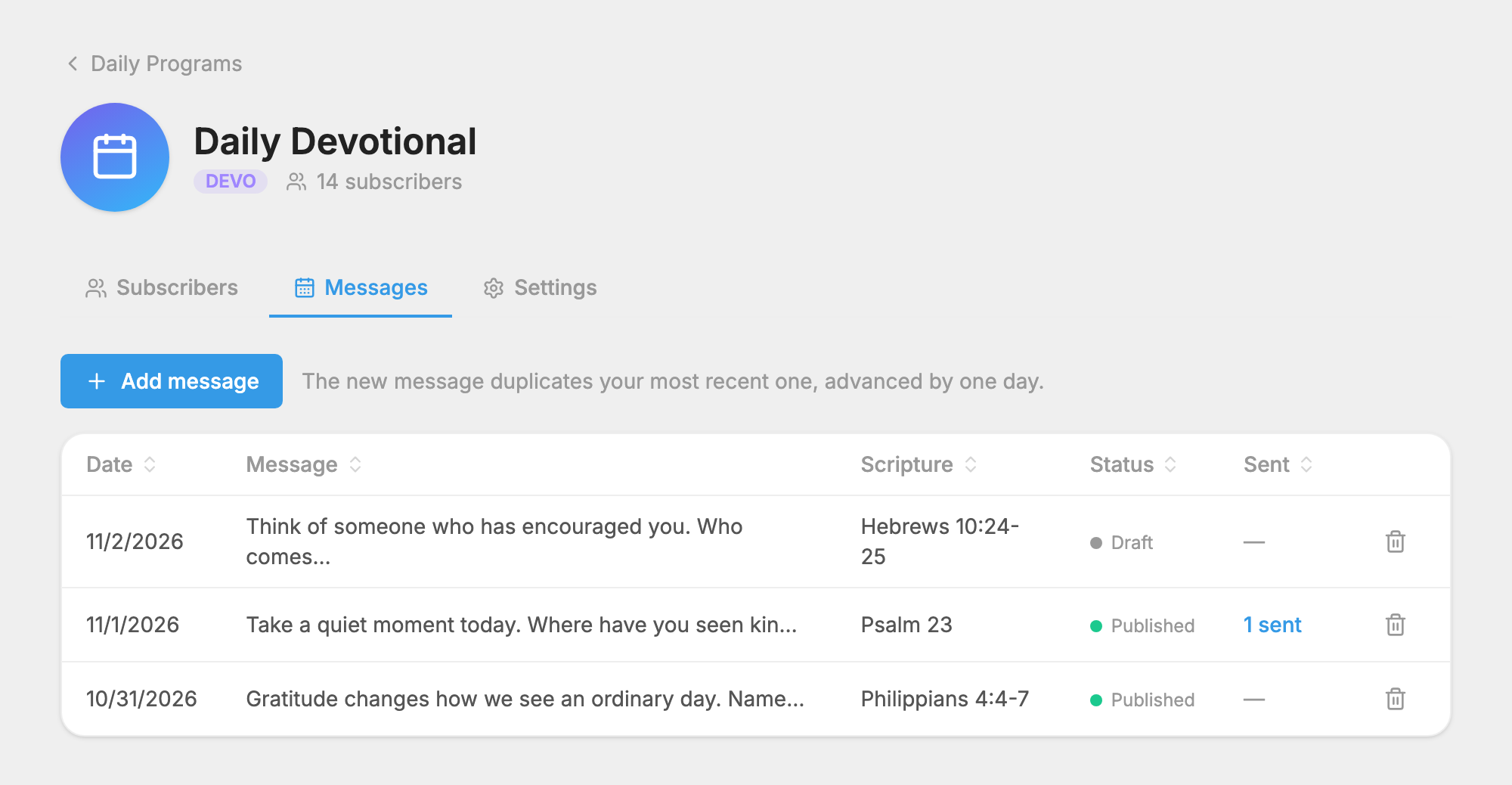
To write the next one, click Add message again. The new message starts as a copy of your latest one, journal prompts included, so you only need to change what's different.
- In a date-based program, the date moves on one day. If your last scripture reference ends in a whole number, such as Genesis 3, that number goes up by one, which helps with chapter-a-day reading plans. MojoTxt doesn't know how many chapters a book has, so check the reference when a book ends.
- In a sequential program, the new message takes the next day number. You need to publish the previous day first.
To delete a message, click the trash icon beside it, or Remove in the editor. A message that has already been sent can't be deleted. Deleting a sequential message renumbers the days after it.
Scripture
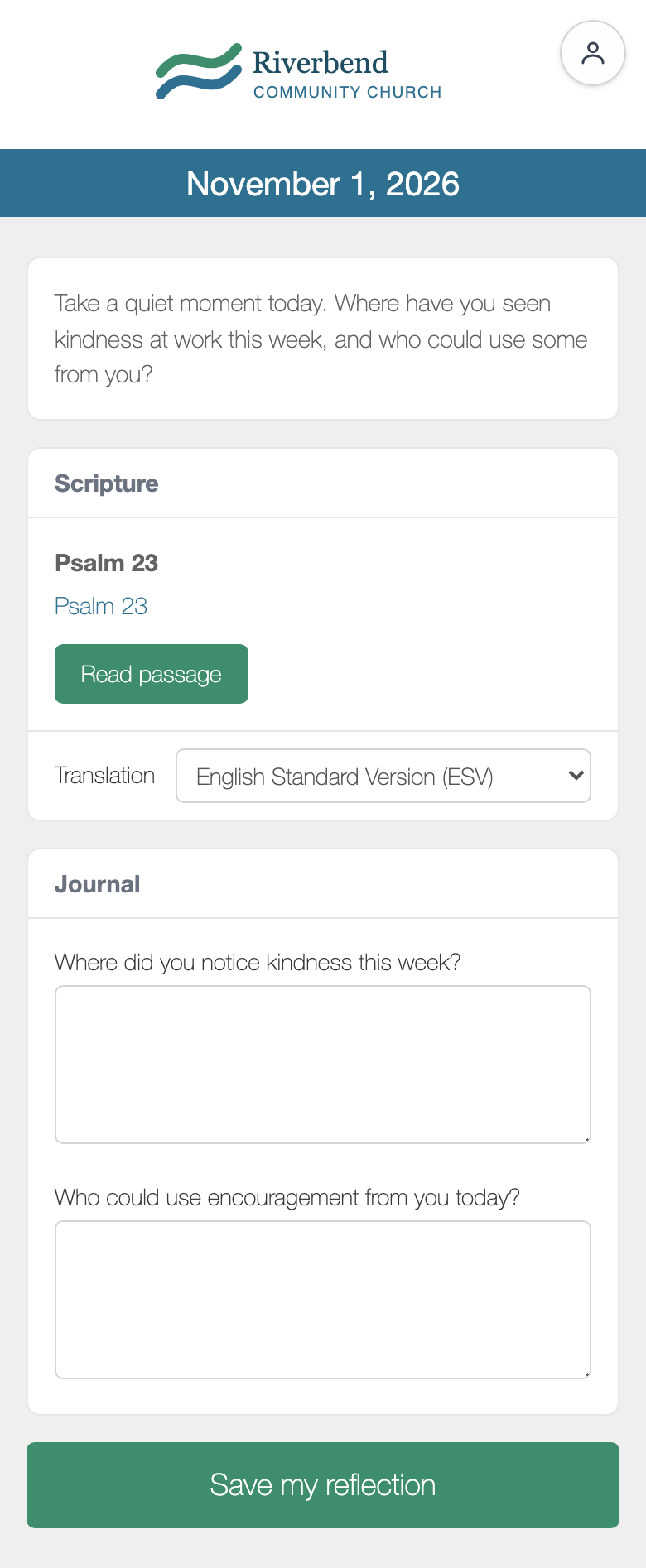
If you've connected the ESV Bible API on the  Integrations page, the full passage appears right on the reading page. If not, subscribers see your reference with links to read it on Bible Gateway, and they can choose a translation.
How people join
- By text: they text your keyword to your number.
- From their settings: if Let people subscribe from their settings is on, the program appears on the page where they manage their subscriptions.
- Added by you: on the Subscribers tab, click Add subscriber, search for a name or type a US mobile number, and click the button to add them. Only add people who have given you permission to text them. People who have opted out can't be added.
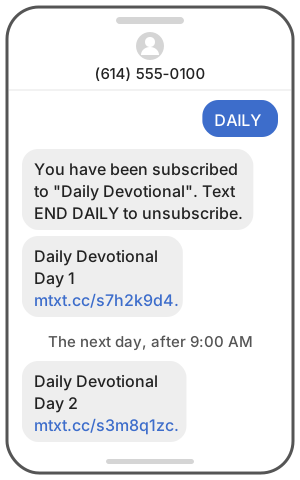
When someone joins by text, they get your Welcome message, or the default: "You have been subscribed to "Daily Devotional". Text END DAILY to unsubscribe." Then their first message follows, if there's a published one for them.
Someone added by hand doesn't get the welcome message, but their first message still goes out.
What subscribers get
Each day, subscribers get a text with the program's name, the day or date, and a link. Each text uses 1 credit.
The link opens a reading page with your logo and colors, showing your message, the scripture and a Journal section for your prompts. They type their answers and click Save my reflection. Their answers are private and saved in their own journal.
If we don't have someone's full name yet, the link first asks for it, along with when they want their messages. After that, the menu at the top right of the reading page offers:
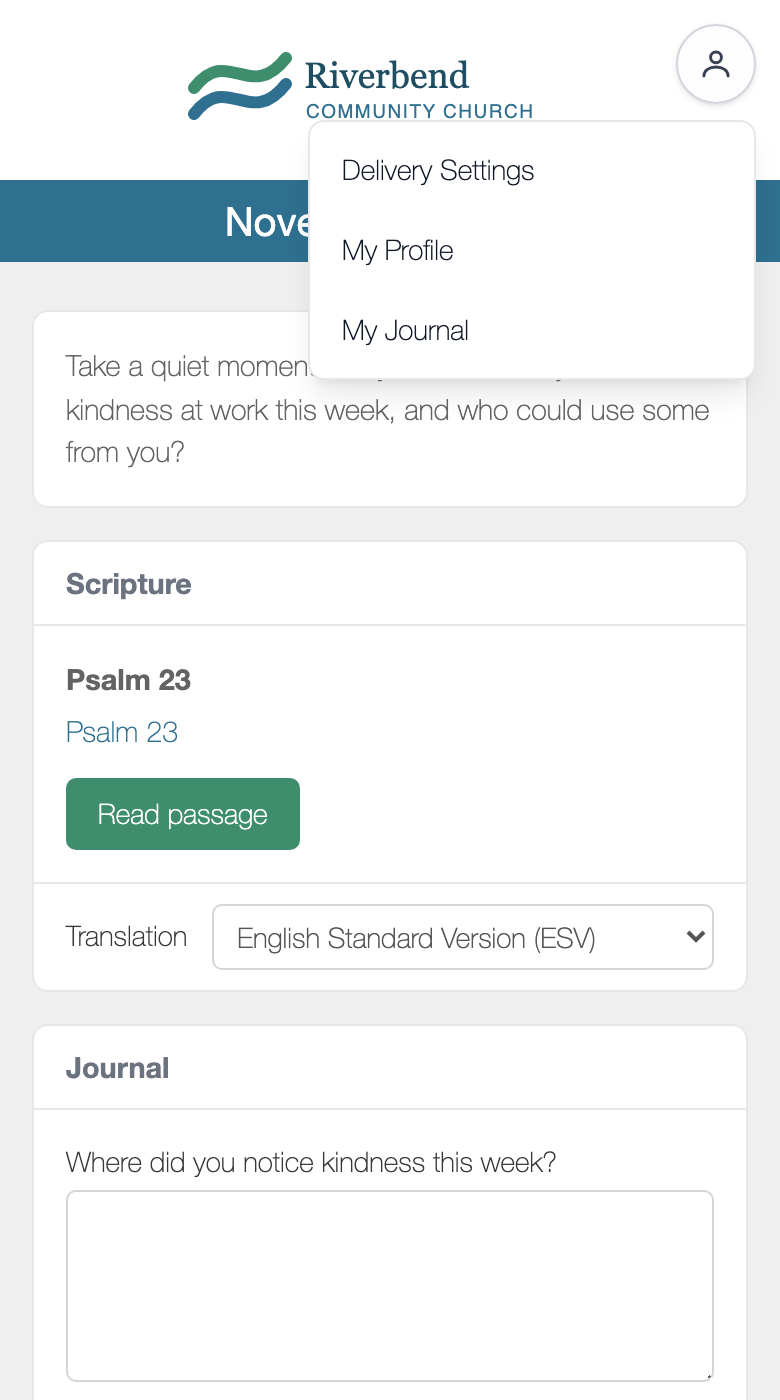
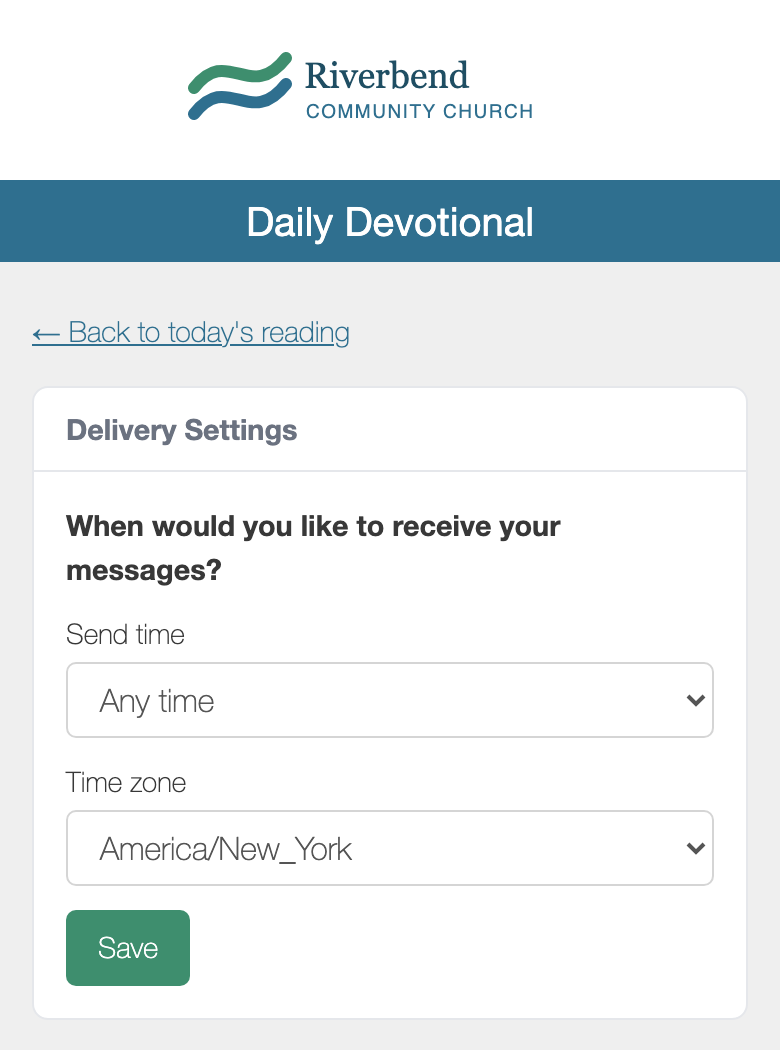
- Delivery Settings: choose a Send time in 15-minute steps, or Any time, and a Time zone.
- My Profile and My Journal: these text the person a secure link that expires in 24 hours.
Until someone chooses a time, their daily text arrives after 9:00 AM in their time zone.
If a subscriber texts the keyword again, they get their latest reading link again, with a note saying when the next one arrives.
To leave, a subscriber texts END followed by the keyword. STOP by itself stops everything on your number.
Keep track of subscribers
The Subscribers tab lists everyone in the program, with how they receive it, when they subscribed and when they Last read a message. Search with Search subscribers…, and click a column heading to sort.
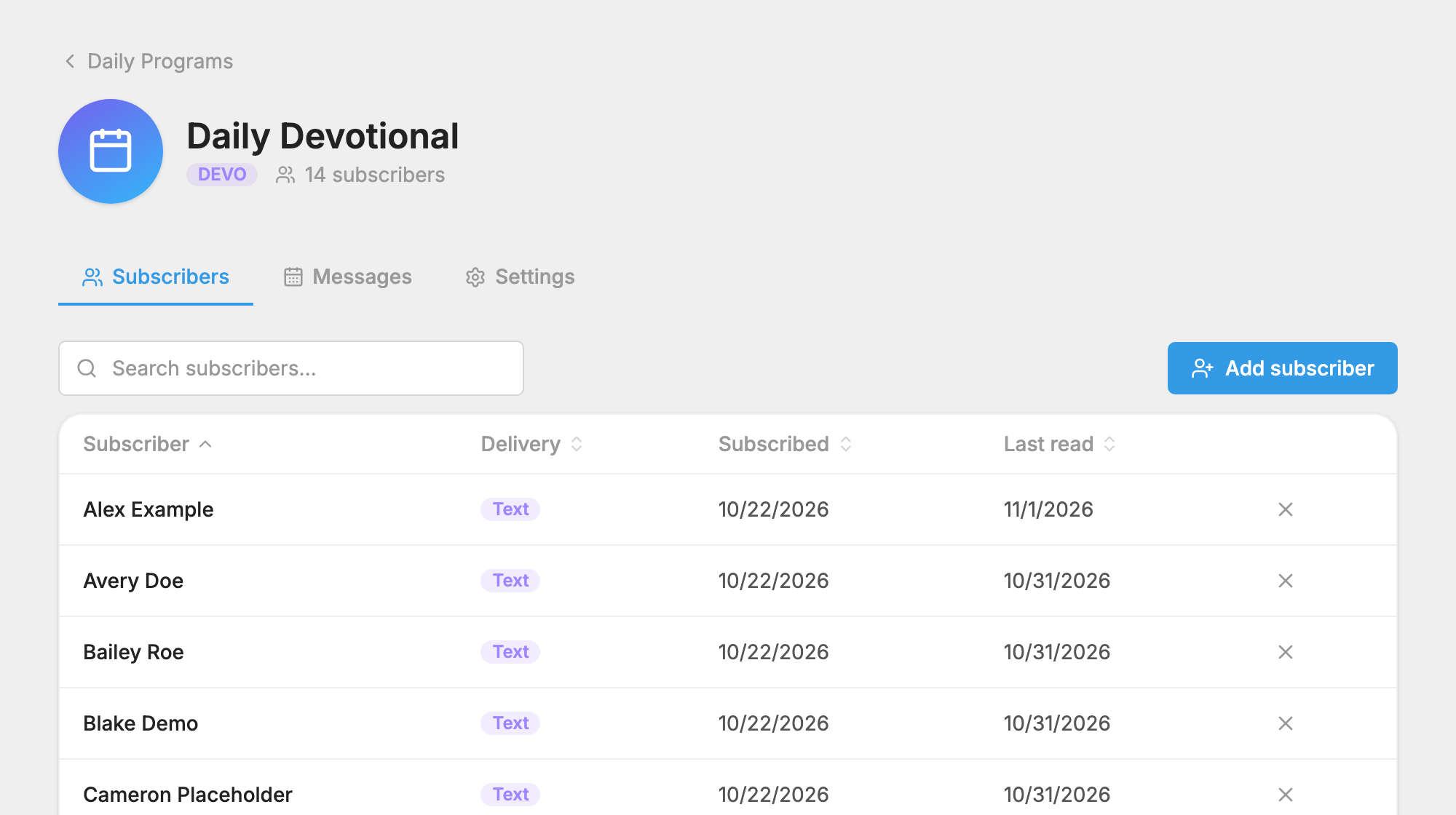
To remove someone, click the X at the end of their row. This permanently deletes their progress and journal entries for this program, so use it with care.
The Messages tab shows how many people each message was sent to. Click the sent count to see its delivery log, with how many messages were delivered and how many people opened the reading page. See  Message Log.
Program settings
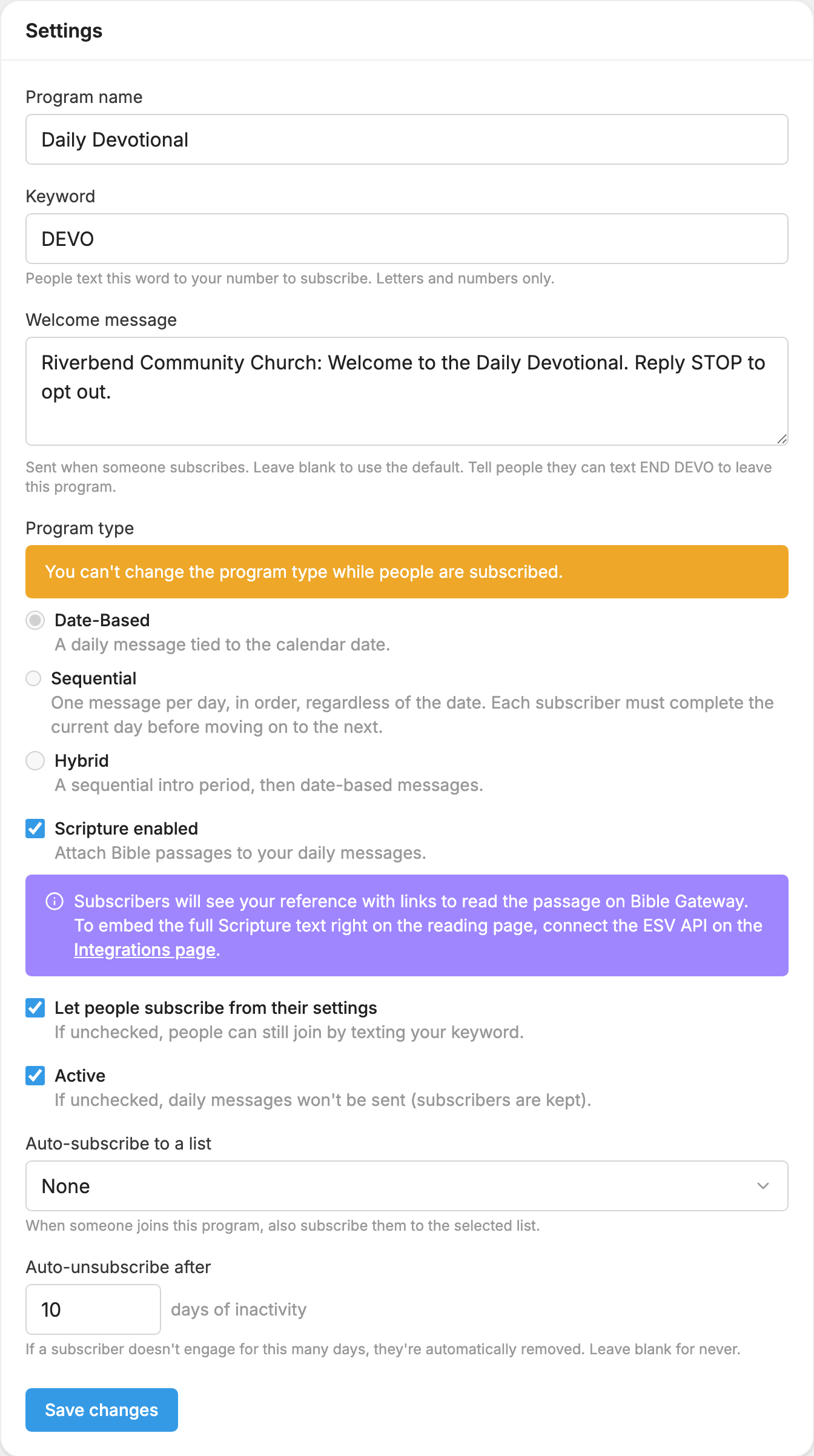
These are on the program's Settings tab. Click Save changes when you're done.
- Program name and Keyword: as you set them when you created the program.
- Welcome message: sent when someone subscribes. Leave it blank to use the default. Tell people they can text END followed by your keyword to leave.
- Program type: locked once anyone is subscribed.
- Scripture enabled: lets you add Bible passages to your messages.
- Let people subscribe from their settings: when this is off, people can still join by keyword.
- Active: when this is off, daily messages stop and subscribers are kept. The program shows as Paused. Anyone who texts the keyword is told the program isn't fully set up, and can't join.
- Auto-subscribe to a list: also adds new subscribers to a list you choose, unless they've opted out of it.
- Auto-unsubscribe after: removes a subscriber who hasn't opened a reading for this many days. New programs start at 10 days. Leave it blank to never remove anyone. The person gets a text saying they've been unsubscribed, and how to come back by texting the keyword. Nobody is removed unless the program has been sending to them that week, so a quiet program won't lose its readers.
Email delivery is being retired. Anyone already getting a program by email can turn that off under Delivery Settings, but it can't be turned back on. New subscribers get their program by text.
Delete a program
- Open the program's Settings tab.
- Click Delete program.
- Confirm by clicking Delete program again.
The keyword is freed up so you can use it again.
