

Getting started
 Carrier Registration
Before your first text goes out, the mobile phone companies, called carriers, need to know who is sending it. It's a one-time step: tell us about your organization, and we check your details, submit them, follow up on any carrier feedback, and email you when you are cleared to send.
You won't be able to send messages from a number until its registration is complete.
Why it is required
US carriers require every organization that texts to register. The rule exists to reduce spam and make senders accountable. Local numbers are registered with a central database called The Campaign Registry, and toll-free numbers go through a verification of their own.
Before you start
Only someone with Account Settings access can register. See Users and Access. If you don't have it, an account administrator can complete this under Account & Billing, Carrier Registration.
The form takes about 10 minutes. Your answers are sent only when you submit, so finish it in one sitting. Have these ready:
- Your legal name and EIN (Tax ID), word for word as they appear on your IRS letter. Include "Inc", "Corp" or "Foundation" if the IRS has it.
- The name people know you by, if it is different from the legal name.
- A street address, with city, state and ZIP.
- A live website that names your organization. The carriers visit it.
- The name, email and phone number of a person who can speak for the organization. The carriers may contact them.
- A support email address. It goes in the automatic reply people get when they text HELP.
- What you text people about, and roughly how many messages you send on a busy day.
- How people agree to get your texts. If you use anything other than MojoTxt's standard sign-up, you need a photo, PDF or link that shows your form.
- Stock symbol and exchange, for publicly traded companies only.
Registering as an individual with no EIN is different. See Registering as an individual.
Start your registration
- Open Carrier Registration. You can also get there from the card on your dashboard, or from the bar at the top of each page.
- Under Register with the carriers, press Register local numbers. For a toll-free number, press Verify and the number.
- Work down the form, which is one page with the sections below.
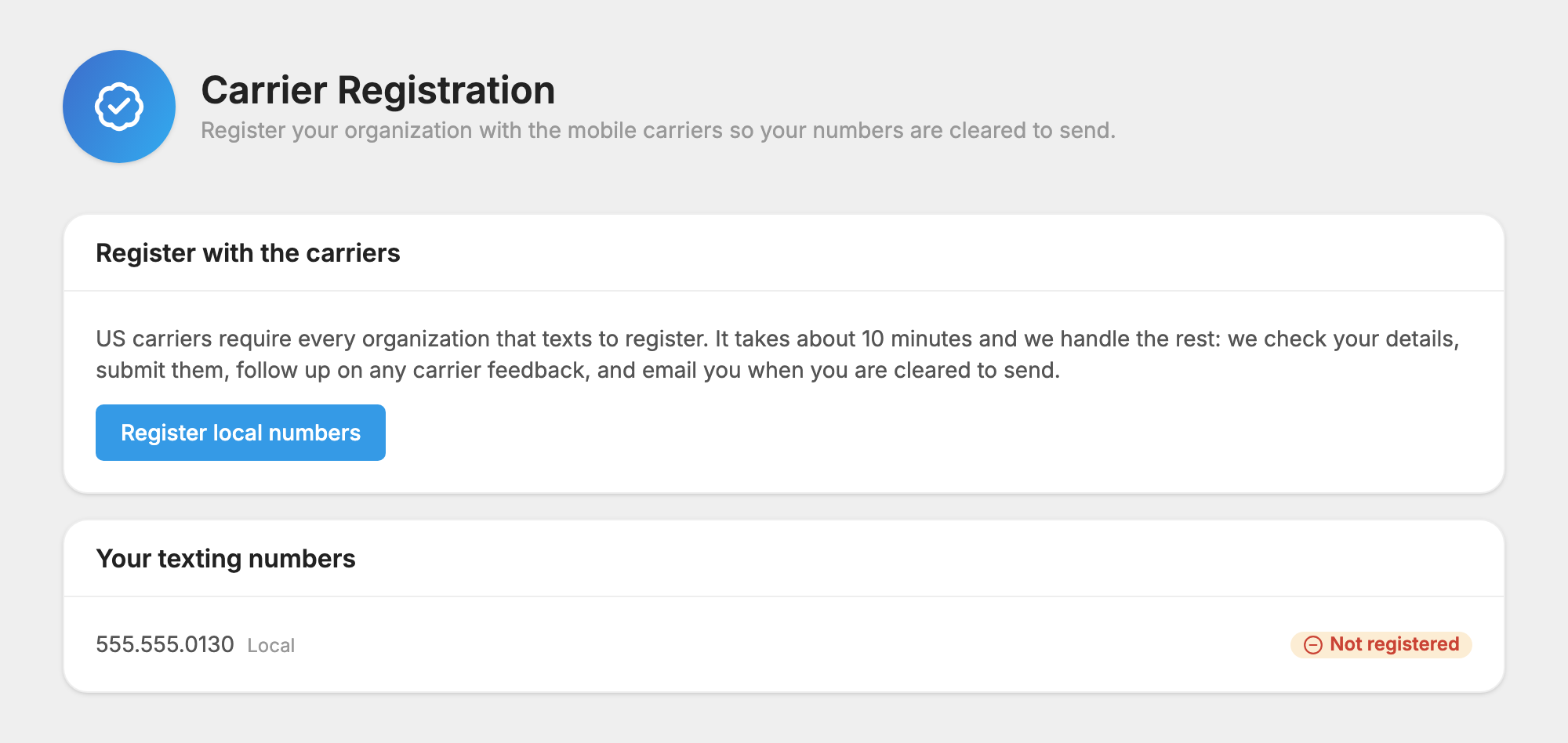
If you see a note that your local numbers are on two different carrier networks, contact support first. Two networks would need two registrations, so we consolidate them before you register. If you see a note that you have no texting numbers yet, add one first. See Your Phone Numbers.
Your organization
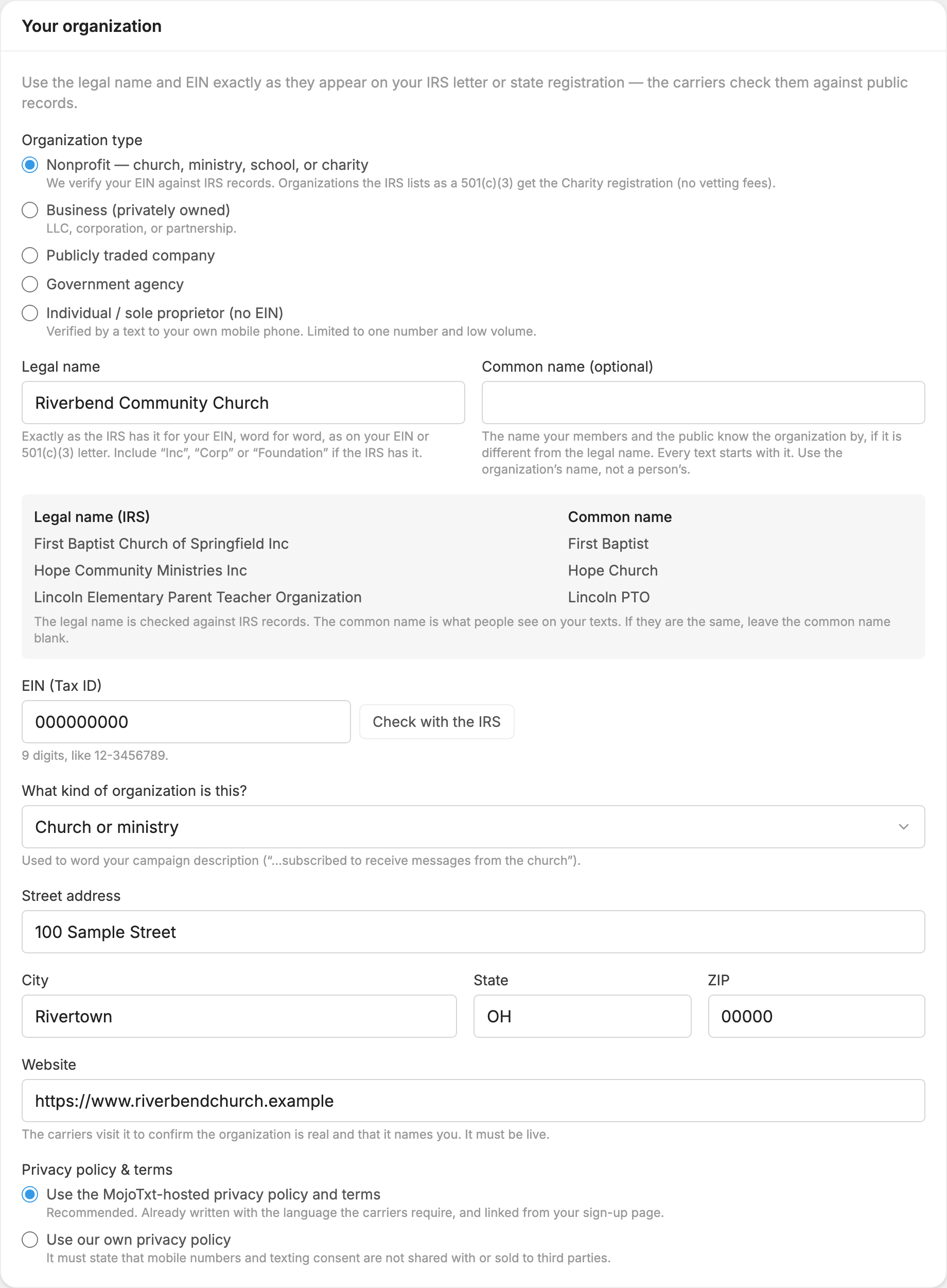
- Organization type: choose one.
- Nonprofit: church, ministry, school, or charity. Organizations the IRS lists as a 501(c)(3) get the Charity registration, which has no vetting fees. Many churches are not on the IRS tax-exempt list, and that's fine: you can still register as a nonprofit.
- Business (privately owned): LLC, corporation, or partnership.
- Publicly traded company: this adds Stock symbol and Exchange.
- Government agency: only for a city, county, state or federal agency or a public school district.
- Individual / sole proprietor (no EIN): see Registering as an individual.
- Legal name: exactly as the IRS has it for your EIN.
- Common name (optional): the name your members and the public know you by. Every text starts with it, so use the organization's name, not a person's. If it is the same as the legal name, leave it blank.
- EIN (Tax ID): 9 digits, like 12-3456789. Press Check with the IRS to compare it with your legal name right away. If the IRS has a different name on file, Use this name puts it in the box for you. If your common name was empty, the name you typed moves there. If the IRS lists your EIN as tax-exempt but you chose another type, Change to Nonprofit switches it.
- What kind of organization is this? Used to word your registration, for example "subscribed to receive messages from the church".
- Street address, City, State, ZIP.
- Website: it must be live.
- Privacy policy & terms: choose Use the MojoTxt-hosted privacy policy and terms, which is recommended and already has the wording the carriers require. Or choose Use our own privacy policy and enter its address. Your own policy must state that mobile numbers and texting consent are not shared with or sold to third parties.
Authorized contact
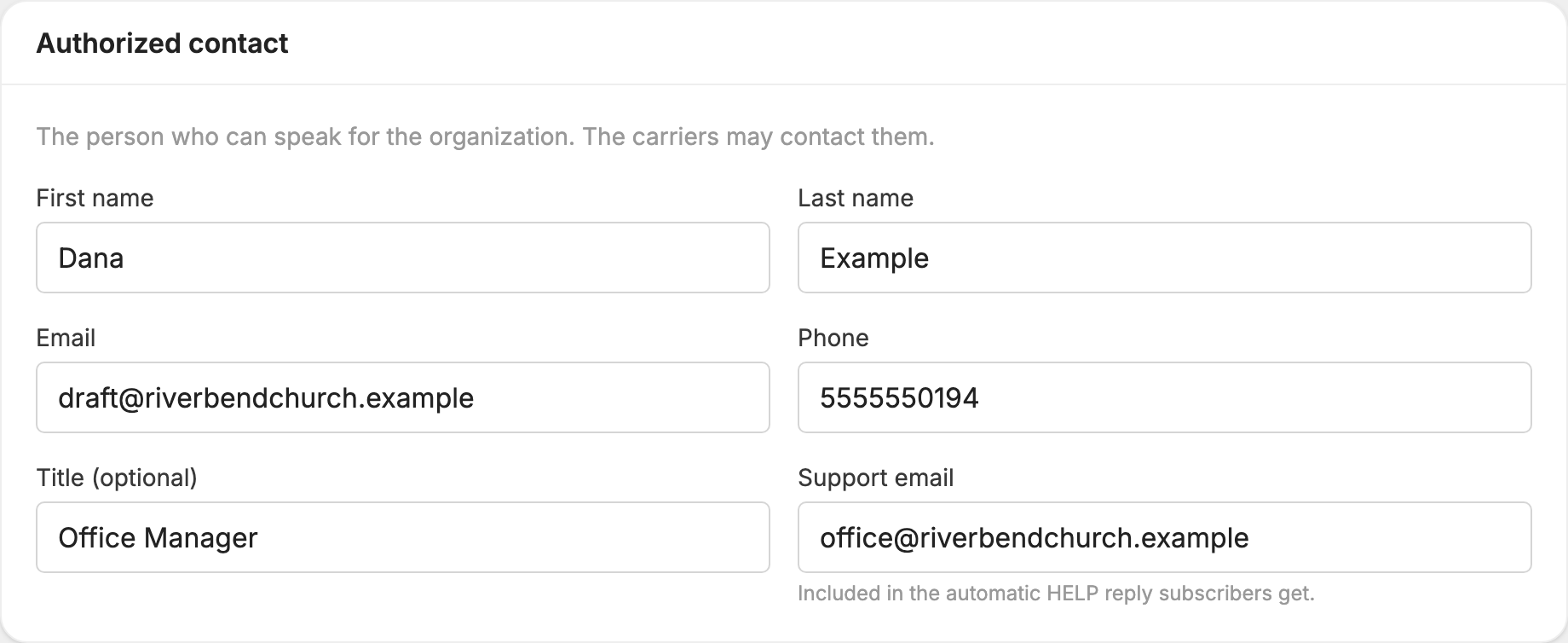
Enter the First name, Last name, Email and Phone of the person who can speak for the organization, and optionally their Title. Support email is the address included in the automatic HELP reply.
What you send
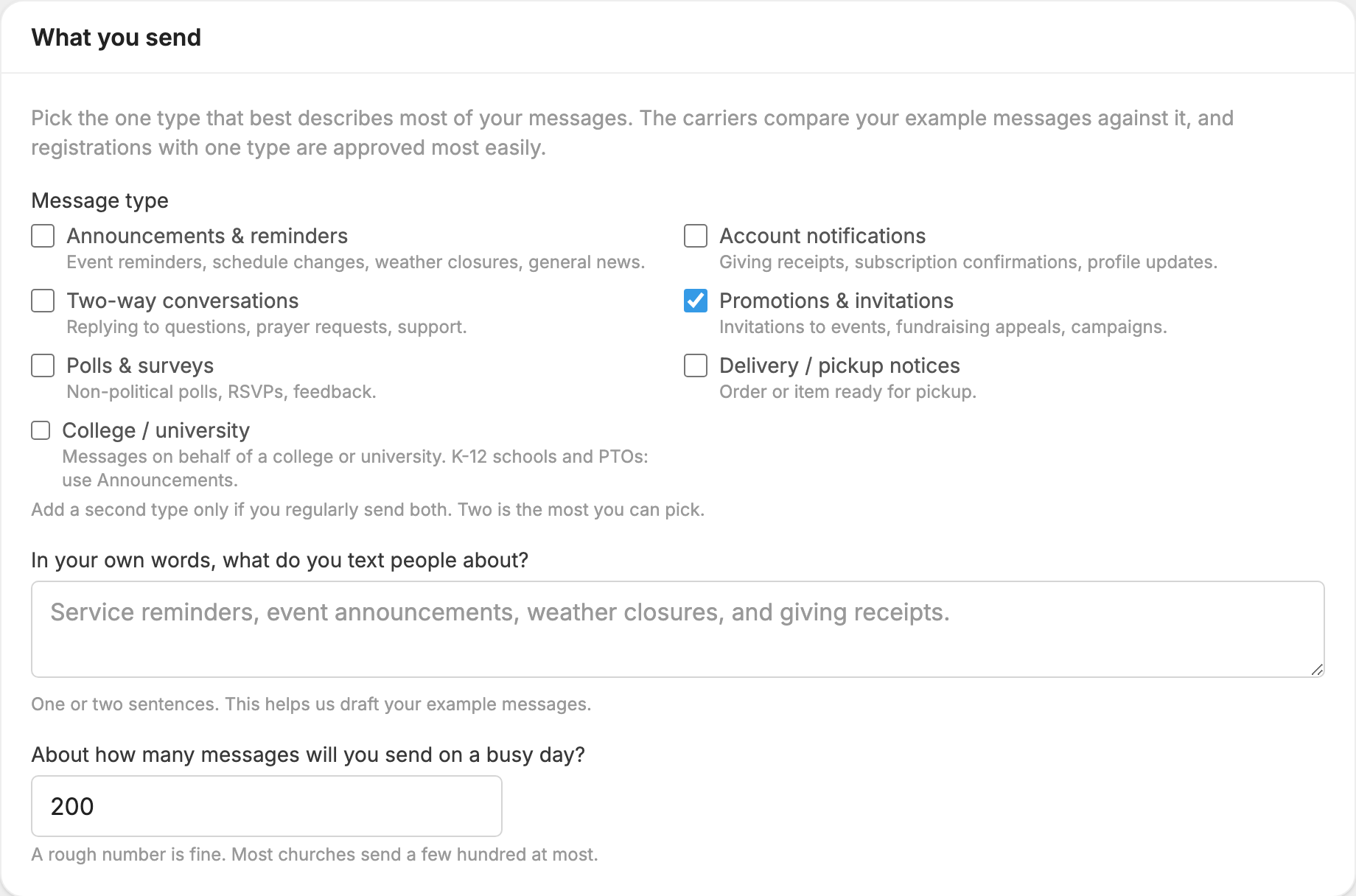
- Message type: pick the one type that best describes most of your messages. Registrations with one type are approved most easily. Add a second only if you regularly send both. Two is the most you can pick. K-12 schools and PTOs should use Announcements & reminders, because College / university is only for colleges and universities.
- In your own words, what do you text people about? One or two sentences. This helps draft your example messages.
- About how many messages will you send on a busy day? A rough number is fine.
If a local-number registration expects more than 6,000 messages a day, high-volume options appear. Nonprofits already get high throughput with the Charity registration. Businesses can add Standard registration, which has higher daily limits for +$10/month on your invoice, and Secondary vetting, which gives the highest T-Mobile daily cap for a $45 one-time carrier fee.
How people opt in
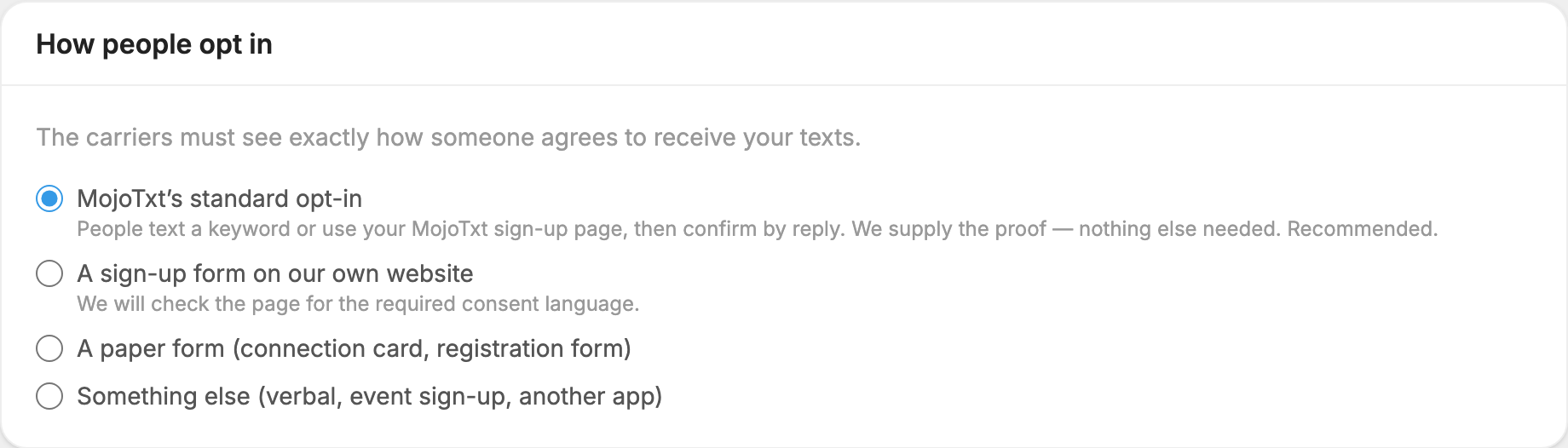
The carriers must see exactly how someone agrees to receive your texts. Choose one:
- MojoTxt's standard opt-in: people text a keyword or use your MojoTxt sign-up page, then confirm by reply. We supply the proof and you need nothing else. This is recommended.
- A sign-up form on our own website: enter the page's address and describe the steps. We check the page for the required wording.
- A paper form: such as a connection card or registration form. Press Upload a photo or PDF, or paste a link anyone can open, and describe the steps.
- Something else: verbal, an event sign-up or another app. Add proof and describe the steps in the same way.
For anything except the standard opt-in, your form needs all of these:
- A checkbox or signature line where the person agrees to receive text messages from your organization.
- The words "message and data rates may apply", "message frequency varies", and "reply STOP to opt out, HELP for help".
- A link or reference to your privacy policy.
Example messages
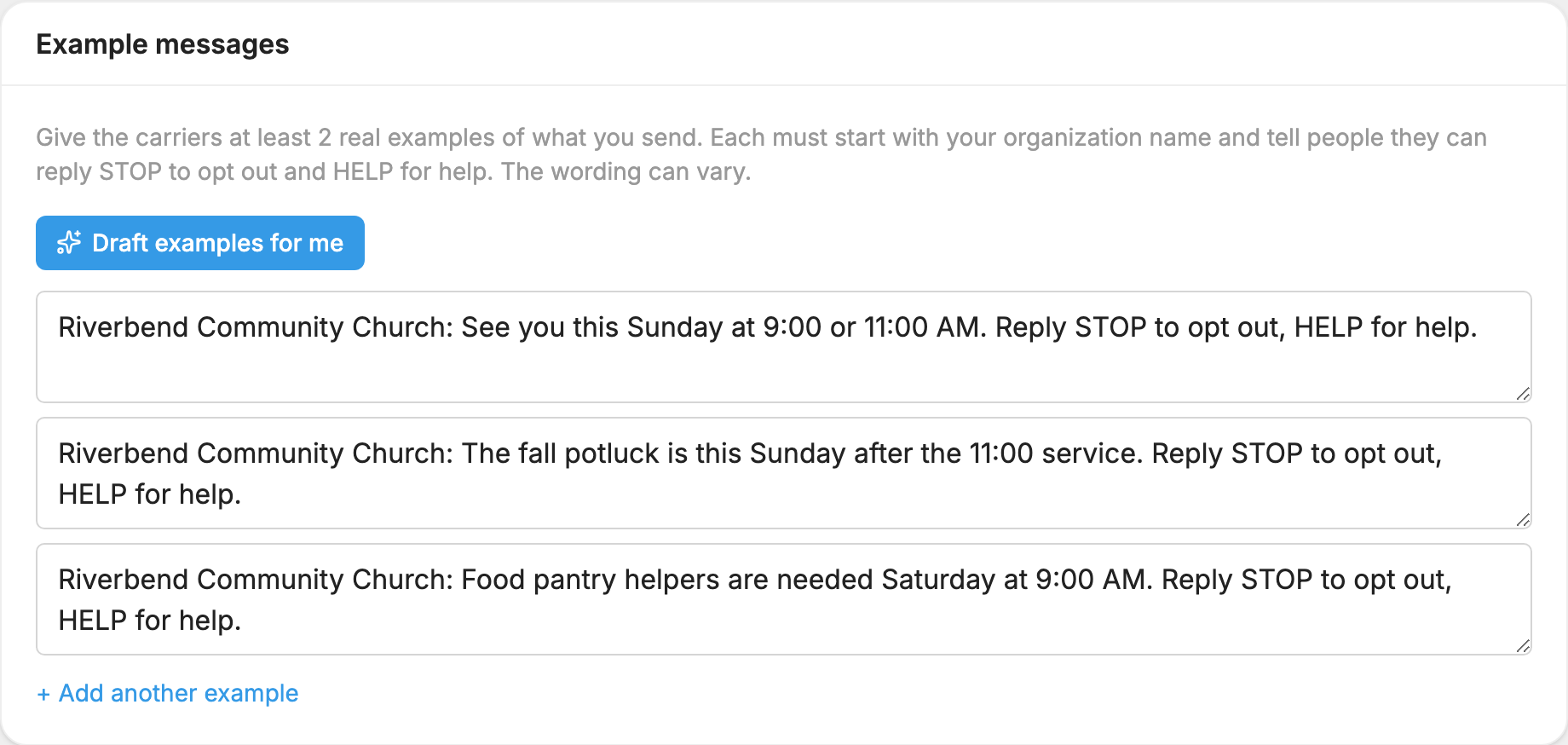
Give the carriers real examples of what you send: at least 2 for local numbers and at least 1 for a toll-free number. You can add up to 5. Each one must start with your organization name and tell people they can reply STOP to opt out and HELP for help. The wording can vary.
Press Draft examples for me and we write some from your answers. Edit anything you like. Public link shorteners such as bit.ly are not allowed in messages, so use your full web address.
Check and submit
- Tick I confirm this information is accurate and I am authorized to register on behalf of this organization.
- Press Check and submit. This takes up to a minute. We load your website and check your privacy policy, IRS record, example messages and how people opt in, the way carrier reviewers will.
- If everything checks out, your registration is submitted right away and you return to the status page.
- If not, you see what is likely to slow approval. Most items link to the section they belong to, and Suggested fixes can be applied in one step. Untick any you don't want, then press Apply fixes and check again. If you untick some, the button reads Apply selected fixes and check again.
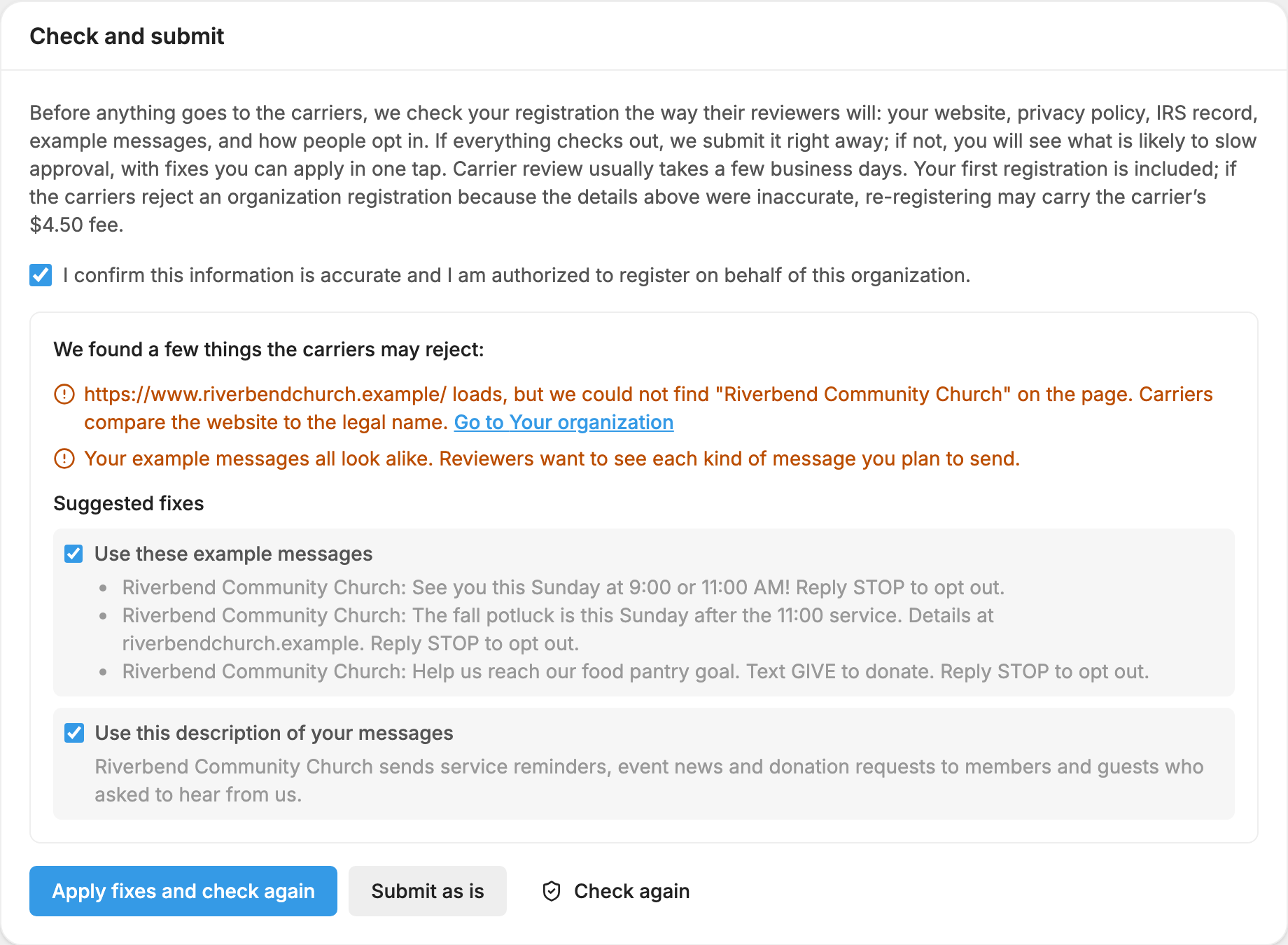
You can still send it without the changes by pressing Submit as is. If that button reads Submit for review as is, our team reviews your registration before it goes to the carriers, and fixing the items first is the fastest way to approval.
If you change an answer after a check, you need to press Check again before you can submit. If part of the check can't run, you see a note saying so. You can check again, or submit and our team will finish it.
What each status means
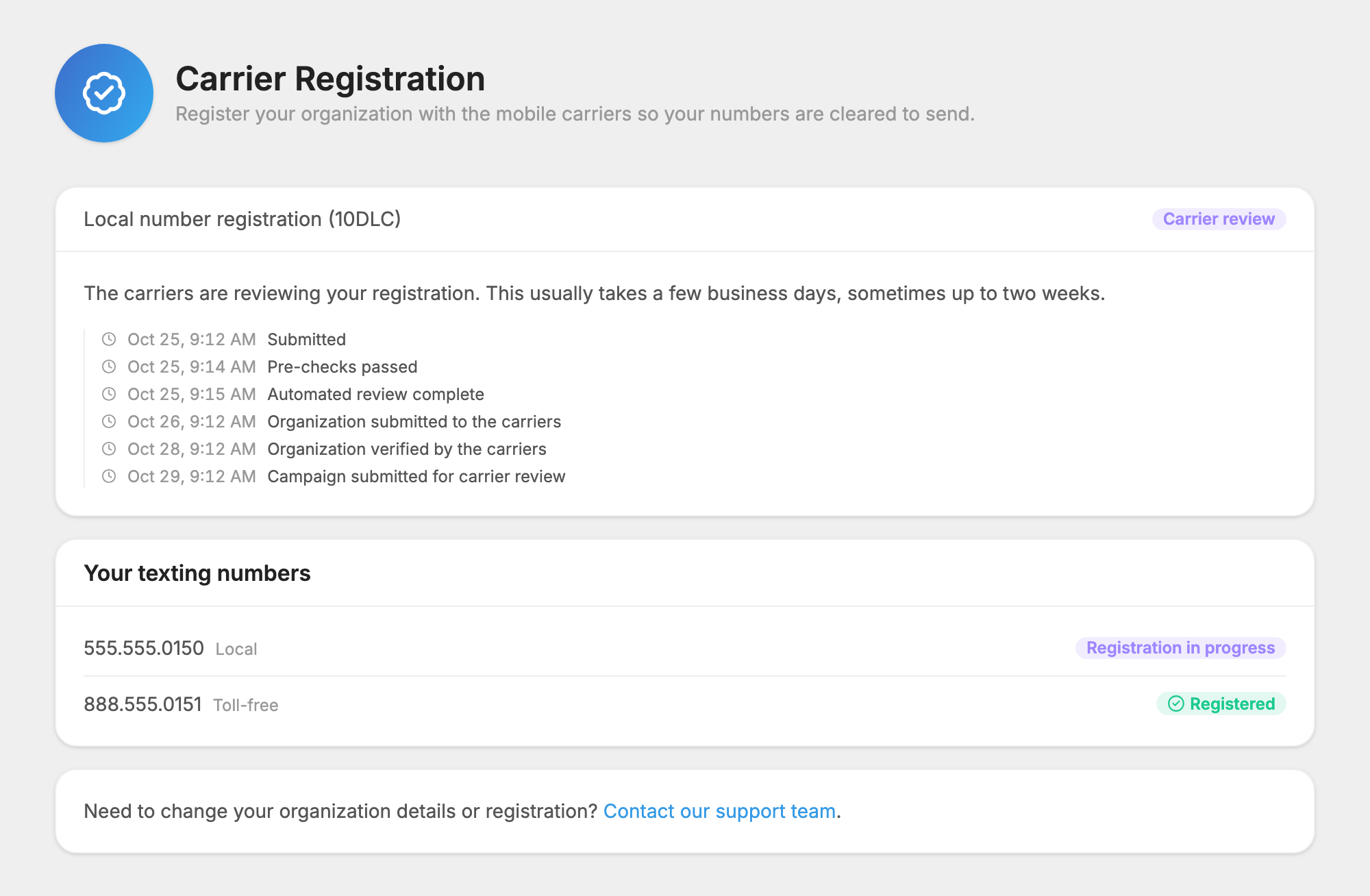
Your status is on the Carrier Registration page, with a dated list of what has happened so far. We email you when your registration goes to the carriers, if we need something from you, and when it is approved.
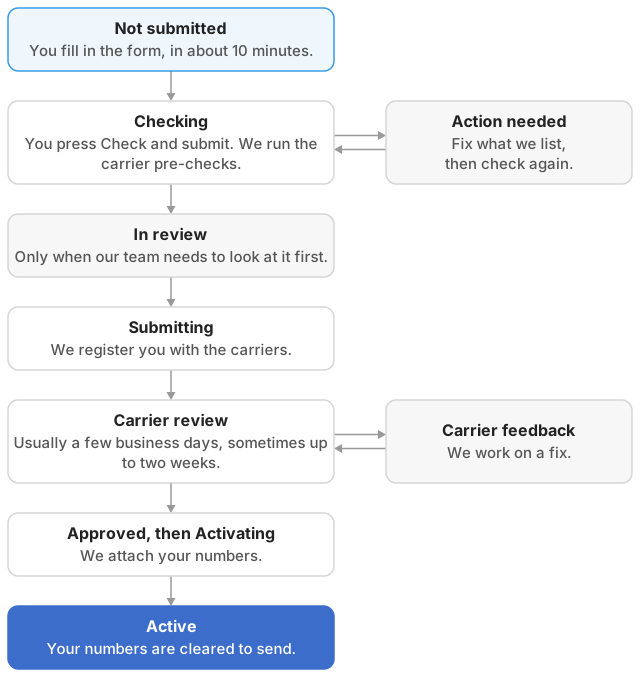
| Status | What it means | What you do |
|---|---|---|
| Not submitted | The form was started but not submitted. | Finish the form and submit it. |
| Checking | We are running the carrier pre-checks on your submission. | Nothing. |
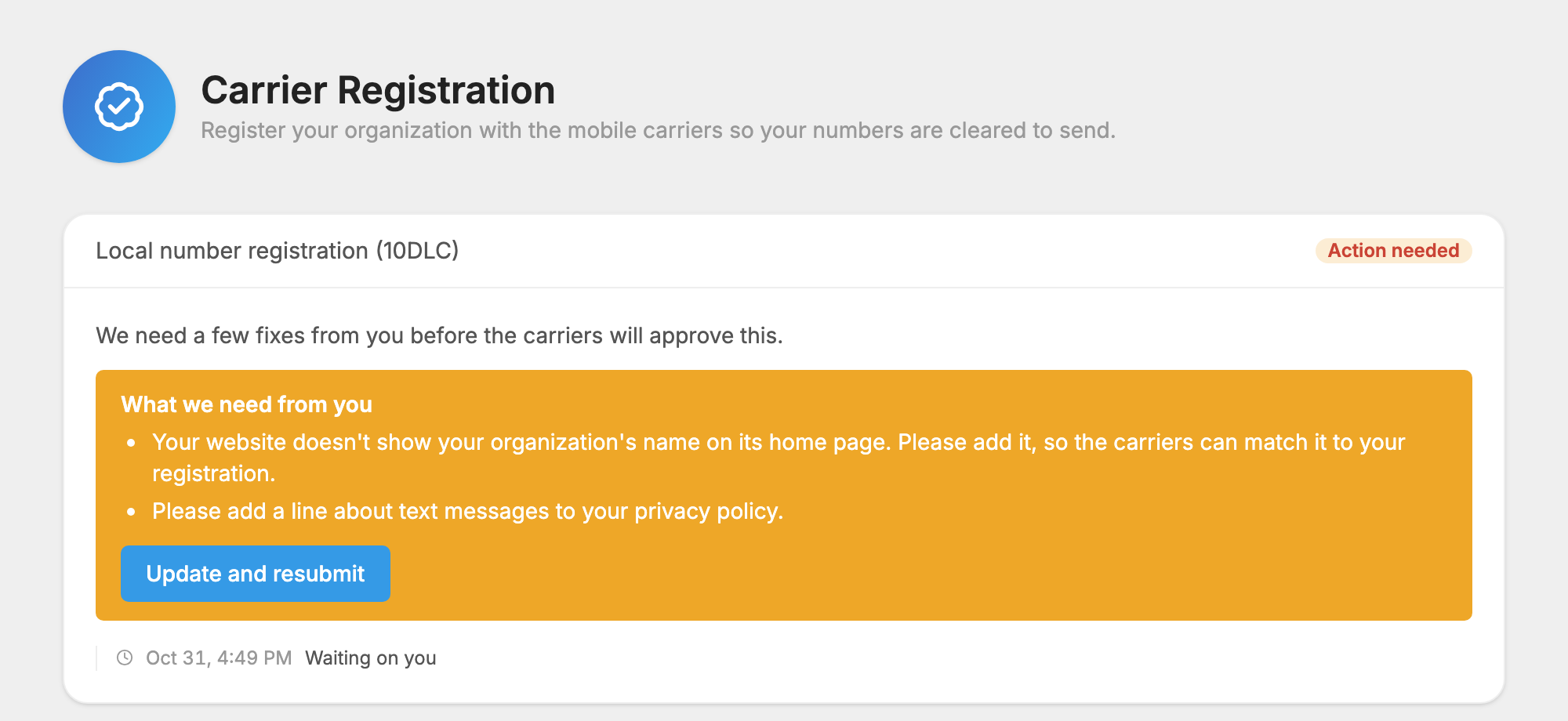
| Action needed | We need a few fixes from you before the carriers will approve it. | Read What we need from you and press Update and resubmit. |
| In review | Our team is reviewing your submission. | Nothing, unless we email you. |
| Submitting | We are registering your organization with the carriers. | Nothing, unless you registered as an individual. Then reply YES to the carriers' text. |
| Carrier review | The carriers are reviewing your registration. | Nothing. This usually takes a few business days, sometimes up to two weeks. |
| Carrier feedback | The carrier sent feedback and we are working on a fix. | Nothing, unless we email you. |
| Approved or Activating | The carriers approved it and we are attaching your numbers. | Nothing. |
| Active | Your numbers are cleared to send. | Start sending. |
| Needs attention | Something went wrong on our side. Our team has been notified and will follow up. | Wait to hear from us, or press Review and resubmit if you want to change your answers. |
| Removed | This registration was removed. | Contact support if you aren't sure why. |
Accounts whose registration our team completed before the form existed see a short notice instead: Your carrier registration is active, Your registration is pending, or Registration error. For an error, your response is in your email or on the Help Center's tickets page.
Your texting numbers
The list at the bottom of the page shows each number:
- Registered: this number is cleared to send.
- Apply registration: your local registration is active and this number is new. Press the button, and the number shows as registered within a few minutes. While it finishes, it reads Adding to your registration…
- Registration in progress: your local registration is still under way.
- Not registered: no registration covers this number yet.
- Contact support to add: our team completed your registration, so we add new numbers for you.
- Verify this number or Finish verification: a toll-free number that still needs its own verification.

If your registration needs changes
When a check or the carriers turn something up, the status changes to Action needed and we email you the details.
- Open the email and press Update your registration, or press Finish up on your dashboard, or Update and resubmit on the Carrier Registration page.
- Your answers are already filled in. A box at the top lists what needs fixing.
- Change what is listed, then press Check and submit. We re-check everything and resubmit it for you.
Your first registration is included. If the carriers reject an organization registration because the details were inaccurate, re-registering may carry the carrier's $4.50 fee, which appears on your next invoice. We tell you in the email when this applies.
Once a registration is under way or active, you can't reopen the form. To change your organization details or registration after that, contact our support team.
Local numbers and toll-free numbers
Local numbers and toll-free numbers register separately. If you have both, each needs its own step.
| Local numbers | Toll-free numbers | |
|---|---|---|
| What it's called | Local number registration (10DLC) | Toll-free verification |
| How many it covers | One registration for your account. Later local numbers join it with Apply registration. | One verification for each toll-free number. |
| Example messages needed | At least 2 | At least 1 |
| Cost | Your first registration is included. | Verification is free. |
A note on the form tells you if your local numbers are on our Bandwidth network. Those registrations can take a little longer.
Registering as an individual
If you have no EIN, you can register as yourself. Choose Individual / sole proprietor (no EIN) as the organization type. This is limited to one number and low volume.
- Use your real first and last name and your own mailing address, because the carriers check them.
- You don't need a website or privacy policy for a local number. A toll-free verification still asks for them.
- Each example message must start with your name. You can add a name people know you by, and every message starts with that instead.
For a local number, the carriers verify you by text. In Your mobile phone, enter your own mobile. A landline, a MojoTxt number or an internet phone number will not work.
After you submit, the carriers text that number and ask you to confirm your registration by replying YES. Reply YES within 24 hours, because your registration cannot go forward until you do. We also email you what to look for, and the status page shows a Reply YES to the text on your phone notice with the number it went to.
If a text runs out before you answer, we send a new one and email you a reminder, up to a few times. If you never got the text, check that the number is your own mobile phone, then contact support and we will send it again.
This option is not available for every number, so you may not see it. If so, choose an organization type and enter an EIN, or contact support and we will help.
How long it takes
- The form: about 10 minutes.
- The check: up to a minute.
- Carrier review: usually a few business days, sometimes up to two weeks.
- Adding a new local number to an active registration: a few minutes.
We email you the moment it's approved. If you are on a free trial, your 30 days start then. Registration has to finish within 60 days of signing up, or the trial ends anyway.
