Planning Center Texting

Text the people on your Planning Center lists. Connect Planning Center, pick a list, and MojoTxt keeps a texting list in step with it. Included on every plan. Try it free, with no credit card and no time limit.

Free Trial

Your Planning Center lists, ready to text

Your people are already in Planning Center. Instead of exporting a spreadsheet every week and importing it again, connect Planning Center once and choose the lists you want to text. Each one fills its own MojoTxt list, matched by mobile number, and the sync keeps it current: people added in Planning Center come in, people who leave the Planning Center list come off, and anyone who texted STOP stays off.
3
ways a list syncs: nightly, after a refresh, or Sync now
5
search boxes that also find people in Planning Center
$0
extra cost on any plan
$14
per month to start
Try MojoTxt for Free!

How the Planning Center sync works

Hope Church: Greeters, thanks for serving Sunday! Please be at the doors by 9:15. Reply STOP to opt out.

Pick a Planning Center list

Choose one of your Planning Center People lists. It fills a new MojoTxt list made for it, matched by mobile number, and you write to it like any other list.
Hi Jordan, welcome to the volunteer team! Orientation is Thursday at 7.

It stays current

Lists sync every night, soon after Planning Center refreshes them, and when you press Sync now. Someone new on the Planning Center list joins your list, and someone who leaves it comes off.
STOP

STOP means stop

People who texted STOP stay off, even while they're on the Planning Center list. If they text START later, the next sync puts them back on. Blocked numbers stay off too.
Welcome to Small Group Leaders! Here is what to expect this month: [link]

Automations for new people

A synced list's automations start for the people a later sync adds. The people already there at the first sync don't get them, so setting up a big list doesn't send a wave of texts.
Can anyone help with parking this Sunday?
Count me in!

Replies come back to you

People can reply to your texts, and you answer them one on one in Conversations, from a desktop or phone browser.
Hi Riley, thanks for signing up to serve! Any questions, just reply here.

Find people in Planning Center

Once you're connected, the boxes where you search for a person, such as New conversation and Add member, also find people in Planning Center, with their mobile numbers.
Messages shown are examples.

See it in MojoTxt

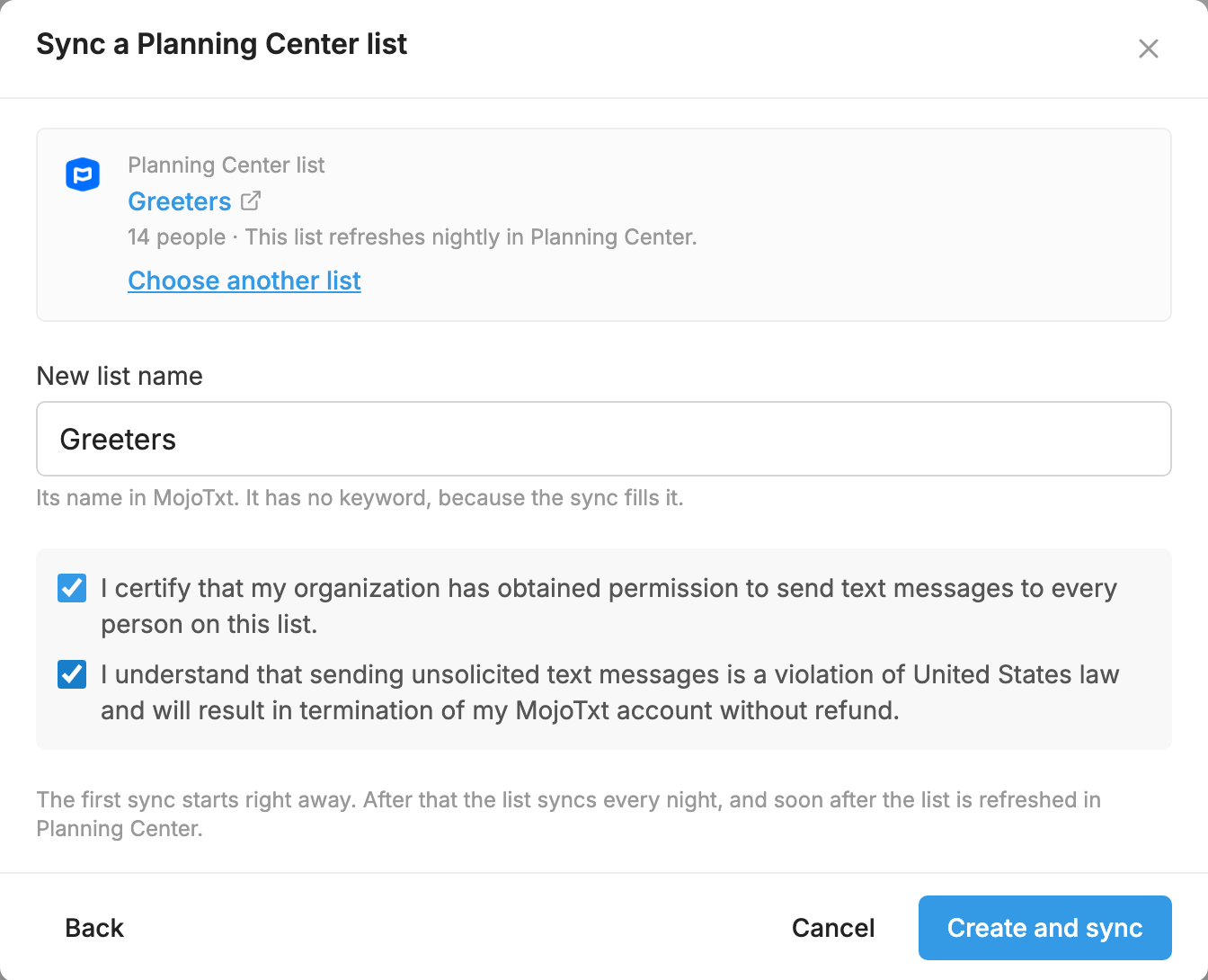
The Sync a Planning Center list form in MojoTxt, with the Planning Center list Greeters chosen, the new list name and two consent boxes ticked

Pick a list, name it, sync it

Choose New List, then A list synced with Planning Center, and pick the Planning Center list. Each one shows how many people are on it. Check the new list's name, tick the same two consent boxes as a spreadsheet import, and press Create and sync. The first sync starts right away.
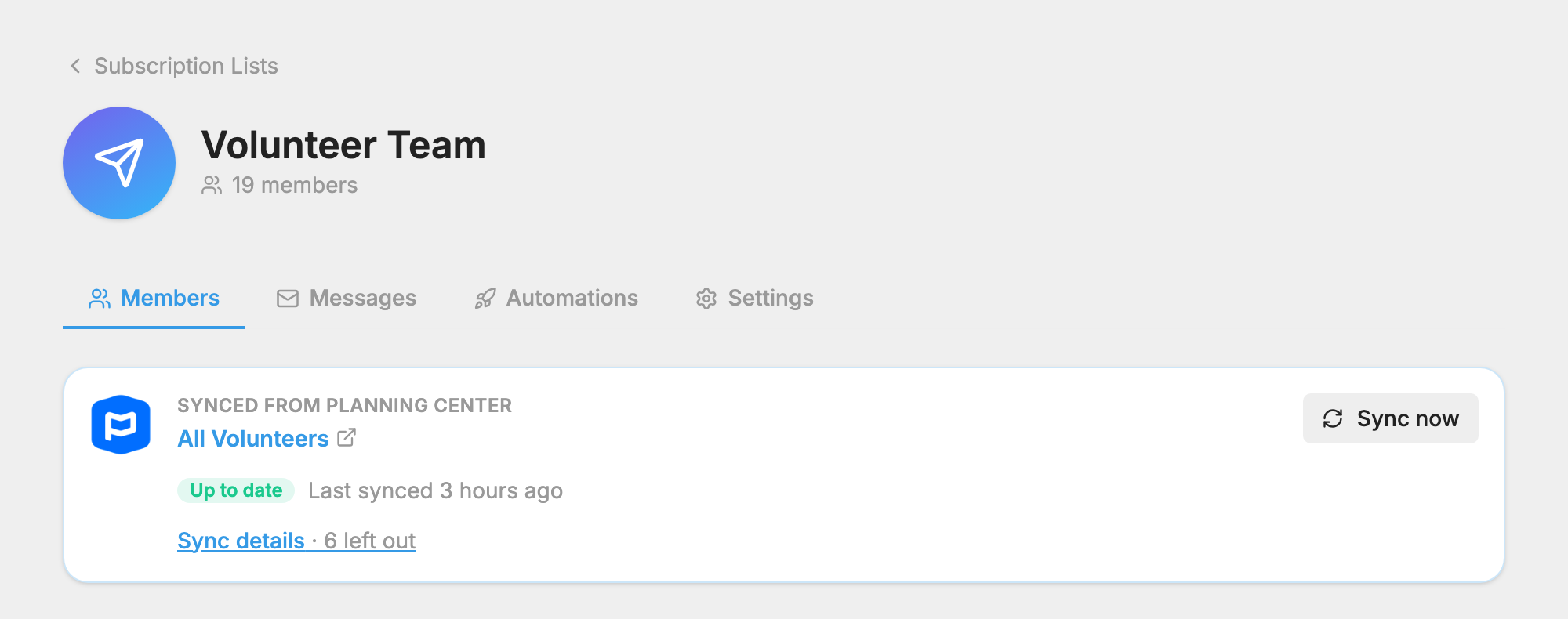
A synced list in MojoTxt showing Synced from Planning Center, the list All Volunteers, Up to date, Last synced 3 hours ago, a Sync now button and Sync details with 6 left out

Always know where a list stands

The card at the top of a synced list names the Planning Center list it comes from, shows whether it's up to date and when it last synced, and has a Sync now button. Choose Refresh and sync to have Planning Center refresh the list first, so people added there a minute ago are included.
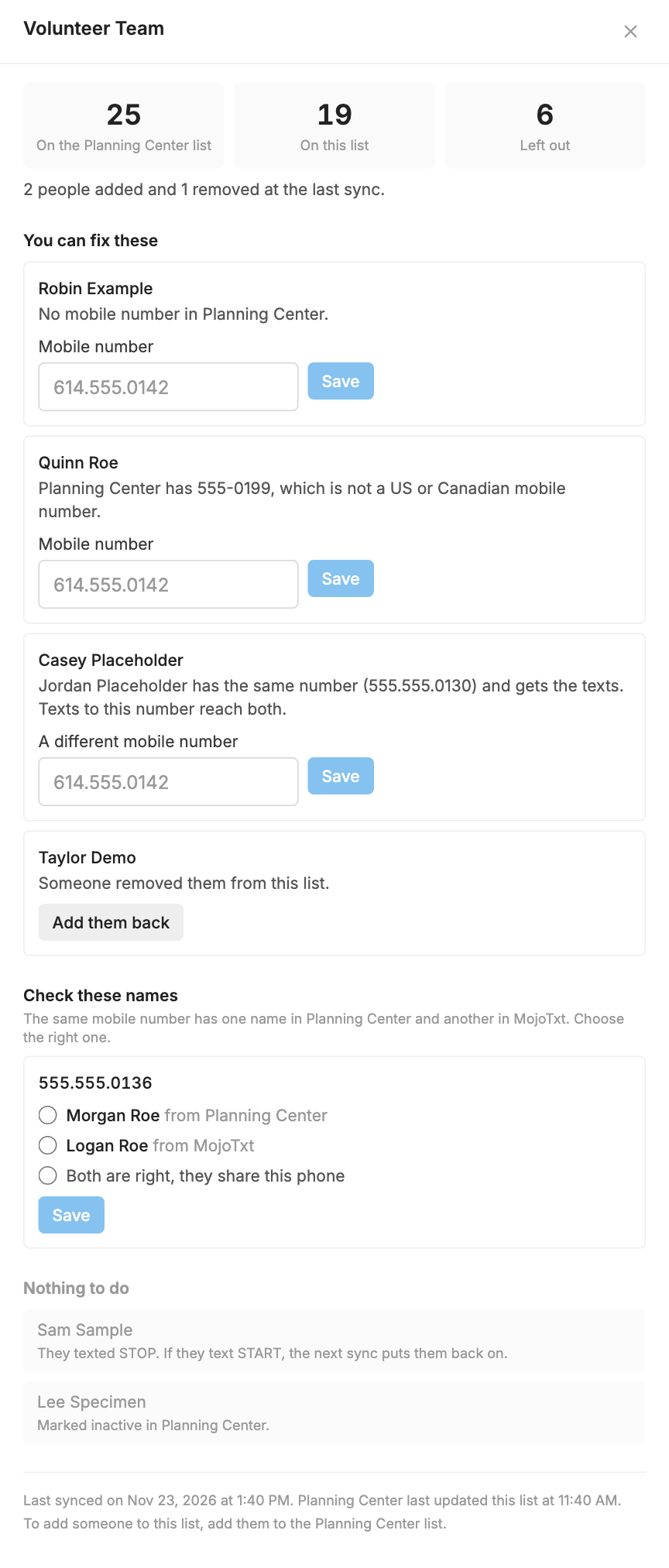
The sync details panel: 25 on the Planning Center list, 19 on this list, 6 left out, with cards to add a mobile number, add someone back, and choose the right name

See who was left out, and fix it there

Sync details counts the people on the Planning Center list, on your list, and left out, and says why for each person. Type a missing mobile number, correct one that isn't a US or Canadian mobile, or put back someone who was taken off the list. When one phone has two names, choose the right one.

Saving a number updates it in Planning Center too, and choosing the MojoTxt name renames the person there after you confirm.
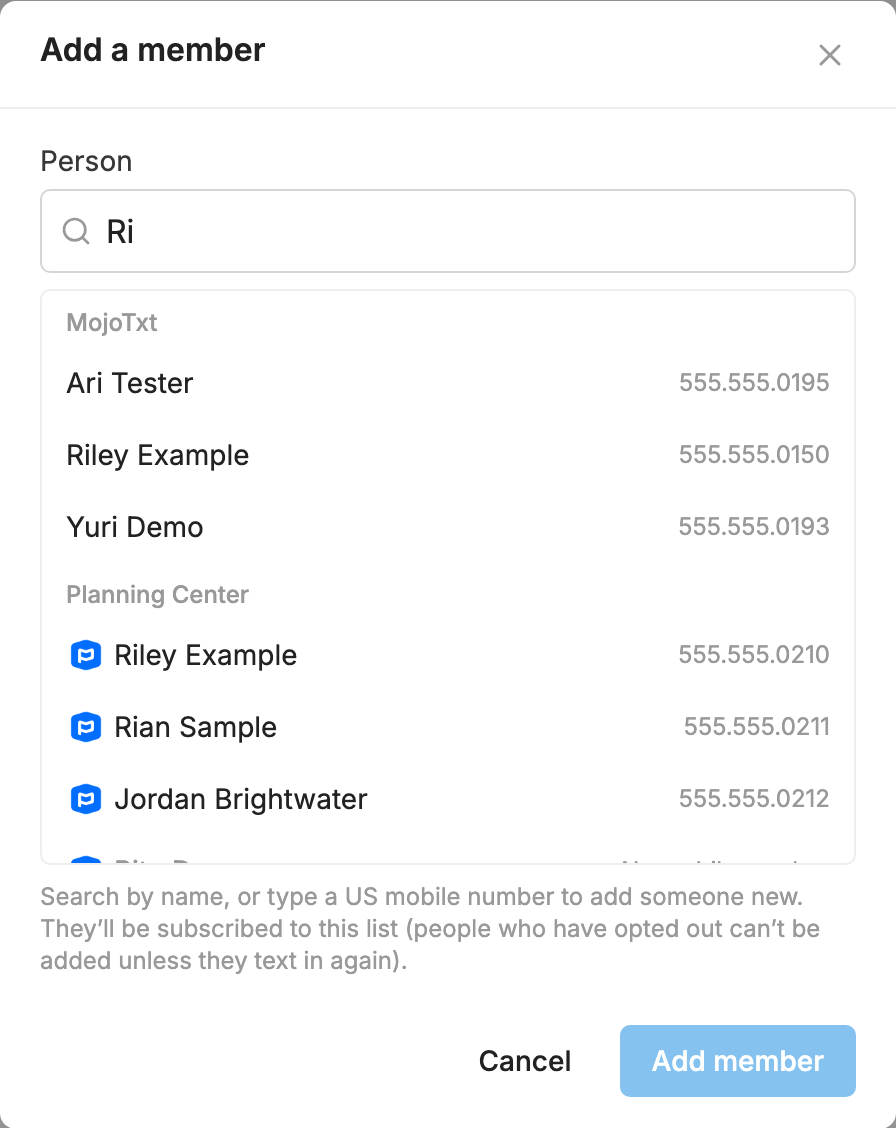
The Add a member search box showing MojoTxt people first, then a Planning Center group with names and mobile numbers

Search Planning Center from MojoTxt

Type a name, an email or a phone number in a search box such as Add member, New conversation or a message's Send to. Your own people show first, then a Planning Center group with up to 8 people and their mobile numbers. Picking someone fills them in just like one of your own people. Searching never changes anything in Planning Center.

Screenshots show made-up people.

Details church offices ask about

Matched by mobile number
MojoTxt uses the number labelled Mobile in Planning Center, or the person's primary number when there isn't one. Someone already in your People is put on the list without a second copy.
Opt-outs stay opted out
The sync never adds people who texted STOP, numbers you blocked, people you took off the list, or people who are inactive in Planning Center.
Names and email from Planning Center
New people get their name and email from Planning Center. For people you already have, the sync only fills in blanks, and a blank in Planning Center never erases anything.
Changes only when you ask
MojoTxt reads your lists. It changes something in Planning Center only when you ask it to, such as saving a missing mobile number from a list's sync details.
Lists, not Groups or teams
MojoTxt syncs Planning Center People lists. To text a group or a Services team, make a list of those people in Planning Center People and sync that list.
Included in every plan
Planning Center sync is part of every plan at no extra cost, and you can use it during your free trial. See pricing

How to text a Planning Center list

Hope Church
Hope Church: Greeters, thanks for serving Sunday! Please be at the doors by 9:15. Reply STOP to opt out.
I'll be there!
Thank you, Sarah! See you Sunday.
1

Start your free trial

No credit card and no time limit. You can connect Planning Center and sync lists right away. Trial texts go only to your own phone, so sync a Planning Center list you're on, with your mobile number, to see your message arrive.

2

Connect Planning Center

Open Integrations, press Connect Planning Center and approve the connection as someone who can see your lists. Then choose New List, A list synced with Planning Center, and pick a list.

3

Go live and send

Press Go live to choose a plan and a phone number for your church. We register it with the carriers (included in every plan), and approval usually takes a few business days. Then write to your synced list like any other list.

Pricing that fits a church budget

Every plan includes every tool and feature, Planning Center sync included. Unused credits roll over from month to month.


Mini
$14
Per Month
Recommended for groups with 100 or fewer people.
400 rollover credits
Unlimited keywords
2.3¢ for additional credits
Small
$24
Per Month
Recommended for groups with 100-250 participants.
1,000 rollover credits
Unlimited keywords
2¢ for additional credits
Medium
$49
Per Month
Recommended for groups with up-to 600 participants.
2,600 rollover credits
Unlimited keywords
1.9¢ for additional credits
Large
$89
Per Month
Recommended for groups with up-to 1,200 participants.
5,000 rollover credits
Unlimited keywords
1.8¢ for additional credits

What churches say

Justin Ross
This is a must-have tool for a growing church. MojoTxt has given us the ability to engage with our congregation in a whole new way. I love how we've unified our people through the daily scriptures we are able to send out. The feedback has been overwhelmingly positive. I even had a member call me to thank me for a particular daily text, he said "today's text was perfect timing, and just what I needed to read today." MojoTxt is helping our people grow Monday thru Saturday!
Justin Ross - Lead Pastor of Impact City Church in Pataskala, Ohio
Nathan Pruzaniec
I would recommend MojoTxt over any other text communication service out there... and we've used a lot of them! Texting is almost always the best way to get ahold of, and get responses from our staff and volunteers quickly. We are really excited to continue to find new and powerful ways to integrate MojoTxt in everything we do!
Nathan Pruzaniec - Design Director of New Life Church in Conway, AR

Common questions

Does MojoTxt work with Planning Center?
Yes. Connect Planning Center from Integrations and choose a Planning Center People list. It fills a MojoTxt list made for it, matched by mobile number, and the sync keeps it up to date. Once you're connected, the boxes where you search for a person also find people in Planning Center.
Can we sync Planning Center Groups or Services teams?
Not directly. MojoTxt syncs Planning Center People lists, not Groups or Services teams. To text a group or a team, make a list of those people in Planning Center People and sync that list.
How often do lists sync?
Every night shortly after 4:00 AM in your account's time zone, soon after Planning Center refreshes the list, and whenever you press Sync now. Automatic syncs never ask Planning Center to refresh a list, because a refresh runs that list's own automations in Planning Center. To include someone added there a minute ago, press Sync now and choose Refresh and sync.
What happens when someone texts STOP?
They stop getting your texts, and the sync leaves them off the list even while they're on the Planning Center list. If they text START later and are still on the Planning Center list, the next sync puts them back on.
Does MojoTxt change anything in Planning Center?
Only when you ask it to. MojoTxt reads your lists. From a list's sync details you can save a missing or wrong mobile number, or rename someone to the name you have in MojoTxt after you confirm, and those changes are made in Planning Center. Searching, stopping a sync and disconnecting never change anything there. One more to know about: Refresh and sync asks Planning Center to refresh the list, which runs that list's own automations there, just as refreshing it in Planning Center does.
Can we add people to a synced list ourselves?
Only the sync puts people on a synced list, so it always matches the Planning Center list. To add someone, add them to the Planning Center list. A synced list has no keyword or sign-up page; for people who join by texting a keyword, use an ordinary MojoTxt list.
Can we try it during the free trial?
Yes. You can connect Planning Center and sync lists during a free trial. Trial texts go only to your own phone, so pick a Planning Center list you're on yourself, with your mobile number, to see the message arrive.
Does Planning Center sync cost extra?
No. It's included on every plan, from $14 a month. Texts to a synced list use message credits like any other message.
Where are the step-by-step instructions?
In the user guide: Connect Planning Center. For the story behind it, read Text your Planning Center lists.
Planning Center is a trademark of its owner. MojoTxt is not affiliated with or endorsed by Planning Center.

Try MojoTxt free

No credit card and no time limit. Your free trial includes 250 free messages to your own phone, and you can connect Planning Center and sync a list before you go live.

Free Trial