

If your church keeps its people in Planning Center, you know the routine for texting them. Export the volunteer list to a spreadsheet, import it into your texting service, and send. A week later the list is already wrong: two new greeters are missing, someone who stepped down is still getting the Saturday reminder, and you are back to exporting.
MojoTxt now connects to Planning Center, so you can skip all of that. Pick a Planning Center list, and it fills a MojoTxt list of its own, matched by mobile number. The sync keeps it current from then on. It's included on every plan, and you can try it during your free trial.
An example: the volunteer team
Say your Planning Center list All Volunteers has 25 people. In MojoTxt you open Subscription Lists, press New List, choose A list synced with Planning Center, and pick All Volunteers. You name the new list Volunteer Team, tick the same two consent boxes as a spreadsheet import, and press Create and sync. The first sync starts right away.
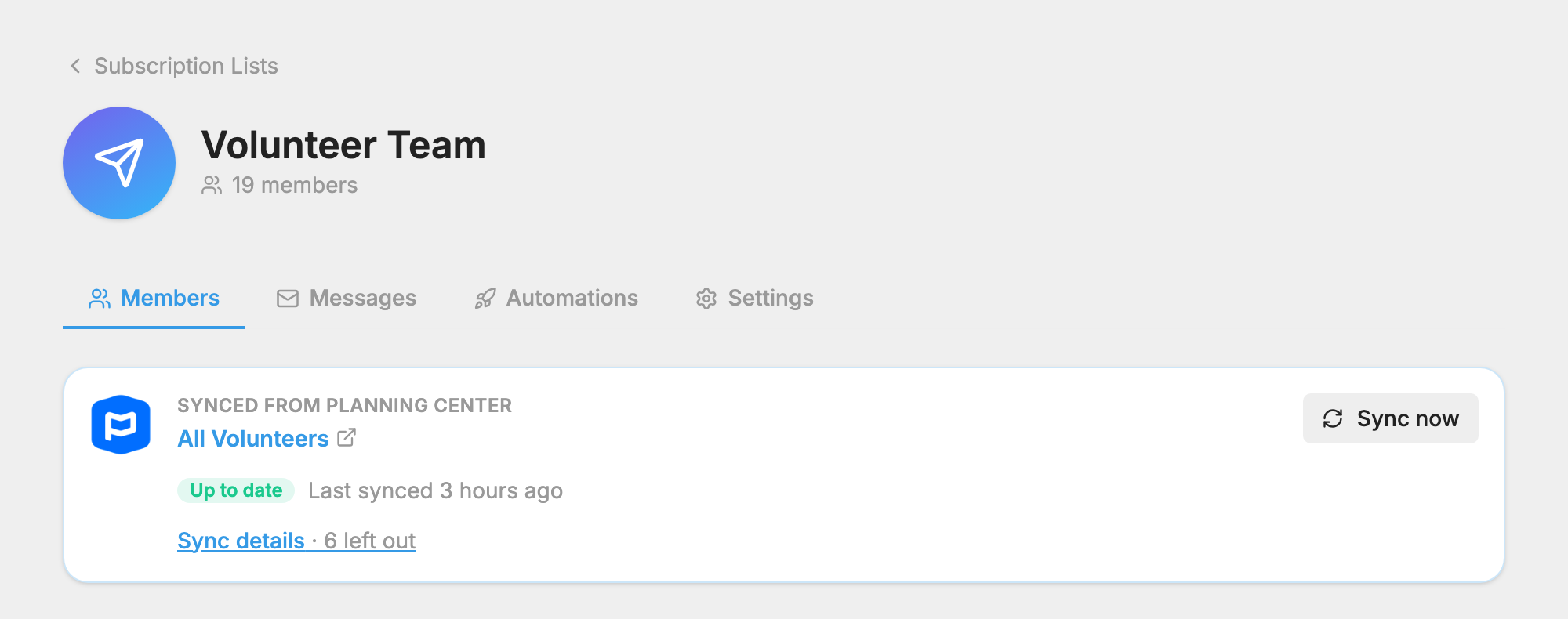
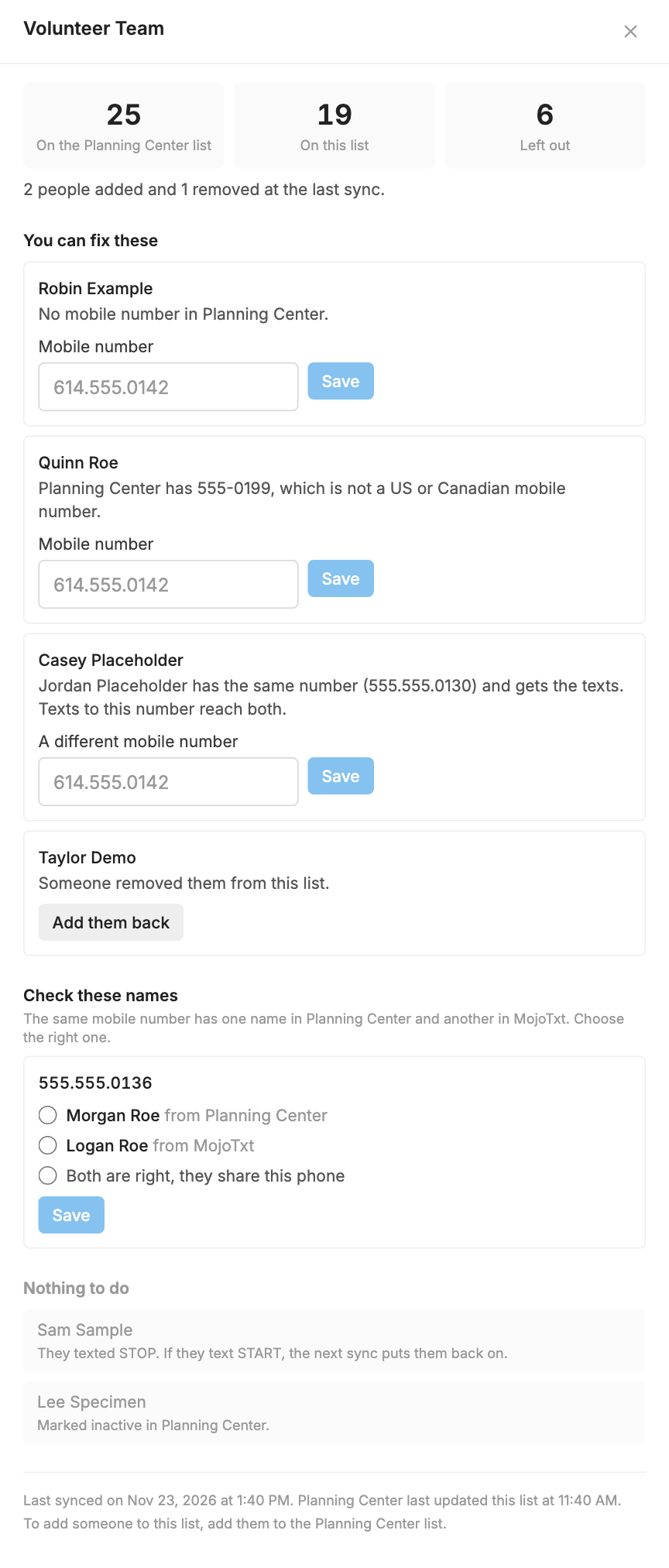
When it finishes, 19 people are on Volunteer Team and 6 are left out. Sync details shows who and why:
- Robin has no mobile number in Planning Center. Type it in, press Save, and MojoTxt adds it in Planning Center and puts Robin on the list.
- Quinn's number in Planning Center isn't a US or Canadian mobile. Type the right one and MojoTxt corrects it there.
- Casey shares a phone number with Jordan, who is earlier on the list, so texts to that number would reach both of them. Give Casey a different mobile number, or leave it as it is.
- Taylor was taken off this list by someone on your team. Add them back puts Taylor back on.
- Sam texted STOP, and Lee is marked inactive in Planning Center. They're under Nothing to do, because they're left out on purpose.
If one phone number has one name in Planning Center and another in MojoTxt, often because family members share a phone, the panel asks which name is right. You can keep Planning Center's, keep MojoTxt's (which renames the person in Planning Center after you confirm), or say both are right.
Then you write to Volunteer Team like any other list:
Hope Church: Serve day is Saturday at 8. Coffee and donuts in the lobby. Reply if you can't make it, or reply STOP to opt out.
People the sync adds don't get a welcome message, because a synced list doesn't have one. Your first message may be the first they hear from your number, so put your church's name in it and tell them how to stop, as above.
How it stays up to date
Each synced list syncs:
- every night, shortly after 4:00 AM in your account's time zone;
- soon after Planning Center refreshes the list, on its own schedule or when someone refreshes it there;
- whenever you press Sync now on the list.
Sync now asks how. Sync only reads the list as Planning Center last refreshed it. Refresh and sync asks Planning Center to refresh it first, so someone added there a minute ago is included. Refreshing runs that list's own automations in Planning Center, just as if you refreshed it there, which is why the automatic syncs never do it.
When someone leaves the Planning Center list, the next sync takes them off the MojoTxt list. They stay in People. New people the sync adds later start the list's automations, like anyone who joins a list, but the people already there at the first sync don't, so setting up a big list never sends a wave of automated texts.
STOP still means stop
Someone who texts STOP stops getting your texts, and the sync leaves them off the list even while they're on the Planning Center list. If they text START later and are still on the Planning Center list, the next sync puts them back. The sync also leaves out numbers you blocked, people you took off the list yourself, people who left it from their own settings page, and people who are inactive in Planning Center. Each one is counted under Left out, with the reason.
Find people from Planning Center while you work
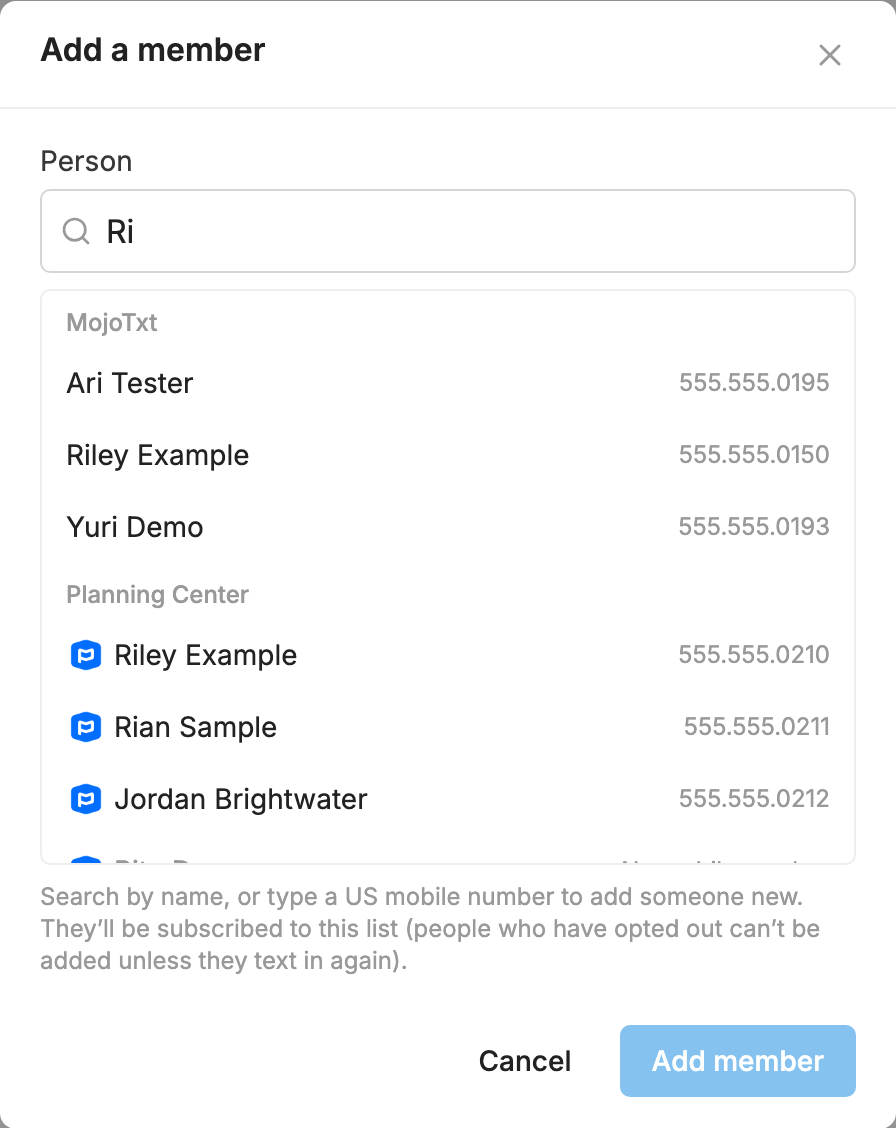
Once you're connected, the boxes where you search for a person also look in Planning Center: Add member on a list, New conversation, Add subscriber in a daily program, People under Send to in a new message, and Add Person in People. Your own people show first, then a Planning Center group with up to 8 people and their mobile numbers. Searching never changes anything in Planning Center.
Good to know
- MojoTxt syncs Planning Center People lists, not Groups or Services teams. To text a group or a team, make a list of those people in Planning Center People and sync that list.
- Only the sync puts people on a synced list, so it always matches Planning Center. A synced list has no keyword or sign-up page. To add someone, add them to the Planning Center list.
- For people the sync adds as new, the name and email come from Planning Center. For people already in MojoTxt, it only fills in blanks.
- MojoTxt reads your lists. It changes something in Planning Center only when you ask it to, such as saving a mobile number from Sync details.
- During a free trial, texts go only to your own phone. Sync a Planning Center list you're on yourself, with your mobile number, to see your message arrive.
Where to find it
Step-by-step instructions are in the user guide: Connect Planning Center. For an overview with more pictures, see Planning Center texting with MojoTxt, and for everything else churches do with MojoTxt, church texting with MojoTxt. New to MojoTxt? Start a free trial: no credit card and no time limit. Everything you send on the trial goes to your own phone. When you are ready to text your people, press Go live to choose a plan and your own number, and we register it with the carriers.
