

Your number
 Branding
Some parts of MojoTxt send people to a mobile web page, such as donations, daily programs and their own settings page. Branding puts your logo and colors on those pages. Each phone number has its own branding. Open Branding
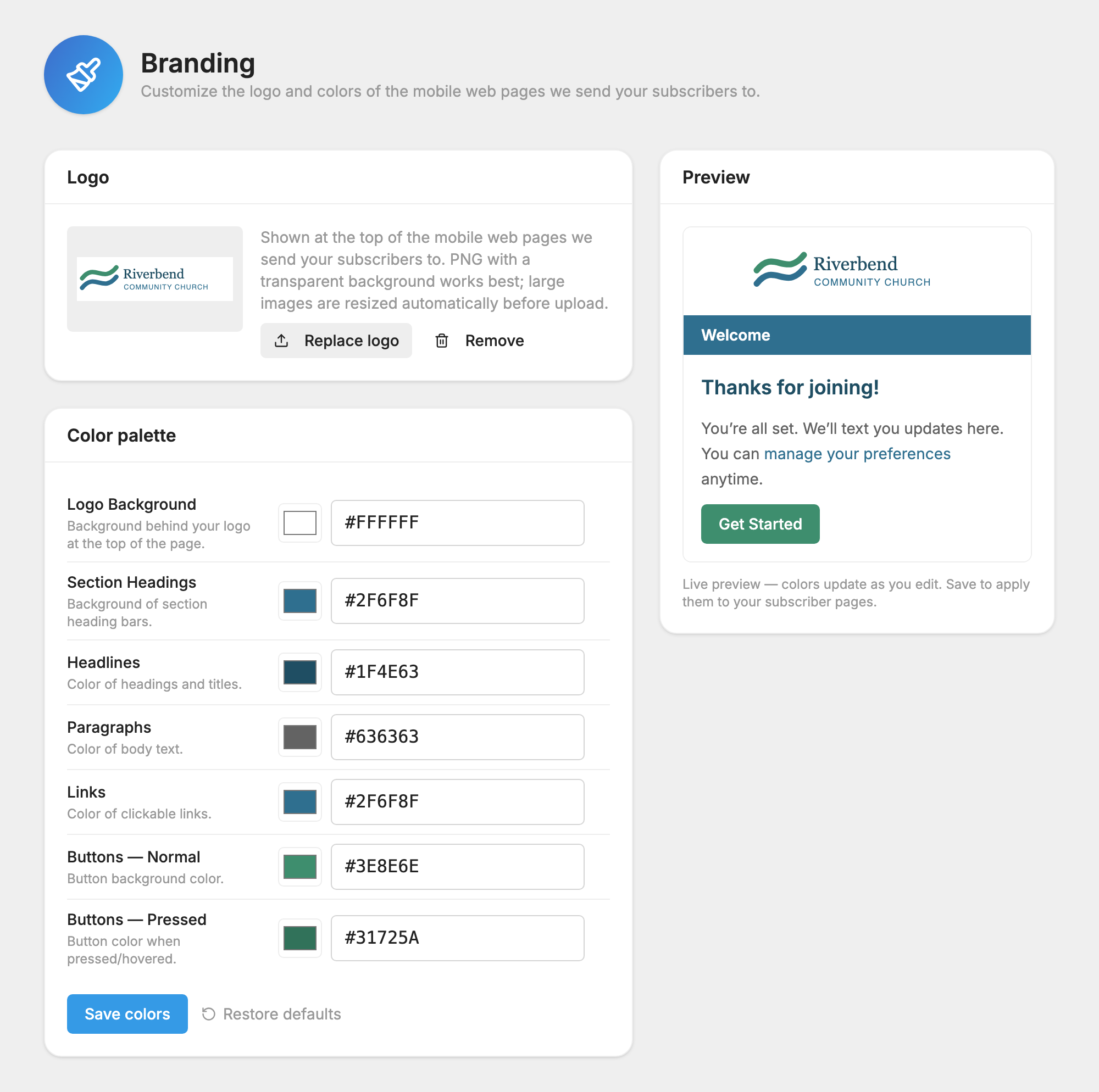
Change your logo and colors
- Click Branding under Management in the left-hand column.
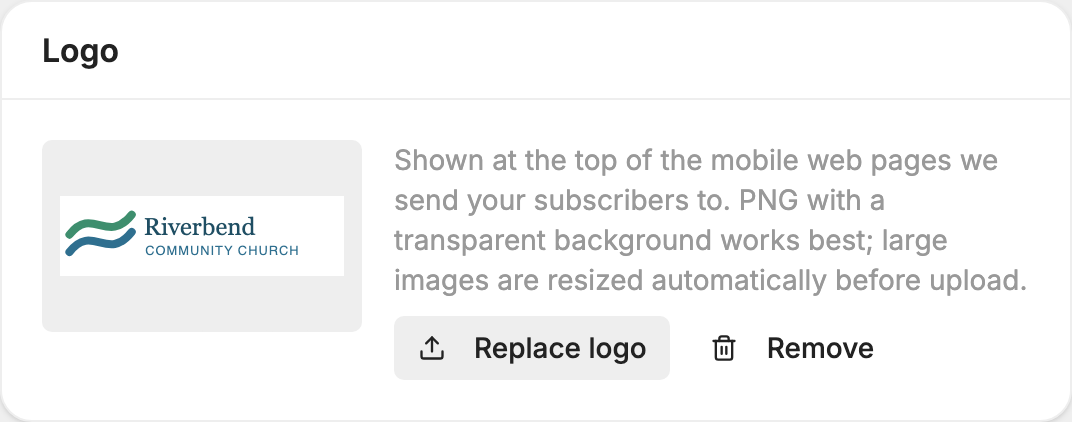
- Click Upload logo and choose your image. A PNG with a transparent background works best, and large images are resized for you.
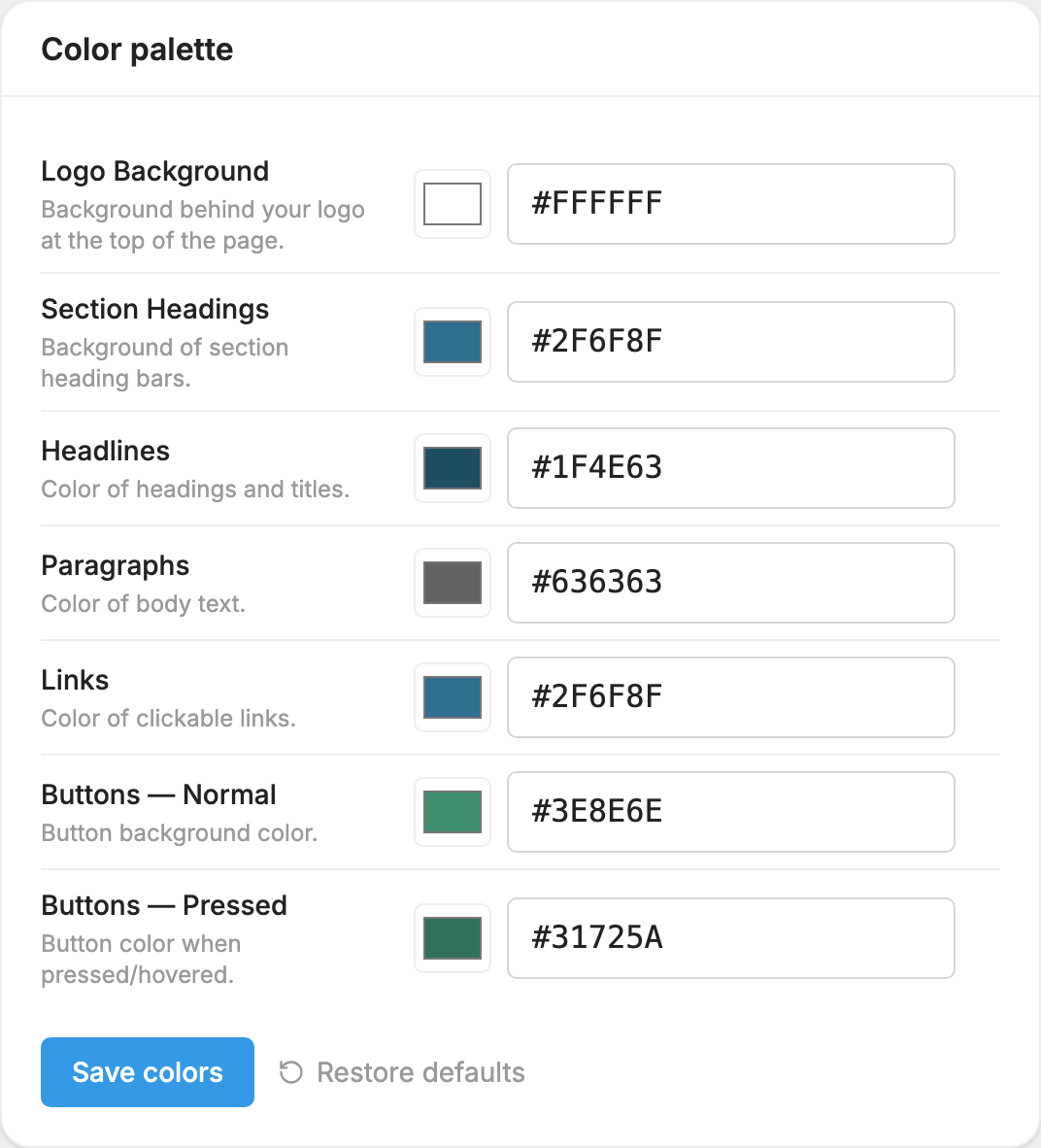
- Set your colors under Color palette. Click a color box to pick a color, or paste a color code such as #359AE6.
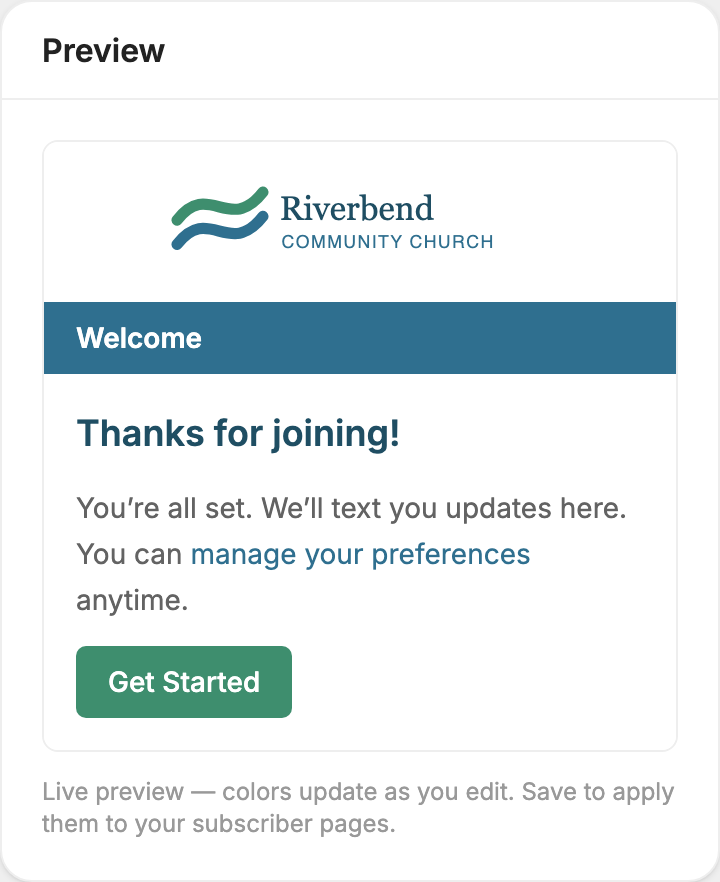
- Watch the Preview on the right. It updates as you edit.
- Click Save colors.
Your logo saves as soon as it uploads. Your colors reach people's pages when you click Save colors.
What each color changes
- Logo Background: behind your logo at the top of the page.
- Section Headings: the background of section heading bars.
- Headlines: headings and titles.
- Paragraphs: body text.
- Links: clickable links.
- Buttons: there are two, Normal for the button itself and Pressed for how it looks when pressed.
Change it back
- Replace logo swaps your logo. Remove takes it off, and your organization's name shows in its place.
- Restore defaults puts the standard colors back. It takes effect right away, with no need to click Save colors.
Your logo can also go on your contact card.
